
1. Introduction
This manual provides detailed instructions for the installation, operation, and maintenance of your Leadfan 10.1-inch Android Car Radio. Please read this manual thoroughly before using the product to ensure proper function and safety. Keep this manual for future reference.
2. Product Overview
2.1 Key Features
- 10.1-inch IPS Touch Screen (1080*600 resolution)
- Android 12 Operating System
- 2GB RAM + 32GB ROM
- 4-Core CPU
- Wireless Apple CarPlay & Android Auto
- Built-in GPS Navigation (Online & Offline)
- WiFi Connectivity
- Bluetooth for Hands-Free Calling & Music Streaming
- FM Radio
- MirrorLink Functionality
- Steering Wheel Control Support
- Built-in EQ Settings
- Backup Camera Support (AHD Camera included)
2.2 Included Components
The package includes the following items:
- Leadfan 10.1-inch Android Car Radio Unit
- Rear View Camera
- RCA Cable
- Power Cable
- CanBus Decoder
- GPS Antenna
- USB Cable
- Speaker
- User Manual
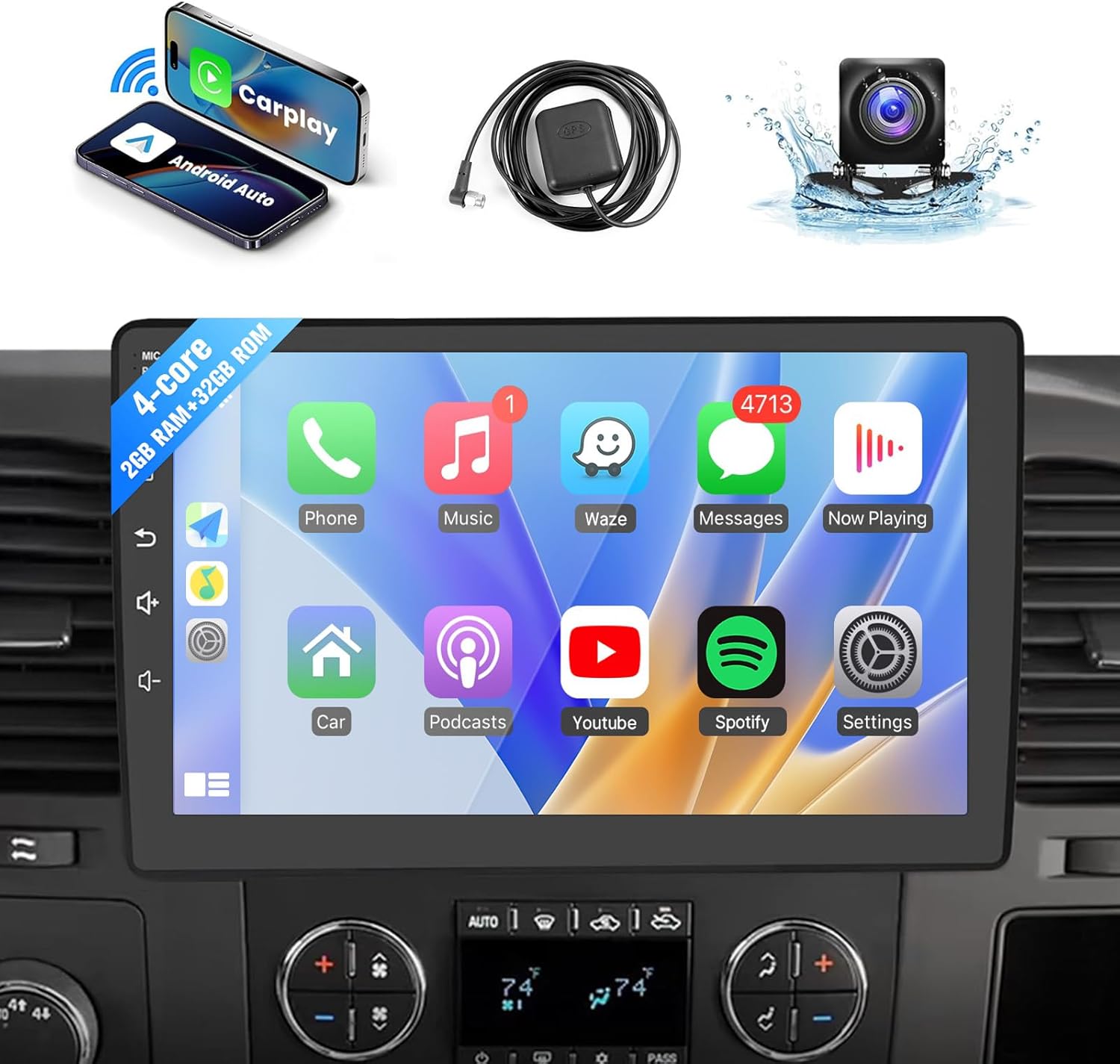
Image: Leadfan 10.1-inch Android Car Radio unit and its primary accessories.

Image: Detailed diagram of the head unit's dimensions, rear connections, and a comprehensive list of all components included in the package.
3. Compatibility
This Leadfan Android Car Radio is designed for specific Chevrolet, GMC, and Buick models. Please confirm your vehicle's compatibility before installation.
3.1 Applicable Models
- Chevrolet: Tahoe (2007-2014), Silverado 1500 (2007-2013), Silverado 2500HD (2007-2013), Silverado 3500HD (2007-2013), Avalanche (2007-2013), Express Van (2008-2019), Impala (2006-2013), Traverse (2008-2012), Suburban (2007-2012)
- GMC: Acadia (2007-2012), Yukon (2007-2014), Sierra (2007-2013), Savana (2008-2019)
- Buick: Enclave (2008-2012)
The unit is designed for a direct fit without requiring additional accessories for these models. It is not SiriusXM compatible.

Image: Visual guide for confirming vehicle compatibility based on the original car radio's appearance and plug type.
4. Setup & Installation
Installation should ideally be performed by a qualified professional. If you choose to install it yourself, ensure the vehicle's battery is disconnected before starting. Refer to the wiring diagram provided in Section 2.2 and the included user manual for specific wiring instructions.
4.1 General Installation Steps
- Preparation: Disconnect the negative terminal of your car battery.
- Remove Old Unit: Carefully remove your existing car radio and trim.
- Connect Wiring: Connect the provided power cable, RCA cable, GPS antenna, and CanBus decoder to the new head unit and your vehicle's harness. Ensure all connections are secure.
- Backup Camera: Install the backup camera at the rear of your vehicle and route its cable to the head unit's reverse input.
- Test Connections: Before fully mounting, reconnect the battery and perform a basic test of the unit's functions (power, audio, touch screen, camera).
- Mount Unit: Securely mount the new head unit into the dashboard.
- Final Assembly: Reinstall any removed trim pieces.
5. Operating Instructions
5.1 Wireless CarPlay & Android Auto
The unit supports wireless Apple CarPlay and Android Auto for seamless smartphone integration.
- Ensure your phone's Bluetooth and Wi-Fi are enabled.
- On the head unit, navigate to the CarPlay or Android Auto application.
- Follow the on-screen prompts to pair your smartphone via Bluetooth.
- Once paired, the system will automatically connect via Wi-Fi for wireless CarPlay/Android Auto functionality.
This allows access to navigation, calls, messages, and music directly from your phone's interface on the car radio screen.

Image: Wireless Apple CarPlay and Android Auto interfaces with voice control examples.
5.2 GPS Navigation & WiFi Connectivity
The unit features a built-in GPS receiver and supports both online and offline navigation.
- Online Navigation: Connect the unit to a Wi-Fi network (e.g., via mobile hotspot) to use online mapping applications like Google Maps or Waze.
- Offline Navigation: Pre-loaded offline map files are available. You can also download additional offline maps as needed.
- WiFi: Connect to a Wi-Fi network to download apps, browse the internet, and access online services.
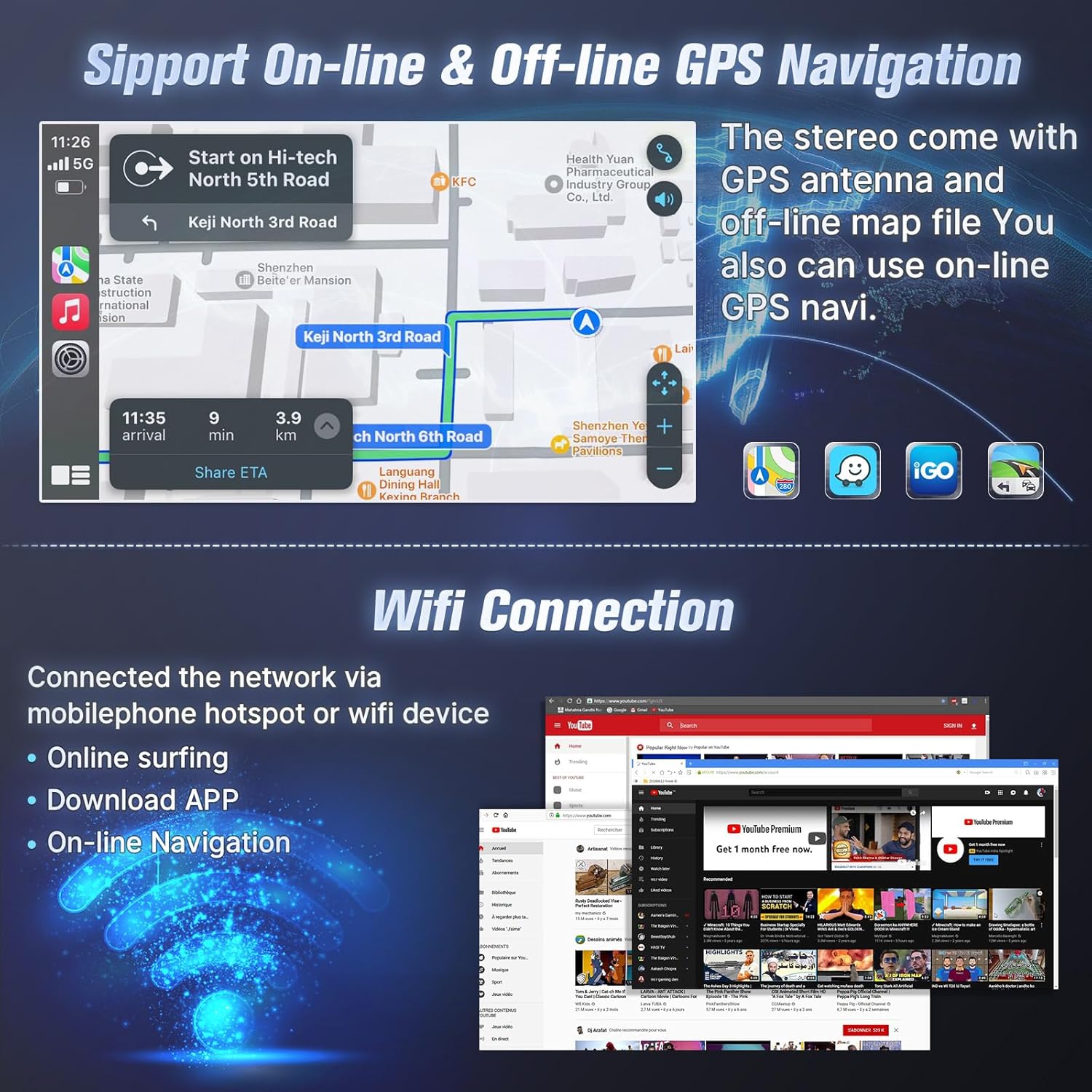
Image: GPS navigation interface and WiFi connectivity options.
5.3 Bluetooth Functions
Connect your smartphone via Bluetooth for hands-free calling and music playback.
- Hands-Free Calling: Pair your phone to make and receive calls directly from the head unit. The address book can be synchronized.
- Music Playback: Stream audio from your phone to the car stereo.

Image: Bluetooth calling and music streaming features.
5.4 MirrorLink
MirrorLink allows you to display your smartphone's screen on the head unit.
- iOS Devices: Supports wireless connection.
- Android Devices: Supports wireless or wired (USB) connection.
This feature enables access to your phone's apps, music, and videos on the larger display.

Image: MirrorLink functionality for iOS and Android devices.
5.5 Steering Wheel Control
The unit supports existing steering wheel controls for convenient operation.
- Program the steering wheel buttons to control functions such as volume adjustment, track changes, and answering/ending calls.
- This enhances driving safety by keeping your hands on the wheel.

Image: Steering wheel control integration for safer operation.
5.6 EQ Settings & FM Radio
- EQ Settings: Customize your audio experience with the built-in equalizer, supporting various sound effects.
- FM Radio: Enjoy your favorite radio stations with clear FM reception.

Image: EQ sound adjustment and FM radio interface.
5.7 Split-Screen Mode
The split-screen feature allows you to run two applications simultaneously on the display.
- For example, you can use navigation on one side while playing music or browsing on the other.
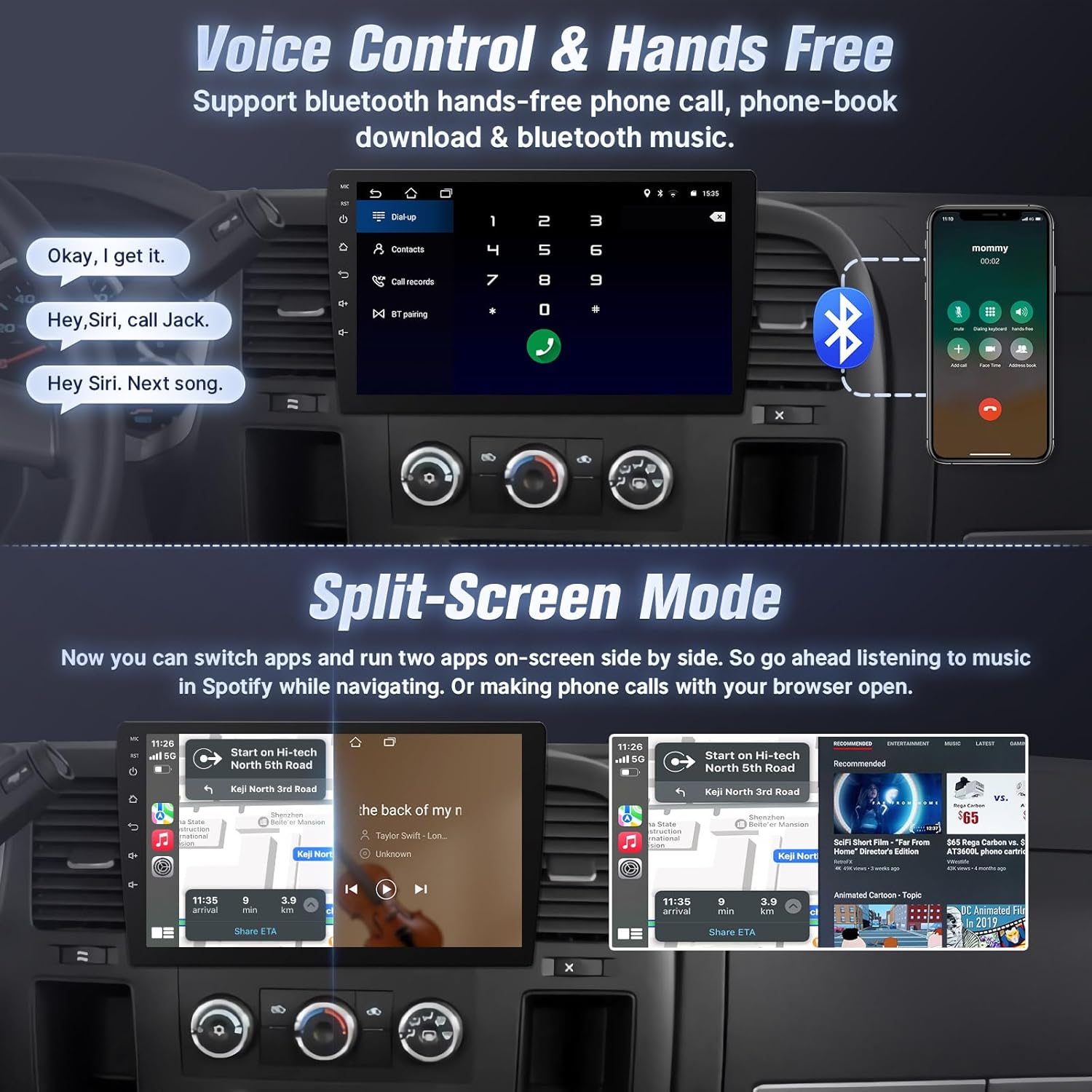
Image: Split-screen mode in action, showing two applications running concurrently.
5.8 Backup Camera
A waterproof AHD rear view camera with night vision is included to assist with parking.
- When the vehicle is shifted into reverse, the display will automatically switch to the camera view.
6. Maintenance
- Screen Cleaning: Use a soft, lint-free cloth to clean the touchscreen. Avoid abrasive cleaners or solvents.
- Software Updates: Periodically check for software updates to ensure optimal performance and access to new features. Updates can typically be downloaded via Wi-Fi.
- General Care: Avoid exposing the unit to extreme temperatures or direct sunlight for prolonged periods.
7. Troubleshooting
| Problem | Possible Cause | Solution |
|---|---|---|
| Unit does not power on | Incorrect wiring, blown fuse, vehicle battery issue | Check power connections, inspect vehicle fuses, ensure battery is charged. |
| No sound | Volume too low, incorrect audio settings, speaker wiring issue | Increase volume, check EQ settings, verify speaker connections. |
| Touchscreen unresponsive | Software glitch, screen protector interference | Restart the unit. If a screen protector is installed, ensure it is properly applied. |
| CarPlay/Android Auto not connecting | Bluetooth/Wi-Fi off, phone compatibility, app issues | Ensure phone's Bluetooth/Wi-Fi is on. Restart phone and head unit. Check phone's compatibility with CarPlay/Android Auto. |
| Backup camera not displaying | Incorrect wiring, camera malfunction | Verify camera power and video signal connections. Ensure reverse trigger wire is correctly connected. |
For further assistance, refer to the support section.
8. Specifications
| Feature | Detail |
|---|---|
| Display Size | 10.1 Inches |
| Resolution | 1080*600 |
| Operating System | Android 12 |
| RAM | 2GB |
| ROM | 32GB |
| CPU | 4-Core |
| Connectivity | Bluetooth, Wi-Fi |
| Special Features | Bluetooth, Touchscreen, Waterproof (Camera) |
| Map Type | North America (Pre-loaded) |
| Mounting Type | Dashboard Mount |
| Item Weight | 3.31 pounds |
| Product Dimensions | 11.8 x 2.9 x 3.7 inches |
9. Warranty & Support
Leadfan provides the following support for this product:
- Warranty: 1-year warranty.
- Money Back Service: 30 days money back service.
- Technical Support: 24-hour after-sales technical support.
- Replacement: 12 months replacement available.
- Lifetime Support: Lifetime after-sales consult and technical support.
9.1 How to Contact Support
If you encounter any issues or require technical assistance, please contact Leadfan customer service through the Amazon platform. You can typically find the 'Ask a question' option on the seller's page.

Image: Instructions on how to contact Leadfan customer support.


