
ieGeek ZS-GQ2
ieGeek 2.4G/5GHz PTZ Security Camera Outdoor
User Manual
Model: ZS-GQ2 | Brand: ieGeek
1. Introduction
This manual provides detailed instructions for the installation, operation, and maintenance of your ieGeek 2.4G/5GHz PTZ Security Camera Outdoor. Please read this manual thoroughly before using the product to ensure proper function and safety. Keep this manual for future reference.
2. Product Overview
The ieGeek PTZ Security Camera is designed for outdoor surveillance, offering 2K 3MP resolution, dual-band WiFi connectivity, and advanced features for comprehensive home security.

Figure 2.1: ieGeek 2.4G/5GHz PTZ Security Camera Outdoor. This image shows the main camera unit with its dual antennas and integrated spotlight LEDs.

Figure 2.2: Overview of key features including 24/7 recording, AI detection, two-way talk, PTZ control, customizable alert areas, 2K image quality, humanoid auto-tracking, multi-user sharing, local and cloud storage, and audible & light alarms.
3. Features
- 2.4G/5GHz Dual-Band WiFi & 2-Way Real-time Talk: Supports both 2.4 GHz and 5 GHz WiFi for a stable and fast connection. Features a built-in anti-noise microphone and speaker for clear two-way audio communication.
- 2K Color Night Vision & Real-time View & Playback: Equipped with three night vision modes (including color night vision) and adjustable contrast/brightness. Offers up to 25m night vision distance and 4X digital zoom. View live video and playback recorded footage anytime, anywhere.
- 355° Pan 120° Tilt & Motion Detection & Real-time Notification: Provides a 360° viewing angle with PTZ (Pan-Tilt-Zoom) capabilities. Supports horizontal automatic tracking and vertical manual tracking. Features a sensitive CMOS sensor, adjustable alarm sound, and detection sensitivity. Receive real-time notifications on your app when motion or sound is detected.
- Wired Mains Powered 12V & 1 Minute Installation: Designed for easy plug-in and play installation with a mains power adapter. IP66 waterproof ABS housing ensures reliable operation in various weather conditions.
- All-in-one App Control by Smart Phone/Tablet: Control all camera functions via the ieGeek Cam application. Share camera access with up to 5 friends. Supports manual video recording and local SD card storage (2GB-128GB, not included).
4. Setup
Follow these steps for quick and easy installation of your ieGeek security camera.
4.1 Physical Installation
- Choose a Location: Select an outdoor location with a clear view of the area you wish to monitor. Ensure it is within range of your WiFi network and a power outlet.
- Mount the Camera: Use the provided screws to fix the camera securely to a wall or suitable surface. The camera is designed for wall mounting.
- Connect Power: Plug the provided 12V mains power adapter into the camera and then into a power outlet. The camera is wired for continuous power.

Figure 4.1: Securing the camera to a wall using a screwdriver for a plug-in type installation.
4.2 App Setup and WiFi Connection
- Download the App: Download the "ieGeek Cam" app from the App Store (iOS) or Google Play Store (Android).
- Register/Login: Open the app and follow the prompts to register a new account or log in if you already have one.
- Add Device: Tap the "+" icon to add a new device. Follow the in-app instructions to connect your camera to your 2.4GHz or 5GHz WiFi network. The camera features 5dBi antennas for enhanced signal reception.
- Initial Configuration: Once connected, you can set up basic camera settings such as device name, time zone, and storage options.

Figure 4.2: The ieGeek Cam app interface on a smartphone, used for controlling and managing the camera.
5. Operating the Camera
5.1 Live View and Playback
Access the live feed from your camera through the ieGeek Cam app. You can also review recorded footage stored on the SD card or cloud.
5.2 Pan, Tilt, and Zoom (PTZ) Control
Use the directional controls within the app to remotely adjust the camera's viewing angle. The camera supports 355° horizontal pan and 120° vertical tilt for comprehensive coverage.
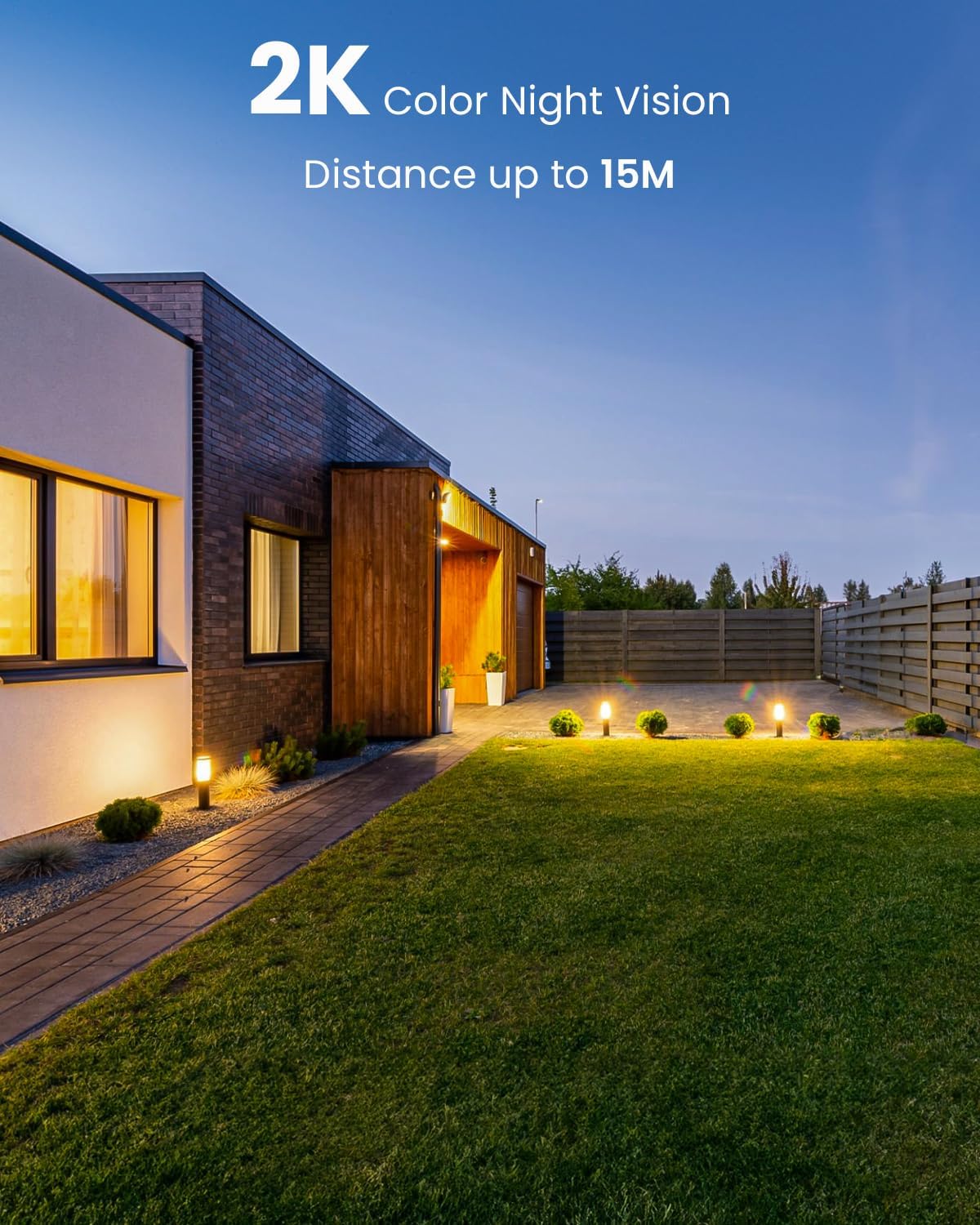
Figure 5.1: The camera's pan (355°) and tilt (120°) capabilities, allowing for a wide surveillance area.
5.3 Night Vision Modes
The camera offers multiple night vision options, including full-color night vision, black and white infrared night vision, and smart mode which automatically switches based on light conditions. This ensures clear visibility up to 25 meters in low-light environments.

Figure 5.2: Example of 2K color night vision, providing clear images even in low light conditions up to 15 meters.
5.4 Motion Detection and Tracking
Configure motion detection sensitivity and set specific detection zones within the app. When motion is detected, the camera can automatically track the subject and send real-time notifications to your smartphone. The camera can also trigger a siren or spotlight alarm.

Figure 5.3: The camera's automatic tracking feature, following the trajectory of human movement.

Figure 5.4: The sound and light alarm system, an effective deterrent for potential intruders.
5.5 Two-Way Audio Communication
Utilize the built-in microphone and speaker to communicate with visitors or deter unwanted guests directly through the app.

Figure 5.5: Demonstrates the two-way audio feature, allowing real-time conversation with someone at your door.
5.6 Alexa Integration
The camera is compatible with Amazon Alexa. You can view the camera feed on compatible Alexa-enabled devices using voice commands.
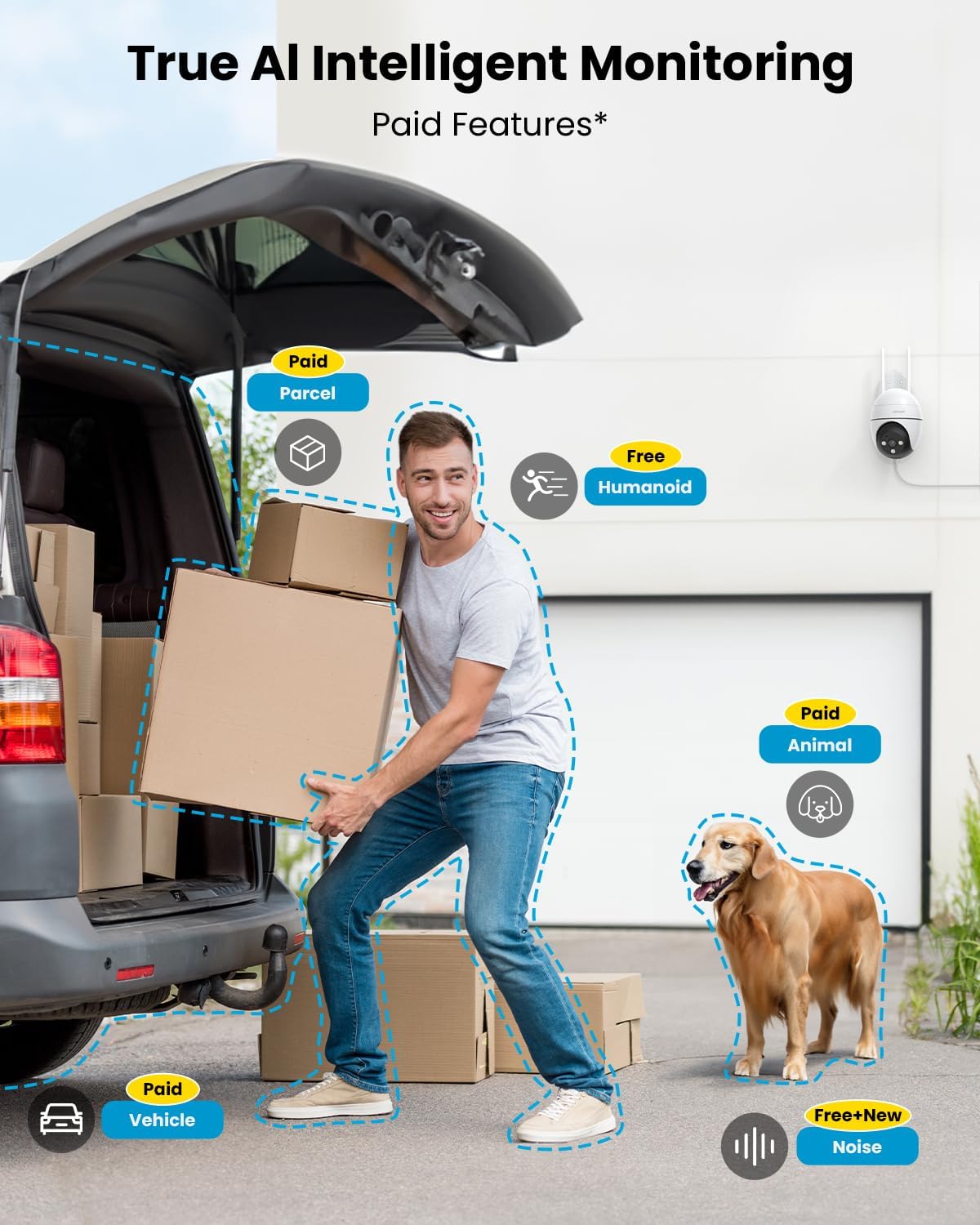
Figure 5.6: The camera's compatibility with Amazon Alexa, allowing voice control and viewing on smart displays.
6. Maintenance
Regular maintenance ensures optimal performance and longevity of your security camera.
- Cleaning: Periodically clean the camera lens and housing with a soft, damp cloth. Avoid abrasive cleaners or solvents.
- Weather Resistance: The camera has an IP66 waterproof rating, designed to withstand various weather conditions including wind and rain. However, ensure proper installation to prevent water ingress.
- Firmware Updates: Check the ieGeek Cam app regularly for available firmware updates to ensure your camera has the latest features and security enhancements.

Figure 6.1: The camera's IP66 waterproof design, ensuring reliable operation even in rainy conditions.
7. Troubleshooting
This section addresses common issues you might encounter with your ieGeek security camera.
- Camera Offline:
Ensure the camera is properly powered and connected to your WiFi network. Check your router's signal strength and consider repositioning the camera or router for better connectivity. The camera's dual-band WiFi and 5dBi antennas are designed for stable connections. - Poor Image Quality:
Verify that the lens is clean and free from obstructions. Check your internet connection speed, as a slow connection can affect video streaming quality. Ensure the camera is set to 2K resolution in the app settings. - False Alarms:
Adjust the motion detection sensitivity in the app. Utilize the customizable alert areas to exclude irrelevant zones. The camera's AI human detection helps reduce false alarms from animals or other non-human movements. Note that some advanced AI features (e.g., parcel, animal, vehicle detection) may require an additional paid subscription.

Figure 7.1: Illustration of AI intelligent monitoring, highlighting that some advanced features like parcel, animal, and vehicle detection are paid services.
Ensure the microphone and speaker permissions are enabled for the ieGeek Cam app on your smartphone. Check the volume settings on both your phone and within the app.
If you experience frequent
Related documentsZS-GQ2


Ask a question about this manual
Ask about setup, troubleshooting, compatibility, parts, safety, or missing instructions. Manuals+ will review the question and use this page’s manual context to help answer it.