
pelsee P12 Pro Max
Pelsee P12 Pro Max 4K+2.5K Rear View Mirror Camera User Manual
Model: P12 Pro Max | Brand: Pelsee
1. Introduction
The Pelsee P12 Pro Max is an advanced rear view mirror camera system designed to enhance driving safety and provide comprehensive recording capabilities. It features high-resolution front and rear cameras, smart driving assistance systems, and convenient voice control.

Figure 1.1: Pelsee P12 Pro Max Mirror Dash Cam
2. What's in the Box
Please check the package contents upon unboxing to ensure all components are present:
- 1 x 4K 12" Mirror Dash Cam
- 1 x 2.5K Rear Camera (19.6ft rear camera cable)
- 1 x 11.5ft Car Charger
- 1 x 64GB Memory card
- 1 x GPS Antenna
- 2 x 3M Adhesive Pads
- 1 x Easy Pry Tool
- 1 x Cleaning Cloth
- 1 x User Manual
- 4 x Rubber Straps

Figure 2.1: Package Contents
3. Setup and Installation
3.1 Mounting the Mirror Dash Cam
- Secure the mirror dash cam over your existing rearview mirror using the provided rubber straps. Ensure it is firmly attached and does not obstruct your view.
- Adjust the angle of the front camera lens to capture the desired view of the road ahead.
3.2 Installing the Rear Camera
- Choose a suitable location for the rear camera, typically above the license plate or inside the rear window. Clean the surface thoroughly before mounting.
- Attach the rear camera using the 3M adhesive pad or screws if preferred.
- Route the rear camera cable from the rear of the vehicle to the front, connecting it to the main mirror dash cam unit. Conceal the cable along the vehicle's trim for a neat installation.
- For parking assist functionality, connect the red wire from the rear camera cable to your vehicle's reverse light positive wire.
3.3 Power Connection and GPS Antenna
- Connect the car charger to the mirror dash cam and plug the other end into your vehicle's 12V power outlet (cigarette lighter socket).
- Attach the GPS antenna to the designated port on the dash cam. Position the antenna on the dashboard or windshield where it has a clear view of the sky for optimal signal reception.
- Insert the included 64GB memory card into the designated slot on the dash cam. Ensure it is inserted correctly.
4. Operating Instructions
4.1 Basic Operation
- The dash cam will automatically power on and begin recording when your vehicle starts.
- The 12-inch touchscreen display provides a live view from the cameras. Swipe left/right on the screen to switch between front, rear, or dual camera views.
- Swipe up/down on the left side of the screen to adjust the camera lens angle (up/down).
- Swipe up/down on the right side of the screen to adjust screen brightness.
4.2 Recording Features
4.2.1 4K Front and 2.5K Rear Recording
The P12 Pro Max captures crystal-clear footage with its 4K front camera and 2.5K rear camera. The Sony Starvis sensor ensures clear images with low noise, even in low-light conditions.

Figure 4.1: Dual Camera Recording
4.2.2 Incredible Night Vision
Equipped with a Sony Starvis sensor, the dash cam provides enhanced night vision, capturing clear details in challenging low-light environments.

Figure 4.2: Enhanced Night Vision
4.2.3 Loop Recording & G-Sensor
Loop recording ensures continuous recording by overwriting the oldest files when the memory card is full. The built-in G-sensor automatically detects collisions and locks the corresponding footage to prevent it from being overwritten, securing important event videos.
4.3 Smart Features
4.3.1 5.8GHz WiFi Connectivity
Utilize the 5.8GHz WiFi for seamless, high-speed access to video files via the Pelsee app. This allows for quick downloading, viewing, and sharing of footage directly from your smartphone.
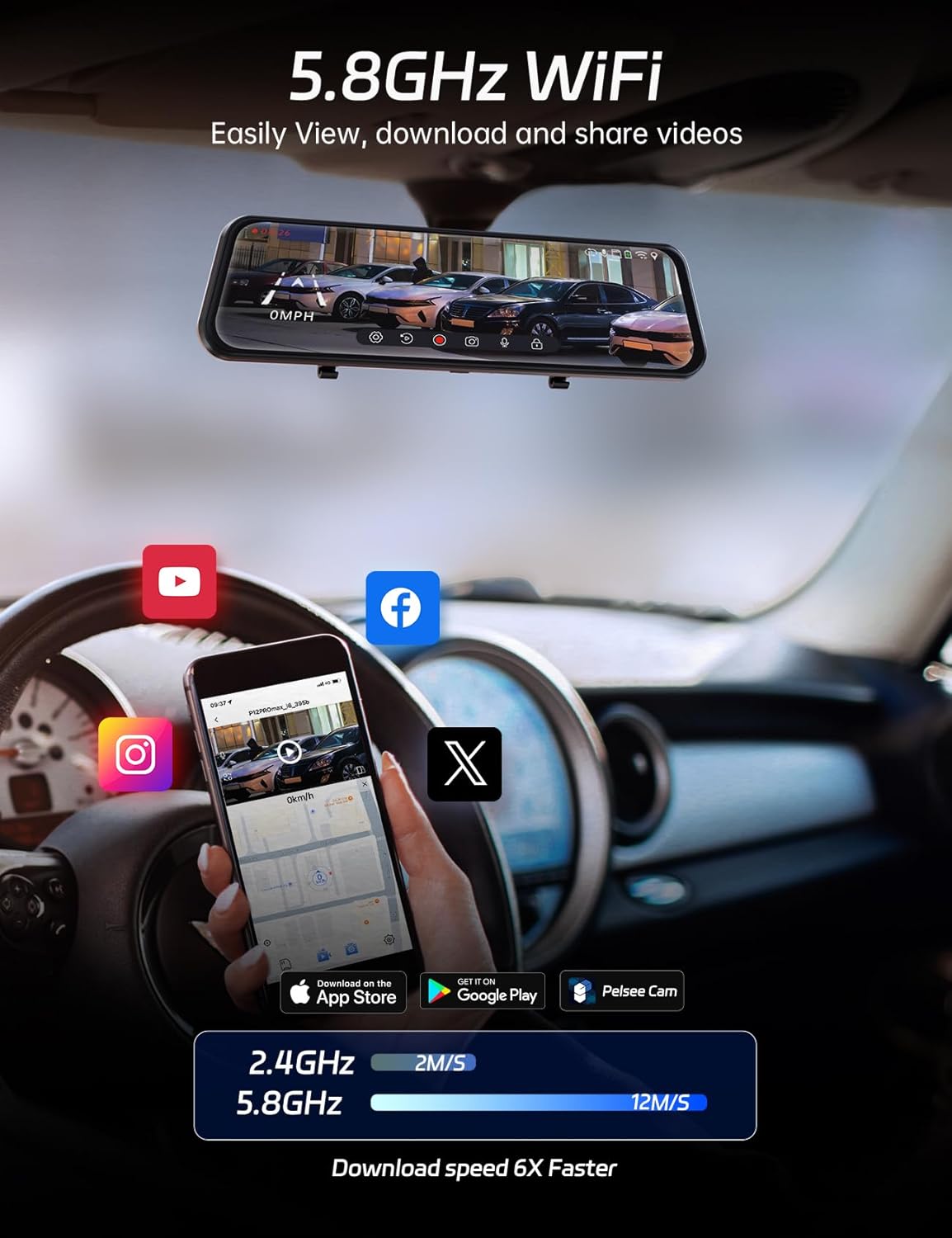
Figure 4.3: High-Speed WiFi Connection
4.3.2 Smart Driving System (ADAS & BSD)
The Advanced Driver Assistance System (ADAS) provides real-time voice alerts for potential hazards such as front vehicle collisions, front vehicle starts, and pedestrian collisions. The Blind Spot Detection (BSD) feature alerts you when a vehicle is detected in your blind spot, enhancing safety during lane changes.

Figure 4.4: ADAS Alerts
4.3.3 Voice Control
Operate the dash cam hands-free using simple voice commands to minimize distractions while driving. Available commands include:
- "Turn on screen" / "Turn off screen"
- "Show front camera" / "Show rear camera" / "Show both cameras"
- "Turn on audio" / "Turn off audio"
- "Lock the video"
- "Take photo"
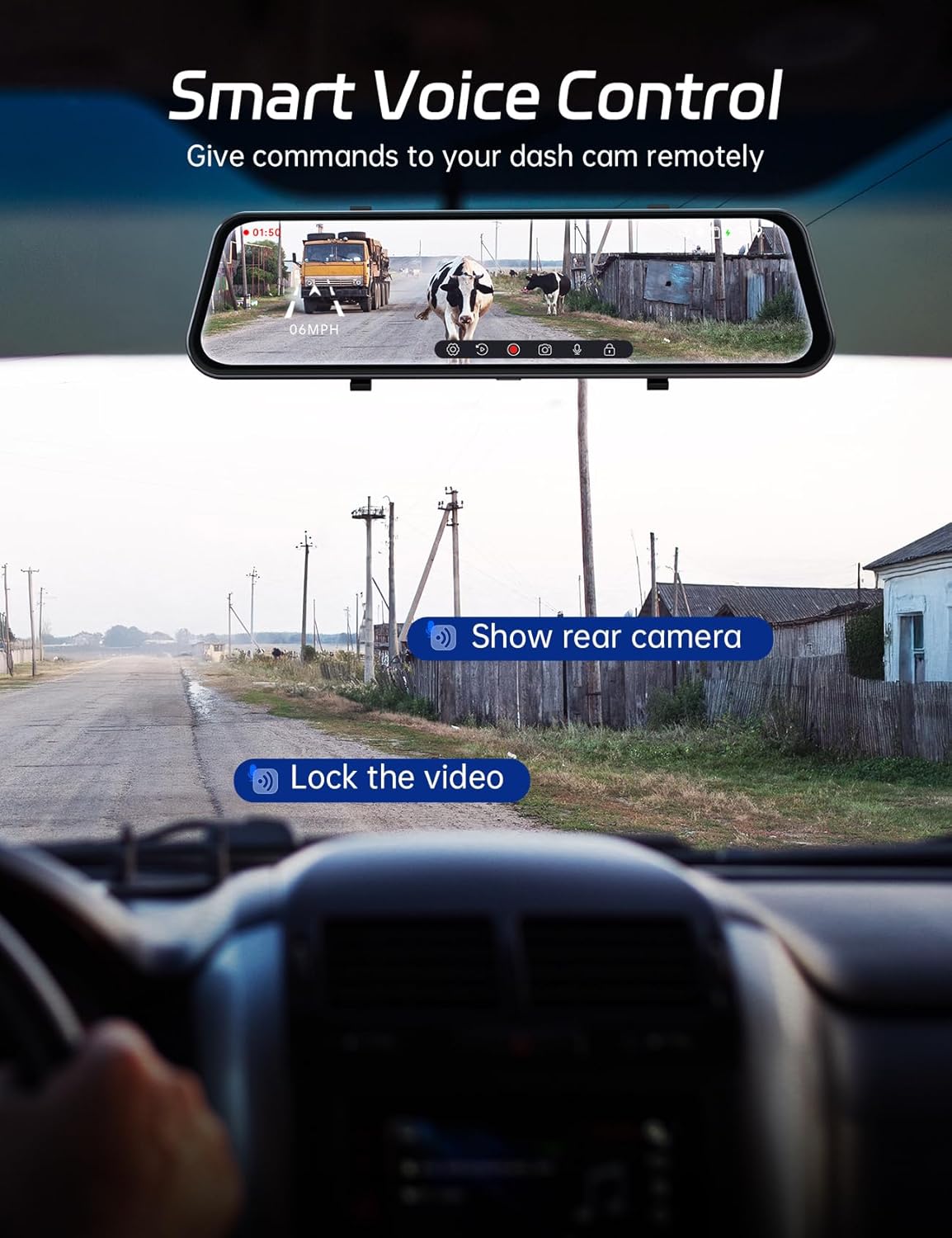
Figure 4.5: Voice Control Interface
4.3.4 Smart GPS Tracking
The built-in GPS antenna tracks your route and speed, providing valuable data that can be viewed alongside your video footage. This feature is crucial for accurate incident reporting and travel logging.

Figure 4.6: GPS Tracking Display
4.3.5 Parking Assist
When reversing, the dash cam automatically displays a live feed from the rear camera on the 12-inch screen, complete with customizable parking guidelines. This assists in precise vehicle positioning and distance measurement, making parking easier and safer.
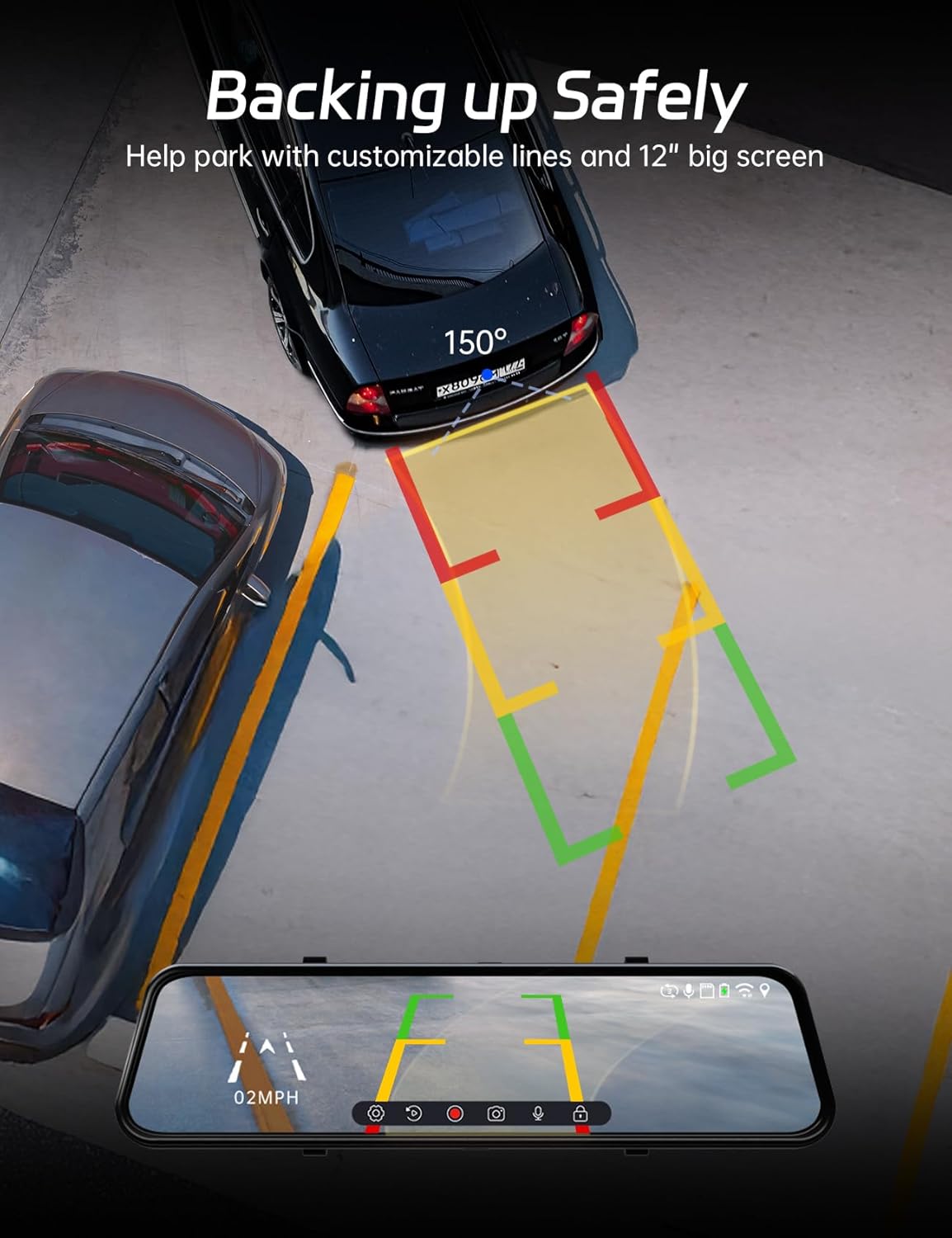
Figure 4.7: Parking Assist View
4.3.6 Optional 24/7 Parking Monitoring
For continuous protection while parked, the P12 Pro Max supports 24/7 parking monitoring when paired with a separate hardware kit (ASIN: B0C7QY4KB9). You can choose between two modes:
- G-sensor Mode: Records automatically if the vehicle experiences a bump or impact.
- Time-lapse Mode: Provides continuous footage at a low frame rate, conserving storage space.

Figure 4.8: Parking Monitoring Options
5. Maintenance
5.1 Cleaning the Device
- Use the provided cleaning cloth or a soft, lint-free cloth to gently wipe the screen and camera lenses.
- Do not use abrasive cleaners or solvents, as they may damage the device.
- Ensure the device is powered off before cleaning.
5.2 Memory Card Management
- Regularly format the memory card (at least once a month) through the dash cam's settings to ensure optimal performance and prevent data corruption.
- Use a high-quality Class 10 or U3 microSD card for reliable recording.
5.3 Environmental Considerations
The Pelsee P12 Pro Max is designed to operate within a wide temperature range, from -4°F to 158°F (-20°C to 70°C), ensuring reliable performance in various climates.

Figure 5.1: Operating Temperature Range
6. Troubleshooting
If you encounter issues with your Pelsee P12 Pro Max, please refer to the following common solutions:
6.1 Device Not Powering On / Random Shutdowns
- Ensure the car charger is securely connected to both the dash cam and the vehicle's 12V power outlet.
- Check the vehicle's 12V power outlet for power. Try plugging in another device.
- If using a hardwire kit for parking monitoring, ensure it is correctly installed and receiving power.
- Perform a factory reset through the system settings.
6.2 Poor Video Quality / Pixelation
- Ensure the camera lenses are clean and free from dirt or smudges.
- Check that the memory card is a high-speed Class 10 or U3 card. A slow card can cause recording issues.
- Format the memory card regularly.
- Verify that the video resolution settings are appropriate for your needs.
6.3 Voice Control Not Responding
- Ensure the voice control feature is enabled in the system settings.
- Speak clearly and directly towards the dash cam.
- Minimize background noise in the vehicle.
6.4 GPS Signal Issues
- Ensure the GPS antenna is securely connected and placed in a location with a clear view of the sky (e.g., dashboard, upper corner of windshield).
- Avoid placing the GPS antenna near other electronic devices that might cause interference.
6.5 Wi-Fi Connection Problems
- Ensure the Pelsee app is installed on your smartphone and updated to the latest version.
- Verify that Wi-Fi is enabled on the dash cam and your smartphone.
- Try restarting both the dash cam and your smartphone.
7. Specifications
| Feature | Detail |
|---|---|
| Model Name | P12 Pro Max |
| Front Camera Resolution | 4K (2160p) |
| Rear Camera Resolution | 2.5K |
| Display Size | 12 inches |
| Sensor | Sony Starvis |
| WiFi Connectivity | 5.8GHz |
| Special Features | ADAS, BSD, Voice Control, Built-In GPS, App Control, 24/7 Parking Monitoring (optional) |
| Included Memory Card | 64GB |
| Power Source | 12V Car Charger |
| Operating Temperature | -4°F to 158°F (-20°C to 70°C) |
| Product Dimensions | 3.35 x 12.13 x 1.81 inches |
| Item Weight | 2.59 pounds |
8. Warranty & Support
Pelsee offers the following assurance for your P12 Pro Max:
- 30 Days Free Return
- 30 Days Money-Back Guarantee
- 18 Months Warranty
For technical support, warranty claims, or any inquiries, please contact Pelsee customer service:
Email: support@pelsee.com

Figure 8.1: Pelsee Brand Logo
Related documentsP12 Pro Max


Ask a question about this manual
Ask about setup, troubleshooting, compatibility, parts, safety, or missing instructions. Manuals+ will review the question and use this page’s manual context to help answer it.