
Energizer EIX1-1005
Energizer Smart 2K QHD Security Camera User Manual
Model: EIX1-1005
1. Introduction
The Energizer Smart 2K QHD Security Camera provides advanced indoor surveillance with high-resolution video and convenient features. This camera captures detailed footage, offers clear night vision, and includes two-way audio for communication. It supports customizable motion detection zones with instant alerts and provides flexible storage options via cloud service or a Micro SD card. The foldable design enhances privacy when the camera is not actively monitoring.
Key Features:
- 2K HD Video Quality: Captures clear and detailed video footage.
- Reliable Night Vision: Provides clear monochrome footage in low-light conditions.
- Two-Way Audio: Enables communication through the camera via the mobile app.
- Customizable Motion Detection: Set specific monitoring zones and receive instant alerts.
- Flexible Storage: Supports cloud storage (with trial) and local Micro SD card storage (not included).
- Foldable Design: Allows for lens coverage to ensure privacy.
- App Control: Manage and monitor your camera using the Energizer Connect app.
2. What's in the Box
Please check the package contents to ensure all items are present:
- Energizer Smart 2K QHD Foldable Camera
- USB Power Cable
- Power Adapter
- User Manual
3. Product Overview
Familiarize yourself with the components of your Energizer Smart 2K QHD Security Camera.
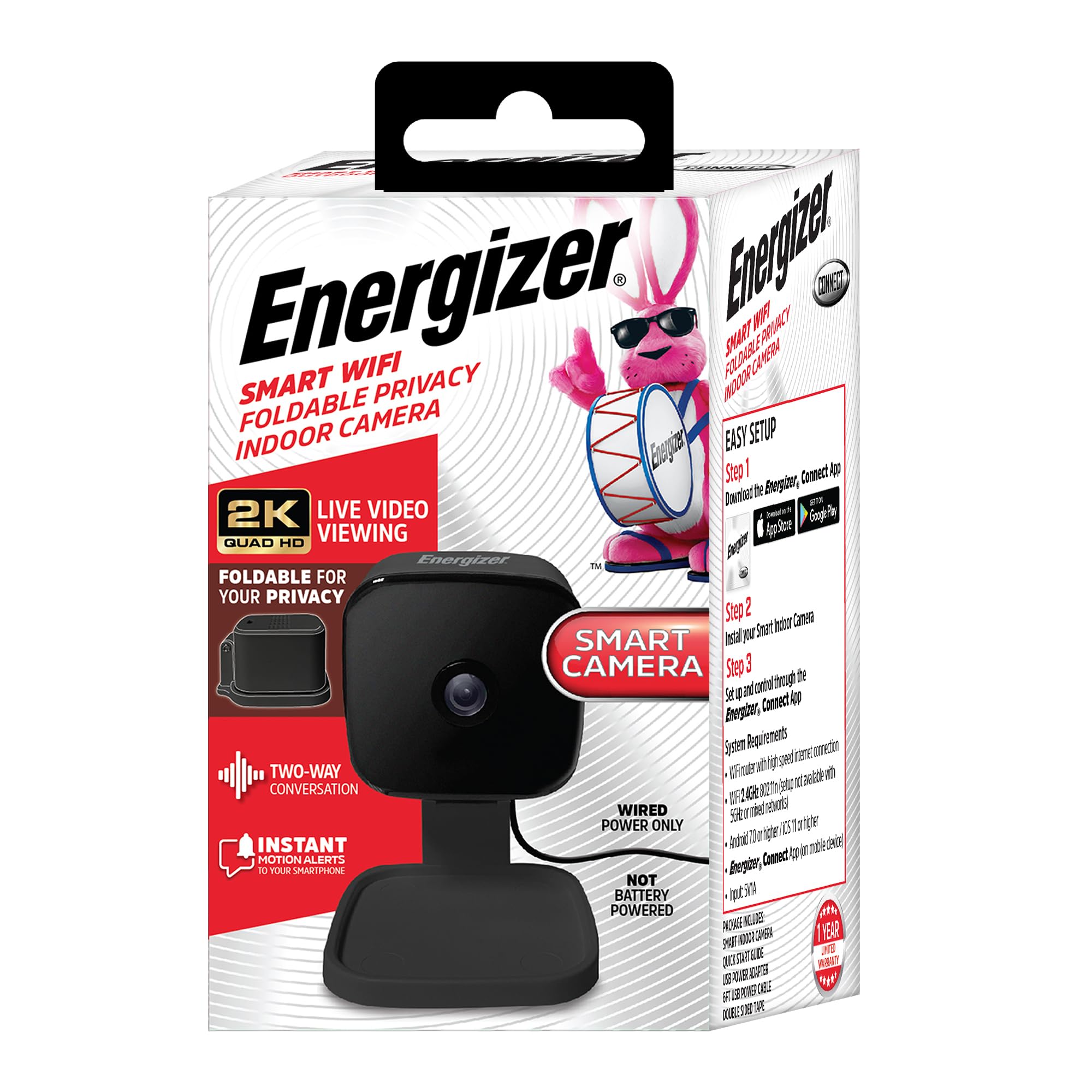
Image: Front view of the Energizer Smart 2K QHD Security Camera, showing the lens and base.

Image: Side view of the camera, illustrating its compact design and connection point.
- Camera Lens: Captures 2K QHD video.
- Microphone: For two-way audio communication.
- Speaker: For two-way audio communication.
- Status Indicator Light: Shows camera status (e.g., pairing mode, connected).
- Micro USB Port: For power connection.
- Reset Button: Used for resetting the camera to factory settings.
- Micro SD Card Slot: For local video storage (card not included).
- Foldable Base: Allows the camera to be folded for privacy.
4. Setup Guide
4.1 Powering On the Camera
- Connect the USB power cable to the camera's Micro USB port.
- Plug the power adapter into a standard electrical outlet.
- The camera's status indicator light will illuminate, indicating it is powered on.

Image: The camera connected to a power source, emphasizing it is wired power only.
4.2 Downloading the Energizer Connect App
- Scan the QR code provided in the camera's packaging or search for "Energizer Connect" in your mobile device's app store (Apple App Store for iOS, Google Play Store for Android).
- Download and install the app.
- Open the app and create an account or log in if you already have one.
4.3 Pairing the Camera with the App
Ensure your mobile device is connected to a 2.4GHz Wi-Fi network. The camera does not support 5GHz Wi-Fi.
- In the Energizer Connect app, tap the "+" icon to add a new device.
- Select "Camera" from the device list.
- Follow the on-screen instructions to put the camera into pairing mode. This usually involves pressing and holding the reset button until the status light blinks rapidly.
- The app will prompt you to enter your 2.4GHz Wi-Fi network password.
- A QR code will appear on your phone screen. Hold your phone approximately 6-8 inches (15-20 cm) in front of the camera lens until you hear a confirmation sound from the camera.
- Once connected, the camera's status light will turn solid, and the camera will appear in your app.
5. Operating Your Camera
5.1 Live View
Access real-time video streaming from your camera through the Energizer Connect app. Simply tap on the camera's name in the app to view its live feed.

Image: Screenshot of the Energizer Connect app displaying a live feed from the camera, showing a dog.
5.2 Two-Way Audio
To use the two-way audio feature:
- While in live view, tap the microphone icon in the app.
- Speak into your phone's microphone. Your voice will be transmitted through the camera's speaker.
- To listen, ensure the speaker icon in the app is enabled.
5.3 Motion Detection and Alerts
The camera can detect motion and send instant notifications to your phone.
- Enable Motion Detection: Go to the camera settings in the app and enable motion detection.
- Customize Detection Zones: Define specific areas within the camera's view where you want motion to be detected, reducing false alerts.
- Adjust Sensitivity: Set the motion detection sensitivity level to suit your environment.
5.4 Night Vision
The camera automatically switches to night vision mode in low-light conditions, providing clear black and white video.

Image: Screenshot of the Energizer Connect app displaying a night vision view of a baby crib.
5.5 Video Storage
- Micro SD Card: Insert a Micro SD card (up to 128GB, not included) into the designated slot for local storage of recorded video. The camera supports continuous recording or event-based recording.
- Cloud Storage: Optional cloud storage plans are available through the Energizer Connect app, often with a free trial period. This provides off-site backup of your recordings.
5.6 Privacy Mode (Foldable Design)
To ensure privacy, the camera features a foldable design. When you wish to temporarily disable surveillance, simply fold the camera head down to cover the lens. This physically blocks the camera's view.

Image: The camera in its folded position, demonstrating the privacy feature.
6. Maintenance
6.1 Cleaning
- Ensure the camera is unplugged before cleaning.
- Use a soft, dry cloth to wipe the camera body.
- For the lens, use a lens cleaning cloth specifically designed for optics to avoid scratches. Do not use harsh chemicals or abrasive cleaners.
6.2 Environmental Considerations
- This camera is designed for indoor use only. Do not expose it to water, moisture, or extreme temperatures.
- Avoid placing the camera in direct sunlight or near heat sources.
7. Troubleshooting
If you encounter issues with your Energizer Smart 2K QHD Security Camera, refer to the following common solutions:
| Issue | Possible Solution |
|---|---|
| Camera not powering on | Ensure the power cable is securely connected to both the camera and the power adapter, and the adapter is plugged into a working electrical outlet. Try a different outlet. |
| Camera not connecting to Wi-Fi | Verify your Wi-Fi network is 2.4GHz. Ensure your phone is connected to the same 2.4GHz network during setup. Move the camera closer to your Wi-Fi router. Reset the camera and try the pairing process again. |
| QR code scanning issues during setup | Ensure your phone screen brightness is high. Hold the phone 6-8 inches (15-20 cm) from the camera lens. Adjust the distance slowly. Ensure the camera lens is clean. |
| Poor video quality | Check your Wi-Fi signal strength. A weak signal can affect video streaming quality. Ensure the camera lens is clean. |
| Motion alerts not received | Verify motion detection is enabled in the app settings. Check app notification settings on your phone. Ensure detection zones are correctly configured. |
| Two-way audio not working | Ensure microphone and speaker permissions are granted to the Energizer Connect app on your phone. Check volume settings on your phone and within the app. |
| Camera stopped working/unpaired | Try resetting the camera using the reset button. If the issue persists, contact customer support. Note: The QR code on the original packaging may be needed for re-pairing after a full reset. |
8. Specifications
| Feature | Detail |
|---|---|
| Model Number | EIX1-1005 |
| Video Capture Resolution | 2K QHD |
| Indoor/Outdoor Usage | Indoor |
| Connectivity Protocol | Wi-Fi (2.4GHz only) |
| Power Source | Corded Electric |
| Compatible Devices | Apple (iOS), Android Smartphones and Tablets |
| Controller Type | App (Energizer Connect) |
| Special Features | 2-Way Audio, Night Vision, Motion Detection, App Control, Motion Detection Zone, Alert Notification, Foldable Design for Privacy |
| Storage Options | Cloud Storage (subscription), Micro SD Card (up to 128GB, not included) |
| Dimensions (L x W x H) | 2.75 x 2.75 x 4.75 inches |
| Item Weight | 5.6 ounces (0.16 Kilograms) |
| Color | Black |
9. Warranty Information
This Energizer Smart 2K QHD Security Camera comes with a limited manufacturer's warranty. For specific details regarding warranty coverage, duration, and terms, please refer to the warranty card included in your product packaging or visit the official Energizer Connect website. Keep your proof of purchase for warranty claims.
10. Customer Support
For further assistance, technical support, or inquiries regarding your Energizer Smart 2K QHD Security Camera, please visit the official Energizer Connect support website or contact their customer service department. You can typically find contact information on the Energizer Connect website or within the Energizer Connect mobile application.
Online Support: www.energizerconnect.com/support (Example Link - please verify official support URL)
Related documentsEIX1-1005


Ask a question about this manual
Ask about setup, troubleshooting, compatibility, parts, safety, or missing instructions. Manuals+ will review the question and use this page’s manual context to help answer it.