
Introduction
This instruction manual provides comprehensive information for the setup, operation, maintenance, and troubleshooting of your Akko 5075B Plus Mechanical Keyboard. Please read this manual thoroughly before using the product to ensure optimal performance and longevity.
Package Contents
Upon unboxing your Akko 5075B Plus Mechanical Keyboard, verify that all the following items are included:
- Akko 5075B Plus Mechanical Keyboard
- Keycap Puller
- USB-C to USB-A Cable
- Additional Cyan Keycaps (for customization)
- Switch Removal Tool

Image: The Akko 5075B Plus Mechanical Keyboard in black with yellow legends, alongside a single mechanical switch. This illustrates the primary product and its core component.
Setup
Connectivity Options
The Akko 5075B Plus keyboard offers versatile connectivity to suit various setups:
- Wired (USB-C): Connect the provided USB-C to USB-A cable from the keyboard's top-left port to your computer's USB-A port. This mode also charges the keyboard.
- Bluetooth 5.0/3.0: Supports connection to multiple devices (up to 3). Refer to your device's Bluetooth pairing instructions.
- 2.4GHz Wireless: Utilize the included USB-A receiver for a stable wireless connection. The receiver is conveniently stored in a dedicated slot on the underside of the keyboard.

Image: An overhead view of the Akko 5075B Plus keyboard with icons representing Bluetooth, Type-C wired, and 2.4GHz wireless connectivity. A tablet, smartphone, and laptop are shown, indicating multi-device compatibility.
Operating System Compatibility
The keyboard features a switch on its underside to select between Mac and Windows operating system layouts, ensuring proper key functionality for your preferred environment.

Image: A close-up of the keyboard's underside, highlighting the physical switch for selecting between Mac, USB (wired), and Windows modes.
Height Adjustment
Two flip-out feet are located on the bottom of the keyboard, allowing you to adjust the typing angle for improved ergonomics and comfort.

Image: A detailed view of the keyboard's underside, showing one of the flip-out feet in its extended position, designed to elevate the keyboard for a more comfortable typing angle.
Operating Instructions
Keycap Profile and Material
The Akko 5075B Plus features PBT Double Shot ASA Profile keycaps. This profile offers a unique, contoured shape with a subtle texture, providing a comfortable and durable typing experience. The shine-through design allows RGB lighting to illuminate the legends effectively.
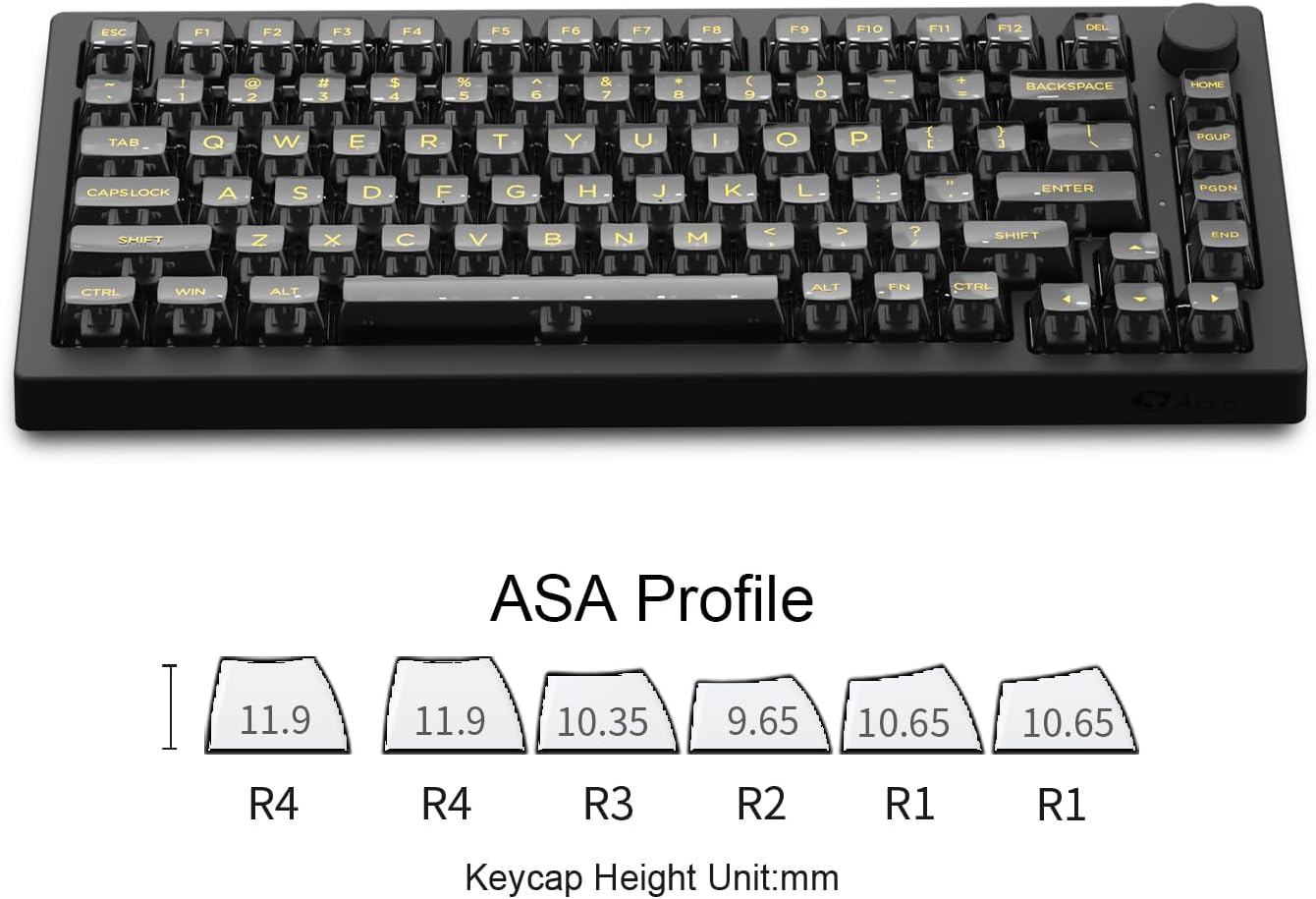
Image: A diagram illustrating the ASA keycap profile, showing the varying heights and contoured shapes of different key rows (R1, R2, R3, R4) in millimeters.

Image: A close-up of the keyboard's keycaps, emphasizing their transparent PC material which enhances the lighting performance.
Hot-Swappable Switches
The keyboard is equipped with 5-pin hot-swappable sockets, allowing users to easily change mechanical switches without soldering. This feature is beneficial for customizing the typing feel or replacing a malfunctioning switch.
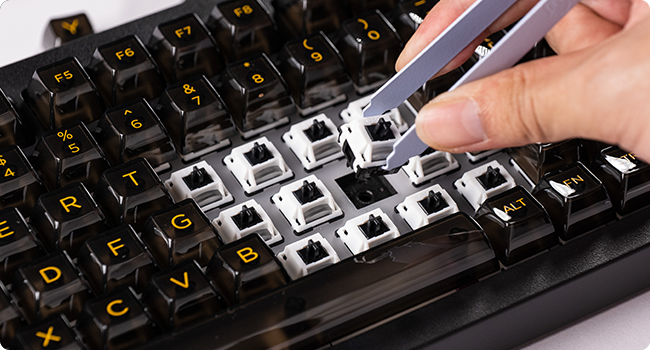
Image: A hand using a tool to remove a mechanical switch from the keyboard, demonstrating the hot-swappable feature.
RGB Backlighting and Knob Control
The Akko 5075B Plus features vibrant RGB backlighting with 20 different effects, including per-key RGB support. It also includes side-LED RGB lighting. The dedicated knob on the top right corner allows for quick adjustment of computer audio volume and RGB backlight levels.
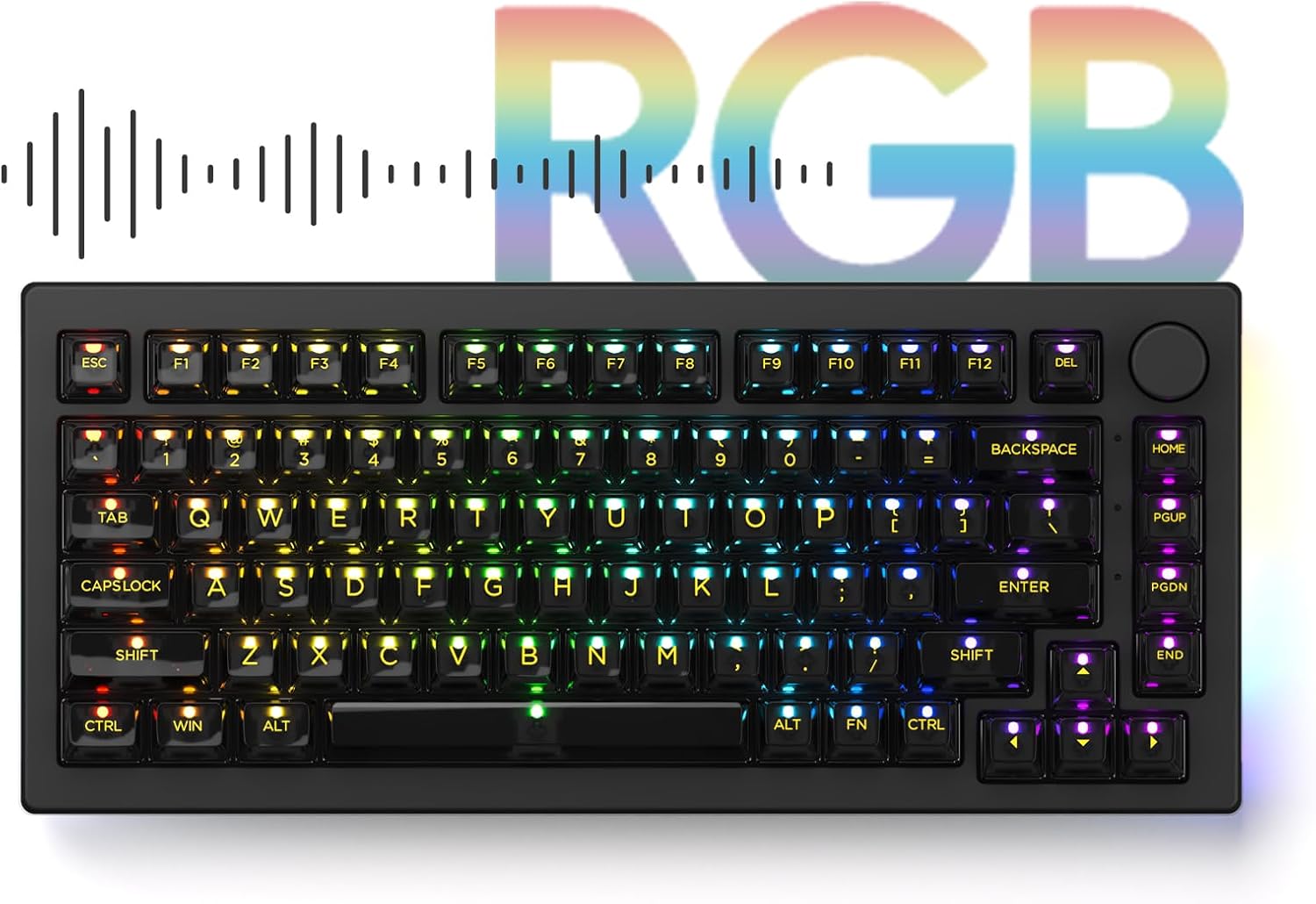
Image: The Akko 5075B Plus keyboard illuminated with a rainbow of RGB colors, showcasing its extensive lighting capabilities.
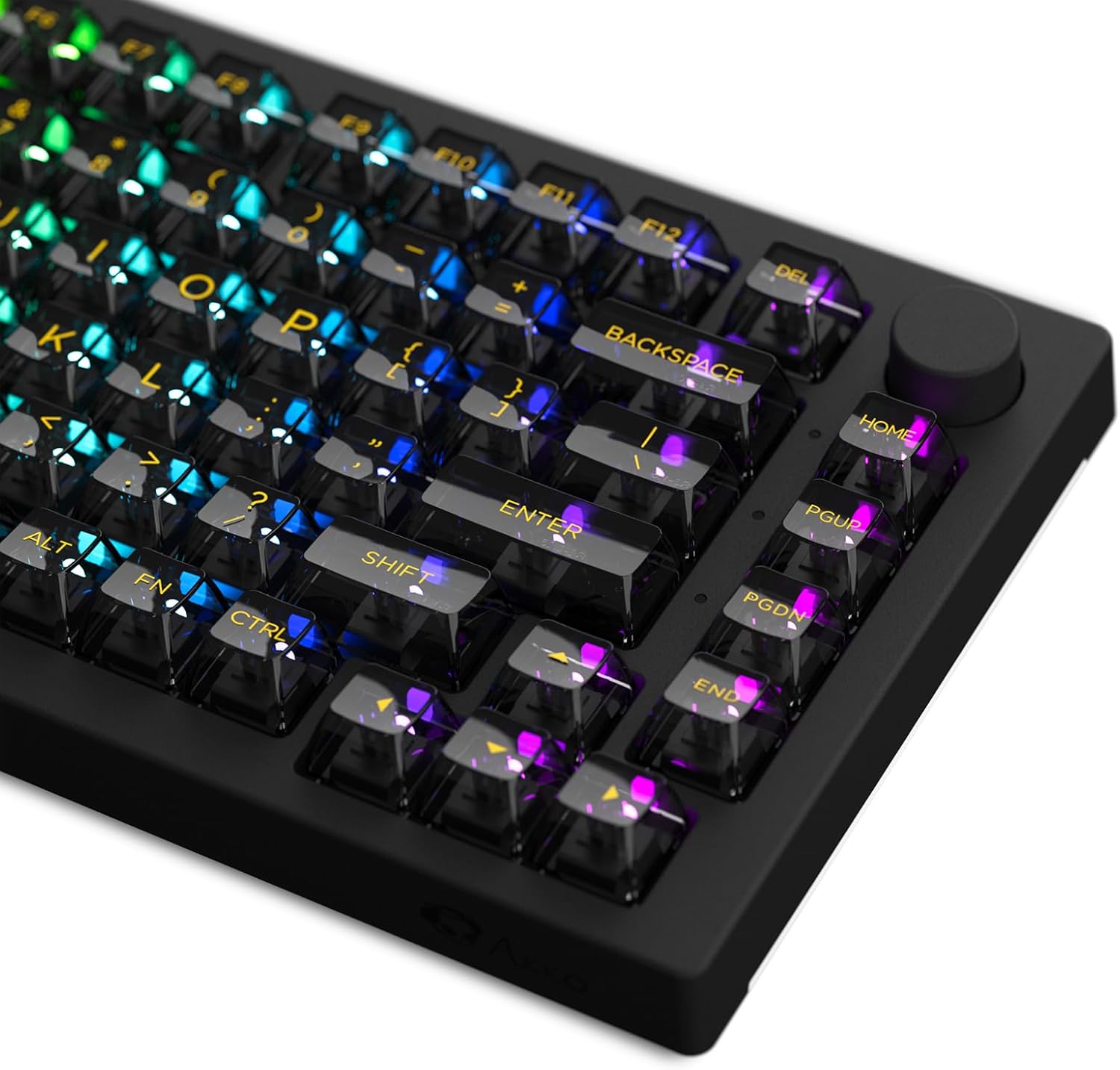
Image: A close-up of the keyboard's keys, showing the vibrant RGB lighting shining through the keycap legends.
Akko Cloud Driver Software
For advanced customization of RGB lighting effects, key remapping, and macro creation, download the Akko Cloud Driver software for PC or Mac. Connect the keyboard via USB-C or 2.4GHz wireless to access these features.
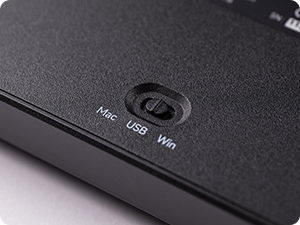
Image: A screenshot of the Akko Cloud Driver software interface, displaying options for main settings, lighting customization, and macro programming for the keyboard.
Maintenance
Cleaning
Regularly clean your keyboard to maintain its appearance and functionality. Use a soft, lint-free cloth to wipe down the keycaps and chassis. For deeper cleaning, you may remove keycaps using the provided keycap puller.
Keycap and Switch Removal
To remove keycaps, gently use the keycap puller to grip the keycap and pull upwards. To remove switches, use the switch removal tool to depress the clips on the sides of the switch and pull upwards. Ensure the keyboard is disconnected or powered off before performing these actions.
Image: A hand using a tool to remove a mechanical switch from the keyboard, demonstrating the hot-swappable feature.
Troubleshooting
- Keyboard not responding: Ensure the USB cable is securely connected or that the wireless receiver is properly inserted and the keyboard is powered on. Check the OS switch on the underside.
- Bluetooth pairing issues: Ensure the keyboard is in Bluetooth mode and discoverable. Remove previous pairings on your device and try reconnecting.
- RGB lighting not working: Check the brightness settings using the knob or the Akko Cloud Driver software. Ensure the keyboard is powered on.
- Keys not registering: If a specific key is not working, try hot-swapping the switch with a known working one to determine if the switch or the socket is faulty.
For further assistance, refer to the Akko Cloud Driver software's support section or visit the official Akko website.
Specifications
| Feature | Detail |
|---|---|
| Model Number | 5075B |
| Keyboard Description | Mechanical |
| Connectivity Technology | USB-C, Bluetooth 5.0/3.0, 2.4GHz Wireless |
| Number of Keys | 84 (75% Layout) |
| Keycap Material | PBT Double Shot ASA Profile |
| Special Feature | Hot-Swappable, RGB Backlit (per-key & side-LED) |
| Battery | 1 Lithium Ion battery required (3000mAh) |
| Item Weight | 2.88 pounds |
| Package Dimensions | 16.14 x 10.71 x 2.56 inches |
Warranty and Support
For detailed warranty information and technical support, please visit the official Akko website or contact their customer service. Keep your purchase receipt as proof of purchase for warranty claims.
Official Akko Website: www.akkogear.com


