
Introduction
This manual provides detailed instructions for the Netac US9 Portable External USB 3.2 Solid State Drive. It covers product features, setup, operation, maintenance, troubleshooting, and technical specifications to ensure safe and efficient use of your device.
The Netac US9 is a high-speed portable SSD designed for reliable data storage and transfer across various devices, featuring both USB-A and USB-C interfaces.
Product Overview
The Netac US9 Portable SSD offers a compact and durable solution for expanding storage and transferring large files quickly. Key features include:
- High-Speed Data Transfer: Supports read speeds up to 1000MB/s and write speeds up to 920MB/s, utilizing USB 3.2 Gen 2 technology. Actual speeds may vary based on host device and usage.
- Dual Interface Connectivity: Features both USB Type-C and USB 3.2 (Type-A) connectors for broad compatibility with various devices.
- Durable Construction: Encased in a high-quality zinc alloy for enhanced resistance to physical impact and scratches.
- Interface Protection: A double-sided metal flip cover design protects the USB interfaces from damage.
- Compact and Lightweight: Designed for portability, with dimensions of approximately 78x23x9.65 mm and a weight of about 50g.
- File Encryption Support: Compatible with operating system-level file encryption features for data security.
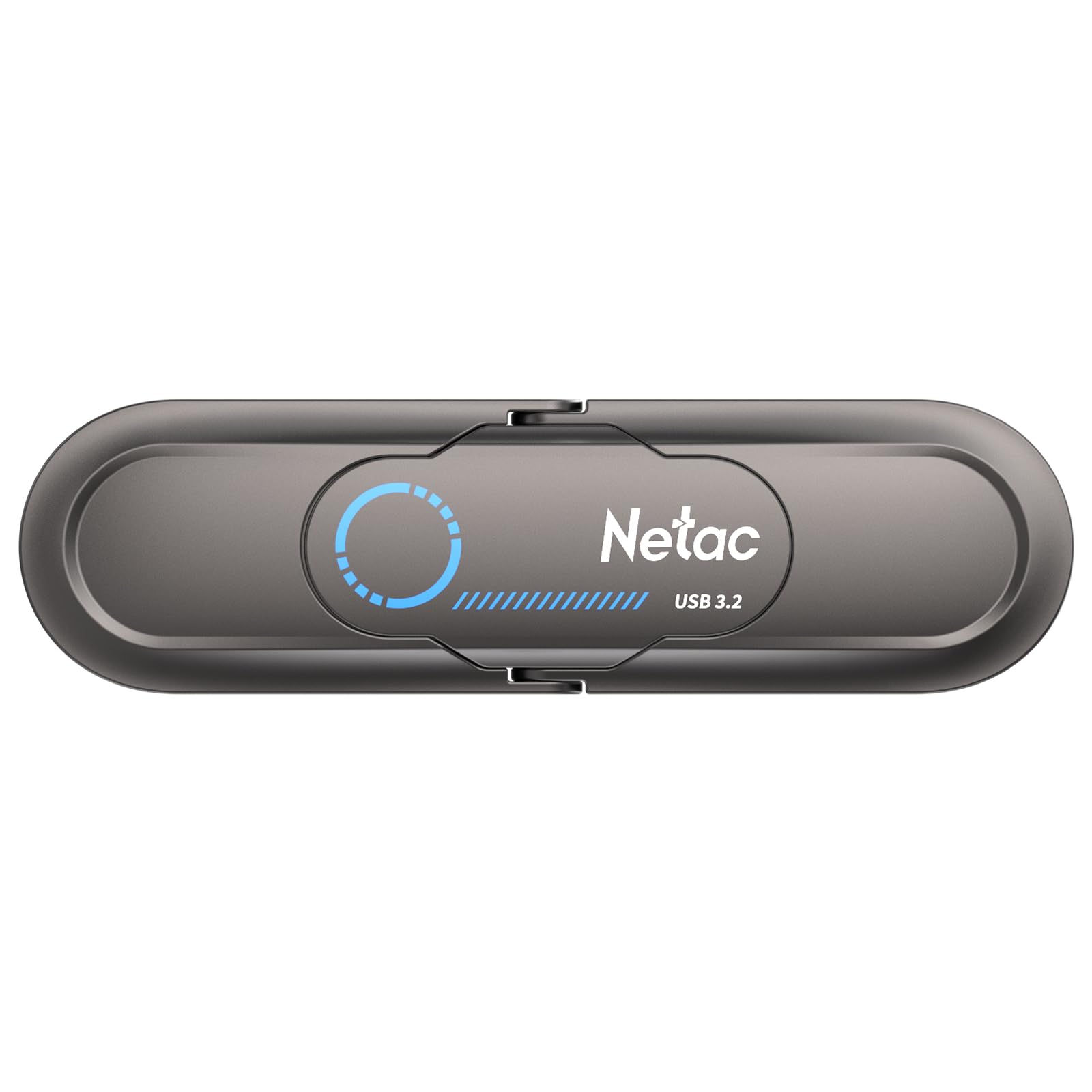
Image: The Netac US9 Portable SSD showcasing its dual USB-A and USB-C interfaces with a protective flip cover.

Image: The Netac US9 Portable SSD with both USB-A and USB-C connectors extended, illustrating its versatile connectivity.
Setup
- Unpack the Device: Carefully remove the Netac US9 SSD from its packaging.
- Identify the Correct Port: Determine whether your host device (computer, game console, smartphone) has a USB-A or USB-C port.
- Connect the SSD:
- For USB-A: Flip open the metal cover to expose the USB-A connector and insert it into an available USB-A port on your device.
- For USB-C: Flip open the metal cover to expose the USB-C connector and insert it into an available USB-C port on your device.
- Device Recognition: Your operating system should automatically detect the Netac US9 SSD. It may appear as a new drive letter (e.g., E:, F:) on Windows, or as an external volume on macOS/Linux.
- Initial Formatting (Optional): The drive comes pre-formatted. If you wish to reformat it for a specific file system (e.g., NTFS for Windows, HFS+ for macOS, exFAT for cross-platform compatibility), refer to your operating system's disk management tools. Reformatting will erase all data on the drive.

Image: The Netac US9 Portable SSD connected to a laptop via its USB-A interface and to a smartphone via its USB-C interface, demonstrating dual connectivity.
Operating Instructions
Data Transfer
- Access the Drive: Once recognized, open File Explorer (Windows) or Finder (macOS) and navigate to the Netac US9 drive.
- Copy Files: Drag and drop files or folders from your computer to the Netac US9 drive, or vice versa. You can also use copy-paste functions.
- Monitor Transfer: A progress bar will indicate the status of your data transfer. For optimal speed, ensure you are connected to a USB 3.2 Gen 2 compatible port.

Image: The Netac US9 Portable SSD positioned on a laptop keyboard, with a graphic indicating a read speed of up to 1000MB/s, highlighting its high-speed data transfer capability.
Safe Removal
Always safely eject the drive before disconnecting it to prevent data corruption.
- Windows: Click the "Safely Remove Hardware and Eject Media" icon in the system tray, then select the Netac US9 drive.
- macOS: Drag the drive icon from your desktop to the Trash, or right-click (Control-click) the drive icon and select "Eject".
File Encryption (If Supported by OS)
The Netac US9 supports file encryption to protect your data. This feature is typically managed through your operating system's built-in encryption tools (e.g., BitLocker for Windows, FileVault for macOS). Consult your OS documentation for specific instructions on enabling drive encryption.

Image: The Netac US9 Portable SSD connected to a laptop, with a graphic overlay showing a shield icon containing a locked folder, representing the device's support for file encryption.
Maintenance
- Physical Care: Keep the drive clean and free from dust. Use a soft, dry cloth for cleaning. Avoid exposing the drive to extreme temperatures, direct sunlight, or moisture.
- Protect Connectors: Always use the integrated metal flip cover to protect the USB-A and USB-C connectors when not in use.
- Avoid Drops: While the zinc alloy casing offers durability, avoid dropping the drive to prevent potential internal damage.
- Regular Backups: Periodically back up important data stored on the SSD to another location to prevent data loss from unforeseen circumstances.

Image: The Netac US9 Portable SSD with an arrow illustrating the movement of its protective metal flip cover, emphasizing the interface protection design.
Troubleshooting
- Drive Not Recognized:
- Ensure the drive is fully inserted into the USB port.
- Try a different USB port on your device.
- Try connecting to a different computer or device to rule out port issues.
- Check your operating system's Disk Management (Windows) or Disk Utility (macOS) to see if the drive is detected but uninitialized or unformatted.
- Slow Transfer Speeds:
- Ensure you are connected to a USB 3.2 Gen 2 compatible port for maximum performance. Older USB 2.0 or 3.0 ports will result in lower speeds.
- Verify that your computer's drivers for USB ports are up to date.
- Large numbers of small files transfer slower than fewer large files.
- Other background processes on your computer can affect transfer speeds.
- Drive Gets Warm During Use:
It is normal for the drive to become warm during extended high-speed data transfers due to the nature of SSD technology and the metal casing acting as a heat sink. This does not indicate a malfunction.
Specifications
| Feature | Detail |
|---|---|
| Brand | Netac |
| Model Name | US9 |
| Memory Storage Capacity | 512 GB |
| Connectivity Technology | USB |
| Hardware Interface | USB Type C, USB 3.2 Gen 2 |
| Read Speed (Max) | 1000 MB/s |
| Write Speed (Max) | 920 MB/s |
| Material | Zinc Alloy |
| Dimensions | 78 x 23 x 9.65 mm (approx.) |
| Item Weight | Approximately 50g (1.76 ounces) |
| Supported Systems | Windows, macOS, Linux, Android, HarmonyOS, iOS |
| Special Feature | Encrypted (OS-dependent) |

Image: A detailed specification table for the Netac US9 Portable SSD, listing features such as brand, model, interface, capacity, size, material, color, supported systems, and warranty.
Warranty and Support
The Netac US9 Portable External USB 3.2 Solid State Drive comes with a 5-year worry-free warranty. For technical assistance, product inquiries, or warranty claims, please contact Netac customer service.
Refer to the official Netac website or the contact information provided with your product packaging for the most up-to-date support channels.


