Introduction
The HPRT MT53 Mini Photo Printer is a compact and portable device designed for instant photo printing directly from your smartphone or tablet. Utilizing Zink (Zero Ink) technology, it produces vibrant, smudge-proof, and water-resistant 2x3 inch adhesive-backed photos without the need for ink cartridges. This manual provides detailed instructions for setting up, operating, and maintaining your MT53 printer to ensure optimal performance and enjoyment.

The HPRT MT53 Mini Photo Printer, shown with included photo paper and example prints.
What's in the Box
Please check the package contents to ensure all items are present:
- HPRT MT53 Mini Photo Printer
- 50 Sheets Photo Paper (2x3 inch adhesive-backed)
- USB Charging Cable
- User Manual (this document)
Setup
1. Charging the Printer
Before first use, fully charge your MT53 printer. Connect the provided USB charging cable to the printer's charging port and a compatible USB power adapter (not included). The indicator light will show charging status.
2. Loading Photo Paper
The MT53 uses 2x3 inch Zink photo paper. Each pack of paper includes a blue calibration sheet. Ensure the blue sheet is at the bottom of the stack, facing down, when loading. Open the paper tray cover on the printer, insert the paper stack with the glossy side facing up, and close the cover securely.

Instructions for loading photo paper into the HPRT MT53 printer, including the blue calibration sheet.
3. Installing the Heyphoto App
The HPRT MT53 printer operates via the Heyphoto app. Download the free Heyphoto app from the App Store (for iOS devices) or Google Play Store (for Android devices).
4. Bluetooth Connection
Turn on your MT53 printer by pressing the power button. Enable Bluetooth on your smartphone or tablet. Open the Heyphoto app and follow the on-screen prompts to connect to your MT53 printer. The app will automatically detect and pair with the printer.

Effortless Bluetooth connection between the HPRT MT53 printer and a smartphone.
Operating Instructions
Using the Heyphoto App
The Heyphoto app provides a variety of features to enhance your printing experience:
- Photo Editing: Adjust colors, brightness, contrast, and apply filters to your photos before printing.
- Frames & Stickers: Add decorative frames and fun stickers to personalize your prints.
- AR Video: Create augmented reality videos that play when scanned with the app, bringing your photos to life.
- ID Photo: Print passport or visa-sized photos with specific templates.
- Collage: Combine multiple photos into a single print using various collage templates.

Key features available within the Heyphoto application for photo customization.
Printing Photos
- Open the Heyphoto app and select the photo you wish to print from your gallery or take a new one.
- Utilize the app's editing tools to customize your photo (optional).
- Confirm your selection and tap the print icon.
- The printer will automatically feed the paper and print your photo.
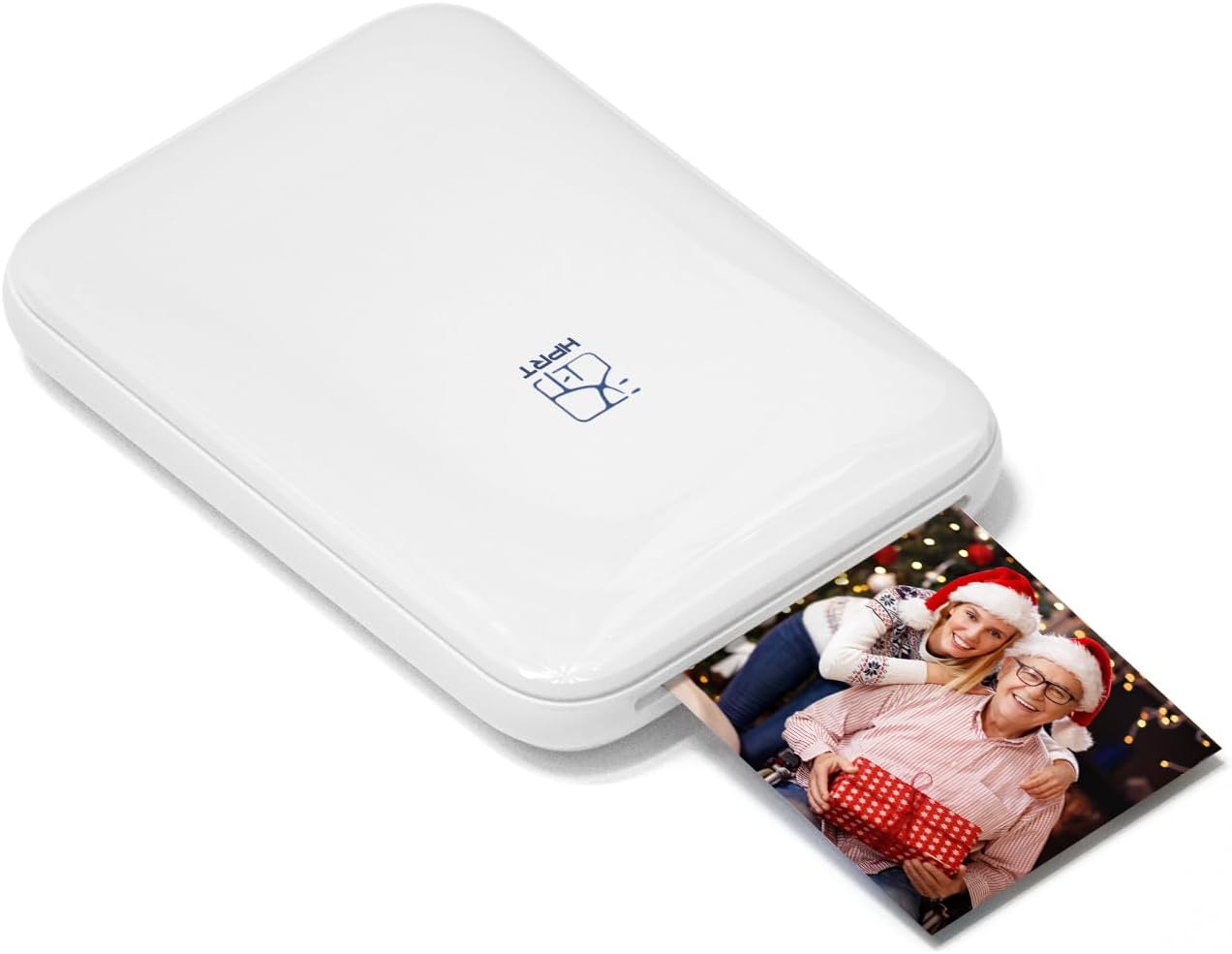
The HPRT MT53 printer in action, producing an instant photo.
Maintenance
Ink-Free (Zink) Technology
The HPRT MT53 uses Zink (Zero Ink) technology, meaning it does not require ink cartridges, ribbons, or toner. The color is embedded in the paper itself, activated by heat from the printer. This simplifies maintenance and reduces waste.

Understanding the ink-free Zink printing process with its layered paper.
Print Head Cleaning
To maintain print quality, periodically clean the print head using the blue calibration sheet included with your photo paper packs. When you load a new pack of paper, the blue sheet will automatically pass through the printer first, cleaning the print head in the process.
Troubleshooting
- Printer not turning on: Ensure the printer is fully charged. Connect it to a power source using the USB cable.
- Cannot connect via Bluetooth: Make sure Bluetooth is enabled on your device and the printer is powered on. Restart both the printer and your device, then try pairing again through the Heyphoto app.
- Poor print quality: Ensure you are using genuine HPRT Zink photo paper. Perform a print head cleaning by loading a new pack of paper with its blue calibration sheet. Check the photo quality and resolution in the Heyphoto app before printing.
- Paper jam: Turn off the printer, carefully open the paper tray cover, and gently remove any jammed paper. Ensure paper is loaded correctly and not overfilled.
Specifications
| Feature | Detail |
|---|---|
| Brand | HPRT |
| Model Name | MT53 |
| Printing Technology | Zink Technology |
| Connectivity Technology | Bluetooth |
| Maximum Media Size | 2 x 3 inch |
| Maximum Color Print Resolution | 300 Dots Per Inch (DPI) |
| Printer Output | Color |
| Item Weight | 13.4 ounces |
| Product Dimensions | 0.75"D x 3.3"W x 4.6"H |
| Batteries | 1 Lithium Polymer battery (included) |
Warranty Information
The HPRT MT53 Mini Photo Printer comes with a limited warranty. For specific details regarding the warranty period and coverage, please refer to the warranty card included in your product packaging or visit the official HPRT website.
Customer Support
If you encounter any issues or have questions not covered in this manual, please contact HPRT customer support for assistance. Contact information can typically be found on the product packaging, the official HPRT website, or within the Heyphoto application.


