
Introduction
This manual provides detailed instructions for the setup, operation, maintenance, and troubleshooting of your Redragon K661 Wireless Mechanical Keyboard. Please read this guide thoroughly before use to ensure optimal performance and longevity of your device.
1. Getting Started and Setup
1.1 Package Contents
- Redragon K661 Wireless Mechanical Keyboard
- USB-C to USB-A/USB-C Cable
- 2.4GHz Wireless Dongle
- Keycap Puller
- User Manual
1.2 Keyboard Overview
This image highlights key components of the Redragon K661 keyboard, including the indicator lights, 2.4G/OFF/Bluetooth switch, adjustable tripods, 2.4GHz dongle storage hole, 2-in-1 USB-C cable, and the WIN/MAC system switch.
1.3 Connection Modes
1.3.1 Tri-Mode Connection Overview

This image illustrates the three connection modes available for the Redragon K661 keyboard: USB-C wired, 2.4GHz wireless, and Bluetooth 5.0/3.0, compatible with both Windows and Mac operating systems.
1.3.2 USB-C Wired Connection
Connect the provided USB-C cable to the keyboard's port and an available USB port on your computer. The keyboard will automatically switch to wired mode.
1.3.3 2.4GHz Wireless Connection
- Locate the 2.4GHz wireless dongle, typically stored in a dedicated slot on the keyboard's underside.

This image shows the dedicated storage slot for the 2.4GHz wireless dongle on the underside of the keyboard, ensuring it is securely stored when not in use.
- Insert the dongle into an available USB port on your computer.
- Slide the 2.4G/OFF/Bluetooth switch on the keyboard to the "2.4G" position.
- The keyboard should connect automatically.
1.3.4 Bluetooth Connection (BT 3.0/5.0)
- Slide the 2.4G/OFF/Bluetooth switch on the keyboard to the "BT" position.
- Press and hold Fn + 1, Fn + 2, or Fn + 3 to enter pairing mode for one of the three storable Bluetooth devices. The indicator light will flash.
- On your device (computer, tablet, phone), search for Bluetooth devices and select "Redragon K661".
- Once paired, the indicator light will stop flashing.
- To switch between paired Bluetooth devices, press Fn + 1, Fn + 2, or Fn + 3.
1.4 System Compatibility (WIN/MAC)
Locate the WIN/MAC switch on the side of the keyboard. Slide the switch to the appropriate operating system (Windows or Mac) for full compatibility and optimized key functions.
2. Operation
2.1 Basic Keyboard Functions
The Redragon K661 features a standard QWERTY layout with 84 keys (75% layout). Function keys (F1-F12) are accessible via Fn key combinations. Refer to the keycap legends for specific secondary functions.
2.2 RGB Backlight Control

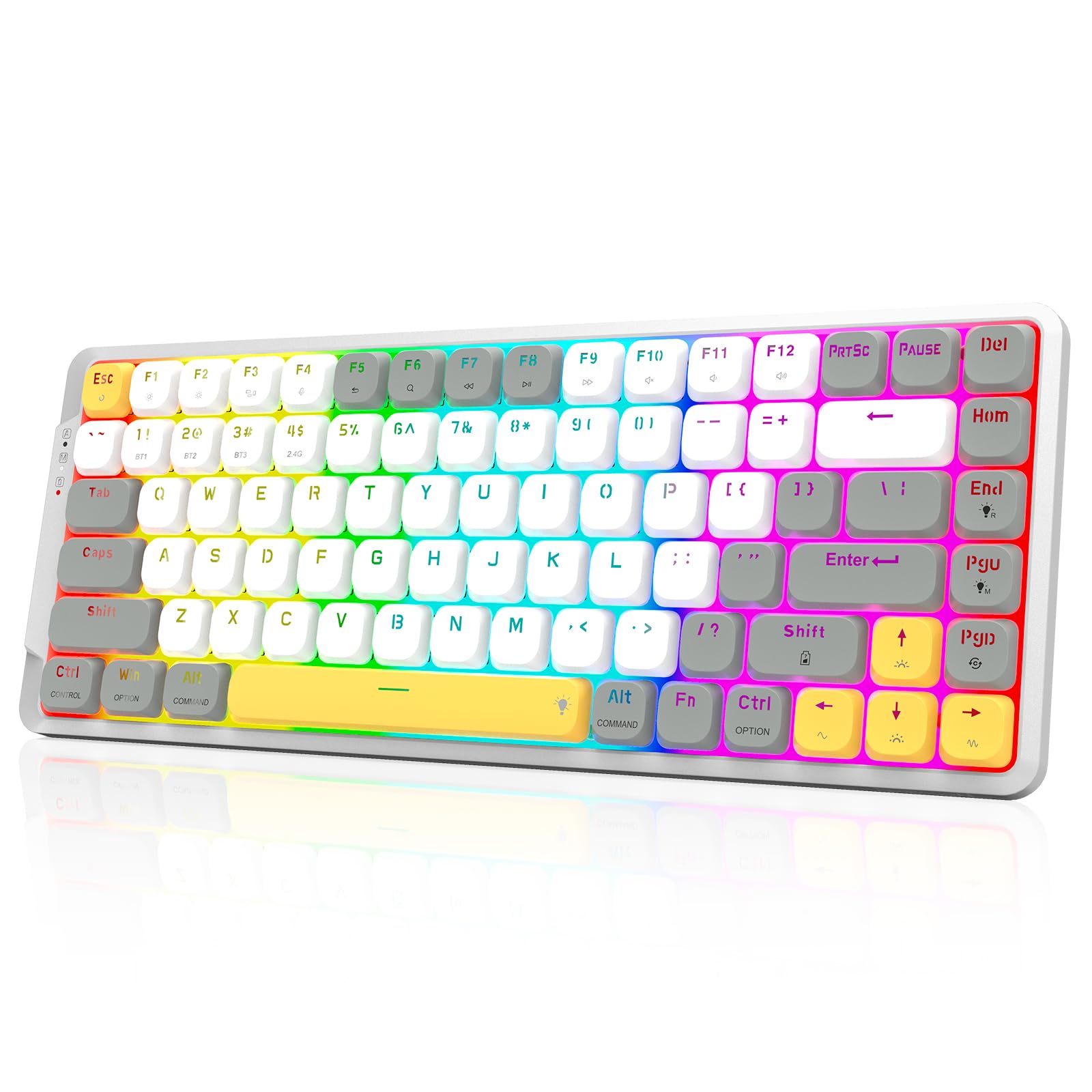
This image displays the Redragon K661 keyboard with its 16.8 million dynamic RGB backlighting, showcasing various color patterns and illumination.
The keyboard features 16.8 million dynamic RGB backlit options. Use Fn + [key] combinations to cycle through lighting modes, adjust brightness, and change speed. Specific key combinations for lighting control are typically indicated on the keycaps or detailed in the full product manual.
2.3 Pro Software Customization

This image shows the Redragon K661's professional software interface, allowing users to customize macros, adjust backlight settings, and reassign key functions for enhanced productivity and gaming.
The Redragon K661 supports professional software for advanced customization. You can download the software from the official Redragon website (redragonshop.com).
- Macro Editor: Combine multiple shortcuts into one key for complex commands.
- Switch Backlight: Adjust brightness, speed, and specific effects of the RGB lighting.
- Key Assignment: Personalize key functions to improve efficiency for work or gaming.
Note: The software functions only when the keyboard is connected in wired mode.
3. Maintenance
3.1 Cleaning the Keyboard
- Use a soft, dry cloth to gently wipe the keyboard surface.
- For deeper cleaning, use a can of compressed air to remove dust and debris from between keycaps.
- Avoid using liquid cleaners directly on the keyboard to prevent damage.
3.2 Battery Care

This image illustrates the strong and durable 1600mAh battery of the Redragon K661 keyboard, highlighting its fast charging capability and long-lasting performance (100 hours with RGB off, 20 hours with RGB on).
- The keyboard is equipped with a 1600mAh battery.
- Charge the keyboard using the provided USB-C cable when the battery indicator shows low power.
- Avoid fully discharging the battery frequently to prolong its lifespan.
- Expected battery life: up to 100 hours with RGB off, up to 20 hours with RGB on.
3.3 Keycap Replacement
- The keyboard comes with a bonus set of keycaps for customization or replacement.
- Use the included keycap puller to carefully remove existing keycaps by gripping them firmly and pulling straight up.
- Align new keycaps with the switch stems and press down gently until they click into place.
4. Troubleshooting
4.1 Connection Issues
- Keyboard not connecting via 2.4GHz:
- Ensure the dongle is securely plugged into a USB port.
- Verify the keyboard's connection switch is set to "2.4G".
- Try a different USB port on your computer.
- Keyboard not connecting via Bluetooth:
- Ensure the keyboard's connection switch is set to "BT".
- Confirm the keyboard is in pairing mode (indicator light flashing).
- Delete previous pairings on your device and attempt to pair again.
- Ensure your device's Bluetooth is enabled and discoverable.
- Wired connection not working:
- Check the USB-C cable connection at both the keyboard and computer ends.
- Try a different USB port or a different USB-C cable.
4.2 Input Issues
- Keys not responding:
- Check the current connection mode and ensure the keyboard is powered on and charged.
- If using the professional software, try resetting settings to default.
- Incorrect key output (e.g., 'Z' types 'Y'):
- Verify the WIN/MAC switch on the keyboard is set correctly for your operating system.
4.3 Backlight Issues
- RGB lights not working:
- Ensure the keyboard is powered on and has sufficient battery charge.
- Check backlight settings using the Fn key combinations or through the professional software.
5. Specifications

This image illustrates the compact 75% layout of the Redragon K661 keyboard, featuring 84 keys for an optimized desktop footprint.

This image details the low-profile brown mechanical switches of the Redragon K661, showing a 2.0 mm travel distance, 40g actuation force, and a 50 million click lifespan.
| Feature | Detail |
|---|---|
| Model | K661 |
| Layout | 75% (84 Keys) |
| Connection Modes | USB-C Wired, 2.4GHz Wireless, Bluetooth 3.0/5.0 |
| Switch Type | Low-Profile Mechanical (Brown Switch) |
| Keycap Travel Distance | 2.0 mm |
| Actuation Force | 40 g |
| Click Lifespan | 50 Million |
| Battery Capacity | 1600mAh |
| Battery Life (RGB Off) | Up to 100 hours |
| Battery Life (RGB On) | Up to 20 hours |
| Backlight | 16.8 Million Dynamic RGB |
| System Compatibility | Windows, macOS |
| Material | Aluminum Top Plate |
| Special Features | Customizable Display Keys, Pro Software Support, Ultra-Thin Design |
6. Warranty and Support
6.1 Warranty Information
Redragon products typically come with a limited warranty. Please refer to the warranty card included in your package or visit the official Redragon website for specific warranty terms and conditions. Keep your proof of purchase for any warranty claims.
6.2 Customer Support
For technical assistance, troubleshooting, or product inquiries, please visit the Redragon support page on their official website or contact their customer service directly.


