
1. Introduction
This manual provides essential instructions for the proper setup, operation, and maintenance of your Azpen A1083 10.36-inch Android Tablet. Please read this manual thoroughly before using your device to ensure optimal performance and longevity.
2. Package Contents
Verify that all items are present in your product packaging:
- Azpen A1083 10.36-inch Android Tablet
- Surface Style Keyboard Folio Case
- Charging Cable
- Power Adapter
- Quick Start Guide

Image: The Azpen A1083 tablet and its accompanying keyboard folio, displayed alongside their retail packaging. This image illustrates the complete product set as it would appear upon unboxing.
3. Setup
3.1 Initial Charging
- Connect the charging cable to the tablet's USB-C port.
- Plug the other end of the cable into the power adapter.
- Insert the power adapter into a wall outlet.
- Allow the tablet to charge until the battery indicator shows a full charge (approximately 3-4 hours for the first charge).
3.2 Powering On/Off
- To Power On: Press and hold the Power button (located on the side of the tablet) until the Azpen logo appears on the screen.
- To Power Off: Press and hold the Power button until a menu appears. Select 'Power off' and confirm.
- To Restart: Press and hold the Power button until a menu appears. Select 'Restart' and confirm.
3.3 Connecting the Keyboard Folio
The included keyboard folio connects via a Pogo Pin connector, requiring no Bluetooth pairing.
- Align the tablet with the Pogo Pin connectors on the keyboard folio.
- Gently press the tablet onto the connectors until it securely snaps into place.
- The keyboard will automatically activate.
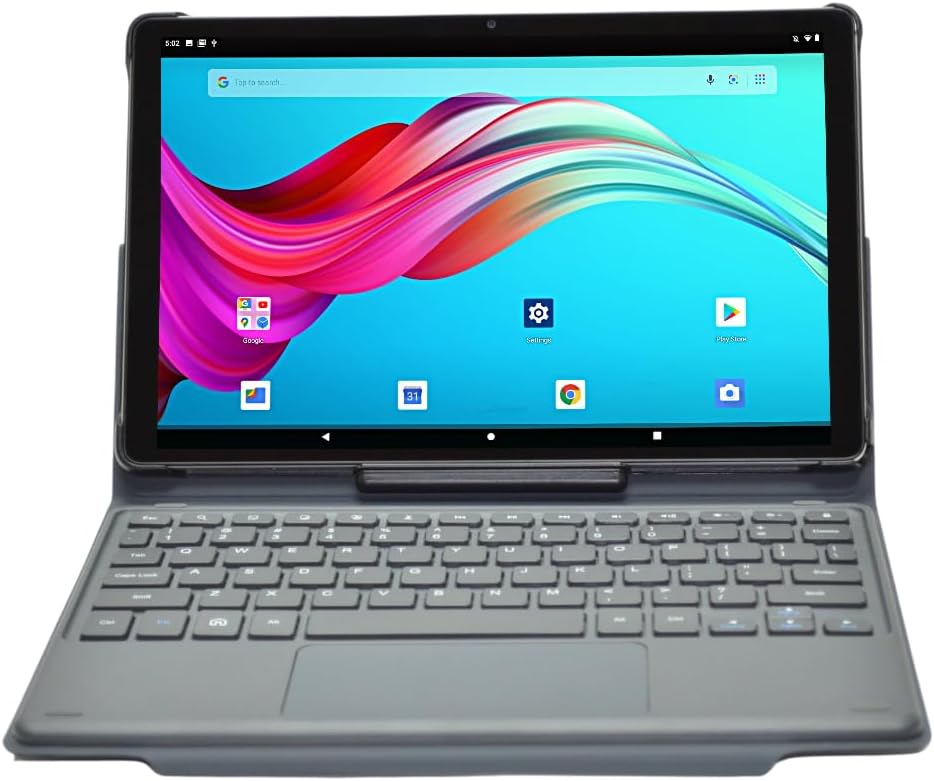
Image: The Azpen A1083 tablet securely attached to its Pogo Pin keyboard folio, displaying the Android home screen. This illustrates the tablet in its ready-to-use configuration.
4. Operating Instructions
4.1 Basic Tablet Navigation
- Touchscreen: The tablet features a hypersensitive glass capacitive touchscreen for intuitive interaction.
- Swipe: Swipe left, right, up, or down to navigate between screens, open notifications, or access quick settings.
- Tap: Tap icons to open applications or select options.
- Pinch-to-Zoom: Use two fingers to zoom in or out on images and web pages.

Image: An infographic highlighting key features of the Azpen A1083 tablet, including Android 13, 2K HD display, 6GB RAM, 128GB storage, Pogo Pin keyboard, and Google Assistant compatibility. This provides a visual summary of the tablet's capabilities.
4.2 Using the Keyboard Folio
The keyboard folio provides a physical keyboard and trackpad for enhanced productivity.
- Typing: Use the physical keys for text input in documents, emails, and web browsing.
- Trackpad: The integrated trackpad functions like a mouse, allowing for precise cursor control.
- Multi-Angle Case: The folio case allows for multiple viewing angles, providing flexibility for different tasks such as typing, viewing media, or drawing.
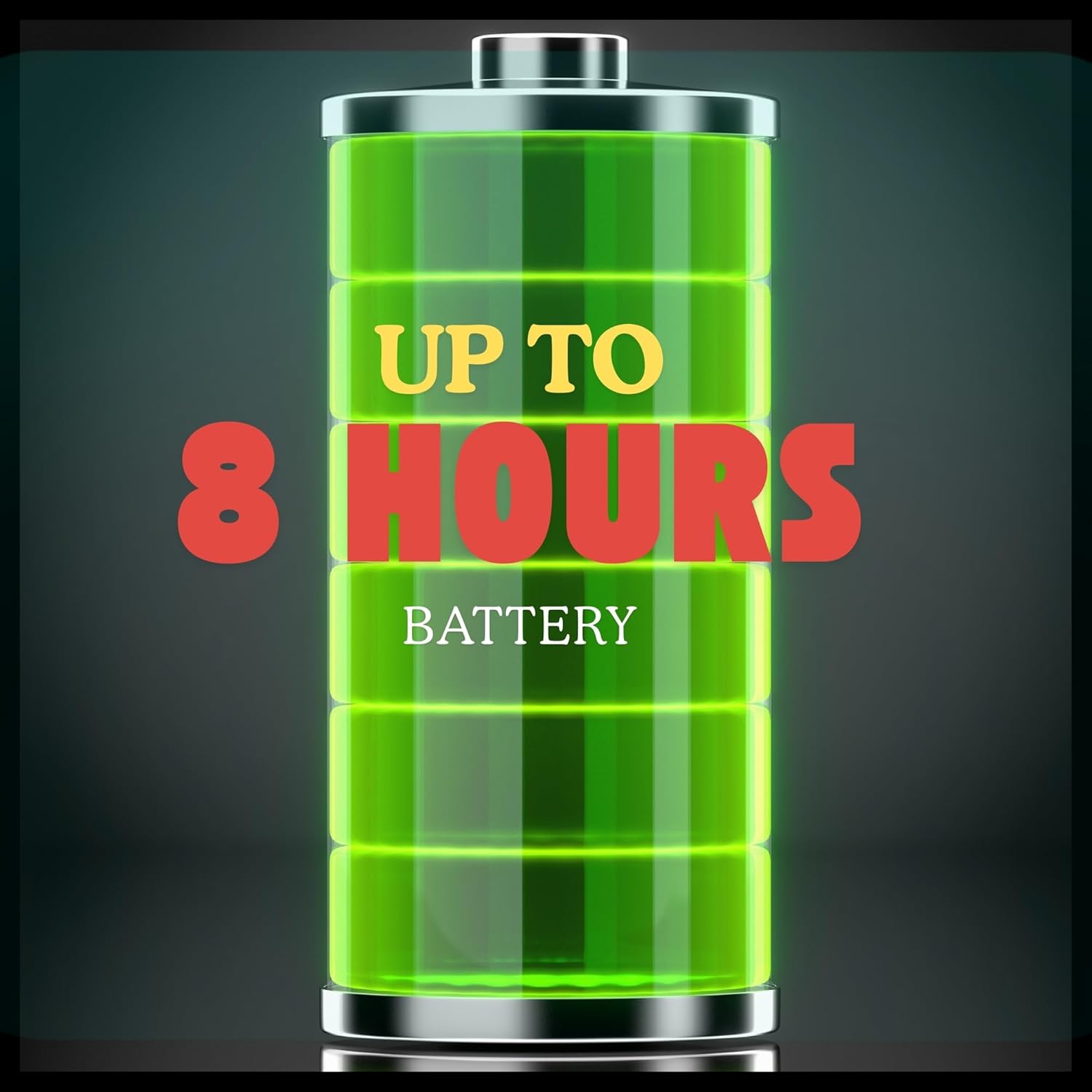
Image: Multiple views of the Azpen A1083 tablet within its multi-angle keyboard case, demonstrating various adjustable positions for typing and viewing. This highlights the versatility of the case design.
4.3 Camera Functions
The tablet is equipped with a 5MP front camera and an 8MP rear camera.
- Open the 'Camera' application from the home screen or app drawer.
- Select between front and rear cameras using the camera switch icon.
- Tap the shutter button to capture photos or start/stop video recording.
4.4 Google Assistant
The Azpen A1083 supports Google Assistant for voice commands and smart assistance.
- Activate: Say "Hey Google" or "Ok Google" to activate the assistant.
- Commands: Use voice commands for tasks such as setting alarms, checking weather, playing music, or opening applications.
5. Maintenance
5.1 Cleaning Your Tablet
- Use a soft, lint-free cloth to clean the screen and body of the tablet.
- For stubborn smudges, lightly dampen the cloth with water or a screen-specific cleaning solution. Avoid harsh chemicals.
- Do not spray cleaning solutions directly onto the tablet.
5.2 Software Updates
Regularly check for and install software updates to ensure your tablet has the latest features and security patches.
- Go to 'Settings' > 'System' > 'System update'.
- Follow the on-screen prompts to download and install any available updates.
5.3 Battery Care
The Azpen A1083 offers up to 8 hours of battery life under typical usage conditions.

Image: A graphic representation of a battery with the text "UP TO 8 HOURS BATTERY" prominently displayed, indicating the tablet's expected battery duration. This visually communicates the device's power autonomy.
- Avoid extreme temperatures, as they can degrade battery performance.
- Do not leave the tablet fully discharged for extended periods.
- For optimal battery health, avoid constantly charging the tablet to 100% and letting it drain to 0%.
6. Troubleshooting
| Problem | Possible Cause | Solution |
|---|---|---|
| Tablet does not power on | Low battery; System crash | Charge the tablet for at least 30 minutes. Press and hold the Power button for 10-15 seconds to force restart. |
| Keyboard not responding | Improper connection; Software glitch | Ensure the Pogo Pins are clean and securely connected. Detach and reattach the tablet to the keyboard. Restart the tablet. |
| Slow performance | Too many apps running; Low storage | Close unnecessary applications. Clear cache and temporary files. Uninstall unused apps. |
| Wi-Fi connectivity issues | Router problem; Incorrect password | Restart your Wi-Fi router. Forget the network on the tablet and reconnect with the correct password. |
7. Specifications

Image: The rear view of the Azpen A1083 tablet, clearly displaying the 'azpen' brand logo and 'Model: A1083' text. This image helps in identifying the specific model of the device.
| Feature | Detail |
|---|---|
| Model Number | A1083 |
| Display Size | 10.36 inches |
| Screen Resolution | 2000 x 1200 pixels (2K FHD IPS) |
| Processor | Mediatek 8183 Octa Core CPU 2.0 GHz |
| RAM | 6GB |
| Storage | 128GB |
| Operating System | Android 13 |
| Front Camera | 5MP |
| Rear Camera | 8MP |
| Wireless Connectivity | 802.11ac |
| Item Weight | 3 pounds |
| Product Dimensions | 9.7 x 6.2 x 0.29 inches |
8. Warranty Information
Azpen products typically come with a limited manufacturer's warranty. For detailed information regarding the warranty period, coverage, and terms and conditions for your Azpen A1083 tablet, please refer to the warranty card included in your product packaging or visit the official Azpen website.
9. Customer Support
If you encounter any issues not covered in this manual or require further assistance, please contact Azpen customer support:
- Website: Visit the official Azpen website for FAQs, support resources, and contact options.
- Online Store: Azpen Store on Amazon


