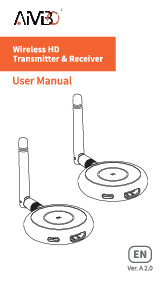
1. Introduction
This manual provides detailed instructions for the setup, operation, maintenance, and troubleshooting of your AIMIBO Wireless HDMI Transmitter and Receiver system. Please read this manual thoroughly before using the product to ensure proper functionality and to prevent damage.
The AIMIBO Wireless HDMI system allows you to transmit high-definition video (1080P@60Hz) wirelessly from a source device to multiple display devices, eliminating the need for long HDMI cables. It supports various applications including presentations, home entertainment, and multi-screen setups.
2. Product Overview
2.1 Key Features
- Wireless 1080P@60Hz Transmission: Supports high-definition video and audio transmission.
- Multiple Receiver Support: Connects one transmitter to up to four receivers simultaneously for multi-display setups.
- Plug and Play: No software installation or complex setup required for basic operation.
- Extended Range: Transmits signals up to 50 meters (164 feet) in open environments.
- 5GHz Band: Utilizes the 5GHz frequency band for stable and high-speed transmission with reduced interference.
- Channel Selection: Allows manual channel adjustment to optimize signal stability.
- Compact Design: Small and portable units for easy integration into any setup.
- TuTuPlay App Support: Enables output to smartphones and tablets via a dedicated application.
2.2 Package Contents

Image: The package includes one transmitter, three receivers, four USB-C power cables, four HDMI cables, one Mini HDMI adapter, and one Micro HDMI adapter.
- 1 x AIMIBO Wireless HDMI Transmitter
- 3 x AIMIBO Wireless HDMI Receivers
- 4 x USB-C Power Cables
- 4 x HDMI Cables
- 1 x Mini HDMI Adapter
- 1 x Micro HDMI Adapter
- 1 x User Manual (this document)
3. Setup Instructions
Follow these steps to set up your AIMIBO Wireless HDMI system:
3.1 Connecting the Transmitter (TX)
- Connect to Source Device: Plug one end of an HDMI cable into the HDMI output port of your source device (e.g., laptop, PC, camera, TV box).
- Connect to Transmitter: Plug the other end of the HDMI cable into the HDMI input port of the AIMIBO Wireless HDMI Transmitter. Use the provided Mini HDMI or Micro HDMI adapters if necessary for your source device.
- Power the Transmitter: Connect a USB-C power cable to the transmitter's USB-C port and the other end to a 5V/2A USB power adapter (not included) or a powered USB port on your source device. Ensure the transmitter powers on.

Image: A laptop is connected to the wireless HDMI transmitter, which then wirelessly sends the signal to a receiver connected to a large screen TV.
3.2 Connecting the Receiver(s) (RX)
- Connect to Display Device: Plug one end of an HDMI cable into the HDMI input port of your display device (e.g., TV, monitor, projector).
- Connect to Receiver: Plug the other end of the HDMI cable into the HDMI output port of the AIMIBO Wireless HDMI Receiver.
- Power the Receiver: Connect a USB-C power cable to the receiver's USB-C port and the other end to a 5V/2A USB power adapter (not included) or a powered USB port on your display device. Ensure the receiver powers on.
- Repeat for Multiple Receivers: If using multiple receivers, repeat steps 1-3 for each additional receiver. The system supports up to four receivers.

Image: A single transmitter connected to a laptop can send its signal to multiple receivers, each connected to a different display, supporting up to four displays simultaneously.
3.3 Initial Pairing (Automatic)
Once both the transmitter and receiver(s) are powered on, they should automatically pair within a few seconds. The indicator lights on both units will show a stable connection when paired. The video from your source device will then appear on the connected display(s).
4. Operating Instructions
4.1 Basic Operation (Plug and Play)
After successful setup and pairing, the system operates automatically. The video and audio from your source device will be mirrored to the connected display(s).
4.2 Multiple Output Methods

Image: The system supports two primary output methods: direct connection from the receiver to a display (left) and streaming to a smartphone or tablet via the TuTuPlay application (right).
- Receiver Output: Connect the receiver directly to a TV, monitor, or projector via HDMI for a traditional display.
- TuTuPlay Output: Install the dedicated TuTuPlay application on your smartphone or tablet to view the transmitted content on your mobile device. Follow the app's instructions for connection.
4.3 Display Modes

Image: The system supports various display modes including duplicating the source screen, extending the desktop across multiple screens, broadcasting to multiple displays simultaneously, and using the TuTuPlay app for mobile device viewing.
- Duplicate Mode: Mirrors the source device's screen onto all connected displays.
- Extend Mode: Extends the source device's desktop, allowing for a larger workspace across multiple screens. (Requires configuration on the source device's operating system).
- One-to-Many Mode: Transmits the source signal to multiple displays simultaneously (up to 4 receivers).
- TX-TuTuPlay Mode: Utilizes the TuTuPlay app to display content on smartphones or tablets.
4.4 Channel Selection
The system operates on the 5GHz frequency band. In environments with high wireless interference, you can manually select a different channel to improve signal stability and performance. Refer to the device's on-screen menu or accompanying app for channel selection options.
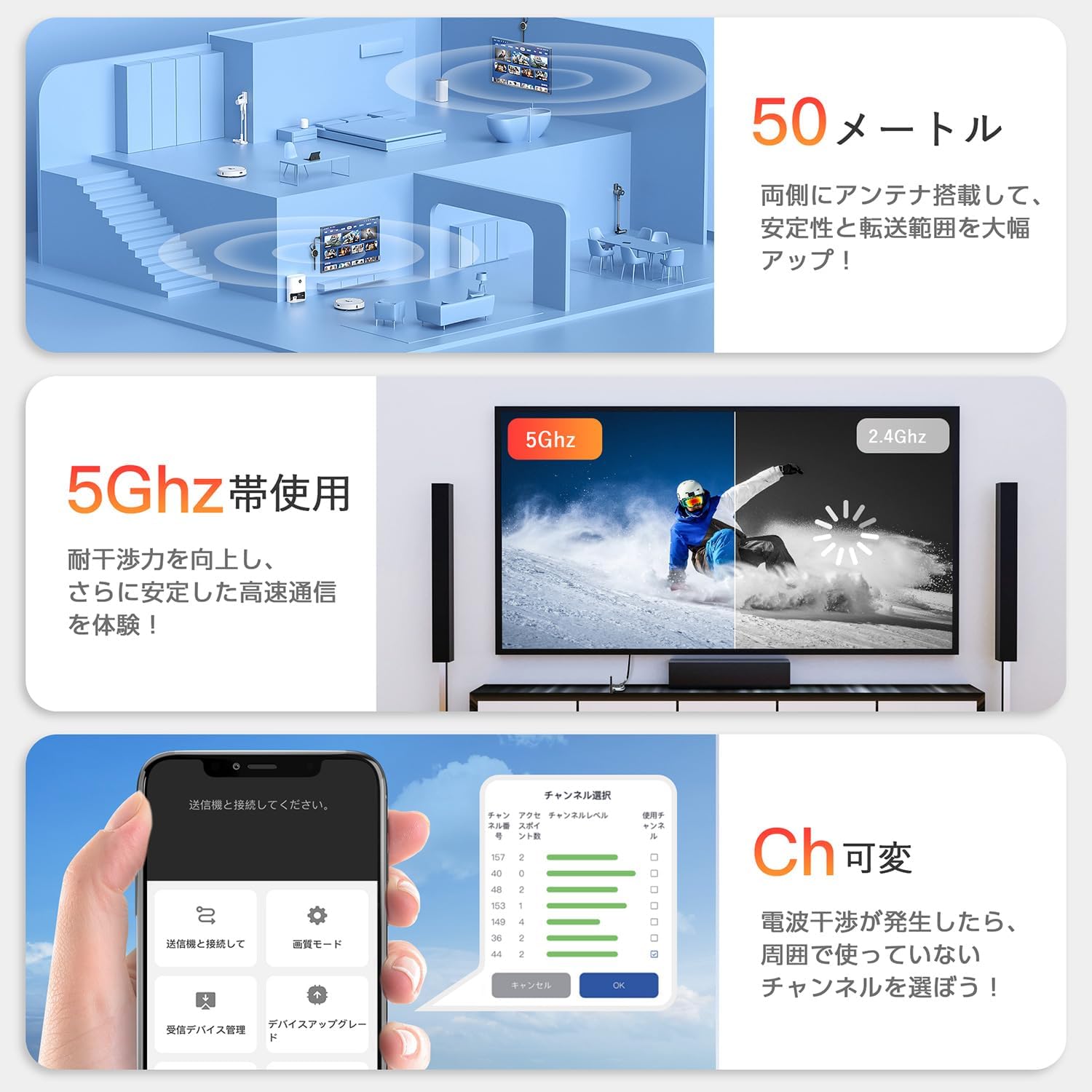
Image: A smartphone screen displays options for channel selection to optimize wireless signal. Another graphic illustrates the benefits of the 5GHz band over 2.4GHz for stable, high-speed transmission.
5. Maintenance
To ensure the longevity and optimal performance of your AIMIBO Wireless HDMI system, follow these maintenance guidelines:
- Cleaning: Use a soft, dry cloth to clean the devices. Do not use liquid cleaners or aerosols.
- Storage: Store the devices in a cool, dry place away from direct sunlight and extreme temperatures.
- Handling: Avoid dropping or subjecting the devices to strong impacts.
- Ventilation: Ensure the devices have adequate ventilation and do not block any vents.
6. Troubleshooting
If you encounter issues with your AIMIBO Wireless HDMI system, refer to the following troubleshooting tips:
6.1 No Signal on Display
- Check Power: Ensure both the transmitter and receiver(s) are properly powered on. Verify that the USB-C power cables are securely connected to a 5V/2A power source. Note that AC adapters are not included and must be supplied separately.
- Check HDMI Connections: Ensure all HDMI cables are securely connected between the source device and transmitter, and between the receiver(s) and display(s).
- Source Device Output: Verify that your source device is outputting video correctly and that its display settings are configured to detect an external display.
- Display Input: Confirm that your display device is set to the correct HDMI input channel.
- Re-pair Devices: Power cycle both the transmitter and receiver(s) to force a re-pairing attempt.
6.2 Unstable or Intermittent Signal
- Reduce Distance: Ensure the transmitter and receiver(s) are within the recommended operating range (up to 50 meters in open space). Obstacles like walls can significantly reduce this range.
- Minimize Interference: Keep the devices away from other wireless devices (e.g., Wi-Fi routers, microwaves) that operate on similar frequencies.
- Change Channel: Use the channel selection feature (if available via app or on-screen menu) to switch to a less congested 5GHz channel.
- Antenna Orientation: Ensure the antennas on both the transmitter and receiver are oriented vertically for optimal signal reception.
6.3 TuTuPlay App Connection Issues
- App Installation: Ensure the TuTuPlay app is correctly installed on your smartphone or tablet.
- Device Compatibility: Verify that your mobile device and its operating system version are compatible with the TuTuPlay app.
- Network Connection: Ensure your mobile device is connected to the correct Wi-Fi network broadcast by the transmitter (if applicable) or the same local network as the system.
- App Permissions: Check if the app has necessary permissions (e.g., local network access) on your mobile device.
7. Specifications
| Feature | Specification |
|---|---|
| Brand | AIMIBO |
| Model Number | 9687581011 |
| Part Number | G703 |
| Video Resolution | Up to 1080P@60Hz |
| Wireless Frequency | 5GHz |
| Transmission Range | Up to 50 meters (164 feet) in open environments |
| Compatible Devices (Source) | Personal Computer, Laptop, TV Box, Camera, DVD Player, TV Tuner |
| Compatible Devices (Display) | TV, Monitor, Projector, HDMI Repeater, iOS/Android devices (via TuTuPlay app) |
| Connector Type | HDMI, USB-C (for power) |
| Number of Receivers Supported | Up to 4 (1 Transmitter to 4 Receivers) |
| Product Dimensions | 6 x 6 x 1.5 cm (per unit) |
| Product Weight | 510 g (total package weight) |
| Power Input | 5V/2A (USB-C, AC adapter not included) |
8. Warranty and Support
AIMIBO products are designed for reliability and performance. For warranty information, technical support, or customer service inquiries, please refer to the contact information provided with your purchase or visit the official AIMIBO website. Please have your product model number (9687581011) and purchase details ready when contacting support.