
BOTSLAB HK30
BOTSLAB HK30 Car Dash Cam User Manual
4K+1080P+1080P Car Dash Cam with Angle Front Camera and Color Night Vision
1. Introduction
Thank you for choosing the BOTSLAB HK30 Car Dash Cam. This manual provides detailed instructions for the installation, operation, and maintenance of your new dash camera system. Please read this manual thoroughly before using the product to ensure proper function and safety. Keep this manual for future reference.
2. Safety Information
- Do not operate the dash cam or access its settings while driving. Always pull over safely before making any adjustments.
- Ensure the dash cam is securely mounted and does not obstruct the driver's view or interfere with airbag deployment.
- Use only the original power adapter and cables provided with the device. Using unauthorized accessories may damage the product and void the warranty.
- Avoid exposing the dash cam to extreme temperatures, direct sunlight for prolonged periods, or excessive moisture.
- Do not attempt to disassemble or repair the device yourself. Contact customer support for assistance.
- Regularly format the memory card to ensure optimal recording performance.
3. Package Contents
Please check the package for the following items:
- BOTSLAB HK30 Dash Cam Unit
- Car Charger (Power Cable)
- Mounting Bracket (with adhesive pad)
- User Manual
- Optional: Rear Camera (if purchased as a bundle)
- Optional: GPS Module
4. Product Overview
The BOTSLAB HK30 is a multi-channel dash cam designed to provide comprehensive coverage of your driving environment. It features a main front camera with 4K resolution, and supports additional cameras for rear and interior views (sold separately or as part of a bundle).

Image: The main BOTSLAB HK30 dash cam unit, showing the front lens and the Botslab branding.
Key features include:
- 4K Front Camera: Captures high-resolution video of the road ahead.
- 140° Wide Viewing Angle: Provides extensive coverage, minimizing blind spots.
- Color Night Vision: Enhances visibility and clarity in low-light conditions.
- Built-in GPS: Records speed and location data for your journeys.
- G-Sensor: Automatically locks video files upon impact to prevent overwriting.
- Loop Recording: Continuously records by overwriting the oldest files when the memory card is full.
- Parking Monitoring: Offers 24-hour surveillance with time-lapse recording and collision-triggered normal recording (requires buck line kit, sold separately).
- App Control: Connects to your smartphone for easy settings adjustment, live view, and video download.

Image: An illustration demonstrating the 140-degree wide viewing angle of the dash cam, showing its ability to capture a broad perspective of the road.
5. Setup and Installation
5.1 Memory Card Insertion
Before first use, insert a high-speed (Class 10 or higher) microSD card (up to 256GB recommended) into the dash cam's memory card slot. Ensure the card is inserted correctly until it clicks into place. Format the card via the dash cam's settings menu or the mobile app before initial recording.
5.2 Mounting the Dash Cam
- Clean the windshield area where you intend to mount the dash cam. Ensure it is free of dust and grease.
- Attach the adhesive pad to the mounting bracket, then firmly press the bracket onto the chosen spot on your windshield, ideally behind the rearview mirror for optimal view and minimal obstruction.
- Slide the dash cam unit onto the mounted bracket until it locks securely.
- Adjust the camera lens angle to ensure it captures the road ahead clearly, with approximately 60% road and 40% sky visible.
5.3 Power Connection
- Connect the provided car charger cable to the dash cam's power input port.
- Plug the other end of the car charger into your vehicle's 12V power outlet (cigarette lighter socket).
- Route the power cable neatly along the edge of the windshield and dashboard to conceal it and prevent interference with driving.
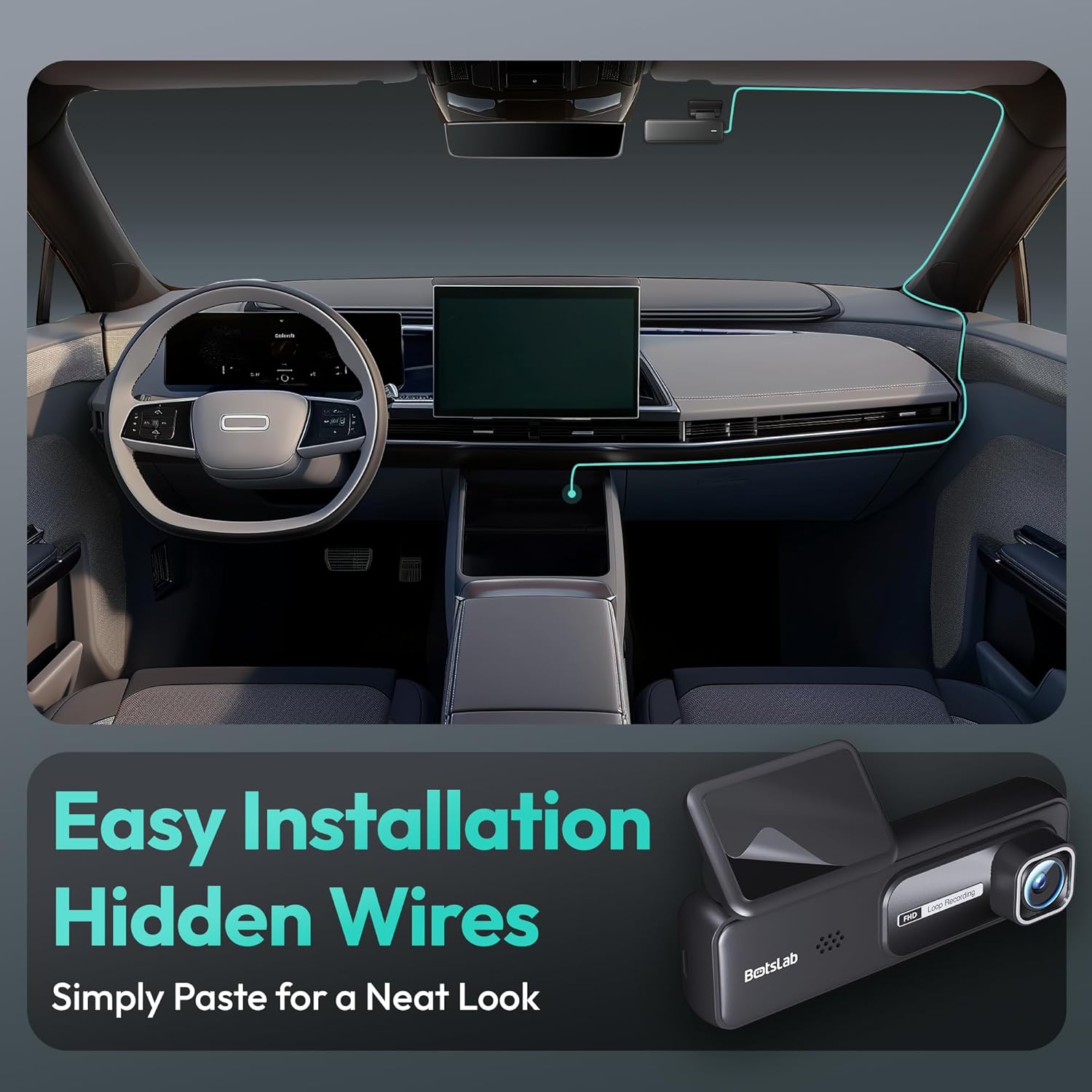
Image: A visual guide illustrating the process of easy dash cam installation with hidden wires, showing how to route the cable neatly along the car's interior for a clean look.
5.4 GPS Module Connection (if applicable)
If your package includes a separate GPS module, connect it to the designated port on the dash cam. Ensure the GPS module is placed in an area with a clear view of the sky for optimal signal reception.
6. Operating Instructions
6.1 Automatic Recording
Once powered on and connected to your vehicle's ignition, the dash cam will automatically start recording when the engine is started. It will stop recording and power off shortly after the engine is turned off.
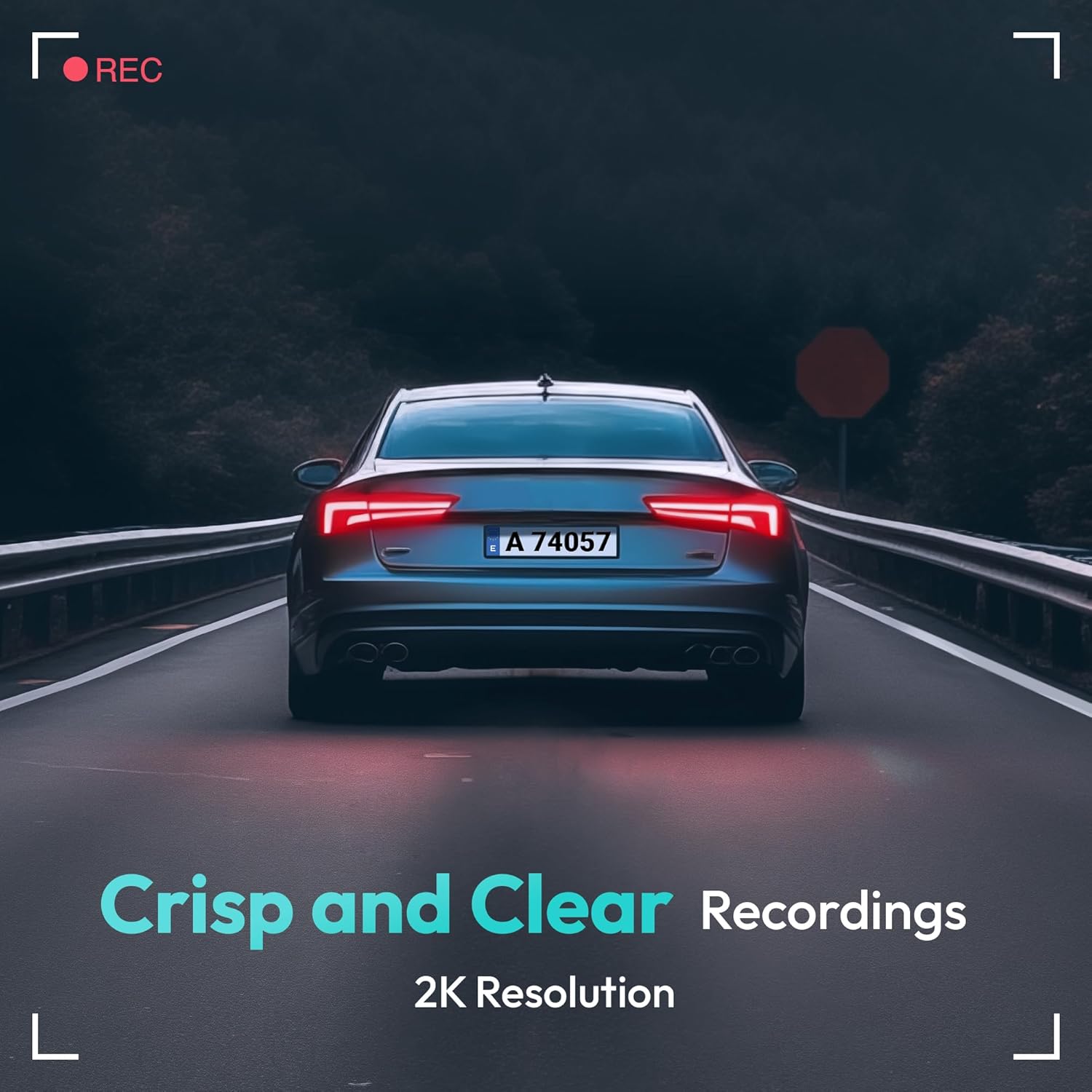
Image: A visual representation highlighting the crisp and clear recording capabilities of the dash cam, indicating 2K resolution for detailed footage.
6.2 Loop Recording
The dash cam records video in continuous loops (e.g., 1, 3, or 5-minute segments). When the memory card is full, the oldest unlocked files will be automatically overwritten by new recordings. This ensures continuous recording without manual intervention.
6.3 G-Sensor (Emergency Recording)
The built-in G-Sensor detects sudden impacts or collisions. When an impact is detected, the current video segment will be automatically locked and saved to a protected folder on the memory card, preventing it from being overwritten by loop recording. These files are crucial for accident evidence.
6.4 Parking Monitoring
For 24-hour parking surveillance, a hardwire kit (buck line) is required (sold separately). Once installed, the dash cam can utilize:
- Time-lapse Recording: Records continuously at a low frame rate to save storage space while providing a full overview of parking events.
- Collision-Triggered Recording: If an impact is detected while parked, the dash cam will wake up and record a short video segment, which will be locked.

Image: An illustration depicting the 24/7 parking monitoring feature, highlighting time-lapse recording and collision-triggered normal recording capabilities, with a shield icon indicating protection.
6.5 App Control and Connectivity
Download the official BOTSLAB app from your smartphone's app store. Connect your phone to the dash cam's Wi-Fi network (SSID and password usually found on the device or in the manual). Through the app, you can:
- View live video feed.
- Adjust dash cam settings (resolution, G-sensor sensitivity, loop recording duration, etc.).
- Playback recorded videos.
- Download video files directly to your phone.
- Update firmware.
6.6 GPS Tracking and Playback
With the GPS module connected, the dash cam records your vehicle's speed and location data. This information can be viewed during video playback using the dedicated PC viewer software (available for download from the BOTSLAB website) or within the mobile app, often overlaid on a map (e.g., Google Maps).
7. Maintenance
7.1 Cleaning the Device
Use a soft, dry cloth to clean the dash cam's lens and body. Do not use liquid cleaners or abrasive materials, as they may damage the device.
7.2 Memory Card Management
It is recommended to format the microSD card once a month to maintain optimal performance and prevent data corruption. Back up any important files before formatting.
7.3 Firmware Updates
Periodically check the BOTSLAB official website or the mobile app for available firmware updates. Firmware updates can improve performance, add new features, or fix bugs. Follow the instructions provided with the firmware update carefully.
8. Troubleshooting
| Problem | Possible Cause | Solution |
|---|---|---|
| Dash cam does not power on. | No power supply; faulty cable; vehicle's power outlet issue. | Check power cable connection; try another power outlet; ensure vehicle ignition is on. |
| Recording stops or freezes. | Memory card full or corrupted; slow memory card; firmware issue. | Format memory card; use a high-speed (Class 10+) card; update firmware. |
| Video quality is poor. | Dirty lens; protective film still on lens; incorrect resolution settings. | Clean the lens; remove protective film; set recording resolution to highest available. |
| GPS signal not found. | GPS module not connected; poor satellite reception. | Ensure GPS module is connected; move vehicle to an open area with clear sky view. |
| Cannot connect to Wi-Fi/App. | Incorrect Wi-Fi password; phone too far from device; app not updated. | Verify Wi-Fi password; ensure phone is close to dash cam; update app. |
9. Specifications
| Feature | Detail |
|---|---|
| Model Name | HK30 |
| Video Capture Resolution | Front: 4K (1944p), Rear/Interior: 1080P (if applicable) |
| Viewing Angle | 140° (Front) |
| Connectivity Technology | USB, Wireless (Wi-Fi) |
| Special Features | App Control, G-Sensor, Loop Recording, Parking Monitor, Color Night Vision |
| Storage | MicroSD Card (up to 256GB, Class 10 or higher) |
| Mounting Type | Windshield Mount |
| Power Source | Car Charger (12V) |
| Product Dimensions | 2 x 5.5 x 5.5 inches |
| Item Weight | 9.6 ounces |
10. Warranty and Support
BOTSLAB products come with a limited warranty. Please refer to the warranty card included in your package or visit the official BOTSLAB website for detailed warranty terms and conditions. For technical support, troubleshooting assistance, or any inquiries, please contact BOTSLAB customer service through the contact information provided on their official website or within the mobile application.
Website: www.botslab.com (Example link, please refer to actual product documentation for correct URL)
Related documentsHK30


Ask a question about this manual
Ask about setup, troubleshooting, compatibility, parts, safety, or missing instructions. Manuals+ will review the question and use this page’s manual context to help answer it.