
nuphy Halo96V2
NuPhy Halo96 V2 Wireless Mechanical Keyboard User Manual
Comprehensive guide for setup, operation, and maintenance.
Introduction
This user manual provides detailed instructions for setting up, operating, and maintaining your NuPhy Halo96 V2 Wireless Mechanical Keyboard. Please read this manual thoroughly to ensure optimal performance and longevity of your device.

Figure 1: NuPhy Halo96 V2 Wireless Mechanical Keyboard. This image shows the full keyboard from a top-down perspective, highlighting its 96% layout and keycap colors.
Setup
Package Contents
- NuPhy Halo96 V2 Mechanical Keyboard
- USB-C to USB-A Cable
- 2.4GHz USB Receiver
- Keycap Puller
- Switch Puller
- Additional Keycaps (for Mac/Windows layouts)
- User Manual (this document)
Initial Charging
Before first use, it is recommended to fully charge the keyboard. Connect the provided USB-C cable to the keyboard's USB-C port and the other end to a powered USB-A port on your computer or a wall adapter. The keyboard features a 4000mAh battery.
Connectivity Options
The Halo96 V2 offers three modes of connection: Bluetooth 5.0, 2.4GHz wireless, and USB-C wired.

Figure 2: Connectivity options for the NuPhy Halo96 V2. This image illustrates the three primary connection methods: USB-C wired, Bluetooth, and 2.4GHz wireless, along with icons for each.
2.4GHz Wireless Connection
- Locate the 2.4GHz USB receiver.
- Plug the receiver into an available USB-A port on your computer.
- On the keyboard, switch the mode selector to 2.4GHz. The keyboard will automatically connect.
Bluetooth 5.0 Connection
- On the keyboard, switch the mode selector to Bluetooth.
- Press and hold Fn + 1 (or 2, 3, 4) for 3 seconds until the indicator light flashes rapidly, indicating pairing mode.
- On your device (computer, tablet, smartphone), go to Bluetooth settings and select "NuPhy Halo96 V2" from the list of available devices.
- Once connected, the indicator light will become solid. The keyboard can store up to 4 Bluetooth profiles.
USB-C Wired Connection
- Connect the provided USB-C cable to the keyboard's USB-C port.
- Connect the USB-A end of the cable to your computer's USB-A port.
- On the keyboard, switch the mode selector to USB-C. The keyboard will function immediately.
Operating System Switch
The keyboard supports both macOS and Windows/Linux/Android/iOS systems. Use the dedicated switch on the side of the keyboard to toggle between Mac and PC modes for optimized key mappings and shortcuts.

Figure 3: Side view of the NuPhy Halo96 V2 keyboard. This image displays the side profile of the keyboard, including the USB-C port, mode switches, and the semi-transparent bottom case.
Operation
QMK/VIA Customization
The NuPhy Halo96 V2 supports QMK/VIA firmware, allowing for extensive customization of key mappings, macros, and lighting effects. Download the VIA software from the official QMK/VIA website to access these features.

Figure 4: QMK/VIA customization interface for Halo96 V2. This image demonstrates how users can remap keys and customize functions.
RGB Backlighting and Halolight
The keyboard features per-key RGB backlighting and a unique "Halolight" RGB strip around the base. Both can be customized for color, brightness, and animation effects. The semi-transparent bottom case enhances the Halolight's visual impact.
- Use Fn + [key] combinations to cycle through preset lighting effects and colors.
- Adjust brightness and speed of effects using dedicated function keys.
- For advanced customization, use the QMK/VIA software.

Figure 5: Keyboard demonstrating SignalRGB support. This image highlights the vibrant RGB lighting capabilities of the keyboard, including the Halolight strip, and mentions compatibility with SignalRGB for broader lighting control.
Hot-Swappable Switches
The Halo96 V2 features hot-swappable switch sockets, allowing you to change mechanical switches without soldering. This enables users to customize the typing feel and sound to their preference.
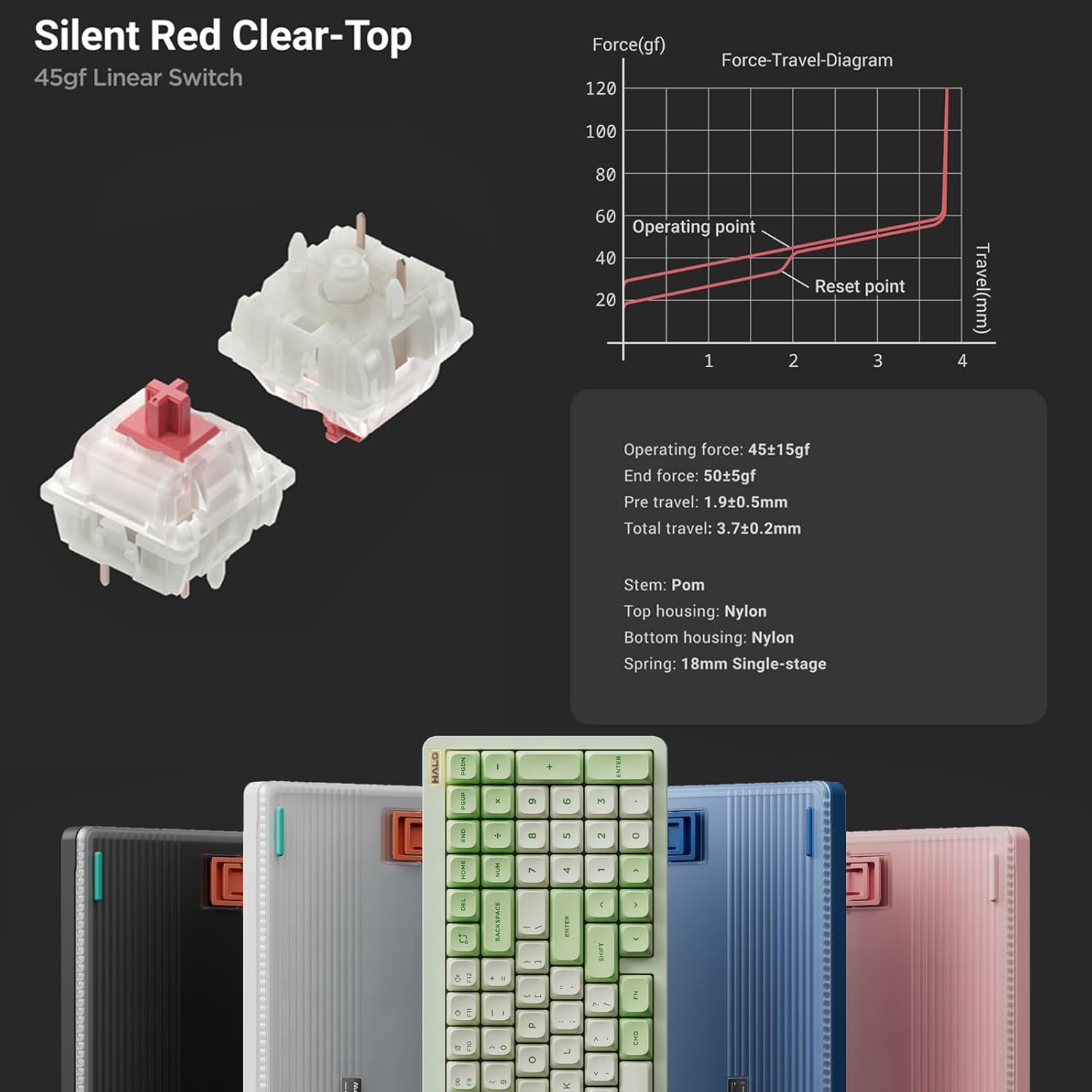
Figure 6: Detailed view of Silent Red Clear-Top switches. This image provides a close-up of the mechanical switches, including their force-travel diagram and specifications, emphasizing the hot-swappable feature.
To replace a switch:
- Gently remove the keycap using the provided keycap puller.
- Use the switch puller to carefully grip the switch and pull it straight up.
- Align the pins of the new switch with the holes on the PCB and press down firmly until it clicks into place. Ensure pins are not bent.
- Replace the keycap.
Key Features Overview
- Enhanced Lighting: Semi-transparent bottom case and double-shot moulding for superior RGB light transmission.
- Improved Acoustics: Gasket mount style replaces top mount for better sound and feel.
- Multi-Device Connectivity: Seamlessly switch between up to 4 devices via Bluetooth 5.0, 2.4GHz, or USB-C wired modes.
- Full Customization: QMK/VIA support for endless key mapping, macro creation, and light customization.
- Broad Compatibility: Supports macOS, Windows, Linux, Android, and iOS operating systems.
- Low Latency: Achieves a 1000Hz polling rate in both wired and 2.4GHz modes for responsive performance.
- Mac-Specific Functions: Dedicated switch for Mac system, providing access to Mac-specific function keys like Do Not Disturb and Spotlight.
- Long Battery Life: Built-in 4000mAh battery for extended wireless use.
- Compact Layout: 96% layout with 99 keys, saving desktop space while retaining essential arrow keys and number pad.

Figure 7: Collage of NuPhy Halo96 V2 features. This image visually summarizes several key aspects including Halolight 2.0, 1000Hz polling rate, QMK/VIA support, PCB Gasket Mount, LED Homing Bars, Hot-Swappable switches, Sidelight, and South-Facing Backlight.
Maintenance
Cleaning the Keyboard
- Turn off the keyboard and disconnect it from all devices.
- Use a can of compressed air to remove dust and debris from between the keycaps.
- For stubborn dirt, carefully remove keycaps using the keycap puller and clean the switch area.
- Wipe the keycaps and keyboard surface with a soft, lint-free cloth lightly dampened with water or a mild cleaning solution. Avoid harsh chemicals.
- Ensure the keyboard is completely dry before reconnecting or turning it on.
Battery Care
- Avoid fully discharging the battery frequently.
- Charge the keyboard regularly, especially if not in use for extended periods.
- Store the keyboard in a cool, dry place when not in use.
Troubleshooting
Connectivity Issues
- Keyboard not connecting via 2.4GHz:
- Ensure the keyboard is in 2.4GHz mode.
- Try plugging the USB receiver into a different USB port.
- Ensure the keyboard is charged.
- Bluetooth pairing failure:
- Ensure the keyboard is in Bluetooth mode and in pairing state (flashing indicator).
- Remove "NuPhy Halo96 V2" from your device's Bluetooth list and try pairing again.
- Try a different Bluetooth channel (Fn+1, Fn+2, etc.).
- Ensure your device's Bluetooth is enabled and discoverable.
- Wired connection not working:
- Ensure the keyboard is in USB-C mode.
- Try a different USB-C cable or USB port on your computer.
Lighting Issues
- Lights not turning on:
- Check battery level.
- Ensure backlighting is enabled via keyboard shortcuts or VIA software.
- Inconsistent lighting:
- Perform a factory reset (refer to QMK/VIA documentation for your specific firmware version).
- Update keyboard firmware via NuPhy's official website.
Key Functionality Issues
- Keys not responding:
- Ensure the switch is properly seated in its socket. Remove and re-insert the switch.
- Test with a different switch if available.
- Check key mappings in VIA software for accidental reassignments.
- Incorrect key output (e.g., Greek letters):
- This may indicate a firmware issue. Check NuPhy's official website for the latest firmware updates and installation instructions.
- Perform a factory reset.
Specifications
| Model Name | Halo96 V2 |
| Brand | NuPhy |
| Layout | 96% (99 Keys) |
| Connectivity | Bluetooth 5.0, 2.4GHz Wireless, USB-C Wired |
| Polling Rate | 1000Hz (Wired & 2.4GHz) |
| Battery Capacity | 4000mAh |
| Switch Type | Hot-Swappable Mechanical Switches (e.g., Silent Red Clear-Top 45gf Linear) |
| Backlighting | RGB (Per-key & Halolight) |
| Firmware Support | QMK/VIA |
| Compatible OS | macOS, Windows, Linux, Android, iOS |
| Product Dimensions | 125.2 x 44.88 x 7.28 inches |
| Item Weight | 1.74 pounds |

Figure 8: Technical drawing showing the dimensions and weight of the NuPhy Halo96 V2. This image provides precise measurements and weight specifications for the keyboard.
Warranty and Support
For warranty information and technical support, please refer to the official NuPhy website or contact their customer service directly. Keep your purchase receipt as proof of purchase for warranty claims.
Visit the official NuPhy Store: NuPhy Store on Amazon
Related documentsHalo96V2


Ask a question about this manual
Ask about setup, troubleshooting, compatibility, parts, safety, or missing instructions. Manuals+ will review the question and use this page’s manual context to help answer it.