
1. Introduction
The Anykit Digital Otoscope with Gyroscope (Model AKE100i) is a high-definition ear camera designed for visual inspection of the ear canal and eardrum. Equipped with an intelligent directional gyroscope, it provides a stable and clear view, making it easier to navigate and capture images or videos. This device is compatible with a range of Type-C enabled Android and iPhone 15 series devices, offering a convenient solution for personal ear examination and wax removal.
2. Package Contents
Please verify that all items are present in your package:
- AKE100i USB-C Otoscope
- Ear Specula (3 pieces)
- Ear Picks (2 pieces)
- User Manual

Image: The Anykit Digital Otoscope, showing the main device, various ear specula, ear picks, and the user manual.
3. Setup
3.1 App Installation
To utilize the full functionality of your Anykit Digital Otoscope, download the companion application from your device's app store. Search for 'Anykit' or refer to the QR code in the included user manual for direct download links.
3.2 Device Connection
- Ensure your smartphone or tablet is compatible: Android 8.0+ (with OTG support) or iPhone 15/15 Pro/15 Plus/15 Pro Max, and iPad (12th generation and newer). Note: Not compatible with PCs, iPad Pro (4th generation), iPad 4, or iPad 2.
- Connect the USB-C end of the otoscope directly into your device's Type-C port.
- Open the Anykit application. The device should be automatically detected and connect.
If using with an adapter (e.g., Type-C to Lightning), ensure the adapter supports OTG functionality for proper operation.

Image: Illustration of the otoscope's compatibility with iPhone 15 series and Android devices via Type-C connection.
4. Operating Instructions
4.1 Using the Otoscope
Once connected and the app is open, the otoscope's camera feed will appear on your device's screen. The intelligent gyroscope ensures a stable image regardless of the otoscope's orientation, providing a clear view of the ear canal and eardrum.
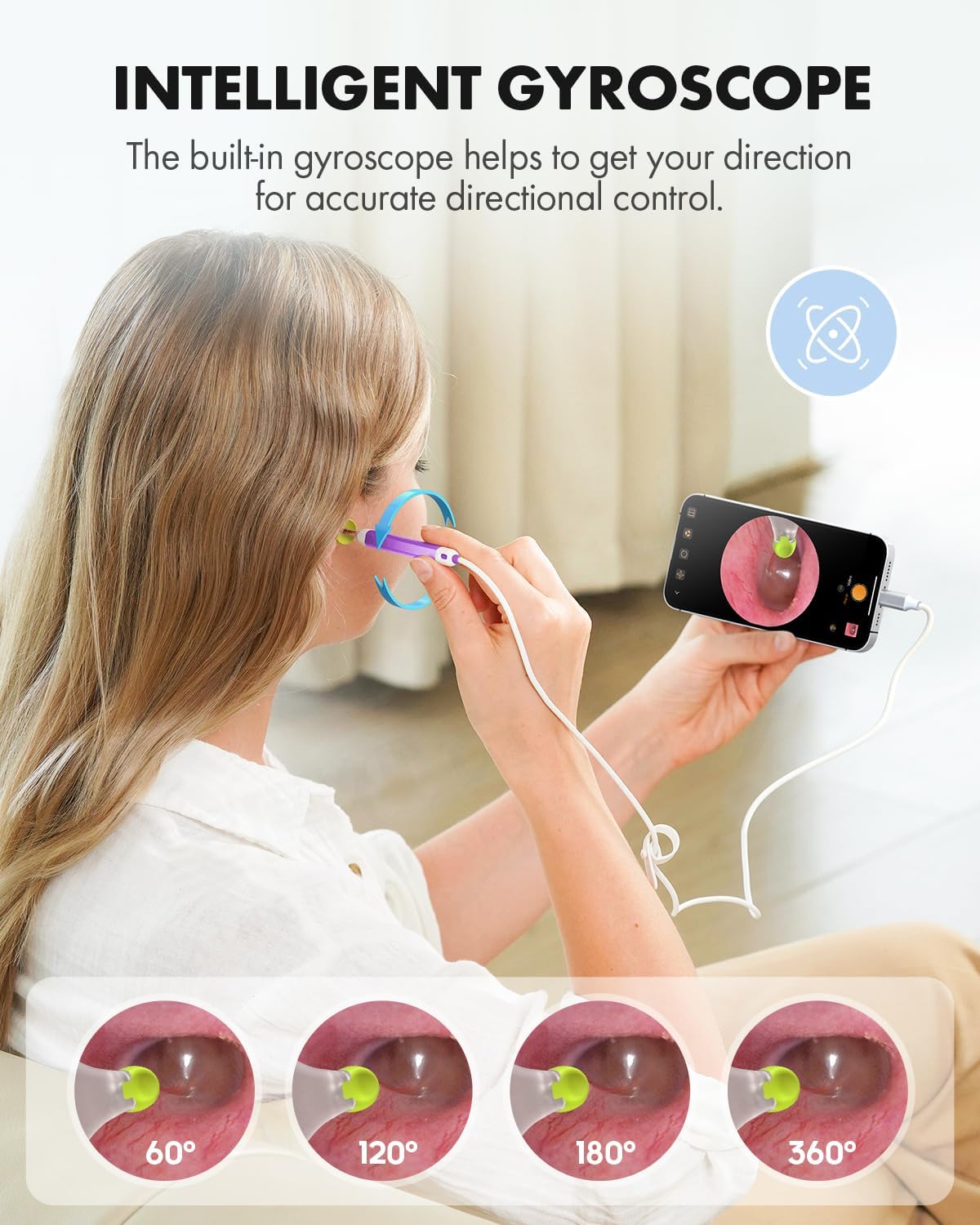
Image: Visual representation of the intelligent gyroscope maintaining image stability during ear inspection.
4.2 Taking Photos and Videos
The application allows you to capture high-definition 1080p images and videos directly from the otoscope's camera. Use the on-screen controls within the app to switch between photo and video modes and to initiate capture. These media files can be saved to your device for later review or sharing with a healthcare professional.

Image: Depiction of a user sending captured ear images/videos to a doctor for remote consultation.
4.3 Using Ear Wax Removal Tools
Attach one of the provided soft silicone ear picks or specula to the tip of the otoscope. The adjustable protection cover and specula are designed to ensure safety during use. Carefully guide the otoscope into the ear canal while observing the live feed on your device. Gently remove any visible earwax. Always exercise caution to avoid injury to the eardrum or ear canal.

Image: Illustration demonstrating the safe use of ear picks with an adjustable protection cover for earwax removal.
5. Maintenance
5.1 Cleaning the Device
The otoscope camera lens is IP67 waterproof, allowing for easy cleaning. After each use, remove any attached ear picks or specula. Use an alcohol prep pad or a soft, damp cloth to gently wipe the camera lens and the tip of the otoscope. Ensure the device is completely dry before storage.

Image: Demonstrates the IP67 waterproof feature and cleaning methods for the otoscope lens.
6. Troubleshooting
- No Image on Screen: Ensure the otoscope is securely plugged into a compatible Type-C port and the Anykit app is open. Check if your device supports OTG functionality if it's an Android device.
- Blurry Image: The optimal focal range is approximately 1 inch from the object. Adjust the distance to achieve a clear image. Ensure the camera lens is clean and free of debris.
- Device Not Connecting: Restart the Anykit app and replug the otoscope. Verify that your device's operating system meets the minimum requirements (Android 8.0+ or iPhone 15 series/iPad 12th gen+).
7. Specifications
- Model: AKE100i
- Camera Resolution: 1080p HD
- Lens Diameter: 0.15 inches (ultra-fine)
- Illumination: 6 LED lights
- Waterproof Rating: IP67 (camera lens)
- Compatibility: Android 8.0+ (OTG support), iPhone 15/15 Pro/15 Plus/15 Pro Max, iPad (12th generation and newer)
- Special Features: Intelligent directional gyroscope, Plug and Play USB connection
- Package Dimensions: 6.06 x 2.52 x 1.38 inches
- Weight: 3.53 ounces
- Manufacturer: Anykit
- First Available: June 4, 2024
8. Safety Information
WARNING: THIS IS NOT A TOY. Keep the product away from children under 12 years old.
This product is not intended to diagnose, treat, cure, or prevent any disease or health condition. Statements regarding dietary supplements have not been evaluated by the FDA and are not intended to diagnose, treat, cure, or prevent any disease or health condition.
Always use the specula and adjustable protection cover to prevent inserting the otoscope too deeply into the ear canal. Exercise extreme caution when using ear picks to avoid injury. If you experience pain, discomfort, or notice anything abnormal, discontinue use immediately and consult a healthcare professional.

Image: Visual guide illustrating safe insertion depth with the protective cover versus dangerous deep insertion.
9. Official Product Video
Watch this official video from Anykit for a demonstration on how to use the Digital Otoscope with Xscope.
Video: A detailed guide by Anykit demonstrating the setup and usage of the Digital Otoscope, including connection to a device and viewing the ear canal.
10. Warranty and Support
For warranty information, technical support, or further assistance, please refer to the official Anykit website or the contact details provided in your product packaging. Keep your purchase receipt for warranty claims.


