
1. Introduction
This manual provides detailed instructions for the setup, operation, and maintenance of your BOIFUN Split Screen Video Baby Monitor WiFi, Model Baby 7SM. This system is designed to help you monitor your baby with dual cameras, a 4.3-inch LCD monitor, and mobile application control, ensuring peace of mind and enhanced safety.
2. What's in the Box
- 1 x 4.3-inch LCD Parent Unit (Monitor)
- 2 x Baby Cameras (Camera Units)
- 3 x Power Adapters (for Monitor and Cameras)
- 1 x User Manual
- Mounting Accessories (e.g., wall mounts, screws)

3. Setup Instructions
3.1 Powering On and Initial Pairing
- Connect each baby camera to a power outlet using the provided power adapters.
- Connect the parent unit (monitor) to a power outlet using its dedicated power adapter.
- The cameras and monitor should automatically pair. If not, refer to the 'Pairing Cameras' section in the full user manual.
3.2 Mobile App Connection (2.4 GHz Wi-Fi Required)
For remote monitoring and advanced features, connect your system to the mobile application. Ensure your Wi-Fi network is 2.4 GHz.
- Download the BOIFUN mobile application from your device's app store.
- Follow the in-app instructions to register an account and add your device. This typically involves scanning a QR code displayed on the camera or monitor.
Video: A buyer's experience sharing the setup and features of the BOIFUN baby monitor.
4. Operating Instructions
4.1 Split-Screen Viewing
The 4.3-inch monitor supports split-screen functionality, allowing you to view feeds from both cameras simultaneously.
- To enter full-screen view for a selected camera, press the OK button.
- To return to split-screen view, press the Back button.

4.2 Pan, Tilt, and 4X Zoom
Control the camera's viewing angle and zoom level directly from the parent unit or mobile app.
- Use the directional buttons on the parent unit or the app's interface to pan (move horizontally) and tilt (move vertically) the camera.
- Activate the 4x zoom function to get a closer look at your baby without disturbing them.

4.3 Two-Way Audio Communication
Speak to your baby or communicate with someone in the baby's room using the two-way audio feature.
- Press and hold the microphone button on the parent unit or use the intercom function in the mobile app to speak.
- Release the button to listen.

4.4 Smart Care Features (AI Motion & Sound Detection, Area Alarm)
The monitor is equipped with intelligent detection features to alert you to your baby's activity.
- Motion Detection: Receive notifications on your phone and monitor when movement is detected. The screen will automatically switch to the camera's view.
- Sound Detection: Get alerts when your baby cries or makes significant noise.
- Area Alarm: Customize a safe area within the camera's view. If your baby moves outside this area, you will receive a notification.
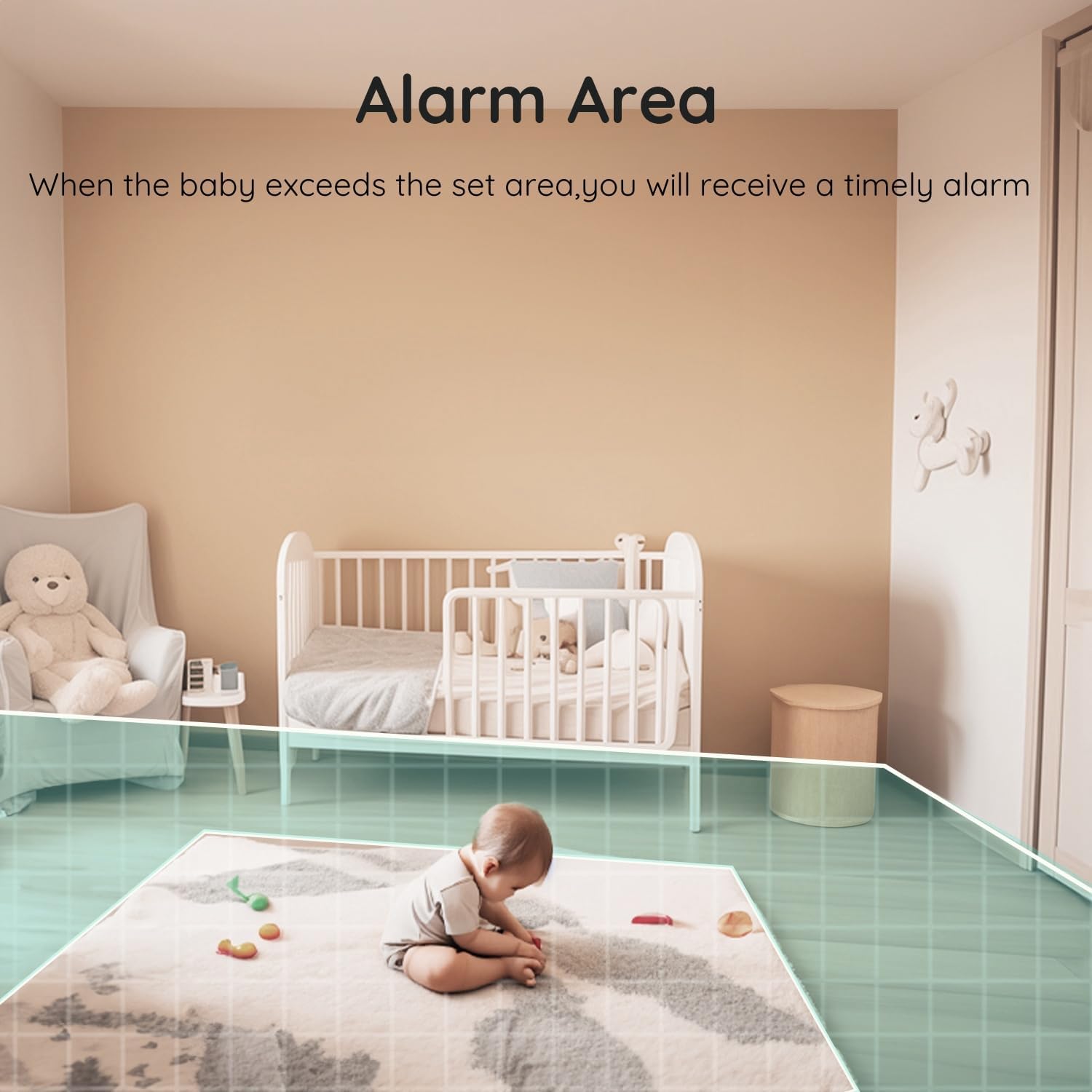

4.5 Night Vision and Invisible Infrared Light
Monitor your baby clearly in low-light conditions with 1080P HD night vision. The invisible infrared light ensures your baby's sleep is undisturbed.

4.6 Lullabies and Sleep Mode
- Lullabies: Play built-in lullabies to soothe your baby to sleep.
- Sleep Mode: Activate sleep mode to turn off the monitor's screen while keeping audio monitoring active. The camera's status indicator light can also be turned off to avoid disturbing your baby.
4.7 Feeding Reminder
Set feeding reminders through the monitor's settings to help maintain your baby's feeding schedule.
4.8 Local Storage (SD Card)
The camera supports local SD card recording, eliminating the need for monthly cloud subscription fees for saving footage.
Video: Another buyer's experience demonstrating various features and usage scenarios.
5. Maintenance
- Cleaning: Use a soft, dry cloth to clean the camera lens and monitor screen. Avoid abrasive cleaners or solvents.
- Storage: Store the monitor and cameras in a cool, dry place when not in use.
- Cable Management: Ensure all cables are securely placed and out of reach of children to prevent entanglement hazards.
6. Troubleshooting
| Problem | Possible Solution |
|---|---|
| No image on monitor | Ensure both the camera and monitor are powered on and within range. Re-pair if necessary. |
| Poor video quality | Check for Wi-Fi interference or obstructions between the camera and monitor. Ensure the camera lens is clean. |
| No sound | Check the volume settings on the parent unit. Ensure the camera's microphone is not muted. |
| App connection issues | Verify your Wi-Fi is 2.4 GHz. Restart your router, camera, and mobile device. Re-add the device in the app. |
7. Specifications
| Feature | Detail |
|---|---|
| Brand | BOIFUN |
| Model Number | Baby 7SM |
| Special Features | Dual Cameras, Split-Screen, Monitor and Mobile App Control |
| Monitor Size | 4.3 inches |
| Photo Sensor Resolution | 1080 Pixels |
| Zoom | 4X |
| Waterproof Rating | IP65 |
| Item Dimensions (L x W x H) | 7.1 x 6.5 x 12.5 Centimetres |
| Batteries Required | Yes |
8. Warranty and Support
The BOIFUN Split Screen Video Baby Monitor (Model Baby 7SM) comes with a 2-year manufacturer warranty. Additionally, BOIFUN offers 24/7 after-sales support and a 3-year quality guarantee with free 30-day returns.
For any questions or support regarding your product, please contact:
- Email: admin@boifun.net


