
1. Introduction and Overview
This manual provides detailed instructions for the Redragon BS8772 Wireless Keyboard and Mouse Combo. This combo features a 75% layout mechanical keyboard with low-profile keys and a 2.4Ghz wireless connection, paired with an ergonomic mouse offering 5 adjustable DPI levels. It is designed for enhanced productivity and comfort, offering a clutter-free workspace and quiet operation. The keyboard includes a built-in rechargeable battery, and the mouse operates on a single AA battery.

Image 1.1: The Redragon BS8772 Wireless Keyboard and Mouse Combo in Herb Green.
2. Package Contents
Please verify that all items listed below are included in your package:
- Redragon BS8772 Wireless Keyboard
- Redragon Wireless Mouse
- 2.4GHz USB Receiver (often stored inside the mouse)
- USB Charging Cable (for keyboard)
- User Manual (this document)
3. Setup
Follow these steps to set up your Redragon BS8772 Wireless Keyboard and Mouse Combo:
- Charge the Keyboard: Connect the keyboard to a USB power source (e.g., computer USB port, USB wall adapter) using the provided USB charging cable. The keyboard has a built-in 1600mAh rechargeable battery. Charging is primarily required when using the keyboard in wired mode or when the battery is low.
- Install Mouse Battery: The mouse requires 1 AA battery (not included). Locate the battery compartment on the underside of the mouse. Open the compartment cover, insert the AA battery ensuring correct polarity (+/-), and close the cover.
- Connect USB Receiver: The 2.4GHz USB receiver is typically stored within the mouse's battery compartment for safe keeping. Remove the receiver and insert it into an available USB port on your computer (PC or Laptop).
- Power On Devices: Turn on the keyboard and mouse using their respective power switches. The devices should automatically connect to your computer within a few seconds.
- Driver Installation (Automatic): Your operating system will typically detect and install the necessary drivers automatically. No manual driver installation is usually required.
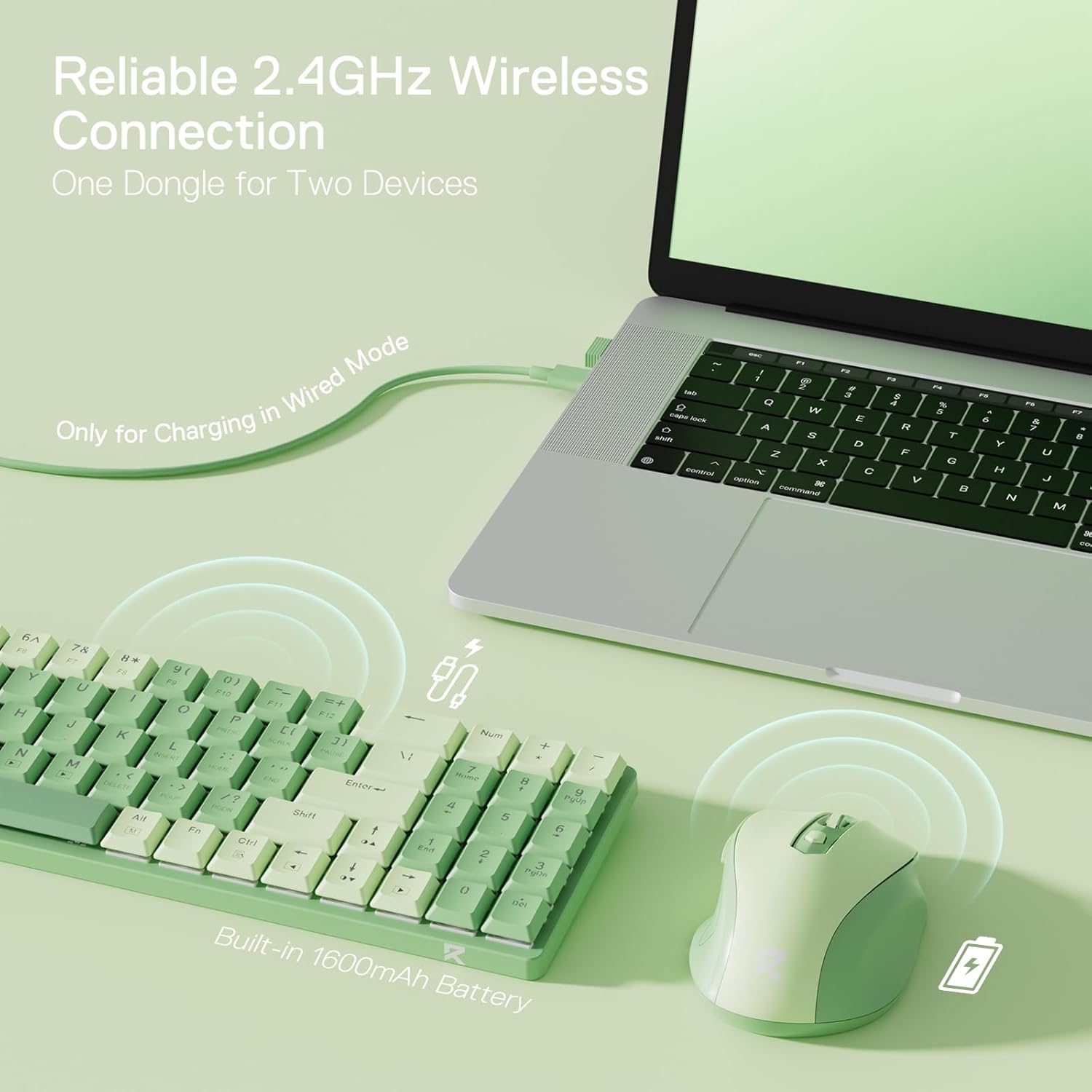
Image 3.1: Illustration of the 2.4GHz wireless connection setup, showing the USB receiver and the keyboard charging via USB cable.
4. Operating Instructions
4.1 Keyboard Usage
The Redragon BS8772 keyboard features a compact 75% layout with 78 keys, providing essential functionality including dedicated arrow keys and a numeric pad while maintaining a space-saving design. Its low-profile mechanical switches offer a comfortable typing experience.
Backlight Control
The keyboard is equipped with a single blue backlight. To control the backlight, use the designated function keys (e.g., Fn + specific key, often indicated by a light bulb icon or arrow keys) to adjust brightness levels or toggle the backlight on/off.

Image 4.1: The 75% compact layout of the Redragon BS8772 keyboard, highlighting its slim profile and low-profile keycaps compared to traditional designs.
4.2 Mouse Usage
The ergonomic design of the Redragon wireless mouse ensures comfortable use for extended periods, reducing hand fatigue. It offers precise cursor control for various tasks.
DPI Adjustment
The mouse features a dedicated DPI switch button, typically located on the top surface near the scroll wheel. Press this button to cycle through the 5 available DPI settings: 800, 1200, 1600, 2000, and 2400 DPI. This allows you to instantly adjust cursor sensitivity to match your preference or the demands of your task.

Image 4.2: The underside of the Redragon wireless mouse, illustrating the 5 adjustable DPI levels (800, 1200, 1600, 2000, 2400) and the location of the AA battery compartment.
5. Maintenance
5.1 Cleaning
To maintain the appearance and functionality of your keyboard and mouse, regular cleaning is recommended:
- Use a soft, dry, lint-free cloth to wipe down the surfaces of both devices.
- For stubborn dirt or grime, lightly dampen the cloth with water or a mild, non-abrasive cleaning solution. Ensure the cloth is not dripping wet.
- Avoid spraying cleaners directly onto the devices or allowing any liquid to enter the internal components.
- For the keyboard, you may use compressed air to remove dust and debris from between the keycaps.
- For the mouse, gently clean the optical sensor on the underside with a cotton swab.
5.2 Battery Care
Proper battery care extends the lifespan of your devices:
- Keyboard: The keyboard's built-in rechargeable battery should be recharged when the low battery indicator activates or when you notice a decrease in performance. Avoid completely draining the battery for prolonged periods.
- Mouse: Replace the AA battery in the mouse when its performance degrades. If you plan to store the mouse for an extended period, remove the AA battery to prevent potential leakage and damage.
6. Troubleshooting
If you encounter issues with your Redragon BS8772 combo, please refer to the following common troubleshooting steps:
6.1 Connectivity Issues
- No Connection: Ensure the 2.4GHz USB receiver is securely plugged into a functional USB port on your computer. Verify that both the keyboard and mouse are powered on using their respective switches.
- Interference: Move the keyboard and mouse closer to the USB receiver. Avoid placing the receiver near other wireless devices (e.g., Wi-Fi routers, cordless phones) or large metal objects that could cause signal interference.
- Battery Low: Check the battery status of both devices. Recharge the keyboard if its battery is low, or replace the AA battery in the mouse.
6.2 Keyboard Specific Issues
- Keys Not Responding: Confirm the keyboard is powered on and properly connected. If specific keys are unresponsive, gently remove the keycap (if removable) and clean any debris or dust underneath.
- Backlight Not Working: Ensure the backlight is not turned off or set to the lowest brightness level. Use the designated function keys to adjust or toggle the backlight.
6.3 Mouse Specific Issues
- Inaccurate Tracking: Clean the optical sensor on the underside of the mouse. Ensure you are using the mouse on a clean, non-reflective surface, ideally a mouse pad.
- DPI Not Changing: Press the DPI switch button firmly. Cycle through all available DPI settings to confirm functionality.
7. Specifications
Detailed specifications for the Redragon BS8772 Wireless Keyboard and Mouse Combo:
| Feature | Detail |
|---|---|
| Model Number | BS-8772 |
| Brand | Redragon |
| Connectivity Technology | 2.4Ghz Wireless (Radio Frequency) |
| Keyboard Layout | 75% (78 Keys) |
| Keyboard Type | Low-Profile Mechanical |
| Keyboard Backlight | Single Blue |
| Keyboard Battery | Built-in 1600mAh Lithium Polymer (Rechargeable) |
| Mouse DPI Levels | 5 Levels (800/1200/1600/2000/2400 DPI) |
| Mouse Battery | 1 AA Battery (Not Included) |
| Product Dimensions | 17.72 x 5.12 x 1.97 inches |
| Item Weight | 1.37 pounds |
| Compatible Devices | PC, Laptop |

Image 7.1: An overview of the key features of the Redragon BS8772 Wireless Keyboard and Mouse Combo, including 2.4G wireless connection, 78 keys compact keyboard, 2400 Max DPI mouse, ergonomic design, ultra-thin keyboard, and decent blue backlight.
8. Warranty and Support
8.1 Warranty Information
Redragon products typically come with a limited manufacturer's warranty. For detailed warranty terms and conditions, including coverage period and specific regional policies, please refer to the official Redragon website or contact their customer support directly.
8.2 Customer Support
For technical assistance, troubleshooting guidance, or any product-related inquiries, please visit the official Redragon support page or reach out to their customer service team. You can also find more information and products by visiting the Redragon Store on Amazon: