
Introduction
Thank you for choosing the KOORUI 2.4G Silent Full Size Ergonomic Wireless Keyboard and Mouse Combo. This manual provides essential information for setting up, operating, maintaining, and troubleshooting your new wireless peripheral set. Please read this manual thoroughly before use to ensure optimal performance and longevity of your product.

Figure 0: KOORUI Wireless Keyboard and Mouse Combo
1. Setup
1.1 Package Contents
- Wireless Keyboard
- Wireless Mouse
- 2-in-1 USB Receiver
- User Manual
1.2 Battery Installation
- Locate the battery compartment on the underside of the keyboard. Insert one AAA battery (not included), ensuring correct polarity.
- Locate the battery compartment on the underside of the mouse. The 2-in-1 USB receiver is stored inside this compartment. Remove the receiver, then insert one AA battery (not included), ensuring correct polarity.
- Close both battery compartments securely.

Figure 1: Battery and USB Receiver Installation
1.3 Connecting to Your Device
- Ensure both the keyboard and mouse are switched to the "ON" position using their respective power switches.
- Plug the 2-in-1 USB receiver into an available USB port on your computer (Laptop/PC/Gaming Console).
- Your operating system should automatically detect and install the necessary drivers. The keyboard and mouse are ready for use once the installation is complete.
Video 1: Demonstrating the setup and functionality of the KOORUI 104-key wireless keyboard and mouse combo.
2. Operating Instructions
2.1 Keyboard Features
- Full Size Layout: The keyboard features a full-size layout with 104 keys, including a numeric keypad, for comprehensive input.
- Silent Typing: Soft and responsive keys provide a quiet typing experience, reducing noise in shared environments.
- Ergonomic Design: Designed for comfort, the keyboard includes an 8° tilt angle to reduce wrist strain during extended use.
- Multimedia & Shortcut Keys: Access 5 multimedia keys and 12 shortcut functions (primarily for Windows systems) for quick control over media, applications, and system functions.

Figure 2: Ergonomic Design with 8° Tilt
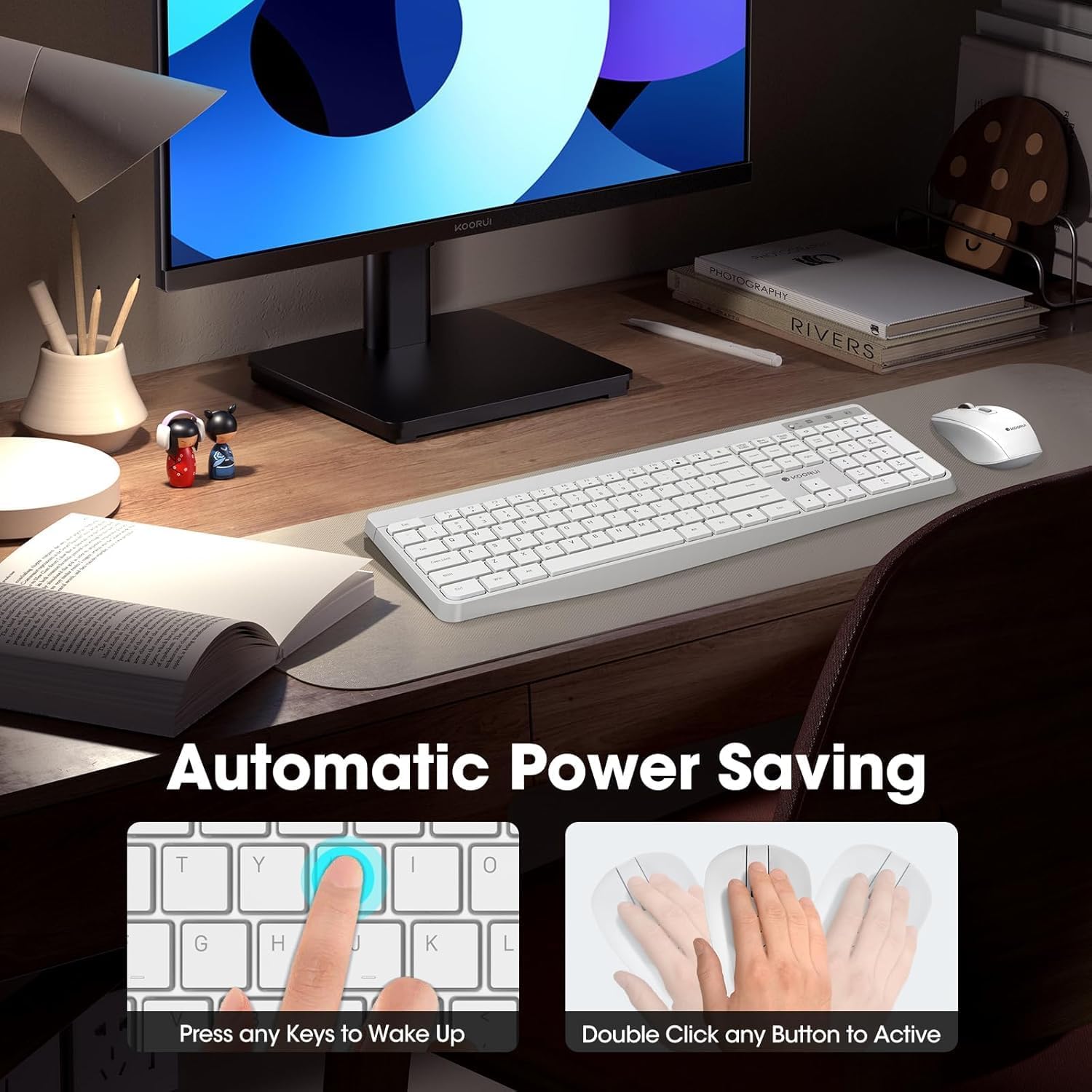
Figure 3: Multimedia and Shortcut Keys
2.2 Mouse Features
- 3 Adjustable DPI Levels: Cycle through 800, 1200, and 1600 DPI settings to adjust cursor sensitivity for precise control.
- Silent Clicks: The mouse features ultra-quiet buttons, minimizing click noise.
- Ergonomic Design: Contoured shape fits comfortably in your hand for extended use.

Figure 4: Mouse DPI Settings
2.3 Compatibility
The KOORUI Wireless Keyboard and Mouse Combo is compatible with a wide range of operating systems, including Windows 7/8/10/11/Vista, macOS, and Linux. It can be used with laptops, personal computers, and gaming consoles.

Figure 5: Wide Compatibility
3. Maintenance
3.1 Cleaning
The keyboard features a waterproof design, offering protection against accidental spills. To clean, gently wipe the surfaces of the keyboard and mouse with a soft, damp cloth. Avoid using harsh chemicals or abrasive materials. Ensure the devices are completely dry before use.

Figure 6: Waterproof Keyboard Design
3.2 Battery Life and Power Saving
- The keyboard and mouse are equipped with an auto-sleep mode function to conserve battery life. They will enter sleep mode after a period of inactivity.
- To wake the devices, simply click any button on the mouse or press any key on the keyboard.
- Replace batteries when the low battery indicator light appears (Keyboard: 1 AAA, Mouse: 1 AA).
Figure 7: Battery Compartments and Power Indicators
4. Troubleshooting
4.1 Connection Issues
- No Response:
- Ensure the keyboard and mouse power switches are in the "ON" position.
- Check if the batteries are correctly installed and have sufficient charge. Replace if necessary.
- Verify that the USB receiver is securely plugged into a working USB port on your computer. Try a different USB port.
- Move the keyboard and mouse closer to the USB receiver to rule out range issues (maximum 10m/33ft).
- Lag or Intermittent Connection:
- Reduce interference by moving other wireless devices away from the receiver.
- Ensure there are no large metal objects between the devices and the receiver.
4.2 Keyboard Specific Issues
- Keys Not Responding:
- Check battery level.
- Ensure the keyboard is not in sleep mode (press any key to wake).
4.3 Mouse Specific Issues
- Cursor Not Moving:
- Check battery level.
- Ensure the mouse is not in sleep mode (click any button to wake).
- Clean the optical sensor on the underside of the mouse.
- Ensure you are using the mouse on a suitable surface.
5. Specifications
| Brand | KOORUI |
| Model | B0C4DVG5WV |
| Color | White |
| Connectivity Technology | 2.4 GHz Radio Frequency |
| Special Feature | Ergonomic, Silent Keys, Waterproof Design, Auto Power Saving |
| Compatible Devices | Gaming Console, Laptop, Personal Computer |
| Movement Detection (Mouse) | Optical (800/1200/1600 DPI) |
| Operating System Compatibility | Windows 7/8/10/11/Vista, macOS, Linux |
| Keyboard Layout | QWERTY, Full Size (104 keys) |
| Power Source | Battery Powered (Keyboard: 1 AAA, Mouse: 1 AA) |
| Wireless Range | Up to 10m (33ft) |
| Item Weight | 0.7 Kilograms |
| UPC | 738060953515 |
6. Warranty Information
This KOORUI product comes with a 1-year limited warranty from the date of purchase. This warranty covers manufacturing defects and workmanship under normal use. It does not cover damage caused by misuse, accident, unauthorized modification, or external causes.
Please retain your proof of purchase for warranty claims.
7. Customer Support
For any questions, technical assistance, or warranty inquiries regarding your KOORUI Wireless Keyboard and Mouse Combo, please contact our customer support team. We are committed to providing 24-hour service to assist you.
Please refer to the product packaging or the official KOORUI website for the most current contact information.

