
1. Introduction
This manual provides detailed instructions for the installation, operation, and maintenance of your Carpuride W703 portable wireless CarPlay and Android Auto system. The W703 features a 7-inch IPS HD touchscreen, integrated 4K front dash camera, and a 1080p waterproof rear camera, offering enhanced connectivity and driving safety features. Please read this manual thoroughly before use to ensure proper functionality and to maximize your experience.
2. Product Overview
2.1. Components Included
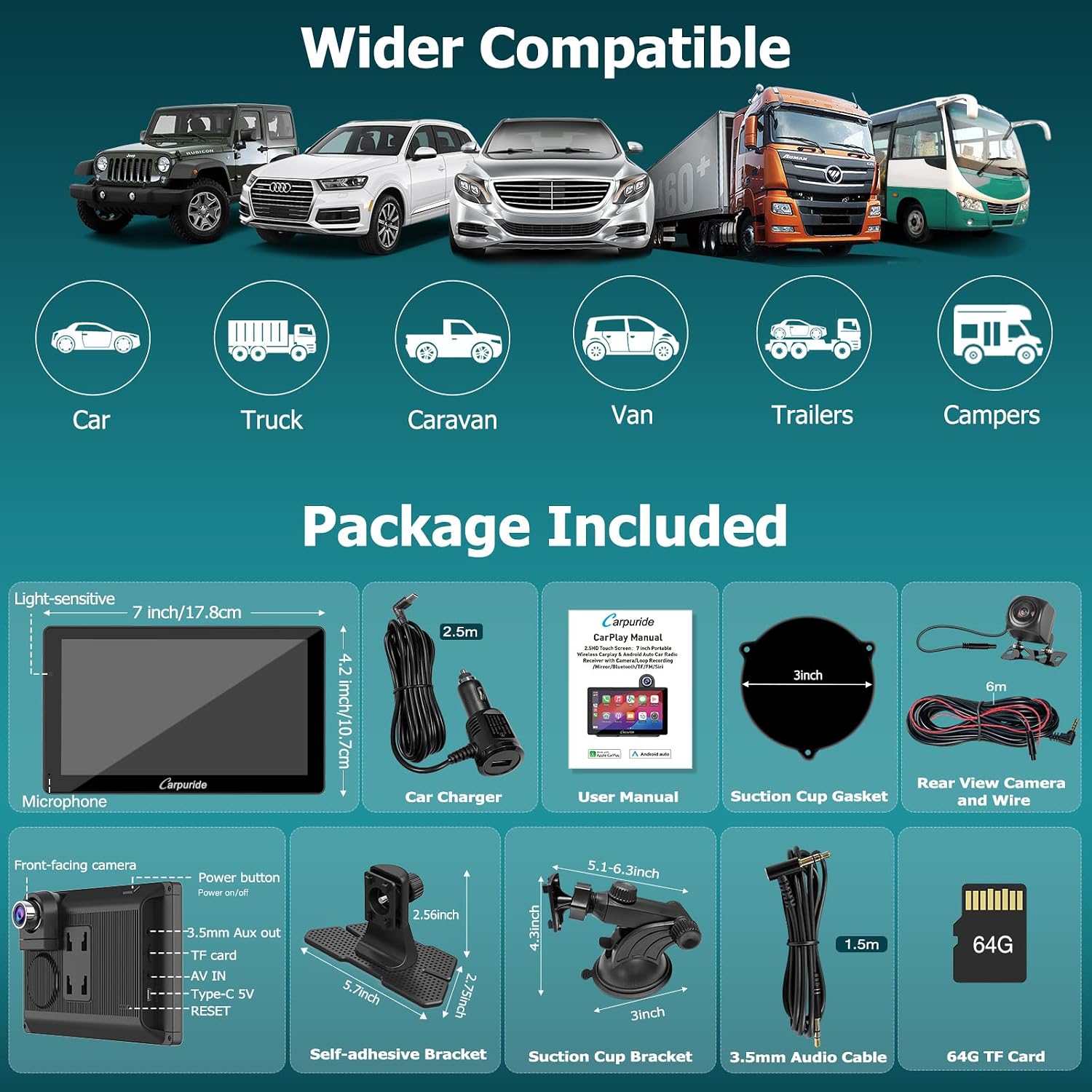
The Carpuride W703 package typically includes the following items:
- Carpuride W703 Main Unit (7-inch screen with integrated front camera)
- Car Charger (Type-C 5V 2.5A)
- User Manual
- Suction Cup Gasket
- Rear View Camera and 6-meter Wire
- Self-adhesive Bracket
- Suction Cup Bracket
- 3.5mm Audio Cable (1.5m)
- 64GB TF Card
2.2. Key Features
- Wireless CarPlay & Android Auto: Seamless integration with your smartphone for navigation, calls, messages, and music.
- Dual Dash Cam System: Features a 4K front camera and a 1080p waterproof rear camera for comprehensive recording.
- Loop Recording & G-sensor: Automatically overwrites old footage and locks emergency videos upon impact detection.
- Light-Sensing Design: Automatically adjusts screen brightness to ambient light conditions, reducing eye strain.
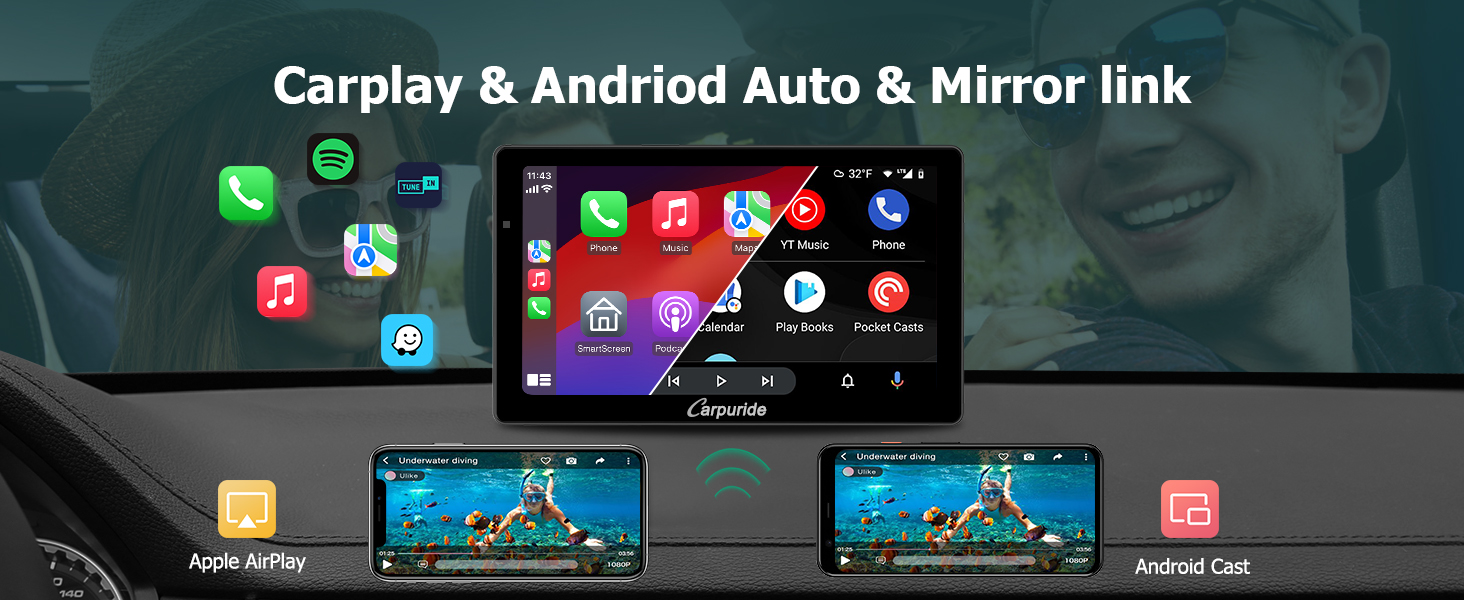
- Wireless Mirror Link: Supports Airplay and Android Cast for mirroring phone content to the 7-inch IPS HD screen.
- Voice Control: Integrated microphone for Siri and other voice assistants for hands-free operation.
- Multiple Audio Output Options: Built-in speaker, AUX connection, FM transmission, and Bluetooth audio.
- Wide Compatibility: Operates on 12-24V, suitable for most cars and trucks.
- Easy Installation: Flexible mounting options (suction cup or self-adhesive) with 360-degree rotation.
3. Setup
3.1. Mounting the Unit
Choose between the self-adhesive bracket for dashboard mounting or the suction cup bracket for windshield mounting. Ensure the chosen surface is clean and dry for optimal adhesion.
- Attach the Carpuride W703 main unit to your preferred bracket.
- Secure the bracket to your dashboard or windshield. The mounts allow for 360-degree rotation and angle adjustment for optimal viewing.


3.2. Power Connection
Connect the Carpuride W703 to your vehicle's power outlet using the provided Type-C 5V 2.5A car charger. Important: Use only the specified 5V 2.5A charger. Using a charger with a higher voltage can damage the device.
3.3. Rear Camera Installation
Connect the waterproof rear view camera to the main unit using the provided 6-meter wire. Route the cable carefully to avoid interference with vehicle operations. The rear camera is designed to activate automatically when the vehicle is in reverse gear, provided it is correctly wired to the reverse light circuit.
3.4. TF Card Insertion
Insert the included 64GB TF card into the designated slot on the main unit. This card is essential for enabling the dash cam's recording functions.
4. Operating Instructions
4.1. Power On/Off
The unit will power on automatically when connected to power. To manually turn off or on, use the power button located on the device.
4.2. Wireless CarPlay & Android Auto
After powering on, the Carpuride W703 will automatically connect to your smartphone via Bluetooth for CarPlay or Android Auto. Ensure Bluetooth is enabled on your phone. Once connected, you can access navigation, make calls, send messages, and play music directly from the 7-inch touchscreen.

4.3. Audio Output
The Carpuride W703 offers several audio output methods:
- Built-in Speaker: Audio plays directly from the unit's integrated 8Ω2W speaker.
- AUX Connection: Connect the unit to your car's AUX input using the provided 3.5mm audio cable for sound through your car's speakers.
- FM Transmission: Transmit audio wirelessly to your car's FM radio by tuning both devices to the same FM frequency.
- Bluetooth Audio: Stream audio from your phone to the unit via Bluetooth, then output to your car's speakers via AUX or FM.

4.4. Dash Cam Functions
The integrated dash cam system provides continuous recording for both front and rear views.
- Loop Recording: When the TF card is full, the system automatically overwrites the oldest video files to continue recording.
- G-sensor: In the event of a sudden vibration or collision, the built-in G-sensor detects the impact and automatically locks the current video file to prevent it from being overwritten.
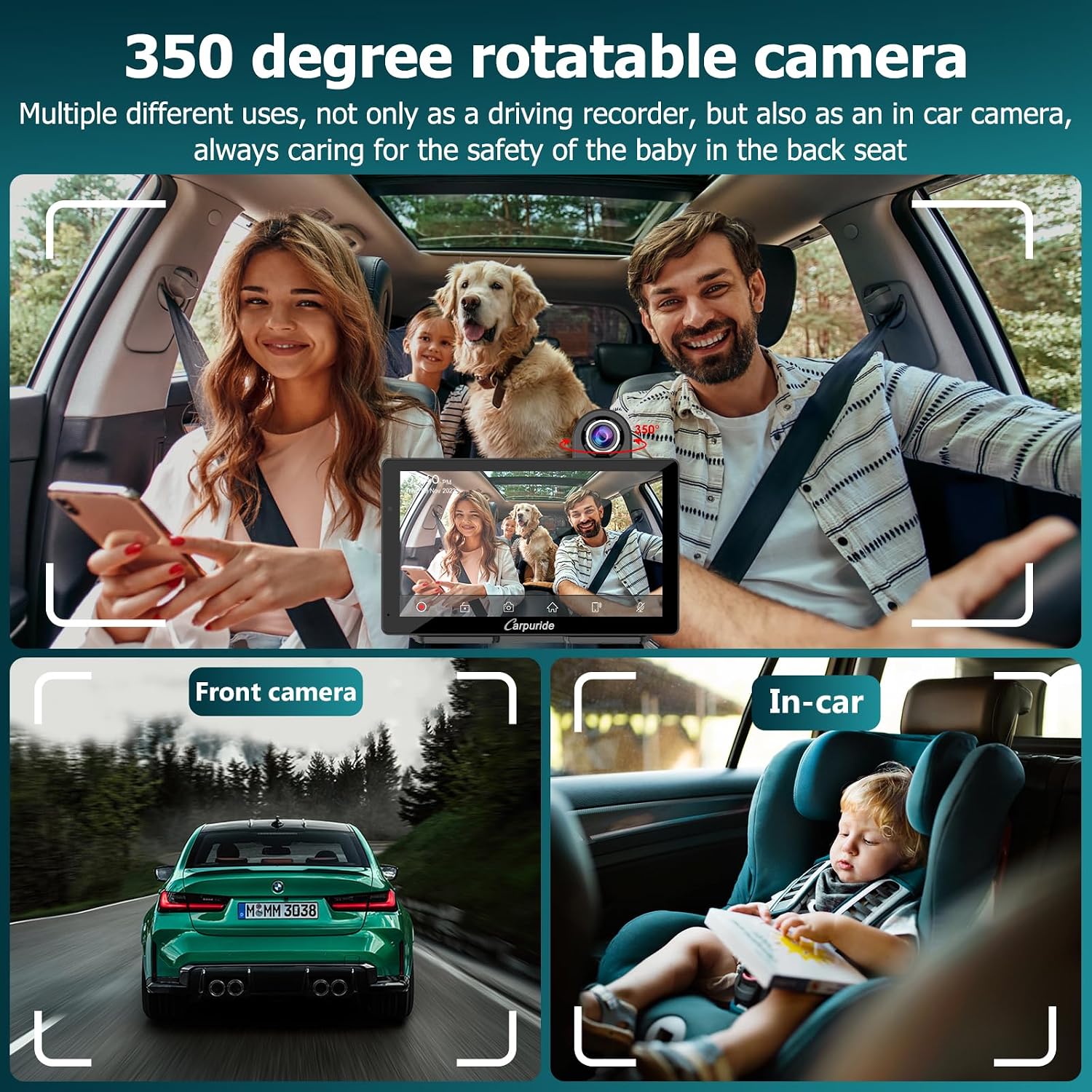
- Front Camera Rotation: The front camera can be rotated 350 degrees, allowing it to record the road ahead or be adjusted to monitor the interior of the car, useful for observing children in the back seat.
- Rear Camera Display: The rear camera view will automatically display on the screen when the vehicle is put into reverse.


4.5. Wireless Mirror Link
The W703 supports wireless Airplay for iOS devices and Android Cast for Android devices. This feature allows you to mirror your smartphone's screen content, including videos and movies, directly onto the 7-inch display.

4.6. Voice Control
Utilize the integrated microphone to activate Siri or other voice assistants on your connected smartphone. This allows for hands-free control of navigation, calls, music playback, and more, enhancing driving safety.


4.7. Light-Sensing Design
The W703 features a light sensor that automatically adjusts the screen's brightness based on ambient light conditions. This helps to protect your eyes and ensures optimal visibility, whether driving through a tunnel or in bright sunlight.

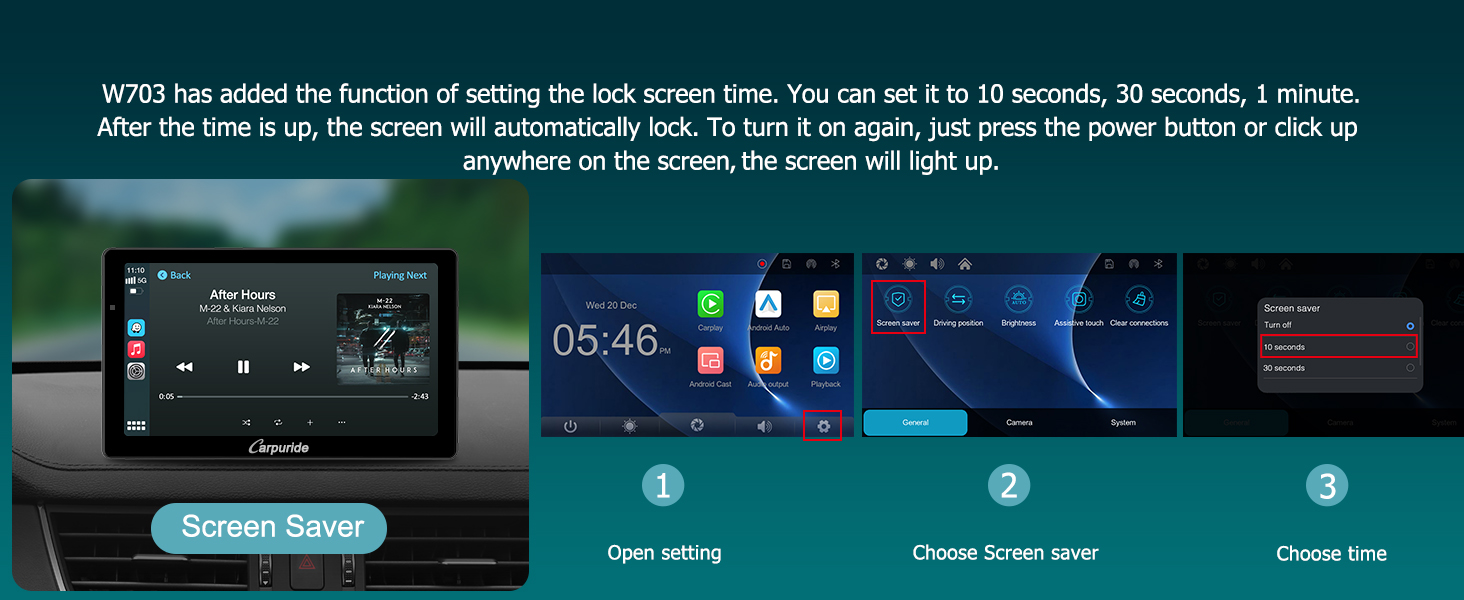
4.8. Screen Saver
The W703 allows you to set a lock screen time. You can configure it to 10 seconds, 30 seconds, or 1 minute. After the set time, the screen will automatically lock. To reactivate the screen, press the power button or tap anywhere on the screen.
5. Maintenance
- Cleaning the Screen: Use a soft, lint-free cloth to gently wipe the screen. Avoid abrasive cleaners or solvents.
- Checking Connections: Periodically ensure all cables (power, AUX, rear camera) are securely connected.
- TF Card Management: Regularly back up important recordings from the TF card. Format the TF card periodically (e.g., monthly) to maintain optimal recording performance and prevent data corruption.
- Software Updates: Check the manufacturer's website for any available software updates to ensure optimal performance and new features.
6. Troubleshooting
If you encounter issues with your Carpuride W703, please refer to the following common problems and solutions:
| Problem | Possible Cause | Solution |
|---|---|---|
| Unit does not power on. | Incorrect power adapter; loose connection. | Ensure the provided 5V 2.5A car charger is used and securely connected. Check the vehicle's power outlet. |
| CarPlay/Android Auto not connecting. | Bluetooth not enabled; pairing issue. | Ensure Bluetooth is active on your smartphone. Re-pair the device via Bluetooth settings. Restart both the unit and your phone. |
| No audio or static audio. | Incorrect audio output setting; loose AUX cable; FM interference. | Check selected audio output mode (Built-in, AUX, FM, Bluetooth). Ensure AUX cable is fully inserted. Adjust FM frequency to an unused channel. |
| Dash cam not recording. | TF card not inserted; TF card full or corrupted. | Ensure the 64GB TF card is correctly inserted. Format the TF card (this will erase all data). If issues persist, try a new TF card. |
| Screen unresponsive. | Temporary software glitch. | Perform a soft reset by pressing the reset button (if available) or power cycle the device. |
7. Specifications
- Model: W703
- Screen Size: 7 inches
- Display Type: IPS HD Touchscreen
- Resolution: 1024 x 600
- Front Camera: 4K
- Rear Camera: 1080p (Waterproof)
- Storage: 64GB TF Card included
- Power Input: Type-C 5V 2.5A (Compatible with 12-24V vehicle power)
- Audio Output: Built-in Speaker (8Ω2W), AUX, FM Transmission, Bluetooth
- Connectivity: Wireless CarPlay, Wireless Android Auto, Wireless Mirror Link (Airplay, Android Cast), Bluetooth, USB, Aux, FM
- Special Features: G-sensor, Loop Recording, Light Sensor, Voice Control (Siri), Customizable Boot Screen
- Color: Black
8. Warranty and Support
For any missing components (e.g., rear camera) or technical assistance, please contact Carpuride customer support. Please refer to your purchase documentation for specific warranty details and duration.
Manufacturer: Carpuride


