
1. Introduction
The Blackview Tab 90WiFi is an advanced 11-inch Android 15 tablet designed for versatile use, from entertainment to productivity. It features a powerful Octa-core UMS9230 processor, a vibrant IPS display with Widevine L1 support, and a long-lasting 8200mAh battery. This manual provides essential information to help you get started and make the most of your device.

Figure 1.1: Blackview Tab 90WiFi 11-inch Android 15 Tablet (Gray model shown).
Video 1.1: Official overview of the Blackview Tablet 11 inch Android 14 Tablets Tab 90WiFi, highlighting key features and design.
Key Features:
- Operating System: Android 15 with upgraded privacy permissions and personalization options.
- Processor: Octa-core UMS9230 for smooth multi-tasking.
- Display: 11-inch Incell HD display (1280x800 pixels) with 83% screen-to-body ratio and TÜV certification for reduced visual fatigue. Supports Widevine L1 for HD streaming.
- Memory & Storage: 12GB RAM (4GB physical + 8GB virtual) and 128GB ROM, expandable up to 2TB via TF card.
- Cameras: 13MP rear AI camera and 8MP front camera.
- Battery: 8200mAh large battery with 10W USB-PD fast charging.
- Connectivity: 5G WiFi and Bluetooth 5.0.
- Design: Stylish all-metal body, 9.5mm thin, and weighs 540 grams.
2. What's in the Box
Upon unboxing your Blackview Tab 90WiFi, please ensure all the following items are present:
- Blackview Tab 90WiFi Tablet
- USB Cable
- Power Adapter
- User Manual
3. Initial Setup
3.1 Powering On/Off
To power on your tablet, press and hold the Power Button (located on the left side when holding the tablet in landscape mode) for 3-5 seconds until the Blackview logo appears. To power off, press and hold the Power Button until a power-off menu appears, then select 'Power off'.
3.2 Initial Configuration
Upon first power-on, the tablet will guide you through an initial setup wizard. Follow the on-screen prompts to:
- Select your language (English is default).
- Connect to a Wi-Fi network.
- Sign in with your Google account (or create one).
- Set up screen lock (PIN, pattern, password, or Face ID).
- Choose navigation preference (gestural or 3-button navigation).
3.3 Inserting a TF Card (Optional)
To expand storage, insert a TF (microSD) card into the dedicated slot. Use the provided SIM removal tool to open the card tray located on the right side of the tablet. Carefully place the TF card into the tray, ensuring correct orientation, and reinsert the tray into the tablet.
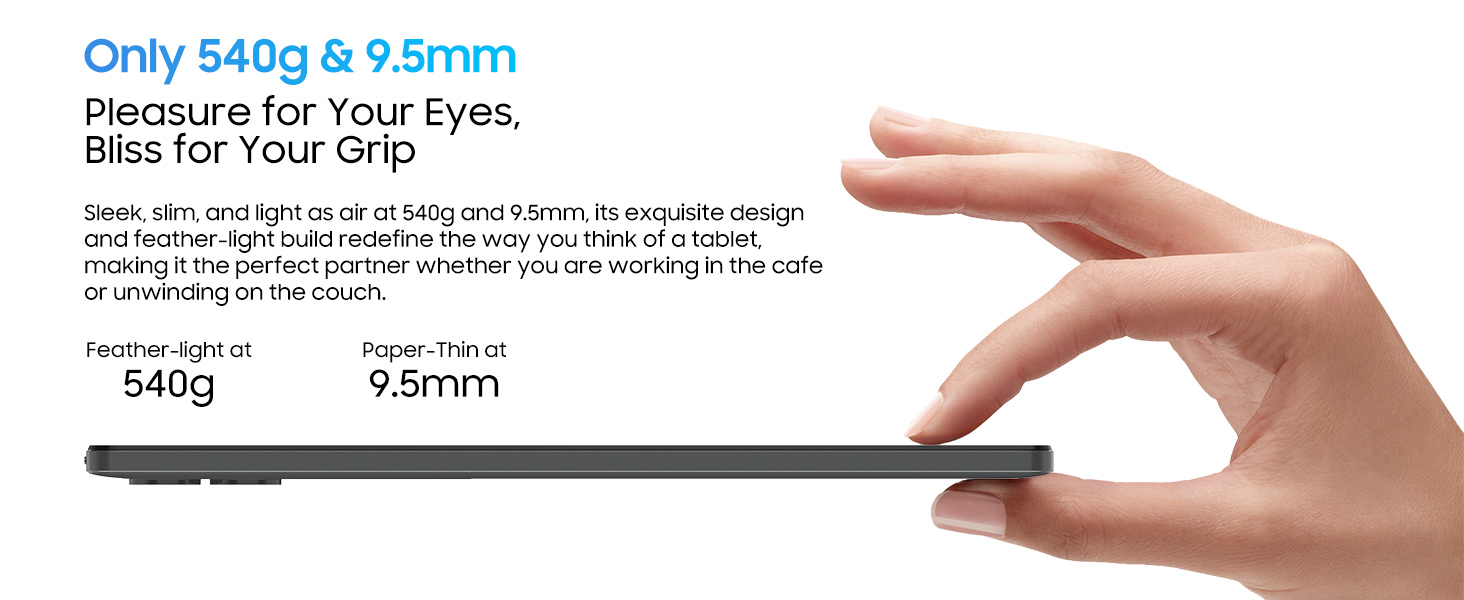
Figure 3.1: Side view of the tablet illustrating the USB-C port, headphone jack, and TF card slot.
4. Operating Your Tablet
4.1 Basic Navigation
Navigate the Android 15 interface using either gestural controls (swipes from edges) or the traditional 3-button navigation bar at the bottom of the screen (Back, Home, Recents). You can switch between these options in the tablet's settings under 'Gestures & Keys'.
4.2 System Management
The pre-installed System Manager app allows you to optimize tablet performance, free up storage space, manage power saving modes, and control app permissions. Regularly use this feature to maintain optimal device health.
4.3 App Usage
- Google Play Store: Access millions of apps, games, movies, and books.
- Notebook: A versatile app for drawing, typing, or recording audio notes.
- Calculator: Includes standard and scientific functions.
- FM Radio: Requires wired headphones (not included) to act as an antenna.
- WPS Office: Pre-installed suite for document, presentation, and spreadsheet creation.
4.4 Media Consumption
The 11-inch IPS display and Widevine L1 support ensure a high-quality viewing experience for streaming services like Netflix, Disney+, and Hulu. Dual Smart-K Box Speakers provide immersive audio.

Figure 4.1: Widevine L1 support enables high-definition streaming from popular platforms.
4.5 Productivity Features
- PC Mode: Transform your tablet into a productivity powerhouse, ideal for work and study.
- Split Screen: Utilize Split View 2.0 for seamless multitasking, allowing two apps to run side-by-side.
- Stylus Support: Enhance note-taking and drawing with compatible stylus devices (stylus not included).
4.6 Camera Usage
The tablet is equipped with a 13MP rear AI camera and an 8MP front camera. The camera app allows you to switch between photo and video modes, adjust aspect ratios, and fine-tune focus and brightness. The AI features enhance portrait clarity and image realism.

Figure 4.2: The 13MP rear camera and 8MP front camera capture moments in stunning detail.
5. Maintenance
5.1 Battery and Charging
The 8200mAh battery provides extended usage. For optimal battery life, use the included 10W USB-PD fast charger. It takes approximately 3 hours to fully charge the tablet. Avoid exposing the tablet to extreme temperatures.

Figure 5.1: The 8200mAh battery ensures extended usage without frequent recharging.
5.2 Software Updates
Ensure your tablet is connected to Wi-Fi to receive and install system updates. Regular updates provide performance improvements, enhanced privacy protection, new features, and advanced security measures.
5.3 Cleaning and Care
Use a soft, lint-free cloth to clean the screen and body of the tablet. Avoid using harsh chemicals or abrasive materials. Keep the tablet away from water and excessive dust.
6. Troubleshooting
6.1 Common Issues and Solutions
- Tablet not turning on: Ensure the battery is charged. Connect to the power adapter and try again.
- Wi-Fi connectivity issues: Check if Wi-Fi is enabled in settings. Restart your router and the tablet.
- Apps crashing or freezing: Close the app and reopen it. Clear the app's cache in settings (Apps & notifications > App info > Storage & cache > Clear cache).
- Slow performance: Use the System Manager to optimize performance and free up space. Close unnecessary background apps.
- Screen rotation not working: Check if auto-rotate is enabled in quick settings or display settings.
7. Specifications
| Feature | Specification |
|---|---|
| Brand | Blackview |
| Model Name | Tab 90WiFi |
| Operating System | Android 14 (Upgradable to Android 15) |
| Screen Size | 11 Inches |
| Screen Resolution | 1280 x 800 Pixels (HD Incell Display) |
| Processor | Unisoc UMS9230 Octa-core 1.6 GHz |
| RAM | 12 GB (4GB physical + 8GB virtual) |
| Flash Memory Size | 128 GB |
| Expandable Storage | Up to 2TB (TF Card) |
| Rear Webcam Resolution | 13 MP |
| Front Webcam Resolution | 8 MP |
| Battery Capacity | 8200 mAh |
| Wireless Type | 802.11a/b/g/n/ac (5G WiFi) |
| Bluetooth | Bluetooth 5.0 |
| Item Weight | 2.16 pounds (approx. 540 grams) |
| Product Dimensions | 10.5 x 7.2 x 0.29 inches (approx. 256.9 x 168.5 x 9.5 mm) |
8. Warranty and Support
Every Blackview Tab 90WiFi tablet comes with a 720-day worry-free warranty. Blackview products undergo strict examination and high-quality testing processes to ensure a great user experience. Users can enjoy free repair warranty and lifetime technician support.
Contacting Support:
If you have any questions or require assistance, please contact Blackview customer service through the Amazon order page. Support is available 24 hours a day.

Figure 8.1: Blackview offers a 2-year warranty and lifetime technical support.


