Introduction
The INPHIC IN9 Wireless Gaming Mouse offers a versatile and high-performance solution for diverse computing needs, from intensive gaming to everyday productivity. Featuring true tri-mode connectivity (Bluetooth 5.0, 2.4GHz USB wireless, and Type-C wired), it ensures minimal latency and stable performance across various devices. With a 6-level adjustable DPI up to 10000, customizable controls, and intelligent power management, the IN9 is designed for precision, comfort, and extended use. This manual provides detailed instructions to help you get the most out of your INPHIC IN9 mouse.

The INPHIC IN9 Wireless Gaming Mouse, showcasing its sleek design and included USB-C cable and 2.4G USB receiver.
Package Contents
Please verify that all items listed below are included in your package:
- INPHIC IN9 Wireless Gaming Mouse
- USB-C Charging Cable / Data Cable
- USB Receiver (2.4G Wireless Dongle)
- Wireless Receiver Extender
- User Manual

Illustration of the INPHIC IN9 mouse and its accompanying accessories, including the USB-C cable, USB receiver, and receiver extender.
Setup
Initial Charging
Before first use, it is recommended to fully charge the mouse. Connect the provided USB-C cable to the mouse's Type-C port and the other end to a USB power source (e.g., computer USB port, wall adapter). The battery indicator lights will show charging status.
Connecting the Mouse (Tri-Mode)
The INPHIC IN9 mouse supports three connection modes: Wired, 2.4G Wireless, and Bluetooth 5.0. You can switch between modes using the mode switch button located on the bottom of the mouse.

Bottom view of the INPHIC IN9 mouse, highlighting the mode switch button, RGB light button, On/Off button, and USB receiver storage position.
- Wired (Type-C) Connection: Simply connect the mouse to your computer using the provided USB-C cable. The mouse will automatically switch to wired mode and begin charging.
- 2.4G Wireless Connection:
- Locate the USB receiver, which is usually built into the bottom of the mouse for storage.
- Plug the USB receiver into an available USB port on your computer. For extended range or convenience, use the included wireless receiver extender.
- Ensure the mouse is switched to 2.4G wireless mode using the mode switch button on the bottom. The mouse should connect automatically.
- Bluetooth 5.0 Connection:
- Switch the mouse to Bluetooth mode using the mode switch button on the bottom.
- On your device (PC, Mac, tablet, phone), go to Bluetooth settings and search for new devices.
- Select "INPHIC IN9" from the list of available devices to pair.

Visual representation of the INPHIC IN9 mouse connected via wired (Type-C), 2.4G wireless, and Bluetooth modes to various devices.
This video demonstrates the seamless switching and functionality of the INPHIC IN9 mouse across its Bluetooth, wired, and 2.4G wireless connection modes.
Operating Instructions
DPI Adjustment
The INPHIC IN9 features 6 adjustable DPI levels, allowing you to customize cursor sensitivity for different tasks, from precise design work to fast-paced gaming. The available DPI settings are 800, 1600, 2400, 3200, 6400, and 10000. Use the DPI button on the top of the mouse to cycle through these settings.

An illustration showing the 6 distinct DPI levels (800 to 10000) available on the INPHIC IN9 mouse, indicating their suitability for various applications.
Programmable Buttons and Software
The INPHIC IN9 mouse features 6 programmable buttons, allowing for tailored commands and macros. To customize these buttons, you will need to download and install Inphic's dedicated driver software. The onboard memory stores these settings, enabling seamless transitions between devices.
- Driver Download: Visit www.inphic.com, navigate to "Customer Support" > "Product Drivers & Manuals", and search for "IN9" to download the driver.
- Compatibility Note: The gaming driver software is only compatible with Windows operating systems. Customizations made via the software may not fully apply when using the mouse in Bluetooth mode on non-Windows systems, as noted in user feedback regarding side-button functionality.

An image illustrating the customizable macro control feature of the INPHIC IN9 mouse, emphasizing the ability to define functions for its 6 buttons.
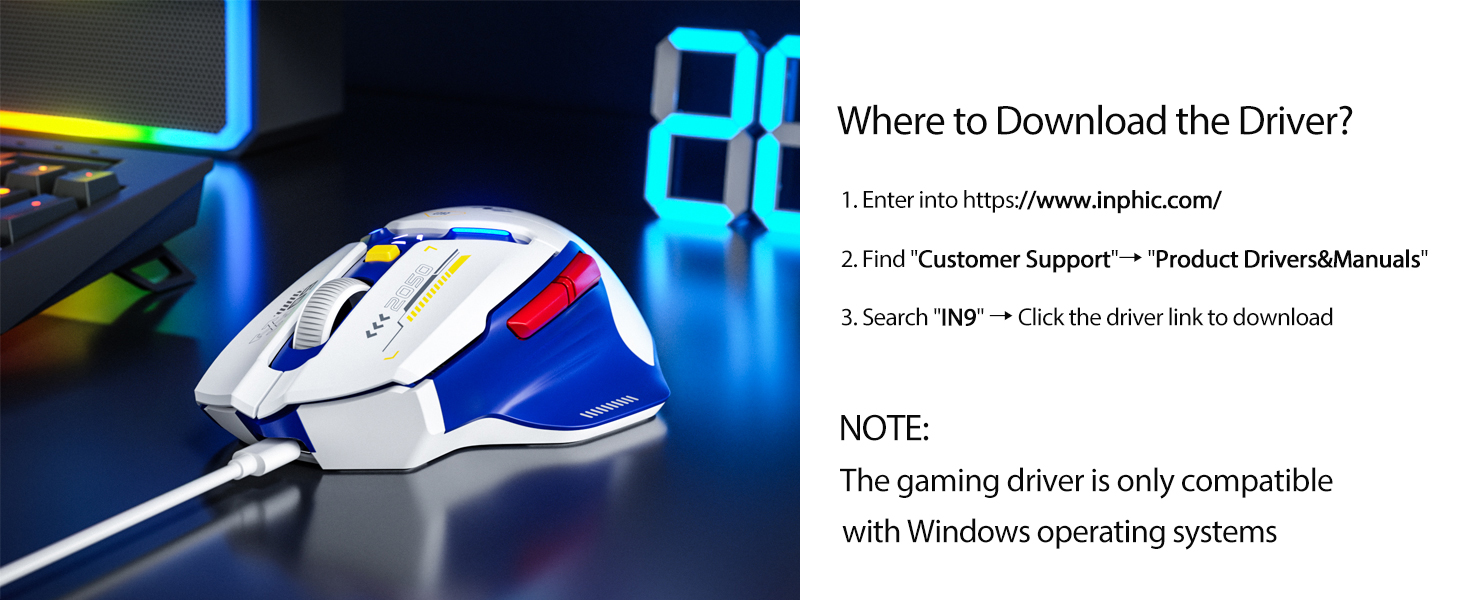
Instructions on where to download the official driver for the INPHIC IN9 mouse, along with a note about Windows compatibility.
This video showcases the programmable features of the INPHIC IN9 Gaming Mouse, demonstrating how users can customize its buttons for enhanced gameplay.
Intelligent Power Management and Battery Indicator
The mouse is equipped with intelligent power-saving modes to extend battery life. It enters a static mode after 3 minutes of inactivity and a deep sleep mode after 10 minutes. Disabling RGB lighting further conserves power, offering up to 100 hours of usage in static mode. The mouse also supports charging while in use via a wired connection.
The visible battery indicator on the mouse provides a quick overview of the remaining battery life:
- 3 lights on: Full battery
- 2 lights on: Battery below 75%
- 1 light on: Battery below 50%
- Flashing lights: Battery below 25%

A visual guide to the INPHIC IN9's battery indicator, showing how the number of illuminated lights corresponds to the remaining battery percentage.

An illustration highlighting the INPHIC IN9's impressive 100-hour battery life when used in no-light effect mode, emphasizing its energy efficiency.
Polling Rates
The INPHIC IN9 offers precision tuning technology with adjustable report rates (polling rates) of 125Hz, 250Hz, 500Hz, and 1000Hz. A higher polling rate means the mouse reports its position to the computer more frequently, resulting in smoother and more responsive cursor movement, ideal for gaming. You can adjust this setting via the driver software.

An image detailing the four polling rates (125-250-500-1000Hz) of the INPHIC IN9 mouse, indicating their suitability for different usage scenarios like home, office, design, and gaming.
Ergonomic Design
The INPHIC IN9 is crafted with an ergonomic left-high-right-low structure, designed to ensure comfortable usage and safeguard the wrist from strain during prolonged use. Its smooth, durable surface resists fingerprints, while the textured thumb area, non-slip scroll wheel, and Teflon foot pads enhance stability and control.

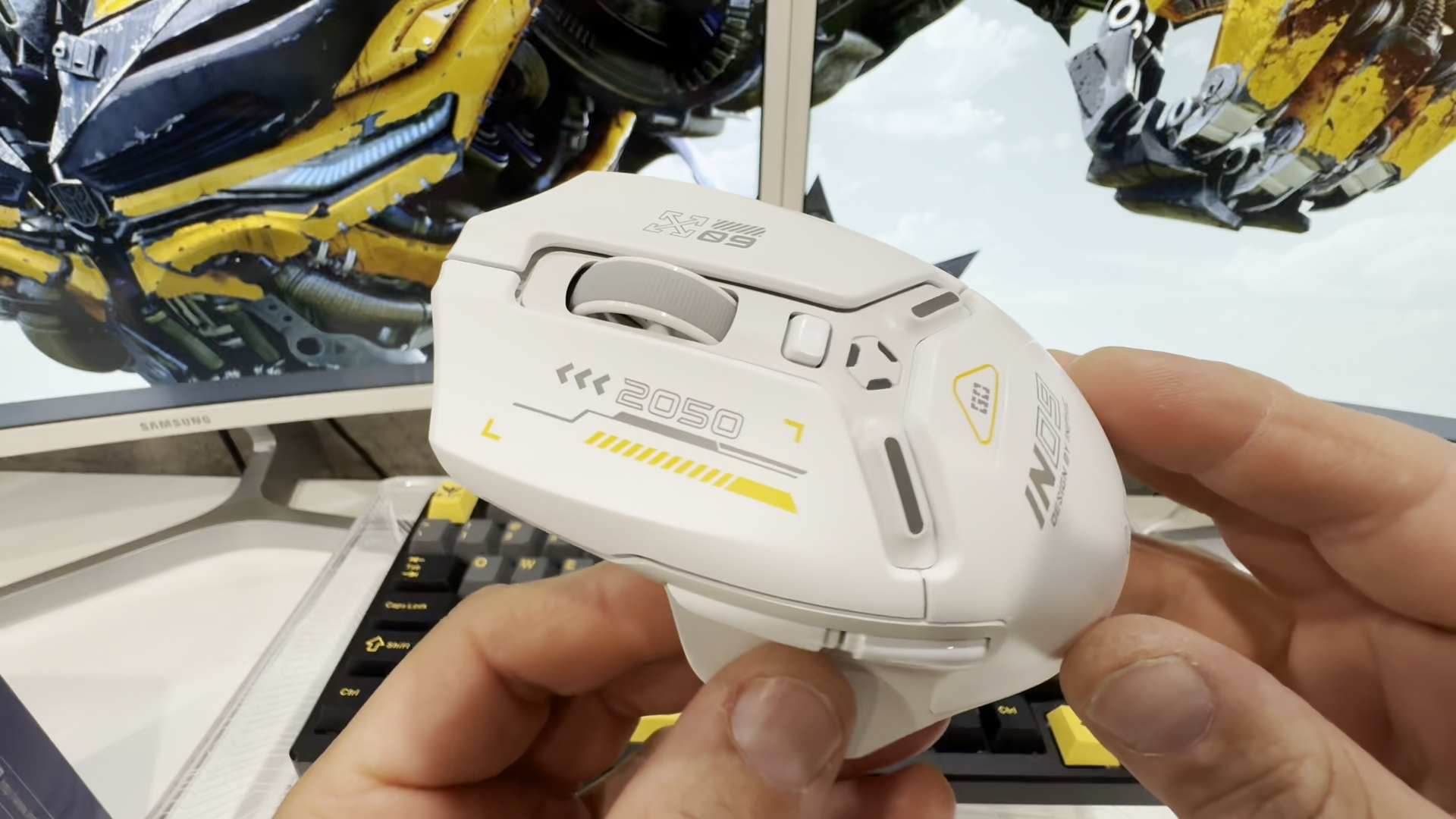
A close-up view of the INPHIC IN9 mouse, highlighting its refined ergonomic texture and enhanced comfort grip with a dedicated thumb rest.
Maintenance
- Cleaning: Use a soft, dry cloth to clean the mouse. For stubborn dirt, a slightly damp cloth can be used, but ensure no moisture enters the device. Avoid harsh chemicals or abrasive cleaners.
- Storage: Store the mouse in a cool, dry place, away from direct sunlight and extreme temperatures (recommended operating environment: 0°C-40°C, 40%-85% RH).
- Battery Care: If the rechargeable battery is not used for a long period, fully charge it, then turn off the power switch, and store it in a cool, dry place. Charge the product every three months to prevent damage to the battery from long periods without power.
- Cable and USB Port Care: Do not charge rechargeable products in hot/humid environments. Ensure that the charging cable, keyboard, mouse, and USB ports are dry and free of debris during charging. If the connection cable or charging cable is damaged in any way, stop using it immediately.
Troubleshooting
- Mouse not responding:
Ensure the mouse is charged. Check the connection mode (Wired, 2.4G, Bluetooth) and ensure it matches your device's connection. For 2.4G wireless, ensure the USB receiver is properly plugged in. For Bluetooth, ensure it's paired correctly.
- USB receiver location:
The USB receiver is typically built into the bottom of the mouse for convenient storage. Look for a small compartment or slot.
- Compatibility with Mac:
The INPHIC IN9 mouse is compatible with Mac OS via Bluetooth or 2.4G wireless connection. However, the customization software for programmable buttons is only available for Windows. This means that while the mouse will function, you may not be able to program its buttons on a Mac. For wired connection to MacBooks without a standard USB-A port, a Type-C adapter (not included) may be required.
- Programmable buttons not working in Bluetooth mode:
Some users have reported that custom button assignments may not work when the mouse is in Bluetooth mode, particularly on non-Windows systems. This is a known limitation related to the software's compatibility. The buttons should function correctly in wired or 2.4G wireless modes.
- Lag or erratic movement:
Ensure the mouse is fully charged. Check for interference from other wireless devices. Try adjusting the polling rate via the software (if on Windows). Ensure the USB receiver is not too far from the mouse or obstructed.
- Product not functioning properly:
Do not attempt to modify or repair the product yourself, as this will void the warranty. Please contact customer service for assistance.
Specifications
| Feature | Specification |
|---|---|
| Model Number | IN9 |
| Connectivity Technology | Bluetooth 5.0, 2.4G USB Wireless, Type-C Wired |
| DPI Levels | 800 / 1600 / 2400 / 3200 / 6400 / 10000 |
| Polling Rates | 125Hz, 250Hz, 500Hz, 1000Hz |
| Programmable Buttons | 6 |
| Battery Type | Lithium Polymer (included) |
| Battery Life (No Light Effect Mode) | Up to 100 hours |
| Product Dimensions | 3.54 x 2.76 x 0.04 inches |
| Item Weight | 3.35 ounces |
| Movement Detection Technology | Optical |
| Color | Blue (as per product variant) |
| Manufacturer | INPHIC |
| Country of Origin | China |
Warranty and Support
INPHIC provides a comprehensive warranty policy for the IN9 Wireless Gaming Mouse, which includes:
- 45-day refund policy
- 12-month replacement warranty
- Lifelong technical support
- Dedicated customer service
For any technical issues, warranty claims, or customer service inquiries, please refer to the contact information provided on the official INPHIC website (www.inphic.com) or contact the seller directly through your purchase platform.

A general image representing the INPHIC brand, symbolizing their commitment to quality and user experience.
Important safety instructions and warnings for the INPHIC IN9 mouse, including environmental conditions and disposal guidelines.


