Introduction
This manual provides comprehensive instructions for the UCOCARE Security Camera Outdoor (Model: BF-BK04). This 5MP UHD camera offers advanced home security features including dual-band WiFi connectivity (2.4GHz/5GHz), 360° motion tracking, full-color night vision, and local storage with an included 32GB TF card, eliminating the need for monthly fees. Please read this manual thoroughly before operation to ensure proper installation and usage.

Image: The UCOCARE Security Camera Outdoor, highlighting its 5MP resolution and included 32GB TF card.
What's in the Box
- Camera * 1
- Power Adapter *1
- Charging Cable *1
- Screws Set *1
- Quick User Guide *1
Setup Guide
Follow these steps to set up your UCOCARE Security Camera. For a visual guide, please refer to the "How to connect the camera" video below.
1. Powering On
- Connect the extended charging cable to the camera.
- Plug the power adapter into a power outlet.
- Wait for the camera to power up. The camera will perform a self-check (pan and tilt movements).
- Check if the indicator light on the camera is flashing red. A flashing red light indicates the camera is ready for setup.
Video: How to connect the camera. This video demonstrates the initial power-up and connection process for the UCOCARE security camera.
2. App Installation and Connection
- Download the "CloudEdge" app from your smartphone's app store (iOS or Android).
- Open the CloudEdge app and create an account or log in.
- Tap "Add device" or the "+" icon to add a new camera.
- Select "Power Plug Camera" and then "Smart Camera (2.4G&5G WiFi)".
- Follow the in-app instructions to complete the setup. This typically involves connecting to your home Wi-Fi network (supports both 2.4GHz and 5GHz) and scanning a QR code displayed on your phone with the camera.
- Once connected, the app will confirm "Connection successful!".
3. Resetting the Camera (If Connection Fails)
If the connection fails, you may need to reset the camera:
- Open the rubber cover on the top of the camera.
- Press and hold the RESET button for about 5 seconds until you hear a prompt or the camera resets.
- Wait for the camera to power up and the indicator light to flash red again, indicating it's ready for a new setup attempt.
Operating Instructions
App Control and Live View
The CloudEdge app provides full control over your camera. From the live view screen, you can:
- Pan, Tilt, and Zoom (PTZ): Control the camera's movement horizontally (355°) and vertically (90°) to cover a wide area. The camera also supports 5X digital zoom.
- Two-Way Audio: Use the built-in microphone and speaker to communicate with visitors or deter intruders.
- Screenshot & Record: Capture still images or record video directly from the live feed.
- Playback: Access recorded footage from the installed 32GB TF card or cloud storage (subscription required for premium cloud features).
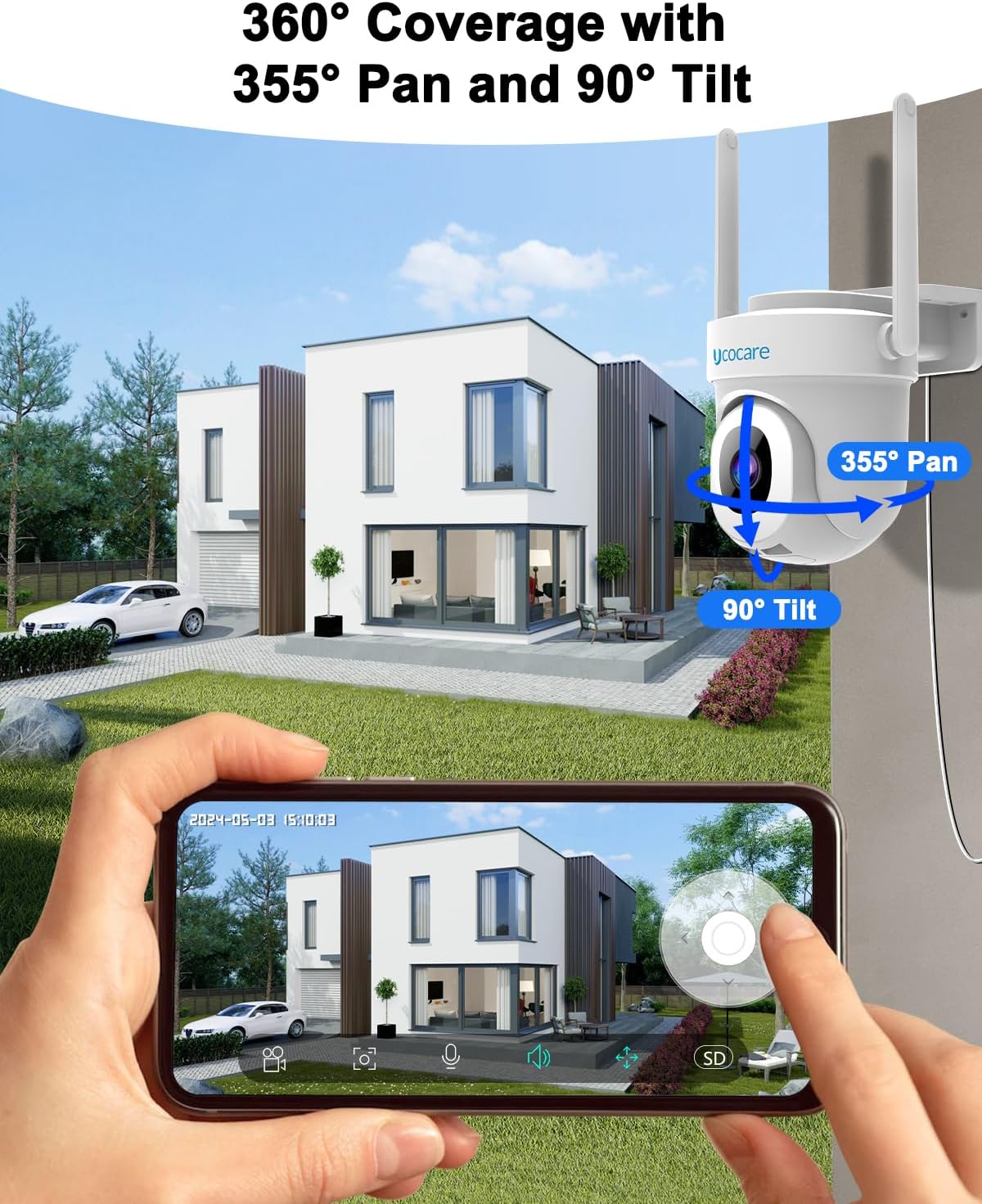
Image: The camera offers 355° pan and 90° tilt for comprehensive 360° coverage, controllable via the mobile app.

Image: Real-time conversation is possible through the camera, allowing you to speak with visitors via the app.
Advanced Features
- 5MP UHD Resolution & Night Vision: Experience crystal-clear 5MP UHD resolution, 50% clearer than 2K. The camera features full-color night vision with built-in spotlights for enhanced detail in darkness, and also supports infrared (IR) night vision for completely dark environments. DWDR (Digital Wide Dynamic Range) ensures clear images in varying light conditions.
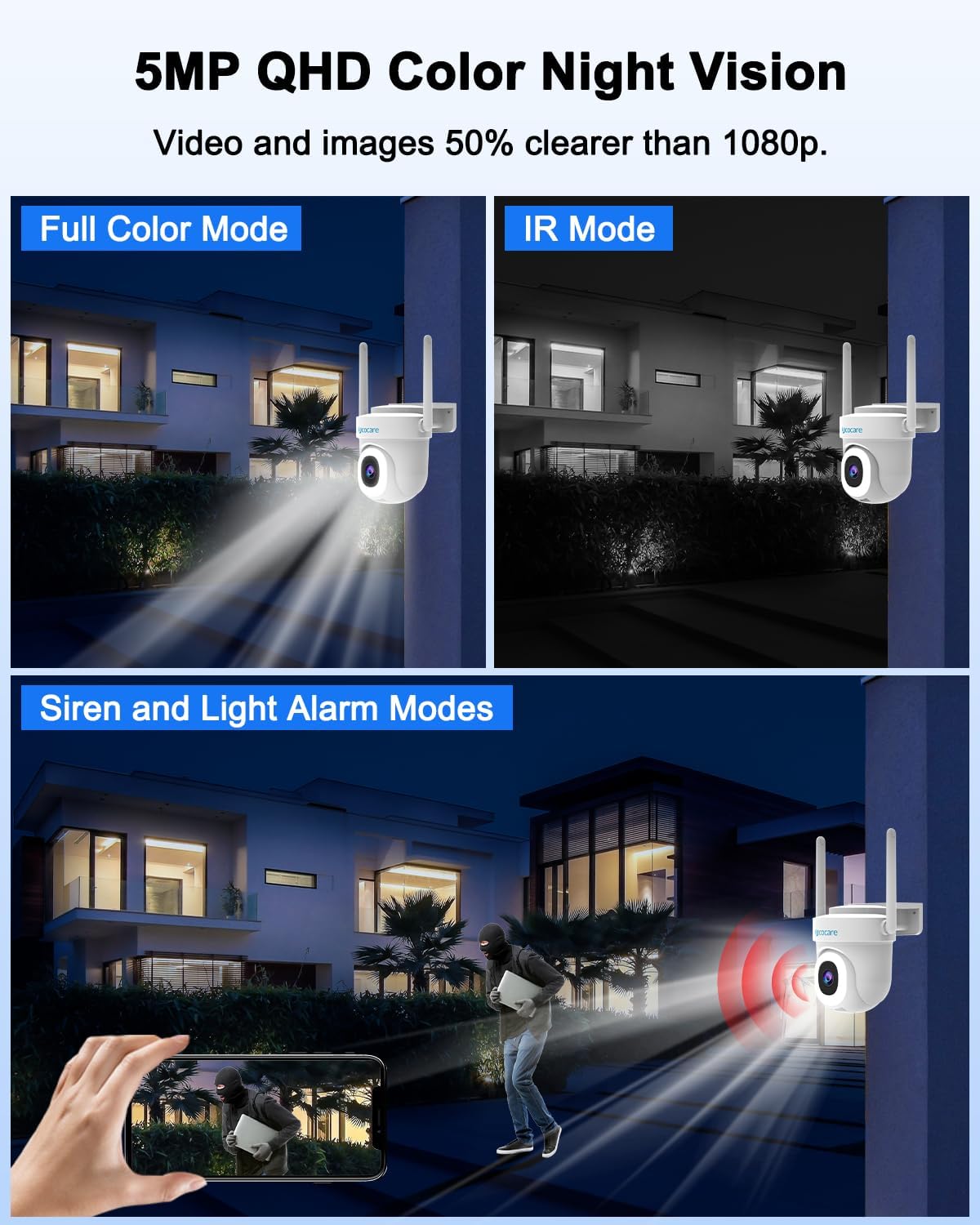
Image: The camera provides 5MP QHD resolution with both full-color and infrared night vision modes.
- Smart Motion Tracking & Human Detection: The camera's advanced AI motion detection accurately distinguishes between people and pets, reducing false alarms by up to 98%. When human movement is detected, the camera automatically tracks and records the suspicious object, zooming in up to 5X for critical details.
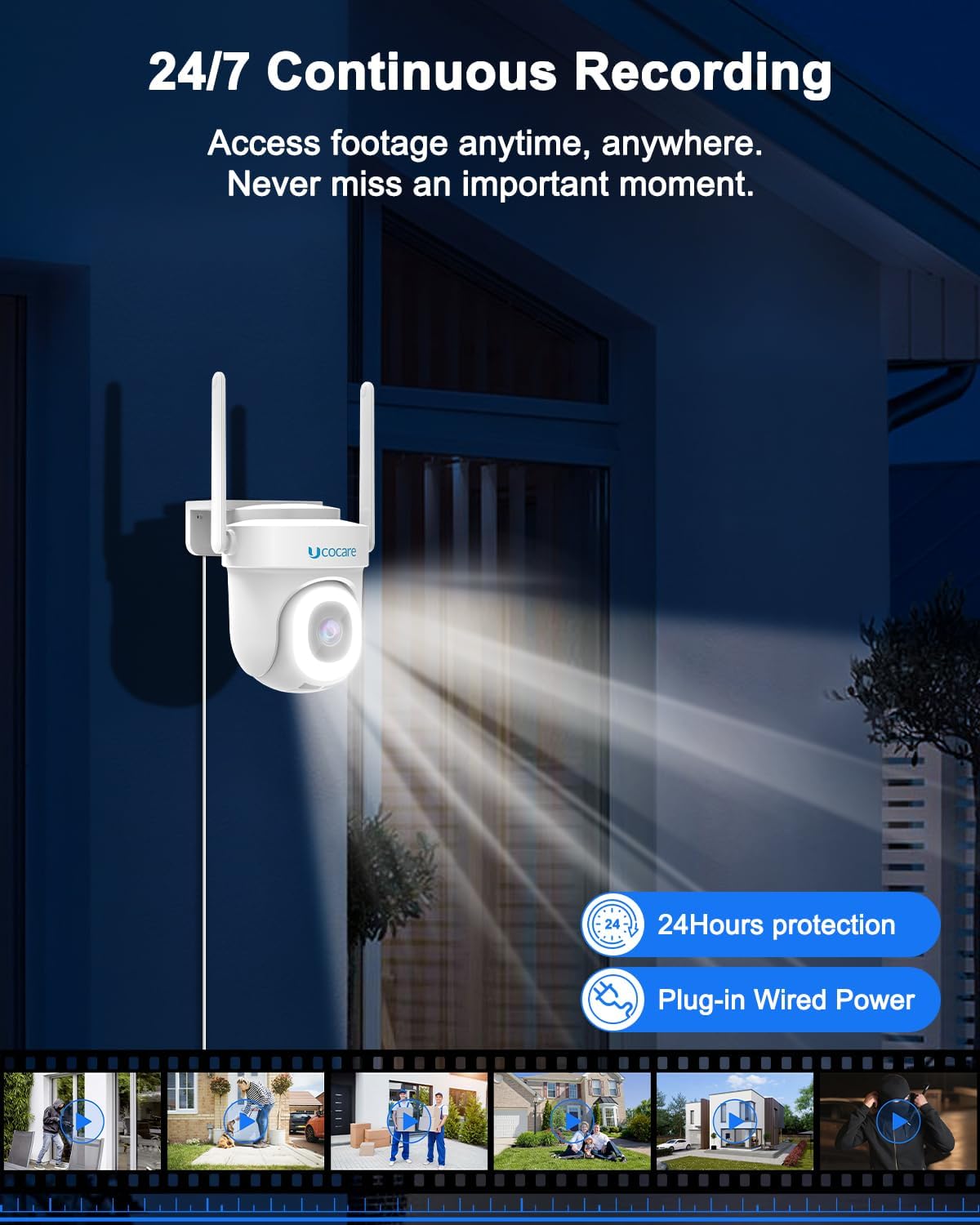
Image: Smart human detection reduces false alarms from non-human movements.

Image: When movement is detected, the camera automatically tracks and records the suspicious object.
- Multi-Alarms and Siren: The camera offers four alarm modes: siren warning, flashlight warning, siren alarm, and combined flashlight and siren warning. It also sends instant app push notifications upon motion detection to deter unwanted visitors.

Image: Multiple alarm modes are available to warn off intruders.
- 24/7 Continuous Recording & Dual Storage: The camera stays connected with a plug-in power cord for uninterrupted monitoring. It comes with a pre-installed 32GB memory card (supports up to 128GB) for continuous video capture without subscription fees. Basic cloud storage for 6-second clips on a 7-day loop is also available (premium cloud storage requires subscription).
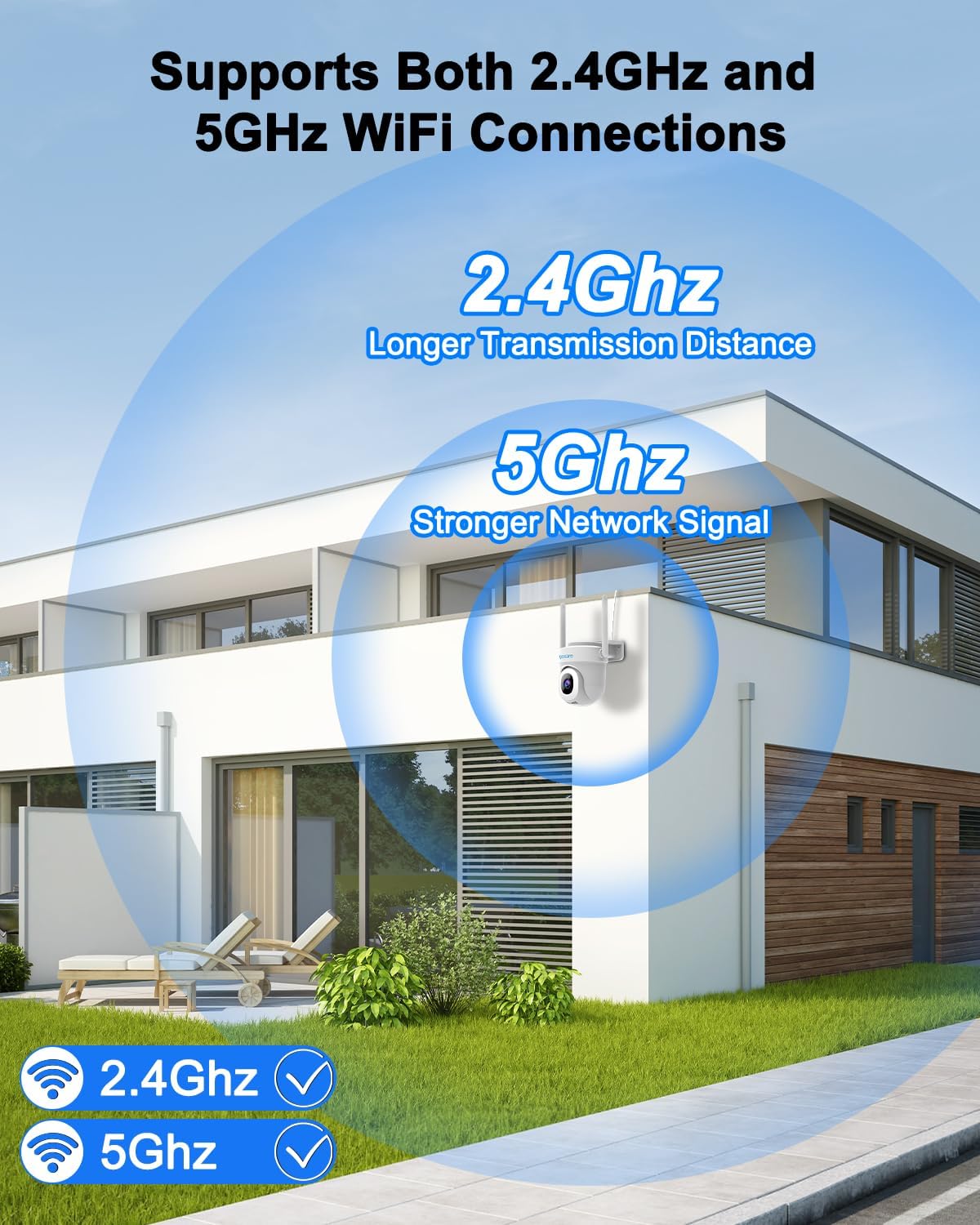
Image: The camera includes a 32GB memory card for local storage and 24/7 recording without subscription.
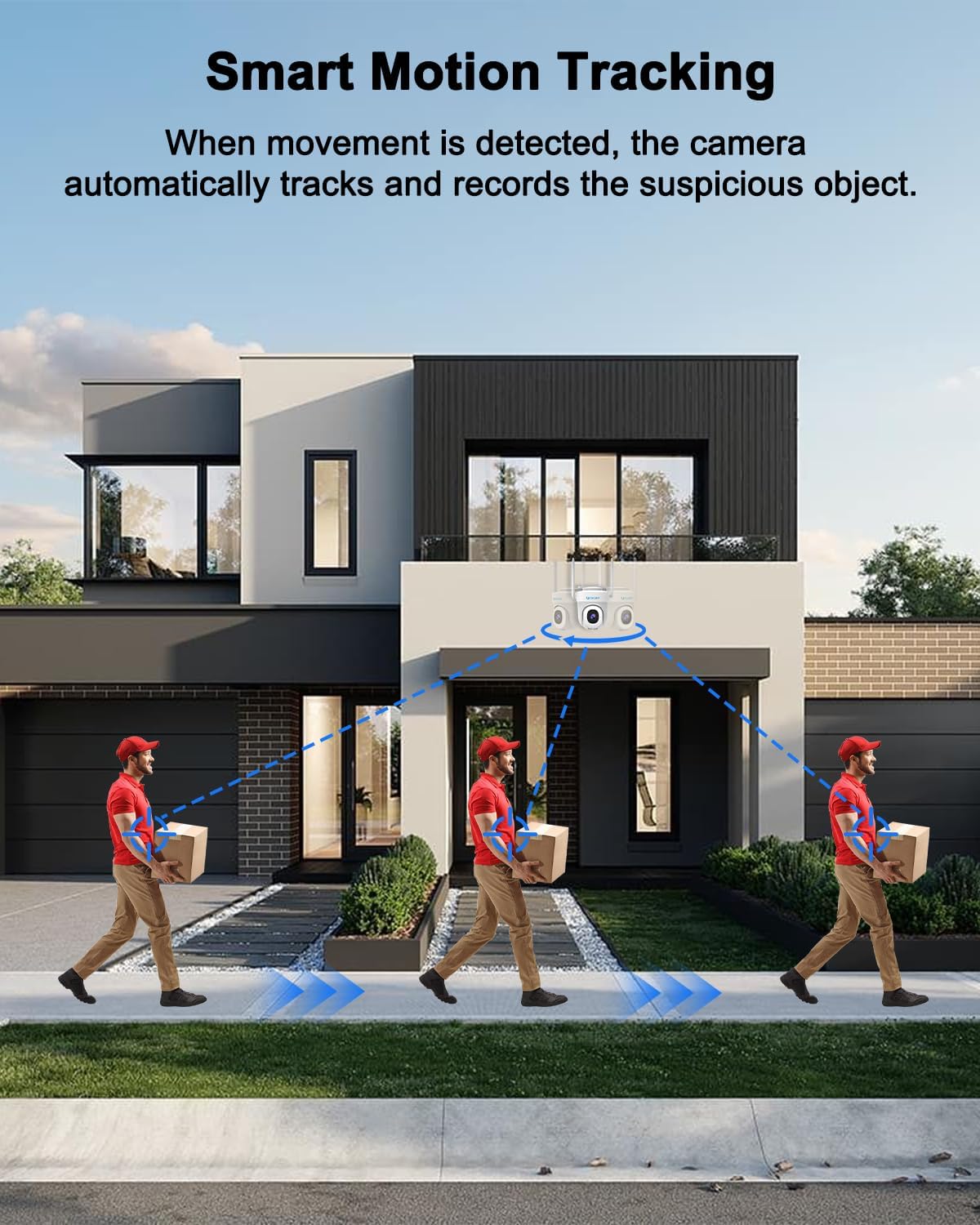
Image: Enjoy 24/7 continuous recording with reliable wired power.
- Multi-User Sharing: Share access to live video feeds with multiple users, enhancing security for families and properties.
- Voice Control Integration: Control your camera hands-free by integrating with smart assistants like Google Assistant and Alexa.
Video: 3K 5MP Security Camera Outdoor. This video showcases the camera's features including 5MP resolution, dual-band WiFi, motion tracking, and alarm functions.
Video: 3K 5MP Security Camera. This video provides a quick overview of the camera's capabilities, including its 3K 5MP resolution, dual-band WiFi, and smart features.
Maintenance
- Weather Resistance: The camera is IP66 weatherproof, ensuring resilience against rain, sun, and other weather conditions.
Image: The camera is IP66 waterproof, designed to withstand various weather conditions.
- Cleaning: Periodically wipe the camera lens and body with a soft, damp cloth to remove dust and debris. Do not use harsh chemicals or abrasive cleaners.
- Cable Management: Ensure all cables are securely connected and protected from environmental damage.
Troubleshooting
- Camera Not Connecting to Wi-Fi:
- Ensure your Wi-Fi network is 2.4GHz or 5GHz and the password is correct.
- Move the camera closer to your Wi-Fi router during setup.
- Reset the camera (refer to "Resetting the Camera" in the Setup Guide) and try connecting again.
- Poor Image Quality:
- Check for obstructions on the camera lens and clean if necessary.
- Ensure stable Wi-Fi connection for optimal streaming quality.
- Motion Detection Not Working:
- Verify motion detection is enabled in the app settings.
- Adjust motion sensitivity settings to suit your environment.
- Ensure the camera's view is not obstructed.
- No Recording to TF Card:
- Ensure the TF card is properly inserted and formatted within the app.
- Check if the TF card has sufficient storage space.
Specifications
| Feature | Detail |
|---|---|
| Model Name | BF-TY06 |
| Item Model Number | BF-BK04 |
| Brand | UCOCARE |
| Indoor/Outdoor Usage | Outdoor, Indoor |
| Video Capture Resolution | 5MP UHD |
| Connectivity Technology | Wi-Fi (2.4GHz & 5GHz), Wired |
| Power Source | Corded Electric |
| Controller Type | CloudEdge App |
| Mounting Type | Wall Mount |
| Viewing Angle | 360 Degrees (355° Pan, 90° Tilt) |
| International Protection Rating | IP66 (Weatherproof) |
| Storage | 32GB TF Card Included (supports up to 128GB), Cloud Storage |
| Alert Type | Motion Only (Smart Human Detection) |
| Item Dimensions (L x W x H) | 5.9 x 4.9 x 4.9 inches |
| Item Weight | 15.8 ounces |
Warranty and Support
For warranty information and technical support, please refer to the contact details provided with your product packaging or visit the official UCOCARE website. Keep your purchase receipt for warranty claims.


