
UPERFECT M220T01
UPERFECT 22" 2K Portable Monitor User Manual
Model: M220T01
1. Introduction
Thank you for choosing the UPERFECT 22" 2K Portable Monitor. This high-resolution display is designed to enhance your productivity and entertainment experience on the go, offering expansive visuals and versatile connectivity. This manual provides detailed instructions for setting up, operating, and maintaining your monitor to ensure optimal performance and longevity.
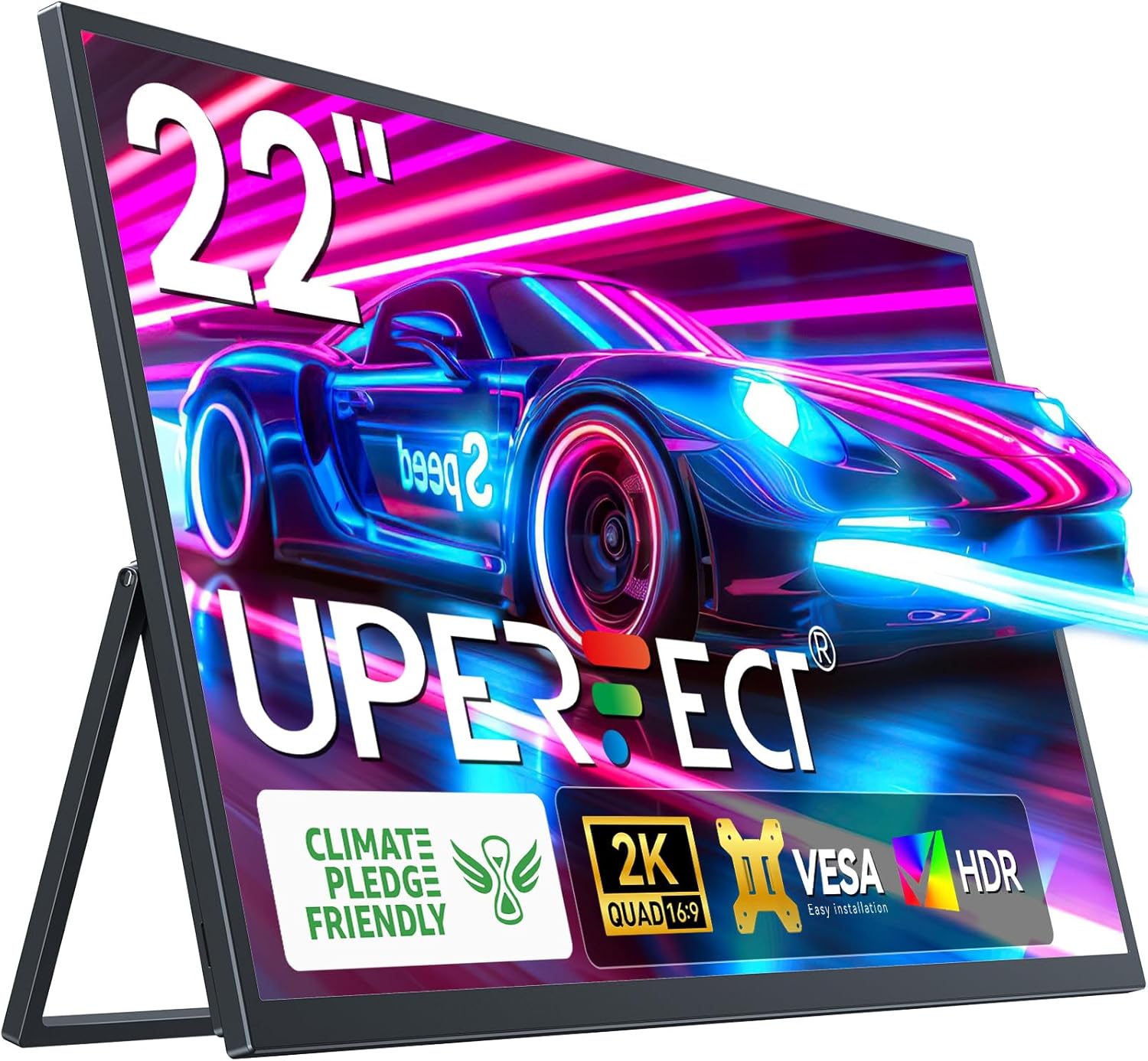
The UPERFECT 22" 2K Portable Monitor, showcasing its sleek design and vibrant display capabilities.
2. What's in the Box
Please verify that all items are present and in good condition upon unboxing:
- 1 * 22″ Portable Monitor
- 1 * Mini HDMI Cable
- 2 * Type C to Type C Cable
- 1 * PD 30W Power Charger
- 1 * User Manual

Video demonstrating the unboxing process and contents of the UPERFECT 2K 22 inch portable monitor package.
3. Product Overview
The UPERFECT 22" 2K Portable Monitor is designed for versatility and high performance. Key features include:
- 22" 2K QHD Display: Offers expansive viewing with 2560 x 1440 resolution, 300 nits brightness, 100% sRGB, and 1000:1 contrast ratio for crisp, vibrant visuals.
- Integrated Kickstand: Features a patented 180° adjustable kickstand for flexible positioning from 0 to 90 degrees.
- VESA Compatibility: Supports VESA 75x75mm mounting for various setups, including landscape and portrait orientations.
- Multi-Port Connectivity: Equipped with a mini HDMI port and two USB-C 3.1 ports for connecting to laptops, PCs, phones, and gaming devices.
- Slim and Portable Design: With a 0.2-inch slim profile and lightweight construction, it's an ideal travel companion.
Ports and Controls

Detailed view of the monitor's ports and control buttons for easy identification.
- Type C 3.1 Port (x2): For power, video, and data transmission (phone, tablet, laptop).
- Mini HDMI Port: For video input from X-BOX, PS4/5, PC.
- Micro USB-B OTG: For connecting peripherals like a mouse or keyboard.
- 3.5mm Audio Jack: For connecting external headphones or speakers.
- Control Buttons: Menu/Confirm, Volume +/-, Brightness +/-, Turn ON/OFF, Return.
Official UPERFECT video showcasing the UMax 22 Portable Monitor's features and design.
4. Setup
Follow these steps to set up your UPERFECT portable monitor:
- Power Connection: Connect the provided PD 30W Power Charger to one of the USB-C 3.1 ports on the monitor. For optimal performance and maximum brightness, ensure the monitor receives at least 30W of power.
- Device Connection:
- USB-C (Full Feature): If your device (laptop, phone, tablet) has a full-feature USB-C port that supports video output and power delivery, use one of the provided Type C to Type C cables to connect it directly to the monitor. This single cable can provide both video signal and power to the monitor, and can also charge your device via power pass-through.
- HDMI: For devices with an HDMI output (e.g., PC, gaming console), use the provided Mini HDMI cable to connect your device to the monitor's Mini HDMI port. In this setup, you will also need to connect the monitor to an external power source via a USB-C port.
- Positioning: Utilize the integrated 180° adjustable kickstand to position the monitor at your desired viewing angle. For VESA mounting, attach the monitor to a compatible VESA arm or stand (75x75mm).
- Power On: Press the 'Turn ON/OFF' button to power on the monitor.

Setting up the UPERFECT monitor as a second display for a laptop.
5. Operating
Once connected, your UPERFECT monitor is ready for use. Here are some operational tips:
Display Settings
- Accessing OSD Menu: Use the 'Menu/Confirm' button to access the On-Screen Display (OSD) menu. Navigate through options using the Volume +/- and Brightness +/- buttons, and confirm selections with the Menu/Confirm button.
- Brightness Adjustment: Press the Brightness +/- button to quickly adjust screen brightness.
- Volume Adjustment: Press the Volume +/- button to quickly adjust the built-in speaker volume.
- Input Source: The monitor typically auto-detects the input source. If not, you can manually select it from the OSD menu.
- HDR Mode: Enable HDR through the OSD menu for a more vibrant and immersive display, ideal for gaming or media consumption.

Experience superior visual clarity with the 2K QHD display.
Usage Scenarios
- Extended Desktop: Use as a second monitor for your laptop to expand your workspace and improve multitasking.
- Mirror Display: Duplicate your primary screen for presentations or shared viewing.
- Gaming: Connect to gaming consoles for an immersive portable gaming experience.
- Mobile Productivity: Connect to compatible smartphones for a desktop-like experience on the go.

The monitor functions easily as a portable PC display, perfect for travel.
6. Maintenance
To ensure the longevity and optimal performance of your UPERFECT portable monitor, follow these maintenance guidelines:
- Cleaning the Screen: Use a soft, lint-free cloth slightly dampened with water or a non-abrasive screen cleaner. Avoid using alcohol, ammonia, or harsh chemicals, as they can damage the screen surface.
- Cleaning the Casing: Wipe the monitor's casing with a soft, dry cloth.
- Storage: When not in use, store the monitor in a cool, dry place, away from direct sunlight and extreme temperatures. Use the original packaging or a protective sleeve for transport.
- Avoid Impact: Protect the monitor from drops, impacts, and excessive pressure, especially on the screen.
- Cable Care: Handle cables gently. Avoid bending or twisting them excessively, which can damage the internal wires.
7. Troubleshooting
If you encounter issues with your UPERFECT portable monitor, refer to the following common problems and solutions:
| Problem | Possible Cause | Solution |
|---|---|---|
| No display / Black screen | No power; Incorrect input source; Faulty cable; Device not outputting signal. | Ensure power adapter is connected and working. Select correct input source via OSD. Try a different cable. Check device's display settings. |
| Flickering screen | Insufficient power; Cable issue; Refresh rate mismatch. | Ensure monitor receives sufficient power (30W recommended). Try a different cable. Adjust refresh rate in device's display settings. |
| No sound | Volume too low; Muted; Incorrect audio output selected on device. | Increase monitor volume via OSD. Check if monitor is muted. Select the monitor as the audio output device on your connected source. |
| Image too dark/bright | Brightness/Contrast settings. | Adjust brightness and contrast settings through the OSD menu. |
| Monitor not recognized by device | Driver issue; Cable issue; Device port issue. | Update graphics drivers on your device. Try a different cable or port on your device. Restart both monitor and device. |
8. Specifications
| Feature | Detail |
|---|---|
| Model Number | M220T01 |
| Screen Size | 22 Inches |
| Resolution | 2560 x 1440 Pixels (QHD Ultra Wide 1440p) |
| Aspect Ratio | 16:9 |
| Image Brightness | 300 Candela (nits) |
| Contrast Ratio | 1000:1 |
| Color Gamut | 100% sRGB |
| Viewing Angle | 178° |
| Screen Surface | Matte |
| Ports | 2x USB-C 3.1, 1x Mini HDMI, 1x Micro USB-B OTG, 1x 3.5mm Audio Jack |
| Product Dimensions | 18 x 8 x 0.5 inches |
| Item Weight | 1.76 pounds |
| VESA Compatibility | 75x75mm |
| Manufacturer | UPERFECT |
| Country of Origin | China |
9. Warranty and Support
UPERFECT is committed to delivering quality products and a positive customer experience. Your UPERFECT 22" 2K Portable Monitor comes with a comprehensive warranty:
- Warranty Period: For any quality problem within 2 years from the date of purchase, UPERFECT will REPLACE, NOT REPAIR the monitor.
- Customer Support: For technical assistance, troubleshooting, or warranty claims, please contact UPERFECT customer service. Refer to the contact information provided in the packaging or on the official UPERFECT website.
Enjoy dependable support and long-term peace of mind with your UPERFECT monitor.
Related documentsM220T01


Ask a question about this manual
Ask about setup, troubleshooting, compatibility, parts, safety, or missing instructions. Manuals+ will review the question and use this page’s manual context to help answer it.