1. Introduction
This manual provides detailed instructions for the installation, operation, and maintenance of your OLUMAT Smart Lock with Handle, Model B28. This keyless entry door lock offers multiple access methods including fingerprint, passcode, key fob, smartphone app, and traditional physical key, enhancing security and convenience for your home or property.

Image 1.1: OLUMAT Smart Lock with Handle B28. This image displays the complete smart lock unit, highlighting its various components and included accessories like key fobs and physical keys.
2. Package Contents
Verify that all components are present before beginning installation:
- OLUMAT Smart Lock Handle (Exterior Unit with Keypad and Fingerprint Sensor)
- OLUMAT Smart Lock Handle (Interior Unit)
- Latch Bolt
- Strike Plate
- Mounting Hardware (Screws, Spindles)
- Physical Keys (2)
- Key Fobs (2)
- Installation Template
- User Manual
Note: A Wi-Fi Gateway is an optional accessory, sold separately, and is required for remote control and voice assistant integration.
3. Installation Guide
The OLUMAT Smart Lock B28 is designed for easy installation on most standard American front doors, typically requiring only a Philips screwdriver. No additional drilling or wiring is usually necessary. The door handle is reversible to accommodate both left-handed and right-handed door configurations.
3.1. Door Compatibility
Ensure your door meets the following specifications:
- Door Thickness: 1.30" – 1.97" (33mm – 50mm)
- Bore Hole Diameter: 2.13" (54mm)
- Bore Hole Backset: 2.36" (60mm) or 2.76" (70mm)
This lock is not compatible with storm doors due to the handle size. It is recommended to install this lock above an existing deadbolt lock if one is present.

Image 3.1: Door Size Compatibility. This diagram illustrates the required door dimensions for proper installation of the smart lock, including thickness, bore hole diameter, and backset measurements.

Image 3.2: Product Dimensions. This image provides precise measurements of the smart lock components, aiding in pre-installation checks and ensuring proper fit.
3.2. Handle Reversibility
The handle can be adjusted for left-handed or right-handed door operation. Refer to the detailed instructions in the included installation template for specific steps on reversing the handle direction if needed.
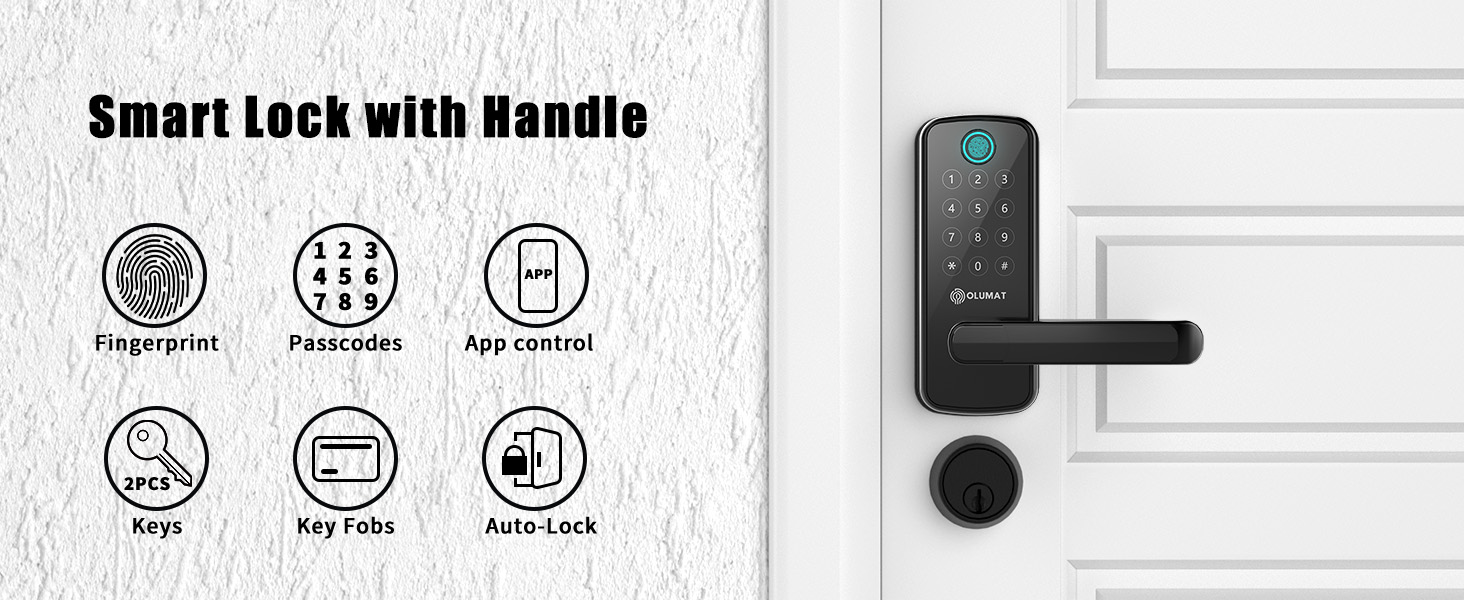
Image 3.3: Adjustable Handle. This image illustrates how the smart lock handle can be configured for either left-handed or right-handed door installations.
3.3. Installation Steps
- Remove your existing door hardware.
- Install the latch bolt into the door edge.
- Install the exterior smart lock unit, ensuring the spindle passes through the latch bolt.
- Install the interior mounting plate.
- Connect the cable from the exterior unit to the interior unit.
- Install the interior smart lock unit.
- Insert batteries (4 x AA, not included) into the interior unit.
- Test the lock functionality.
4. Operating Instructions
The OLUMAT Smart Lock B28 offers multiple convenient ways to unlock your door.
4.1. Unlocking Methods
- Fingerprint: Place your registered finger on the sensor.
- Passcode: Enter your programmed code on the keypad.
- Key Fob: Present the key fob to the designated area on the lock.
- Smartphone App: Use the OLUMAT Home app to unlock remotely.
- Physical Key: Use the provided physical key as a backup.

Image 4.1: Multiple Ways to Unlock. This image visually explains the various methods available for accessing your property with the smart lock.
4.2. OLUMAT Home App Control
The OLUMAT Home app allows for comprehensive management of your smart lock. You can remotely lock/unlock, set up door codes, and view real-time access logs. This feature is particularly useful for homeowners and rental property managers.

Image 4.2: Lock Management. This image demonstrates the OLUMAT Home app on a smartphone and a web interface on a laptop, both used for managing the smart lock.
4.3. Remote Access and Voice Control (with Wi-Fi Gateway)
To enable remote control from anywhere and integrate with voice assistants like Amazon Alexa or Google Assistant, a separate OLUMAT Wi-Fi Gateway is required. Once paired, you can lock/unlock your door, generate temporary passcodes, and check lock status via the app or voice commands.

Image 4.3: Voice Control Integration. This image illustrates the smart lock's compatibility with Amazon Alexa and Google Assistant, requiring an optional Wi-Fi gateway for voice commands.
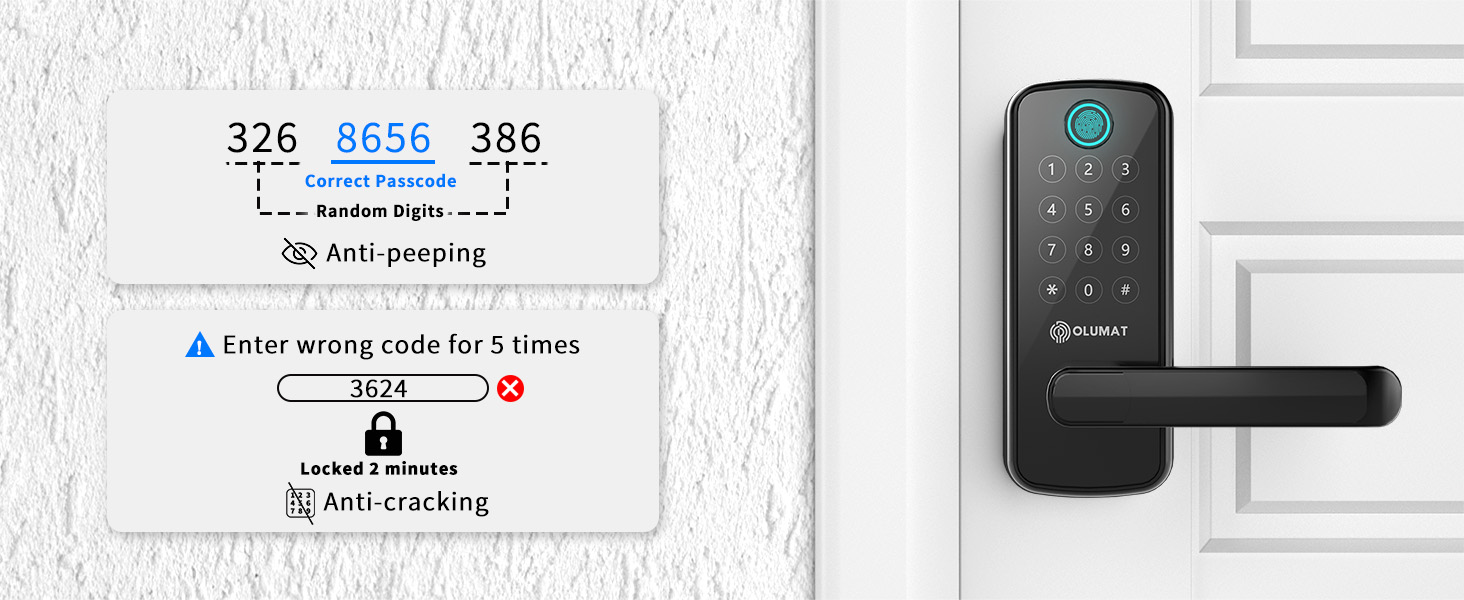
Image 4.4: Remote Passcode Generation. This image demonstrates the ability to generate and share temporary passcodes remotely via the app, useful for visitors or deliveries.
4.4. Security Features
- Auto-Lock: The lock can be configured to automatically lock after a set period, providing peace of mind.
- Anti-Theft Alarm: An alarm will sound if multiple incorrect fingerprint attempts are made or if tampering is detected.
- Anti-Peeping Passcode: You can enter random digits before or after your actual passcode to prevent others from guessing your code.
- Anti-Cracking Lockout: After several incorrect passcode attempts, the lock will temporarily disable the keypad to prevent unauthorized access.

Image 4.5: Auto-Locking and Anti-Theft Alarm. This image highlights the automatic locking function and the visual alert for the anti-theft alarm.

Image 4.6: Anti-Peeping and Anti-Cracking Features. This image explains how to use the anti-peeping function with random digits and the lock's response to multiple incorrect passcode entries.
5. Maintenance
Regular maintenance ensures the longevity and optimal performance of your smart lock.
- Cleaning: Wipe the lock's exterior with a soft, dry cloth. Avoid abrasive cleaners or solvents that could damage the finish or electronic components.
- Battery Replacement: The lock requires 4 AA batteries. Replace them promptly when the low battery indicator appears to ensure continuous operation.
- Firmware Updates: Periodically check the OLUMAT Home app for available firmware updates to ensure your lock has the latest features and security enhancements.
- Mechanical Check: Occasionally check that all screws are secure and the handle operates smoothly.
6. Troubleshooting
If you encounter issues with your OLUMAT Smart Lock, refer to the following common problems and solutions:
| Problem | Possible Cause | Solution |
|---|---|---|
| Fingerprint reader not working consistently | Wet or dirty fingers; improper placement; sensor obstruction. | Ensure fingers are clean and dry. Place finger centrally on the sensor. Clean the sensor surface. Re-register fingerprint if issue persists. |
| App connectivity issues | Poor Wi-Fi signal; Wi-Fi Gateway not connected; app outdated. | Check Wi-Fi signal strength. Ensure Wi-Fi Gateway is powered on and connected. Update the OLUMAT Home app. Restart the app or your phone. |
| Lock not responding to keypad/fingerprint | Low batteries; keypad locked due to multiple incorrect entries. | Replace batteries. Wait for the lockout period to expire if the anti-cracking feature was triggered. Use the physical key as a backup. |
| Tampering alarm sounds unexpectedly | False alert; sensor sensitivity. | Check for any physical disturbances near the lock. If persistent, consult customer support for potential sensor adjustment. |
| Lock mechanism feels loose or broken | Loose screws; internal component damage. | Tighten visible screws. If rattling or significant damage is present, contact customer support. |
7. Specifications
| Feature | Detail |
|---|---|
| Brand | OLUMAT |
| Model Name | B28 |
| Lock Type | Biometric, Keypad, Key Fob, App, Physical Key |
| Special Features | Auto-Lock, Anti-Theft Alarm, Anti-Peeping, Anti-Cracking |
| Material | Zinc |
| Color | Black Smart Lock |
| Item Dimensions (L x W x H) | 7 x 2.81 x 1.21 inches |
| Item Weight | 3.88 pounds |
| Connectivity Protocol | Wi-Fi (requires optional gateway) |
| Control Method | App, Keypad, Fingerprint, Key Fob, Voice (with gateway) |
| Controller Type | Amazon Alexa, Google Assistant (with gateway) |
| Power Source | 4 x AA Batteries (not included) |
| UPC | 659675626864 |
8. Warranty and Support
OLUMAT provides the following support for your Smart Lock B28:
- Money-Back Guarantee: 30-day money-back guarantee from the date of purchase.
- Product Warranty: 1-year product warranty from the date of purchase.
- Customer Support: Lifetime customer support is available.
For technical assistance, warranty claims, or any questions regarding your OLUMAT Smart Lock, please refer to the contact information provided in your product packaging or visit the official OLUMAT website.


