
Blackview Tab 50 WIFI
Blackview Tab 50 WIFI User Manual
Model: Tab 50 WIFI
Introduction
This manual provides detailed instructions for the Blackview Tab 50 WIFI, an 8-inch lightweight Android 13 tablet. It covers essential information regarding setup, operation, maintenance, and troubleshooting to ensure optimal performance and user experience. Please read this manual thoroughly before using your device.
What's in the Box
Upon unboxing your Blackview Tab 50 WIFI, please verify that all the following items are included:
- Blackview Tab 50 tablet
- Type-C Charge cable
- Power Adapter
- Protective Case
- Screen Protector

Image: Contents of the Blackview Tab 50 WIFI package, including the tablet, charging accessories, protective case, and screen protector.
Product Overview
Familiarize yourself with the physical components and controls of your Blackview Tab 50 WIFI.
Image: Diagram illustrating the various components of the Blackview Tab 50 WIFI, including the rear camera, Type-C port, TF card slot, 3.5mm headphone jack, front camera, volume button, power button, reset button, and speaker.
- Power Button: Press and hold to power on/off or restart the device. Short press to lock/unlock the screen.
- Volume Buttons: Adjust the media volume and notification sounds.
- Type-C Port: For charging the tablet and data transfer.
- 3.5mm Headphone Jack: Connect wired headphones.
- TF Card Slot: Insert a microSD card for expandable storage.
- Cameras: Front and rear cameras for photos, videos, and video calls.
- Speakers: Dual box speakers for audio output.
Setup
Initial Charging
Before first use, it is recommended to fully charge your Blackview Tab 50 WIFI. Connect the provided Type-C charge cable to the tablet's Type-C port and the power adapter to a wall outlet. The charging indicator will show the charging status. A full charge ensures optimal battery performance.
Power On/Off
- To Power On: Press and hold the Power Button until the Blackview logo appears.
- To Power Off: Press and hold the Power Button until the power options menu appears, then select "Power off".
- To Restart: Press and hold the Power Button until the power options menu appears, then select "Restart".
Initial Setup Wizard
Upon first power-on, the tablet will guide you through an initial setup process. This includes:
- Selecting your language.
- Connecting to a Wi-Fi network. The tablet supports WiFi 6 for faster speeds.
- Setting up your Google account (optional, but recommended for app downloads and services).
- Reviewing and accepting terms and conditions.
Inserting a TF Card (MicroSD)
The Blackview Tab 50 WIFI supports expandable storage up to 1TB via a TF (microSD) card. To insert a card:
- Locate the TF card slot on the side of the tablet.
- Carefully insert the TF card into the slot with the gold contacts facing down until it clicks into place.
- The tablet will recognize the new storage. You may be prompted to format the card for optimal use with the device.
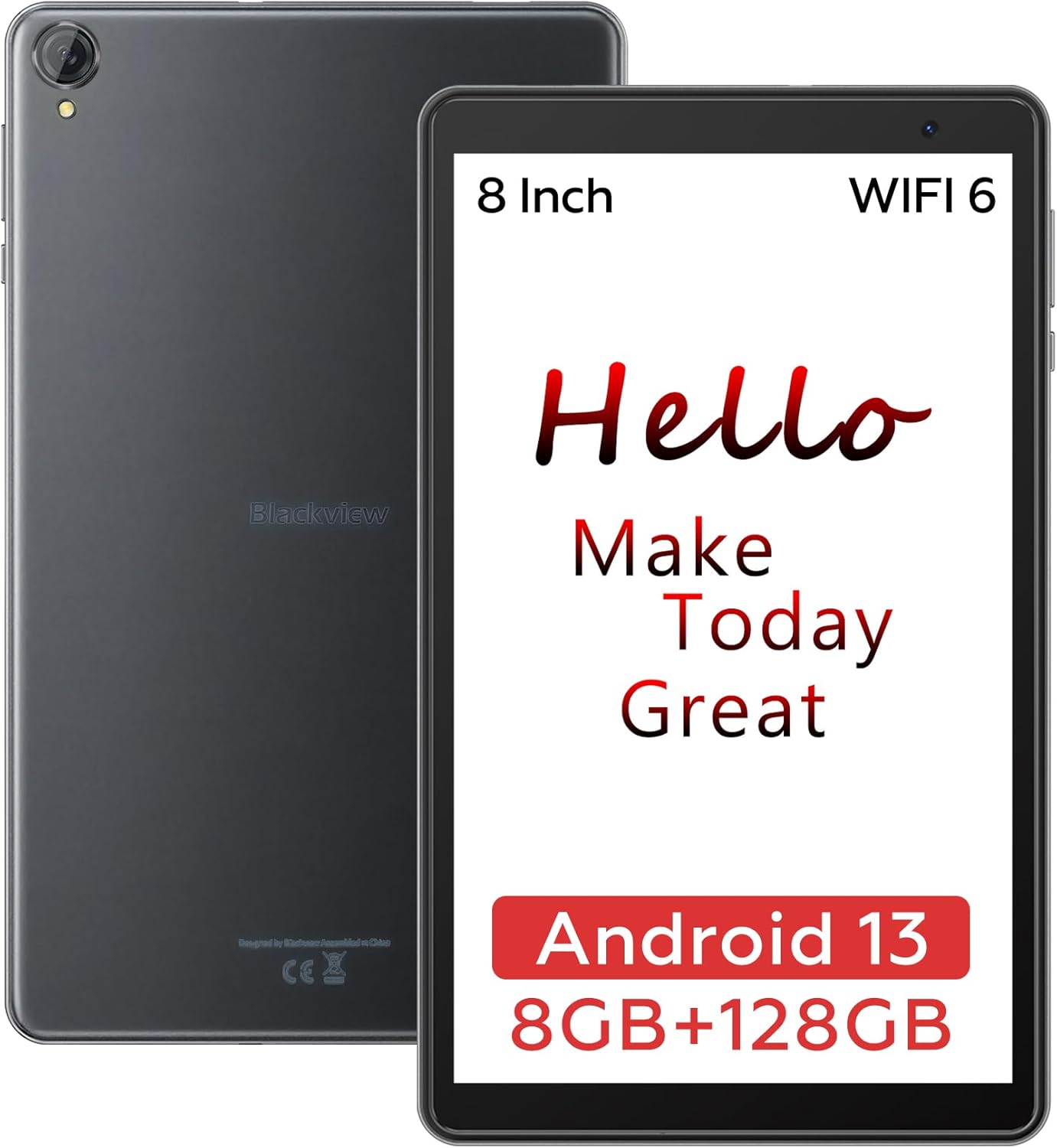
Image: The Blackview Tab 50 WIFI tablet, showcasing its compact design and 8-inch display.
Operating the Tablet
Basic Navigation
The Blackview Tab 50 WIFI operates on Android 13 with DokeOS_P 3.0, offering an intuitive touch interface. Common gestures include tapping to select, swiping to scroll, pinching to zoom, and long-pressing for contextual menus.
Display and Eye Care Modes
The 8-inch HD+ display provides a resolution of 1280x800 pixels, suitable for various tasks from reading to entertainment. To enhance eye comfort, the tablet features three eye care modes:
- Dark Mode: Reduces eye strain in low-light conditions by inverting colors.
- Night Mode: Adjusts screen brightness to as low as 2 nits, ideal for use in complete darkness.
- Reading Mode: Optimizes the screen for reading, often by reducing blue light.

Image: The 8-inch HD+ screen of the Blackview Tab 50 WIFI, highlighting its resolution and eye protection features.
Performance and Storage
Equipped with a quad-core processor, the Blackview Tab 50 WIFI ensures smooth operation for daily tasks. It comes with 128GB of internal storage (ROM) and supports up to 1TB of expandable storage via a TF card. The tablet features 8GB of RAM, which includes 4GB of physical RAM and an additional 4GB that can be expanded virtually, allowing for efficient multitasking.

Image: Visual representation of the Blackview Tab 50 WIFI's 8GB RAM and 128GB ROM, expandable up to 1TB with a TF card.
Multimedia Experience
Enjoy high-quality multimedia content with the Blackview Tab 50 WIFI. It supports Widevine L1, enabling 1080P Full HD video streaming on popular platforms such as YouTube, Netflix, Disney+, Hulu, and Amazon Prime Video. The tablet's dual box speakers provide clear audio for an immersive experience.

Image: Comparison showing 720p vs 1080p Full HD video streaming on the Blackview Tab 50 WIFI, highlighting Widevine L1 support for platforms like YouTube and Netflix.
Camera Functionality
The tablet features an 8MP rear camera for capturing photos and videos, and a 5MP front camera ideal for video calls, online classes, and meetings.

Image: The Blackview Tab 50 WIFI being used for video calls, demonstrating its front camera capabilities.
Special Features
- Parental Controls: Manage app usage and set time restrictions to ensure children use the tablet in moderation.
- Split Screen Function: Run two applications simultaneously, enhancing productivity and multitasking.
Video: An overview of the Blackview Tab 50 8-inch Android 13 Tablet, showcasing its key features and user interface.
Maintenance
Cleaning the Device
To maintain the tablet's appearance and functionality, regularly clean it with a soft, lint-free cloth. For stubborn smudges, slightly dampen the cloth with water or a screen-safe cleaner. Avoid using harsh chemicals or abrasive materials.
Battery Care
The tablet is equipped with a 5580mAh battery. To prolong battery life:
- Avoid extreme temperatures.
- Do not let the battery completely drain frequently.
- Use the original charger and cable provided.
- Unplug the charger once the battery is full.
Software Updates
Periodically check for system updates to ensure your tablet has the latest features, security patches, and performance improvements. You can usually find this option in the tablet's Settings menu under "System" or "About tablet."
Troubleshooting
This section addresses common issues you might encounter with your Blackview Tab 50 WIFI. If the problem persists, please refer to the Warranty and Support section.
| Problem | Possible Cause | Solution |
|---|---|---|
| Tablet does not turn on. | Low battery; software crash. | Charge the tablet for at least 30 minutes. Press and hold the Power Button for 10-15 seconds to force restart. |
| Wi-Fi connection issues. | Incorrect password; router issue; tablet Wi-Fi disabled. | Ensure correct Wi-Fi password. Restart your Wi-Fi router. Toggle Wi-Fi off and on in tablet settings. |
| Slow performance. | Too many apps running; low storage; outdated software. | Close unnecessary apps. Clear cache. Free up storage space. Check for system updates. |
| Battery drains quickly. | High screen brightness; background apps; poor signal. | Reduce screen brightness. Close background apps. Disable unused features like GPS or Bluetooth. |
Specifications
Detailed technical specifications for the Blackview Tab 50 WIFI:
| Feature | Detail |
|---|---|
| Model Name | Tab 50 WIFI |
| Operating System | Android 13 (DokeOS_P 3.0) |
| Screen Size | 8 Inches |
| Screen Resolution | 1280 x 800 pixels (HD+) |
| Processor | Quad-core (1.20 GHz) |
| RAM | 8 GB (4GB physical + up to 4GB expansion) |
| Internal Storage (ROM) | 128 GB |
| Expandable Storage | Up to 1 TB (TF Card) |
| Wireless Type | 802.11ac (WiFi 6) |
| Rear Webcam Resolution | 7.99 MP (8MP) |
| Front Camera Resolution | 5 MP |
| Battery Capacity | 5580 mAh |
| Average Battery Life | 400 Hours (standby) |
| Item Weight | 10.6 ounces |
| Product Dimensions | 9 x 1 x 4 inches |
| Color | Gray |
Warranty and Support
The Blackview Tab 50 WIFI comes with a 1-year warranty from the date of purchase. This warranty covers manufacturing defects and issues arising from normal use.
For technical support, warranty claims, or further assistance, please contact Blackview customer service through their official website or the retailer from whom you purchased the device. Please have your purchase receipt and product model number ready when contacting support.
For more information, visit the Blackview Store on Amazon.
Related documentsTab 50 WIFI


Ask a question about this manual
Ask about setup, troubleshooting, compatibility, parts, safety, or missing instructions. Manuals+ will review the question and use this page’s manual context to help answer it.