
Makeid S1 Pro-W&1235F1&1535P
Makeid S1Pro Label Maker Machine User Manual
Comprehensive guide for your Makeid S1Pro Labeler
1. Introduction
Thank you for choosing the Makeid S1Pro Label Maker Machine. This device is designed for efficient and convenient label printing, featuring a Bluetooth connection, LCD display, and quick-print functions. It is ideal for organizing your kitchen, home, school, and office. This manual provides detailed instructions on setting up, operating, and maintaining your S1Pro label maker to ensure optimal performance.

Figure 1: Makeid S1Pro Label Maker Machine and included label tapes.
2. What's in the Box
Upon unboxing your Makeid S1Pro Label Maker, please verify that all components are present:
- Makeid S1Pro Label Maker Machine
- Labels
- Tapes
- Roll
- USB Charging Cable (assumed, common for rechargeable devices)
- User Manual (this document)
3. Key Features
The Makeid S1Pro Label Maker offers a range of features designed for ease of use and versatility:
- 2024 Upgraded Smart Labeler: Features 4 quick-print buttons for common words, enhancing efficiency. Includes a 1.85-inch LCD screen for clear display.
- DIY Keyword Library: Customize and store up to 60 frequently used words. "Kitchen" and "Custom" buttons support library selection, while "Date" and "EXP" buttons allow date modification.
- Thermal Label Printer, Two Printing Modes: Supports Bluetooth connectivity to a dedicated app for extensive editing options (9 languages, 88 fonts, 16 borders, 600+ stickers/symbols, 400+ templates). Also allows for offline printing via a material library.
- Various Sizes, Different Scenarios: Compatible with various sizes and colors of waterproof, oil-resistant, wear-resistant, and low-temperature-resistant labels. Automatically recognizes label sizes to prevent waste.
- Compact, Portable and Rechargeable: Smaller than a mobile phone, palm-sized, with a magnetic back for attachment. Features a 1450mAh battery for up to 90 days of standby time.
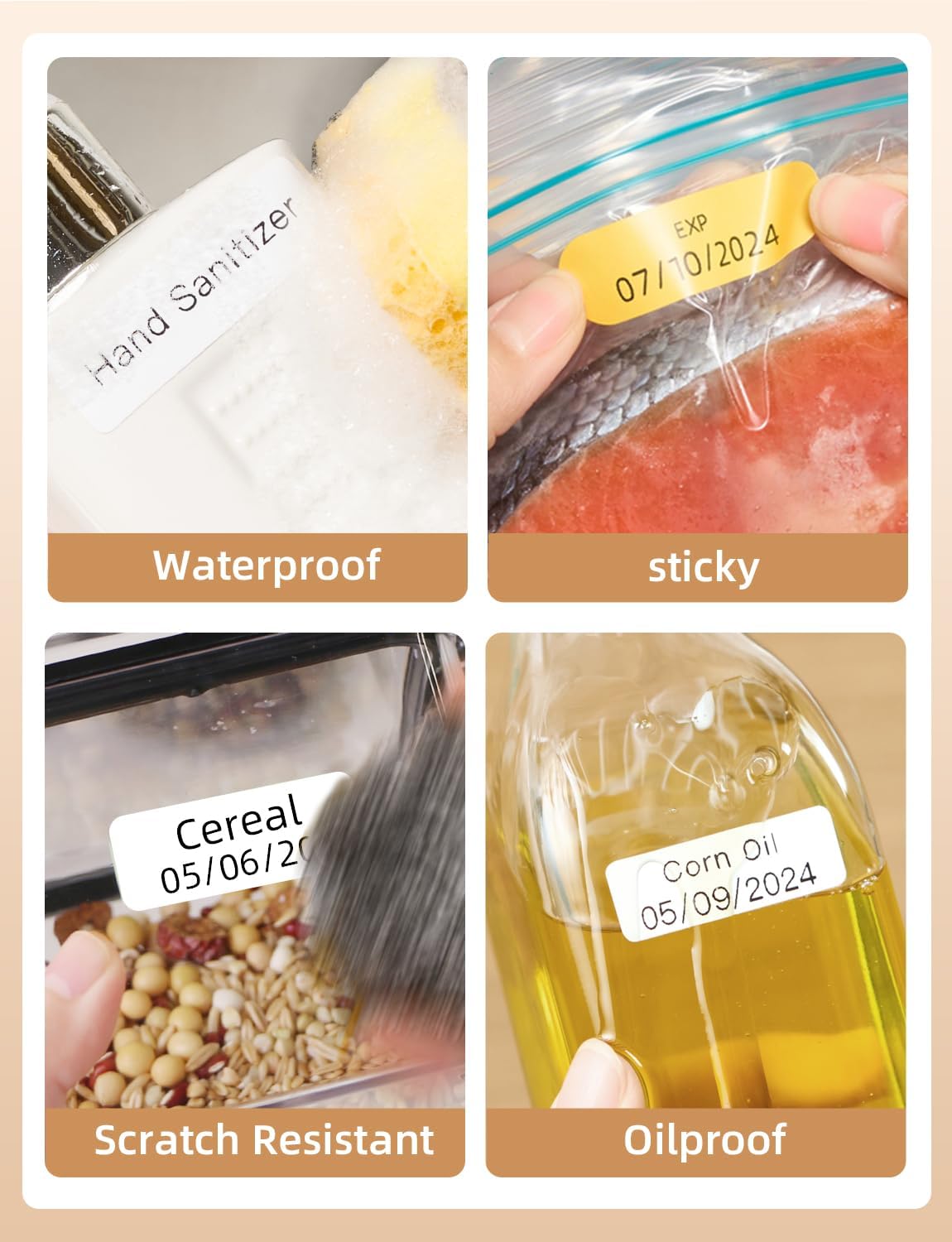
Figure 2: Makeid labels are designed to be waterproof, sticky, scratch-resistant, and oil-proof.
4. Setup Guide
4.1 Initial Charging
Before first use, fully charge the Makeid S1Pro label maker. Connect the provided USB charging cable to the charging port on the device and a suitable USB power adapter (not included). The charging indicator on the device will show the charging status. A full charge ensures optimal battery life and performance.
4.2 Loading Label Tape
- Open the label compartment cover on the device.
- Insert the label roll with the label side facing up, ensuring the leading edge of the tape extends slightly out of the slot.
- Close the label compartment cover firmly. The device will automatically detect the label size.

Figure 3: The label maker automatically recognizes the size of the inserted label tape.
4.3 App Installation and Bluetooth Pairing
- Download the official Makeid app from your smartphone's app store (iOS or Android).
- Ensure Bluetooth is enabled on your smartphone.
- Turn on the Makeid S1Pro label maker by pressing the power button.
- Open the Makeid app and follow the on-screen instructions to search for and connect to your device via Bluetooth. The device name will typically appear as "Makeid S1Pro" or similar.
- Once connected, the app will indicate a successful pairing.
5. Operating Instructions
5.1 Basic Printing (One-Click)
The S1Pro features quick-print buttons for common labeling needs.
- Kitchen Button: Press to access a library of common kitchen ingredients. Use the navigation buttons to select and then press "Print".
- Custom Button: Access your personalized keyword library. Select a custom word and print.
- Date Button: Press to print the current date. Long-press to modify the date before printing.
- EXP Button: Press to print an expiration date. Long-press to modify the expiration date.

Figure 4: Smart presets and one-touch printing simplify common labeling tasks.

Figure 5: Print labels with a single click for quick organization.
5.2 DIY Keyword Library
You can customize and store up to 60 commonly used words in your personal keyword library.
- Open the Makeid app on your smartphone.
- Navigate to the "DIY Keyword Library" or "Custom" section.
- Add or edit words as desired. These words will then be accessible via the "Custom" button on the label maker.

Figure 6: Customize your personalized word library through the Makeid app.
5.3 App-Based Printing
For advanced customization, use the Makeid app:
- Editing: Type your desired text.
- Fonts & Styles: Choose from 88 fonts, adjust size, bold, italic, etc.
- Borders & Stickers: Select from 16 borders and over 600 stickers and symbols.
- Templates: Utilize over 400 pre-designed templates, with monthly updates.
- Offline Printing: Create a material library within the app for quick printing even without an internet connection.
- Print: Once your label is designed, tap the "Print" button in the app.
5.4 Magnetic Attachment
The S1Pro features a built-in magnetic function on its back, allowing it to be conveniently attached to metallic surfaces like refrigerators or whiteboards. This keeps your label maker easily accessible.
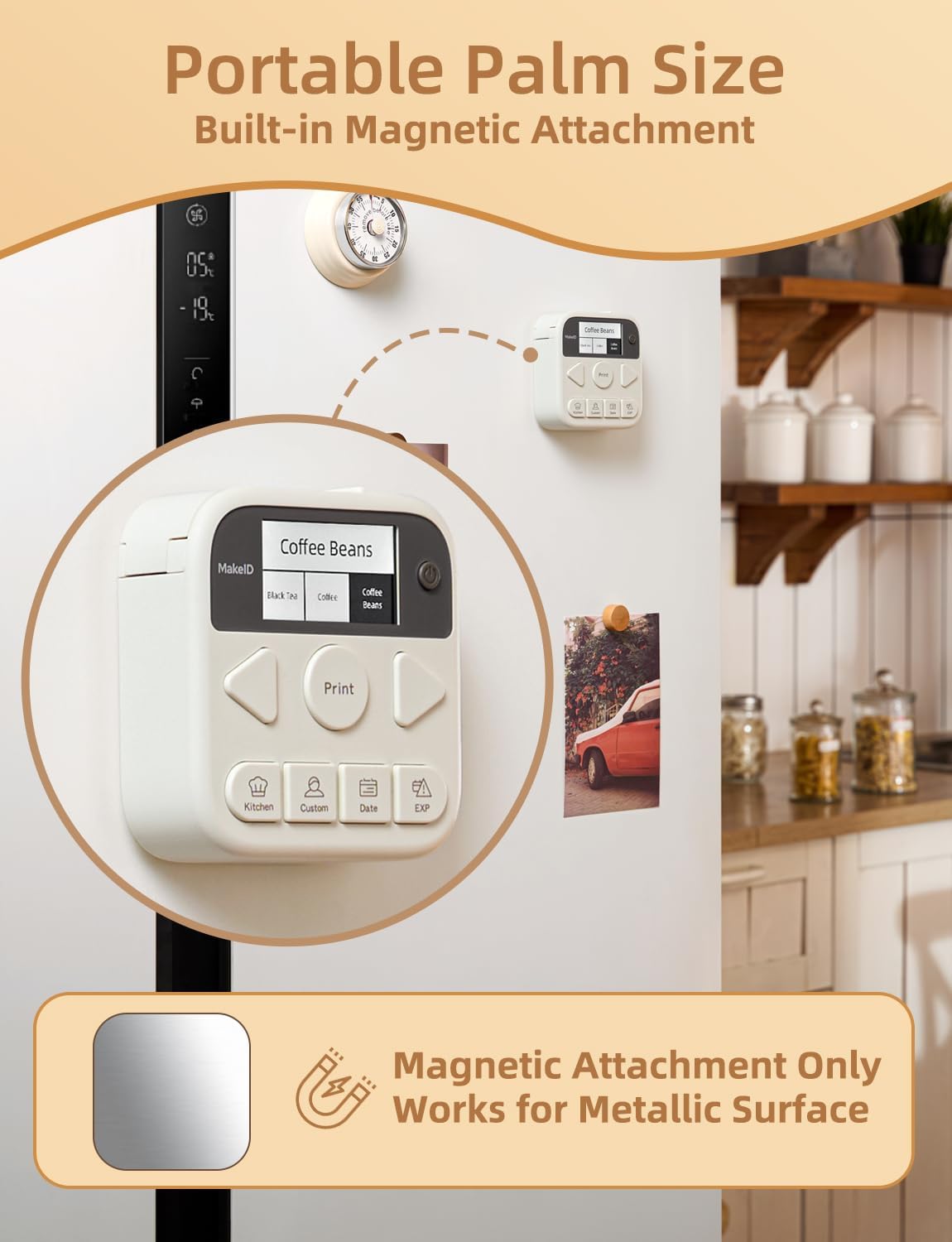
Figure 7: The S1Pro's magnetic back allows for convenient storage on metallic surfaces.
6. Maintenance
6.1 Cleaning the Print Head
To ensure clear and consistent print quality, periodically clean the thermal print head.
- Turn off the device and disconnect it from any power source.
- Open the label compartment.
- Gently wipe the print head (the dark strip) with a cotton swab lightly dampened with isopropyl alcohol.
- Allow it to dry completely before closing the cover and resuming use.
6.2 Label Storage
Store label rolls in a cool, dry place away from direct sunlight and extreme temperatures to preserve their adhesive and print quality.
6.3 Battery Care
To prolong battery life, avoid fully discharging the device frequently. Charge it regularly, especially if it will be stored for an extended period.
7. Troubleshooting
| Problem | Possible Cause | Solution |
|---|---|---|
| Device does not turn on. | Low battery. | Charge the device fully. |
| No print or faint print. | Label tape incorrectly loaded; Print head dirty; Out of labels. | Re-insert label tape correctly; Clean the print head; Replace label roll. |
| Bluetooth connection failed. | Bluetooth off on phone/device; Device too far; App issue. | Ensure Bluetooth is on; Move device closer; Restart app and device. |
| Label not recognized. | Label tape not inserted correctly. | Open and re-insert the label tape, ensuring it's properly seated. |
| Poor print quality. | Dirty print head; Low battery; Old/damaged label tape. | Clean print head; Charge device; Try a new label roll. |
8. Specifications
| Feature | Detail |
|---|---|
| Brand | Makeid |
| Model Name | thermal labe printer (S1 Pro) |
| Item Model Number | S1 Pro-W&1235F1&1535P |
| Connectivity Technology | Bluetooth |
| Printing Technology | Thermal |
| Printer Output | Monochrome |
| Maximum Print Speed (Monochrome) | 20 Pages per second |
| Maximum Media Size | 4x6 inches |
| Compatible Devices | Smartphones (iOS) |
| Control Method | App |
| Product Dimensions | 2 x 2 x 1 inches (approx.) |
| Special Feature | Portable, Magnetic Function |
| Battery Life | Up to 90 days (standby, 1450mAh capacity) |
9. Warranty and Support
For warranty information and technical support, please refer to the documentation provided with your purchase or visit the official Makeid website.
Manufacturer: Makeid
Related documentsS1 Pro-W&1235F1&1535P


Ask a question about this manual
Ask about setup, troubleshooting, compatibility, parts, safety, or missing instructions. Manuals+ will review the question and use this page’s manual context to help answer it.