
Vasco Electronics V4
Vasco V4 Language Translator Device
User Manual
1. Overview
The Vasco V4 Language Translator Device is designed to facilitate seamless communication across language barriers. It offers instant voice and photo translation capabilities, supported by free lifetime internet connectivity in nearly 200 countries. This manual provides detailed instructions on setting up, operating, maintaining, and troubleshooting your device, ensuring you get the most out of its advanced features.
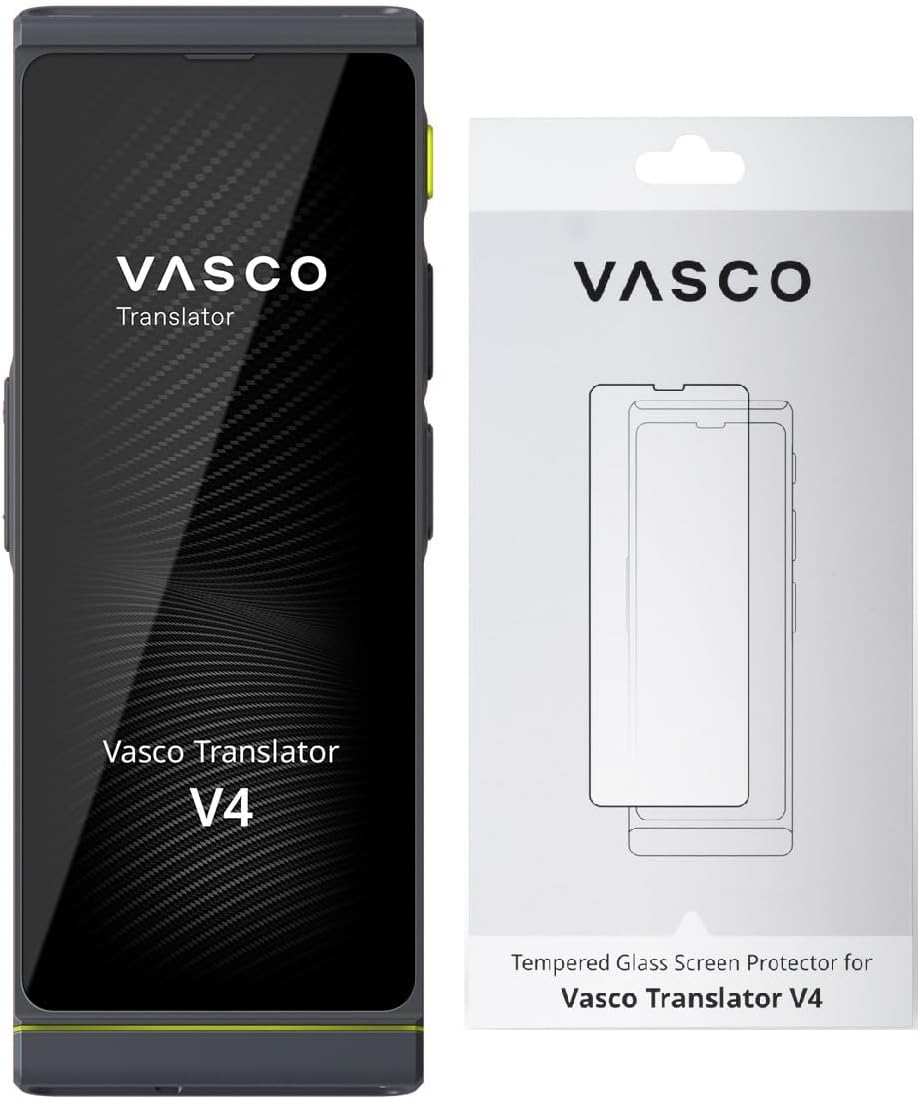
The Vasco V4 Language Translator device shown alongside its tempered glass screen protector packaging.
Key Features:
- Instant Voice Translation: Comprehends and translates 108 languages in real-time.
- Image-Text Converter: Translate text from photos, useful for signs, menus, and documents.
- Free Lifetime Connectivity: Operates globally without Wi-Fi, subscriptions, or hidden costs.
- Durable Design: Dust-proof, water-resistant, and shock-proof for reliable use in various environments.
- Ergonomic 5-inch Screen: Provides a clear and comfortable viewing experience.
- Powerful Battery: Offers extended usage time, up to 5 days with regular use and 180 hours in standby mode.

An infographic detailing the robust features of the Vasco V4 Translator, including its camera, built-in SIM, durability, screen, speakers, and battery life.
2. Getting Started
2.1. Package Contents
Before proceeding, please verify that all items are present in your package:
- Vasco V4 Language Translator Device
- USB-C Charging Cable
- Wall Adapter
- Lanyard
- Tempered Glass Screen Protector
- Screen Protector Installation/Cleaning Kit

Contents of the Vasco V4 Translator package, including the device, charging accessories, and lanyard.
2.2. Charging the Device
Before first use, fully charge your Vasco V4 device. Connect the USB-C charging cable to the device's USB-C port and the other end to the wall adapter. Plug the adapter into a power outlet. The device will indicate charging status on its screen.
2.3. Powering On/Off
- To Power On: Press and hold the power button (located on the side of the device) until the Vasco logo appears on the screen.
- To Power Off: Press and hold the power button until the power-off options appear. Select 'Power Off' on the screen.
2.4. Screen Protector Installation
The included tempered glass screen protector offers superior scratch protection with a 9H hardness rating. Follow these steps for effortless installation:
- Clean the Screen: Use the provided cleaning kit to thoroughly clean the device screen, removing any dust, smudges, or fingerprints. Ensure the screen is completely dry.
- Align the Protector: Carefully align the tempered glass screen protector with the device's screen, ensuring the cutouts for the camera and sensors match perfectly.
- Apply: Gently place the protector onto the screen. It will adhere automatically. If bubbles appear, gently push them towards the edges using a soft cloth.

The tempered glass screen protector and the accompanying patch installation/cleaning kit.

A hand carefully applying the tempered glass screen protector to the Vasco V4 Translator device.

The back of the tempered glass screen protector packaging, featuring a QR code for an online installation guide: Scan for Installation Guide.
3. Operating Instructions
3.1. Voice Translation
The Vasco V4 provides instant voice translation for 108 languages. To use this feature:
- From the main menu, select the 'Voice Translator' icon.
- Choose your source language and target language.
- Press and hold the microphone button corresponding to your language and speak clearly into the device.
- Release the button, and the device will instantly translate and speak the phrase in the target language.

A close-up of the Vasco V4 Translator screen displaying the intuitive voice translation interface.
3.2. Photo Translation
Translate text from images using the built-in camera:
- Select the 'Photo Translator' icon from the main menu.
- Point the device's camera at the text you wish to translate. Ensure good lighting and focus.
- Tap the capture button on the screen.
- The device will process the image and display the translated text.

A user demonstrating the photo translation feature by scanning text from a document with the Vasco V4 Translator.
3.3. Internet Connectivity
The Vasco V4 comes with free lifetime internet connectivity, eliminating the need for Wi-Fi or SIM cards for translation functions. This ensures you are always connected for translations, wherever you are in the world.

An illustration emphasizing the free lifetime internet feature available with the Vasco V4 Translator.

A world map visually representing the extensive global coverage for free lifetime connectivity provided by the Vasco Translator V4.
3.4. Supported Languages
The Vasco V4 supports a wide array of languages for voice and photo translation. A comprehensive list is provided below:

A detailed list of languages supported by the Vasco V4 Translator, indicating capabilities for voice input, voice output, and photo translation.
4. Maintenance and Care
- Cleaning: Use a soft, lint-free cloth to clean the device screen and body. Avoid abrasive materials or harsh chemicals.
- Storage: Store the device in a cool, dry place away from direct sunlight and extreme temperatures.
- Protection: While the device is durable, avoid dropping it or exposing it to excessive force. The tempered glass screen protector adds an extra layer of defense.
5. Troubleshooting
Common Issues and Solutions:
- Device not turning on:
Ensure the device is fully charged. Connect it to the charger for at least 30 minutes before attempting to power it on again. If the issue persists, perform a soft reset by holding the power button for an extended period (e.g., 15-20 seconds). - Translation not working or inaccurate:
Check your internet connection (though it has lifetime internet, ensure the signal is not obstructed in very remote areas). Speak clearly and directly into the microphone. Ensure the correct source and target languages are selected. For photo translation, ensure good lighting and clear text. - Screen unresponsive:
Try restarting the device. If the screen remains unresponsive, ensure it is clean and free of debris. - Battery draining quickly:
Reduce screen brightness. Close unused applications running in the background. Ensure the device is not in an area with very poor signal, which can cause it to consume more power searching for a connection.
6. Specifications
| Feature | Specification |
|---|---|
| Display | 5" 576x1440 |
| Processor | Quad-core Mediatek Helio A22 (MT6761) 64 bit |
| RAM | 2 GB |
| ROM | 32 GB |
| Modem | 4G |
| WiFi | 2.4 GHz |
| Battery | B2400 mAh |
| Size | 149 x 55 x 10 mm |
| Weight | 0.3 lb (134 g) |
| Earphone Input | USB Type-C |
| USB Input | Type-C |

Detailed technical specifications and physical dimensions of the Vasco V4 Language Translator.
7. Warranty and Support
The Vasco V4 Language Translator Device is designed for reliability and comes with free lifetime connectivity for translations, ensuring continuous service without additional costs. For any technical assistance, warranty claims, or support inquiries, please contact Vasco Electronics customer service. Refer to the product packaging or the official Vasco Electronics website for the most current contact information.
Related documentsV4


Ask a question about this manual
Ask about setup, troubleshooting, compatibility, parts, safety, or missing instructions. Manuals+ will review the question and use this page’s manual context to help answer it.