
1. Product Overview
This manual provides detailed instructions for the installation, operation, and maintenance of your new Android 13 Car Radio Stereo. This unit features a 10-inch display, wireless CarPlay and Android Auto, Bluetooth hands-free calling, and GPS navigation capabilities. Please read this manual thoroughly before use to ensure proper functionality and safety.
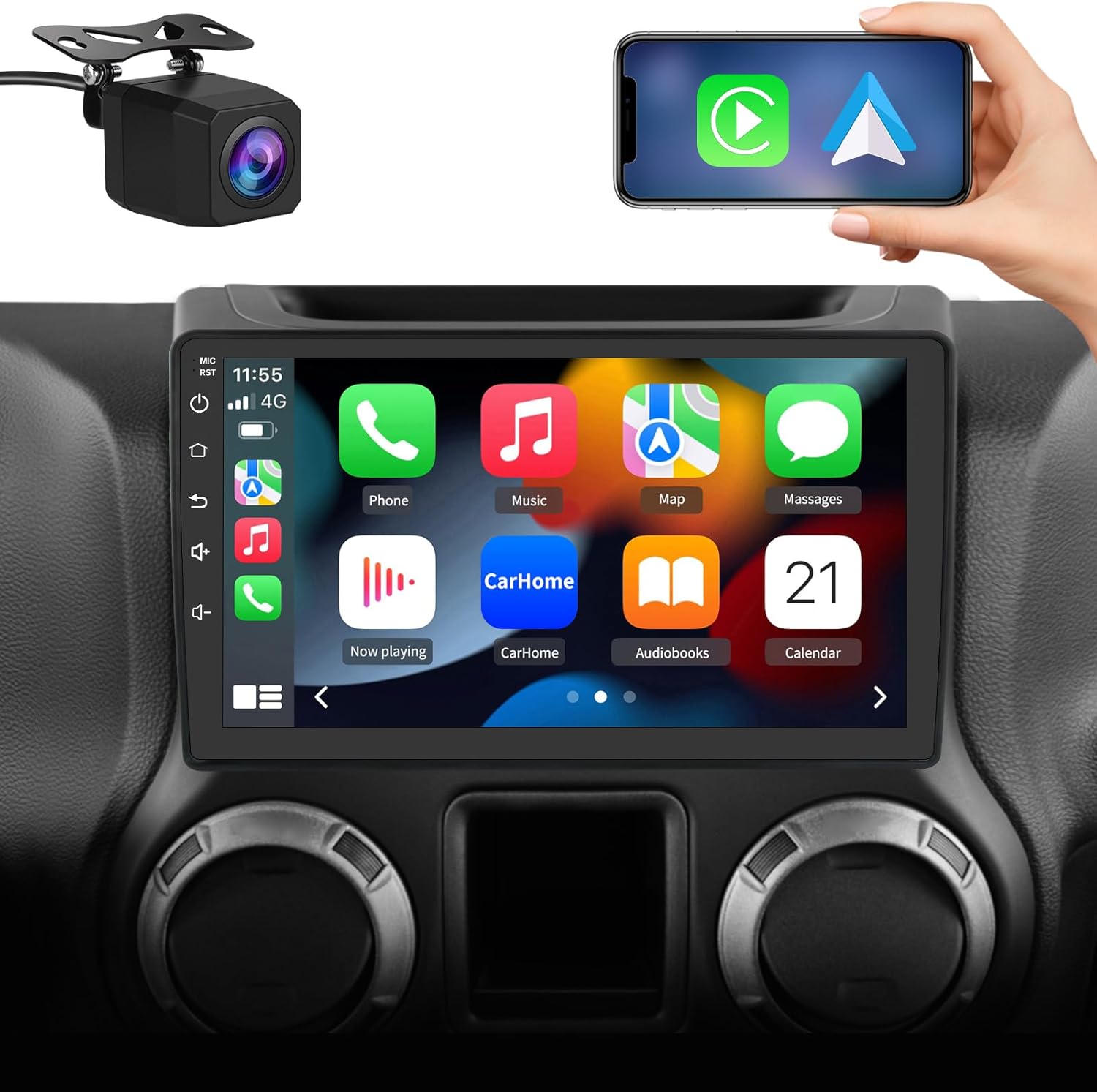
Image: The main unit of the Android 13 Car Radio Stereo, showcasing its 10-inch display with a user interface similar to Apple CarPlay, alongside a reverse camera and a smartphone demonstrating connectivity.
2. Applicable Car Models
This car radio stereo is compatible with a range of vehicles. Please verify your vehicle's compatibility before installation.
- Jeep Wrangler/Unlimited: 2007-2018
- Jeep Compass: 2009-2016
- Jeep Patriot: 2009-2016
- Jeep Grand Cherokee: 2005-2011
- Jeep Liberty: 2008-2011
- Jeep Commander: 2008-2011
- Chrysler Sebring: 2007-2010
- Town&Country: 2007-2010
- Dodge Grand Caravan: 2011-2014
- Dodge Charger: 2008-2010
- Dodge Ram Pickup 1500/2500/3500: 2009-2012

Image: A comparison showing the car dashboard before and after the installation of the new car radio, specifically for a Jeep Wrangler model, highlighting the integrated appearance.
3. Package Contents
Verify that all components are present in the package:
- Car Radio Unit
- RCA Cable
- Microphone
- CanBus Module
- Crowbar
- Screwdriver
- Reversing Line
- USB Cable (x2)
- Power Cable
- Antenna Adapter Cable
- GPS Module
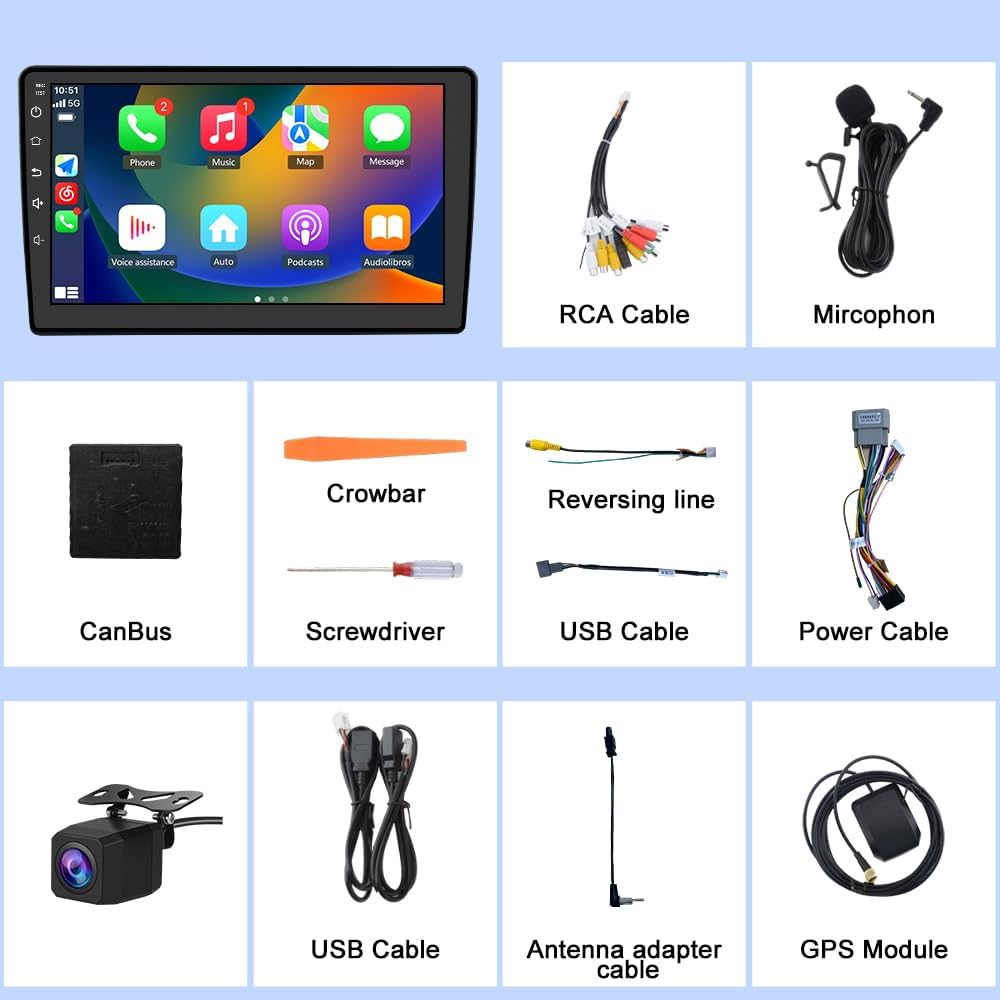
Image: A visual representation of all accessories and cables included with the car radio unit, such as RCA cables, microphone, CanBus, tools, and various power/data cables.
4. Setup and Installation
4.1 Wiring Diagram
Refer to the following diagrams for proper wiring connections. Ensure all connections are secure before powering on the unit.

Image: A detailed wiring diagram illustrating the connections for the car radio, including the radio antenna, GPS module, microphone, ISO wiring harness, Can Bus, audio plugs, and camera cable. It also shows specific wiring for cars with and without amplifiers.
4.2 Aftermarket Camera Connection
To connect an aftermarket reverse camera, follow these steps:
- Connect the black cable (1) to the "GND" (ground).
- Connect the red cable (2) to the backup light's positive terminal ("+").
- The brown cable (3) from the power harness is the reverse cable and should be connected as shown.

Image: A visual guide demonstrating how to connect an aftermarket reverse camera to the car radio system, detailing the connections for ground, backup light positive, and the reverse cable from the power harness.
5. Operating Instructions
5.1 Wireless CarPlay & Android Auto
Connect your iPhone or Android phone to the car radio via Bluetooth for seamless integration. This allows access to navigation, calls, messages, and music through the car's display or voice assistant.
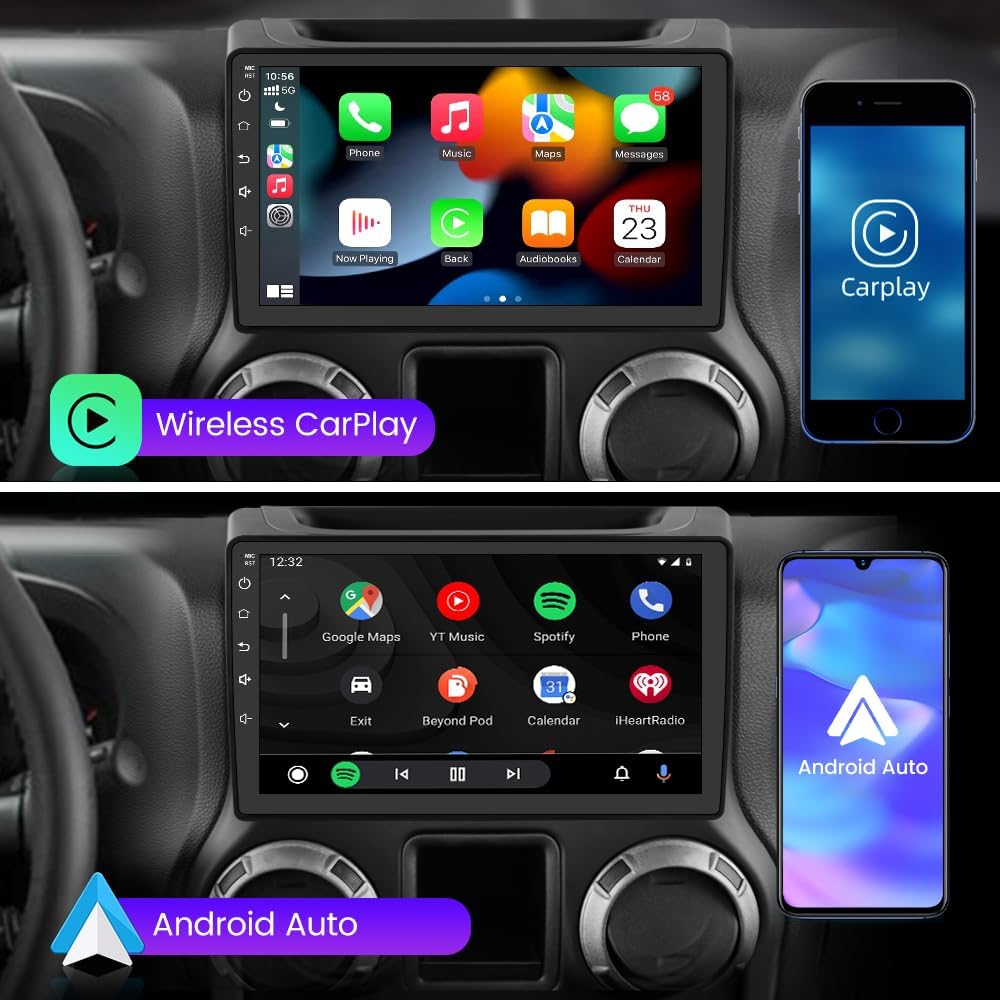
Image: Two distinct views of the car radio display, one showing the Wireless CarPlay interface with various app icons like Phone, Music, Maps, and Messages, and the other showing the Android Auto interface with Google Maps, YouTube Music, and Spotify.
5.2 Bluetooth Hands-Free Calling
The built-in Bluetooth function supports hands-free calling for both Android and iOS phones. An external microphone is included for improved call clarity.

Image: The car radio display showing a phone dial pad and call interface, with a smartphone next to it indicating an incoming call, demonstrating the Bluetooth hands-free calling feature.
5.3 Steering Wheel Controls (SWC)
Utilize your vehicle's existing steering wheel controls to manage calls, adjust volume, and change songs safely while driving.

Image: A screenshot of the car radio's interface for learning and configuring steering wheel controls, showing various button functions like power, home, volume, and media controls.
5.4 Navigation (Online & Offline Maps)
The unit comes pre-loaded with North American maps. Connect the GPS antenna for accurate route planning using coordinates, postal codes, or addresses. Online map applications can be downloaded for real-time traffic updates.

Image: The car radio display showing a GPS navigation map with route information, and below it, a simulated ParkAssist view demonstrating reverse camera functionality with parking guidelines.
5.5 Multimedia Playback
Enjoy various media playback options, including FM/AM radio with RDS, and online/offline music and video streaming. The stereo features EQ settings (jazz, rock, pop, classic) for customized audio.
5.6 Reversing Assistance
Connect a rear reversing camera (not included, but supported) for visual assistance when backing up. The unit can also transfer video to headrest monitors.

Image: The car radio display showing a rear view from a backup camera with dynamic trajectory lines and parking assist features, indicating support for astern assist.
5.7 Mirror Link
Mirror Link functionality is supported for both Android and iOS mobile phones, allowing you to display your phone's screen on the car radio.
5.8 Wi-Fi / WLAN Internet
Connect to Wi-Fi to download applications like YouTube, Gmail, and other online services from the app store.
Image: The car radio display showing various applications and internet browsing, highlighting its Wi-Fi and Bluetooth capabilities.
5.9 Split Screen Functionality
The unit supports split-screen mode, allowing you to run two applications simultaneously, such as navigation and music playback.

Image: The car radio display demonstrating the split-screen feature, showing a music player on one side and a navigation map on the other, allowing simultaneous use of two applications.
6. Specifications
| Feature | Detail |
|---|---|
| Operating System | Android 13 |
| Memory | 2GB RAM + 64GB Storage |
| Display Size | 10 Inches |
| Connectivity | Bluetooth, USB, Wi-Fi |
| Special Features | Wireless CarPlay, Android Auto, GPS Navigation, Steering Wheel Control Support, Mirror Link, Reversing Assistance |
| Audio Output Mode | Stereo |
| Map Type | North America (pre-loaded) |
| Item Weight | 4.05 pounds |
| Package Dimensions | 11.46 x 7.76 x 5.08 inches |
7. Troubleshooting
7.1 Common Issues and Solutions
- No Power: Ensure all power cables are securely connected. Check vehicle's fuse box for blown fuses.
- No Sound: Verify speaker connections. Check volume levels and EQ settings. Ensure "Mute" is not activated.
- Bluetooth Connection Issues: Ensure Bluetooth is enabled on both the car stereo and your mobile device. Delete previous pairings and try reconnecting.
- GPS Signal Loss: Ensure the GPS antenna is properly installed and has a clear view of the sky. Move the vehicle to an open area if signal is weak.
- CarPlay/Android Auto Not Connecting: Ensure your phone's operating system is up to date. Try restarting both the phone and the car stereo. Verify USB cable (if wired) or Bluetooth connection (if wireless) is stable.
- Touchscreen Unresponsive: Perform a soft reset of the unit (refer to specific reset instructions if available, or power cycle the unit). Ensure the screen is clean and free of debris.
If issues persist, please contact customer support.
8. Maintenance
- Cleaning: Use a soft, dry cloth to clean the display and unit exterior. Avoid abrasive cleaners or solvents.
- Software Updates: Periodically check for software updates to ensure optimal performance and access to new features. Updates can typically be found on the manufacturer's website or through the unit's settings.
- Temperature: Avoid exposing the unit to extreme temperatures.
9. Warranty and Support
This product comes with a 1-year warranty from the date of purchase. For warranty claims or technical support, please contact litillbuly customer service.
Customer Support Email: litillbuly@outlook.com

Image: A customer service representative wearing a headset, symbolizing 24-hour customer support.


