
1. Introduction
Thank you for choosing the RAINPOINT WiFi Hose Timer. This smart irrigation system is designed to simplify your garden watering tasks, offering convenient remote control, customizable schedules, and smart scene integration. This manual provides detailed instructions for installation, operation, and maintenance to ensure optimal performance of your device.
2. Product Overview
The RAINPOINT WiFi Hose Timer system includes a smart hose timer and a WiFi hub, allowing you to manage your watering schedule from anywhere via the RainPoint Home APP. Key features include:
- Convenient Remote Control: Manage watering schedules via 2.4 GHz WiFi from anywhere.
- Customizable Watering Schedule: Offers Normal Irrigation, Interval Irrigation, and Cycle Soak modes with 5 watering frequencies (by week, odd/even days, by days). Set up to 6 different schedules.
- Smart Scene Integration: Automatically adjusts watering based on weather conditions and enables linkage between multiple devices.
- Seasonal Adjustment: Adjusts watering hours monthly by a certain percentage (10%-200%) without repeated manual adjustments.
- Voice Control: Compatible with Alexa and Google Assistant for hands-free operation.
- Scalable System: Add multiple WiFi sprinkler timers (up to 4 recommended for stability) to one Smart Hub.
- Upgraded Construction: Features a brass swivel inlet to prevent leaks and a built-in metal filter to resist clogging. Withstands water pressure of 7-116 psi.

Figure 2.1: RAINPOINT WiFi Hose Timer, Smart Hub, and App Interface.

Figure 2.2: Personalized Watering Plans with 3 modes, 5 frequencies, and 6 schedules.

Figure 2.3: Smart Watering capabilities, including weather-based adjustments.
3. Setup
3.1. Installation of Hose Timer
- Ensure the brass swivel inlet is securely attached to your outdoor spigot.
- Connect your garden hose or irrigation system to the outlet of the timer.
- Insert 4 AA batteries into the timer.
3.2. App Download and Smart Hub Connection
- Download the RainPoint Smart+ app from the App Store (iOS) or Google Play (Android). You can use the QR code provided in the Quick Start Guide.
- Plug the Smart Hub into an outlet near your 2.4GHz WiFi router.
- Wait approximately 10 seconds for the device initialization to complete.
- Press and hold the button on the Smart Hub until the blue light flashes quickly.
- In the RainPoint Smart+ app, select "Add Device" and find the Smart Hub (e.g., HWG009WB) to complete the connection.
3.3. Pairing the Hose Timer with the Smart Hub
Once the Smart Hub is connected, you can pair your hose timer. Bring the hose timer close to the Smart Hub and your cell phone. Ensure your phone's Bluetooth function is enabled.
Video 3.1: How to connect and program the RAINPOINT WiFi water timer.
This video demonstrates the process of connecting the WiFi hose timer and programming it through the RainPoint Smart+ app, including initial setup of the hub and pairing the timer.
4. Operating Instructions
4.1. Setting Watering Schedules
The RainPoint Smart+ app allows you to create and manage up to 6 different watering schedules.
- Open the app and navigate to the 'Irrigation Plan' section.
- Select your desired watering mode: Normal Irrigation, Interval Irrigation, or Cycle Soak.
- Set the start time and duration for each plan.
- Choose the watering frequency: Everyday, Odd Dates, Even Dates, Interval, or Custom days of the week.
- Confirm and save your schedule.
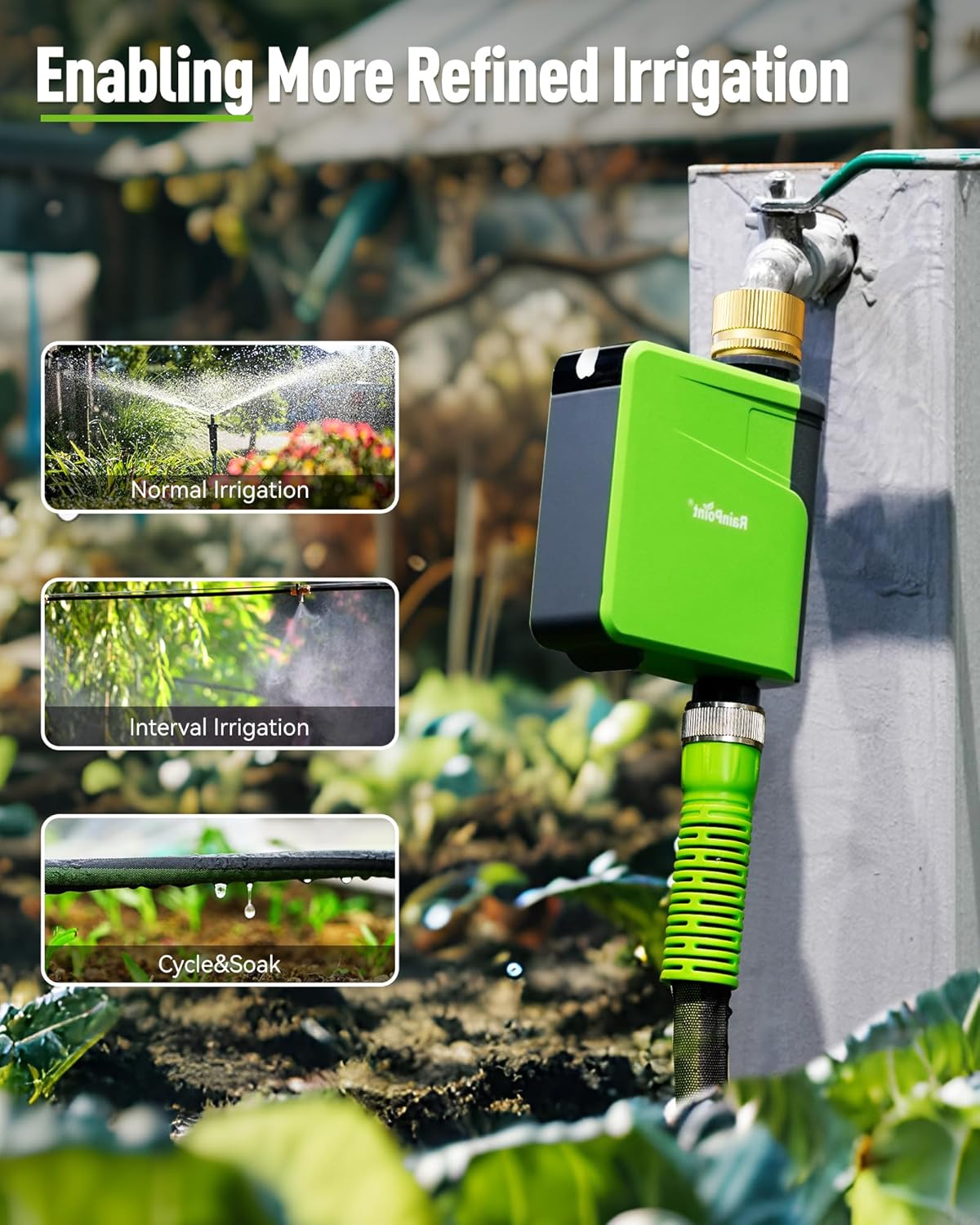
Figure 4.1: Visual representation of Normal Irrigation, Interval Irrigation, and Cycle & Soak modes.

Figure 4.2: Options for setting flexible watering frequencies.
4.2. Manual Watering
You can initiate manual watering directly from the timer or through the app. Manual watering time can be set from 1 minute to 12 hours.

Figure 4.3: Manual watering can be initiated via the timer button or the app.
4.3. Smart Scene and Voice Control
Utilize the Smart Scene feature in the app to create automated watering adjustments based on real-time weather conditions (e.g., rain delay, temperature, humidity). The timer is also compatible with Amazon Alexa and Google Assistant for convenient voice commands.

Figure 4.4: Smart control options through the app and voice assistants.
4.4. Seasonal Adjustment
The Seasonal Adjustment feature allows you to automatically modify watering durations on a monthly basis by a set percentage (10%-200%), adapting to changing seasonal needs without constant manual reprogramming.

Figure 4.5: Seasonal adjustment feature for optimizing water usage throughout the year.
5. Maintenance
- Battery Replacement: The app and hose timer will alert you when the batteries are low. Replace with 4 new AA batteries promptly to ensure continuous operation.
- Cleaning: Periodically check and clean the built-in metal filter to prevent clogging and maintain optimal water flow.
- Winterization: Before the first frost, disconnect the timer from the spigot and store it indoors in a dry, protected area to prevent damage from freezing temperatures.
6. Troubleshooting
- No Water Flow: Check water pressure (must be 7-116 psi). Ensure the timer is properly installed and the spigot is fully open. Verify the metal filter is not clogged.
- Timer Not Responding: Check battery levels. Ensure the Smart Hub is powered on and connected to your WiFi network. Verify the timer is within range of the Smart Hub.
- App Connectivity Issues: Ensure your phone's Bluetooth is on during pairing. Confirm your WiFi network is 2.4GHz. Restart the app and your Smart Hub if issues persist.
- Schedules Not Running: Verify that schedules are enabled in the app. Check for any active Rain Delay settings. Ensure the timer has sufficient battery power.
7. Specifications
| Attribute | Value |
|---|---|
| Brand | RAINPOINT |
| Model | Water Timer with WiFi Hub (B0CYCC6F9R) |
| Color | Green |
| Material | Brass |
| Product Dimensions | 6"D x 2.3"W x 7"H |
| Item Weight | 1 Pounds |
| Number of Settings | 6 (Watering Schedules) |
| Water Pressure Range | 7-116 psi |
| WiFi Frequency | 2.4 GHz |
8. Warranty and Support
For warranty information and customer support, please visit the official RAINPOINT Store or contact their customer service directly. Details can typically be found on the product packaging or the RAINPOINT website.
Visit the RAINPOINT Store: RAINPOINT Store on Amazon


