
CARPURIDE W903
CARPURIDE W903 Wireless Carplay & Android Auto Car Radio User Manual
Model: W903
Brand: CARPURIDE
1. Introduction
Thank you for choosing the CARPURIDE W903 Portable Car Stereo. This device is designed to enhance your driving experience by integrating advanced features such as wireless CarPlay and Android Auto, a 4K dual camera system, and a high-definition IPS touchscreen. This manual provides detailed instructions for installation, operation, maintenance, and troubleshooting to ensure optimal performance and safety.

Figure 1.1: CARPURIDE W903 Portable Car Stereo with its main components including the display, front camera, rear camera, and connectivity options.
2. Safety Information
Please read all safety warnings and instructions carefully before using this product to prevent injury or damage. Keep this manual for future reference.
- Do not operate the device in a manner that distracts you from driving. Always prioritize road safety.
- Ensure the device is securely mounted and does not obstruct your view or interfere with vehicle controls.
- Avoid exposing the device to extreme temperatures, direct sunlight for prolonged periods, or excessive moisture.
- Do not attempt to disassemble or modify the device. Refer all servicing to qualified personnel.
- Use only the provided power adapter (Type-C 5V 2A car charger) to power the device.
- When installing the rear camera, ensure proper routing of cables to avoid interference with vehicle components or passenger movement.
3. Package Contents
Verify that all items listed below are included in your package. If any items are missing or damaged, please contact customer support.

Figure 3.1: Visual representation of all items included in the CARPURIDE W903 package.
- CARPURIDE W903 Portable Car Stereo (9.3-inch display with integrated front camera)
- Self-adhesive bracket
- Suction mount bracket
- 64G TF Card
- Suction Cup Gasket
- Car Charger (Type-C 5V 2A)
- 3.5mm Audio Cable (AUX cable)
- Rear View Camera
- Camera Wire (6m)
- User Manual
4. Product Overview
The CARPURIDE W903 is a versatile car infotainment system designed for ease of use and enhanced driving safety. Key features include:
4.1. Dual 4K HD Cameras
The device features a front-facing 4K HD camera that can rotate 350 degrees, serving as a dash cam and an in-car camera. It also includes an AHD rear camera. The system supports split-screen functionality, allowing simultaneous display of front and rear camera feeds for improved safety and efficiency.

Figure 4.1: Illustration of the dual camera system, showing the front dash cam and the rear view camera with a 170-degree wide angle.

Figure 4.2: The front camera's 350-degree rotation capability, useful for dash cam recording and monitoring the vehicle interior.
4.2. Seamless Smartphone Integration
The W903 acts as a secondary screen, connecting effortlessly to your smartphone. It supports wireless Apple CarPlay, Android Auto, and Mirror Link functions. Voice control is enhanced by a high-sensitivity front microphone, improving voice recognition and call quality.

Figure 4.3: Display showing the user interface for wireless Apple CarPlay and Android Auto, along with mirroring capabilities.
4.3. Multiple Audio Transmission Options
Enjoy your preferred audio through various methods: Bluetooth, AUX, or FM transmission. Connect your phone via Bluetooth to stream audio through your car's speakers using CarPlay or Android Auto. Alternatively, use the AUX or FM transmission functions for a louder sound experience through your car's audio system.

Figure 4.4: Diagram illustrating the four audio output methods: Bluetooth Audio, built-in screen speaker, AUX connection, and FM transmission.
4.4. Modern 9.3-inch IPS Touchscreen
The W903 features a 9.3-inch 1600x600 HD IPS anti-glare screen with a sleek 2.5D curved design. It offers automatic and manual brightness adjustments and supports two-way video display for a clear and vivid visual experience. Its long form factor ensures it does not obstruct your line of sight while driving.

Figure 4.5: Comparison of the W903's IPS screen with a general screen, highlighting its anti-glare properties and light-sensing design for automatic brightness adjustment.
4.5. Wide Compatibility and Portable Design
The CARPURIDE W903 is compatible with most vehicle types, including cars, trucks, vans, buses, and pickups. Its portable design, featuring both adhesive and suction cup mounts, allows for easy installation and removal without modifying your existing car stereo system.
5. Setup and Installation
The CARPURIDE W903 offers flexible installation options to suit various vehicle dashboards and windshields.
5.1. Mounting the Device
You can choose between a self-adhesive bracket for dashboard mounting or a suction mount bracket for windshield mounting. Both provide a secure and stable fit.
- Attach the Bracket: Securely attach your chosen bracket (self-adhesive or suction mount) to the back of the CARPURIDE W903 unit. Ensure it clicks into place.
- Prepare Mounting Surface: Clean the desired mounting surface (dashboard or windshield) thoroughly to ensure it is free of dust and grease.
- Mount the Unit:
- For Suction Mount: Press the suction cup firmly against the clean surface and engage the lever to create a vacuum seal.
- For Self-adhesive Bracket: Remove the protective film from the adhesive pad and press the bracket firmly onto the dashboard for at least 30 seconds. Allow adhesive to cure for 24 hours before heavy use.
- Adjust Viewing Angle: Adjust the angle of the screen for optimal visibility and to avoid obstructing your view of the road. The mount allows for 360-degree rotation.

Figure 5.1: Various installation methods including dashboard mounting, windshield mounting, and telescopic regulation.
5.2. Connecting Power
Connect the provided Type-C 5V 2A car charger to the Type-C 5V port on the side of the W903 unit and plug the other end into your vehicle's cigarette lighter socket. The device will power on automatically.

Figure 5.2: How to connect the Type-C car charger to power the device and charge a mobile phone simultaneously.
5.3. Rear Camera Installation (Optional)
For optimal reversing assistance and rear recording, install the included rear view camera.
- Mount the Camera: Securely mount the rear camera at the back of your vehicle, typically above the license plate or near the trunk handle. Ensure it has a clear view.
- Route the Camera Wire: Carefully route the 6-meter camera wire from the rear camera to the main W903 unit, ensuring it is hidden and does not interfere with vehicle operation. Connect the camera wire to the "AV IN" port on the W903.
- Connect to Reverse Light (Optional): For automatic display of the rear camera when reversing, connect the red trigger wire from the camera cable to your vehicle's reverse light power supply. Consult a professional if unsure.

Figure 5.3: The reversing assist feature with reference lines, showing the 170-degree viewing angle and IP67 waterproof rating of the rear camera.
6. Operating Instructions
6.1. Initial Setup and Main Interface
Once powered on, the device will display the main interface. You can navigate through applications and settings using the touchscreen.
6.2. Connecting to Apple CarPlay (Wireless)
To use wireless CarPlay, ensure your iPhone is running iOS 6 or above and Siri is enabled.
- On the W903 screen, tap the "CarPlay" icon to open the CarPlay interface.
- On your iPhone, turn on Wi-Fi and Bluetooth.
- Go to Bluetooth settings on your iPhone, find "Carpuride-xxxx" (where xxxx is a unique identifier), and tap to connect.
- Confirm the pairing request on both devices. Once connected, CarPlay will launch automatically on the W903 screen.

Figure 6.1: Step-by-step guide for connecting an iPhone to the W903 for wireless Apple CarPlay.
6.3. Connecting to Android Auto (Wireless)
To use wireless Android Auto, your phone needs to support 5GHz Wi-Fi, run Android 11 or above, and have the latest Android Auto app installed.
- On the W903 screen, tap the "Android Auto" icon to open the Android Auto interface.
- On your Android phone, turn on Wi-Fi and Bluetooth.
- Go to Bluetooth settings on your Android phone, find "Carpuride-xxxx", and tap to connect.
- Confirm the pairing request on both devices. Once connected, Android Auto will launch automatically on the W903 screen.

Figure 6.2: Step-by-step guide for connecting an Android phone to the W903 for wireless Android Auto.
Note on Compatibility: Some Samsung Note and S series phones, as well as certain Huawei models (e.g., P30, P40, Mate 20, Mate 40, Honor 90, Xiaomi 11 lite, Xiaomi 12 pro, redmi 9, Xiaomi 9), may not be perfectly compatible with wireless CarPlay/Android Auto. Please verify your phone's compatibility before purchase.
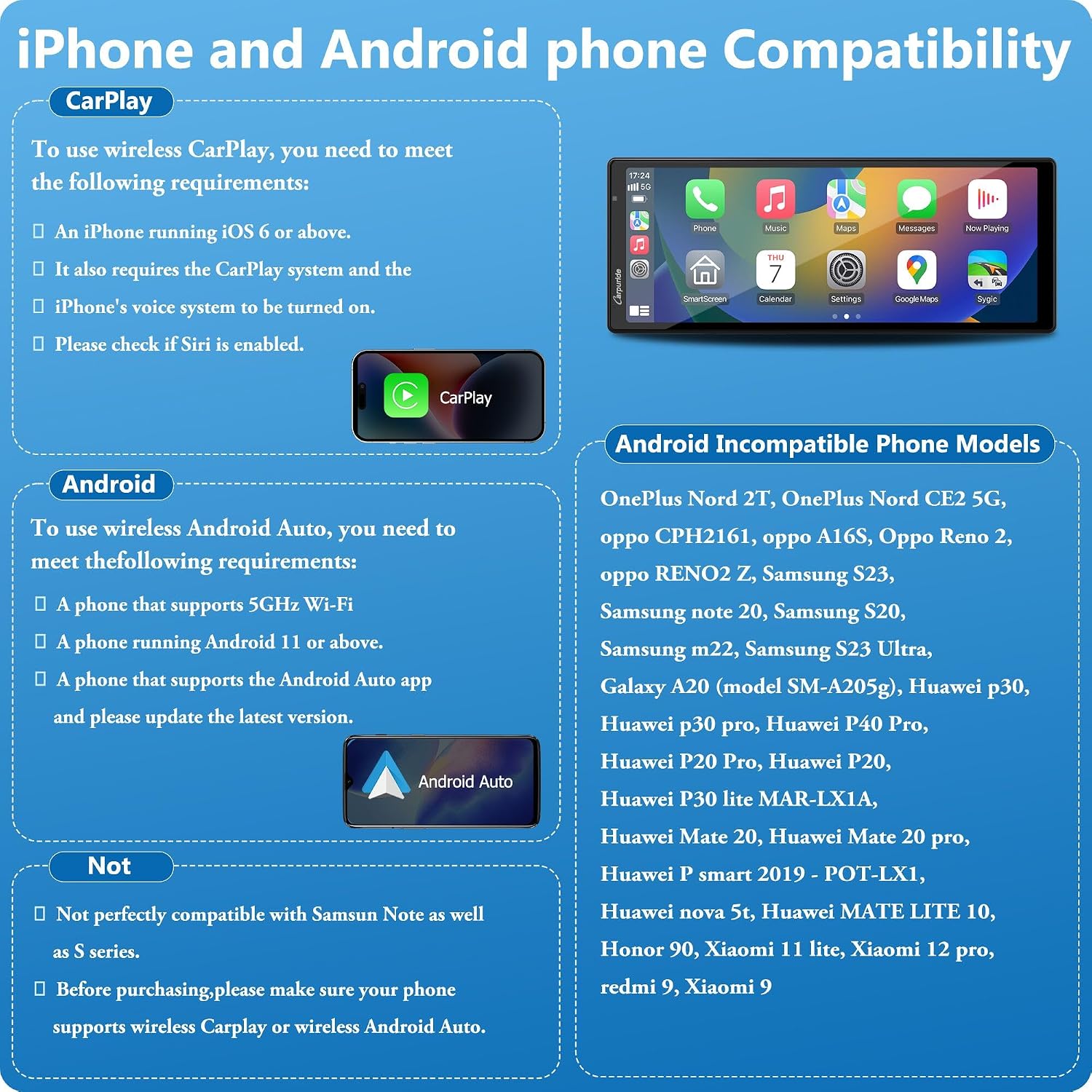
Figure 6.3: Detailed compatibility requirements for wireless CarPlay and Android Auto, including a list of potentially incompatible Android phone models.
6.4. Mirror Link (Airplay for iOS / Android Cast)
Mirror Link allows you to display your smartphone's screen on the W903. Note that some apps like Netflix or Hulu may not support mirroring due to copyright restrictions.
6.4.1. iOS Mirror Link (Airplay)
- Open CarPlay or Android Auto on the W903 and select "Airplay" below.
- On your iPhone, turn on Wi-Fi and connect to the W903's Wi-Fi hotspot (find the Wi-Fi name and enter the password).
- From your iPhone's Control Center, tap "Screen Mirroring" and select the W903 device.
- The connection will be successful, and your iPhone screen will be mirrored.
Tips: Only iPhone phones are supported for Airplay. This mode does not support Bluetooth connectivity. If you experience issues with mirroring after iOS 17.2, please update the software through CARPURIDE support.

Figure 6.4: Step-by-step instructions for setting up iOS Mirror Link (Airplay) on the W903.
6.4.2. Android Mirror Link (Android Cast)
- Open CarPlay or Android Auto on the W903 and select "Android Cast" below.
- Click the Android Cast icon and scan the QR code on the Carpuride screen to download the necessary app.
- Select "Wi-Fi Direct" connection mode. Connect to "CARLINK-xxxx". Follow phone prompts to start projection.
- The connection will be successful, and your Android screen will be mirrored.
Tips: This function must be used through a data connection, and it needs to be connected to the product's Bluetooth at the same time, otherwise the sound cannot be transmitted. When using Autolink, there is no way to display the video in full screen. Most smartphones are compatible with YouTube, but if there is sound but no video, it indicates incompatibility with the app.

Figure 6.5: Step-by-step instructions for setting up Android Mirror Link (Android Cast) on the W903.
6.5. Using the Dash Cam and Recording
The integrated front camera functions as a dash cam, recording your drive. The included 64GB TF card allows for automatic recording upon insertion.
- Loop Recording: The system supports loop recording, automatically overwriting the oldest footage when the TF card is full.
- Gravity Sensor (G-Sensor): The 4K W903 model includes a gravity sensor. In the event of a collision, the video footage will be automatically saved and locked, preventing it from being overwritten.

Figure 6.6: Illustration of the loop recording function, showing continuous recording of the road ahead.

Figure 6.7: Explanation of the gravity sensor (G-Sensor) which automatically saves video footage during collisions.
6.6. Audio Output Options
The W903 offers several ways to output audio to your car's sound system:
- Bluetooth Audio: Connect your phone to the W903 via Bluetooth. The W903 can then transmit audio to your car's Bluetooth system for stable call quality and music.
- Built-in Speaker: The W903 has a built-in 8Ω 2W speaker for direct audio output.
- AUX Connection: Use the provided 3.5mm audio cable to connect the W903's AUX output to your car's AUX input. This provides a direct wired audio connection.
- FM Transmission: The W903 can transmit audio to your car's FM radio. Select an unused FM frequency on the W903 and tune your car's radio to the same frequency.

Figure 6.8: Illustration of Bluetooth audio connection for stable call quality and music.

Figure 6.9: Depiction of the built-in 8Ω 2W speaker for direct audio output and calls.

Figure 6.10: Instructions for connecting to car speakers via FM transmission for audio playback and calls.

Figure 6.11: How to connect to car speakers using the AUX cable for audio playback and calls.
6.7. Voice Control
Utilize voice commands through CarPlay or Android Auto for navigation, calls, and music playback. The W903's high-sensitivity microphone ensures clear voice recognition.

Figure 6.12: Example of using voice commands for navigation with Apple Maps, Waze, Google Maps, and Sygic.

Figure 6.13: Example of using voice commands for making and receiving calls.
6.8. Screen Brightness Adjustment
The W903 features a light-sensing design that automatically adjusts screen brightness based on ambient light conditions, protecting your eyes and promoting safer driving. Manual adjustment is also available in the settings.

Figure 6.14: Comparison showing the benefit of the light sensor design for automatic brightness adjustment versus manual adjustment.
7. Maintenance
Proper care and maintenance will extend the life of your CARPURIDE W903.
- Cleaning the Screen: Use a soft, lint-free cloth to gently wipe the screen. For stubborn smudges, slightly dampen the cloth with water or a screen-cleaning solution. Avoid harsh chemicals or abrasive materials.
- Cleaning the Unit: Wipe the main unit and cameras with a dry or slightly damp cloth. Do not use excessive moisture.
- Cable Management: Ensure all cables are neatly routed and not pinched or tangled to prevent damage.
- Storage: If storing the device for an extended period, disconnect it from power and store it in a cool, dry place away from direct sunlight.
8. Troubleshooting
If you encounter issues with your CARPURIDE W903, refer to the following common problems and solutions:
| Problem | Possible Cause | Solution |
|---|---|---|
| Device does not power on. | No power connection or faulty power adapter. | Ensure the car charger is securely plugged into both the device and the car's cigarette lighter. Check if the car's cigarette lighter socket is working. Use only the provided charger. |
| Wireless CarPlay/Android Auto not connecting. | Bluetooth/Wi-Fi off on phone, incorrect pairing, phone incompatibility, outdated app. |
|
| Poor audio quality via FM transmission. | Interference from other radio stations, weak signal. |
|
| Touchscreen unresponsive or slow. | Temporary software glitch, excessive heat. |
|
| Rear camera not displaying. | Loose connection, incorrect wiring, camera malfunction. |
|
9. Specifications
Technical specifications for the CARPURIDE W903 Portable Car Stereo:
| Feature | Detail |
|---|---|
| Model Number | W903 |
| Brand | CARPURIDE |
| Screen Size | 9.3 Inches |
| Display Type | IPS Touchscreen (1600x600 HD, 2.5D Curved, Anti-glare) |
| Front Camera | 4K HD, 350-degree rotatable, Loop Recording, G-Sensor |
| Rear Camera | AHD, 170-degree viewing angle, IP67 Waterproof |
| Connectivity | Wireless CarPlay, Wireless Android Auto, Bluetooth, AUX, FM Transmission, USB (Type-C 5V 2A for power/charging) |
| Compatible Devices | Smartphone (iOS, Android) |
| Audio Output Mode | Stereo |
| Built-in Speaker | 8Ω 2W |
| Power Input | Type-C 5V 2A (12-24V vehicle compatibility) |
| Dimensions (L x W x H) | 22.1 x 13.6 x 2.6 cm (approx. 9.45 x 3.66 x 1.02 inches) |
| Item Weight | 1 Grams (Note: This value may be a placeholder or error in source data) |
| Included Storage | 64GB TF Card |
10. Warranty and Support
CARPURIDE provides a manufacturer's warranty for this product.
10.1. Manufacturer's Warranty
The CARPURIDE W903 comes with a 1-year manufacturer's warranty from the date of purchase. This warranty covers defects in materials and workmanship under normal use. It does not cover damage caused by misuse, accidents, unauthorized modifications, or improper installation.
Please retain your proof of purchase for warranty claims.
10.2. Customer Support
For technical assistance, troubleshooting beyond this manual, or warranty inquiries, please contact CARPURIDE customer support through the retailer where you purchased the product or visit the official CARPURIDE website for contact information.
When contacting support, please have your product model (W903) and purchase details ready.
Related documentsW903


Ask a question about this manual
Ask about setup, troubleshooting, compatibility, parts, safety, or missing instructions. Manuals+ will review the question and use this page’s manual context to help answer it.