
1. Introduction
Thank you for choosing the Machenike K600T Tri-Mode Gaming Keyboard. This high-performance keyboard is designed for an optimal gaming and typing experience, featuring versatile connectivity options and customizable RGB lighting. Please read this manual carefully to ensure proper use and maintenance of your device.

Image 1.1: Machenike K600T Tri-Mode Gaming Keyboard in Green.
2. Key Features
- Tri-Mode Connectivity: Supports wired USB, 2.4G wireless, and Bluetooth wireless connections.
- Gasket Mount Design: Provides a flexible and cushioned typing feel, reducing vibrations and improving sound.
- Hot-Swappable Switches: Easily change switches without soldering to customize your typing experience.
- RGB Lighting: Features 16 pre-set lighting effects and an audio visualizer for dynamic illumination.
- Durable Keycaps: OMA Profile Doubleshot ABS / MDA Profile Dye-sub PBT Keycaps for longevity and comfort.
- 4000mAh Battery: Long-lasting battery life for extended wireless use.
- Anti-ghosting & N-key Rollover: Ensures every keystroke is registered accurately during intense gaming sessions.

Image 2.1: Visual representation of the K600T's key features, including Gasket Mount, Flex Cut PCB, and Tri-mode connectivity.

Image 2.2: Exploded view illustrating the multi-layered gasket mount design for enhanced typing feel.
3. Setup
Before using your Machenike K600T keyboard, please ensure it is adequately charged. The keyboard supports three connection modes:
- Wired USB Connection:
- Connect the provided USB-C cable to the keyboard's port and the other end to an available USB port on your computer.
- Turn the connection mode switch knob on the keyboard to the 'USB' position.
- The keyboard will be automatically recognized by your system.
- 2.4G Wireless Connection:
- Locate the 2.4G USB receiver (dongle) usually stored in a compartment on the keyboard.
- Plug the 2.4G USB receiver into an available USB port on your computer.
- Turn the connection mode switch knob on the keyboard to the '2.4G' position.
- The keyboard should connect automatically. If not, press Fn + R for 3 seconds to initiate pairing.
- Bluetooth Wireless Connection:
- Turn the connection mode switch knob on the keyboard to the 'Bluetooth' position (indicated by *1, *2, or *3 for different profiles).
- On your computer or device, enable Bluetooth and search for new devices.
- Select 'Machenike K600T' from the list of available devices.
- If prompted, enter the pairing code displayed on your screen.
- To switch between Bluetooth profiles (up to 3 devices), press Fn + Q, Fn + W, or Fn + E.
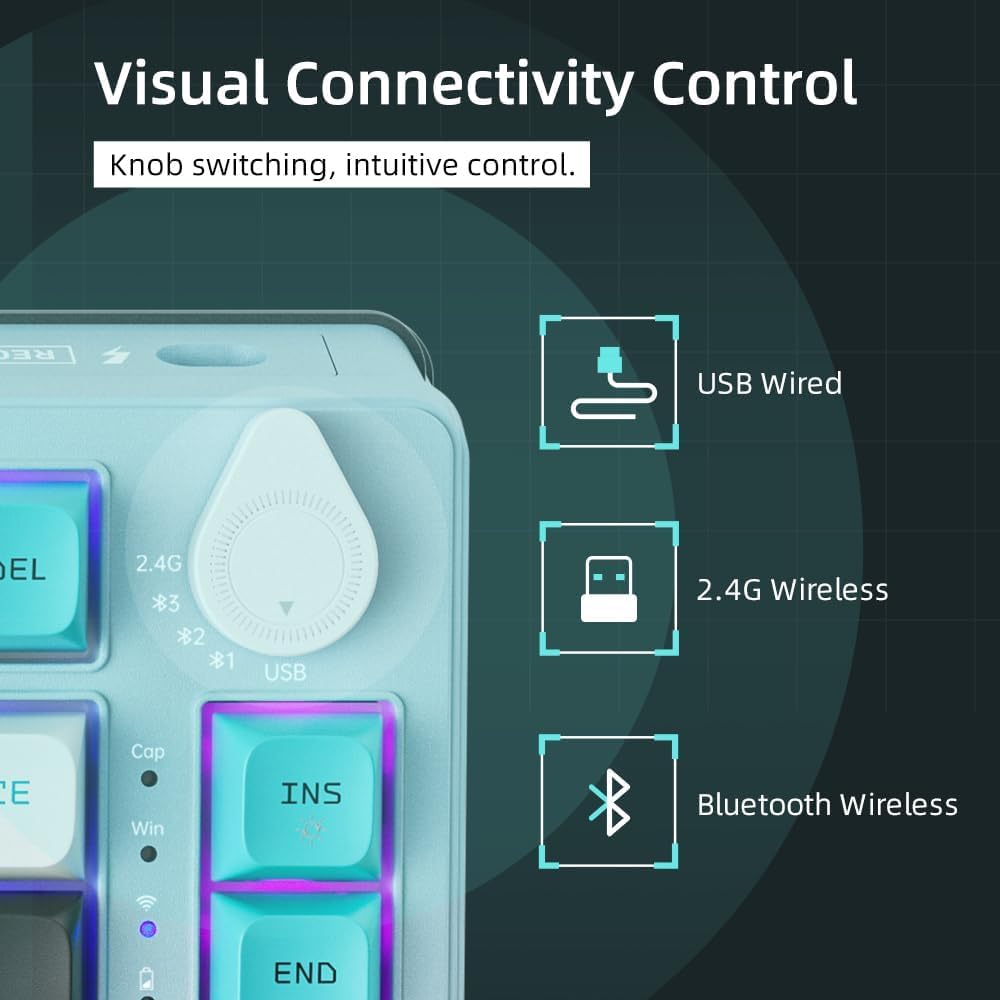
Image 3.1: The connection mode switch knob for selecting USB, 2.4G, or Bluetooth.
4. Operating Instructions
The Machenike K600T keyboard offers various functions and shortcuts to enhance your experience.
4.1. RGB Lighting Control
The keyboard features dynamic RGB lighting. Use the following key combinations to control the lighting effects:
- Fn + \|: Cycle through different lighting modes.
- Fn + <: Decrease lighting brightness.
- Fn + >: Increase lighting brightness.
- Fn + Up Arrow: Increase lighting speed/animation speed.
- Fn + Down Arrow: Decrease lighting speed/animation speed.
- Fn + Spacebar: Change lighting color (for static modes).

Image 4.1: The K600T keyboard showcasing its vibrant RGB lighting capabilities.
4.2. Multimedia and Function Keys
Many keys have secondary functions accessible via the Fn key. Refer to the keycaps for specific icons.
- Fn + F1-F12: Standard multimedia and function keys (e.g., volume control, play/pause).
- Fn + INS: Toggle between different lighting effects.
- Fn + DEL: Reset lighting effects.
5. Maintenance
Proper maintenance will extend the lifespan of your keyboard.
- Cleaning: Use a soft, dry cloth to wipe the keyboard surface. For deeper cleaning, use compressed air to remove dust and debris from between the keycaps. You may carefully remove keycaps for thorough cleaning.
- Storage: Store the keyboard in a cool, dry place away from direct sunlight and extreme temperatures.
- Battery Care: Avoid fully discharging the battery frequently. Charge the keyboard when the battery indicator is low.
6. Troubleshooting
If you encounter issues with your keyboard, try the following solutions:
- Keyboard not responding:
- Ensure the keyboard is charged.
- Check the connection mode switch knob is set correctly (USB, 2.4G, or Bluetooth).
- For wired connection, try a different USB port or cable.
- For 2.4G wireless, ensure the receiver is securely plugged in and try re-pairing (Fn + R for 3 seconds).
- For Bluetooth, ensure Bluetooth is enabled on your device and try re-pairing.
- Keys not registering:
- Clean around the affected key to remove any debris.
- If the key is hot-swappable, try removing and re-inserting the switch. If the issue persists, consider replacing the switch.
- RGB lighting not working:
- Ensure the keyboard is powered on.
- Try cycling through lighting modes (Fn + \|) or increasing brightness (Fn + >).
7. Specifications
| Feature | Detail |
|---|---|
| Brand | Machenike |
| Item Model Number | ff66e88b-1447-4dac-a121-895c5f2bb82e |
| Color | K600T Green |
| Connectivity Technology | Bluetooth, 2.4G Wireless, Wired USB |
| Number of Keys | 82 |
| Keyboard Backlight Color Support | RGB (Red, Green, Blue) |
| Special Features | Backlit, Ergonomic Design, Hot-Swappable, Programmable Keys |
| Recommended Uses | Gaming, Business |
| Compatible Devices | Computer (Windows 10) |
| Power Source | Battery Powered |
| Batteries Included | Yes (1 A battery) |
| Lithium Battery Energy Content | 2 Watt Hours |
| Number of Lithium Ion Cells | 1 |
| Item Weight | 1.07 Kilograms |
| Package Dimensions | 37.5 x 20.5 x 6.5 cm |
| Date First Available | February 28, 2024 |
8. Warranty and Support
Specific warranty information and detailed support contacts are not provided within this manual. For warranty claims, technical support, or further assistance, please refer to the official Machenike website or contact the retailer from whom you purchased the product. Keep your proof of purchase for warranty purposes.


