
1. Introduction
Thank you for choosing the VICOHOME CG7 Wireless Outdoor WiFi Camera. This 2-megapixel camera is designed for outdoor surveillance, offering comprehensive features such as IR night vision, white light illumination, PIR motion detection, microSD card storage support, and two-way audio communication. This manual provides detailed instructions for setting up, operating, and maintaining your camera to ensure optimal performance and security.
2. Package Contents
Please check the package contents carefully. If any items are missing or damaged, please contact your retailer or VICOHOME customer support.
- VICOHOME CG7 Wireless Outdoor WiFi Camera
- Mounting Bracket
- USB Charging Cable
- Mounting Screws and Wall Plugs
- User Manual (this document)
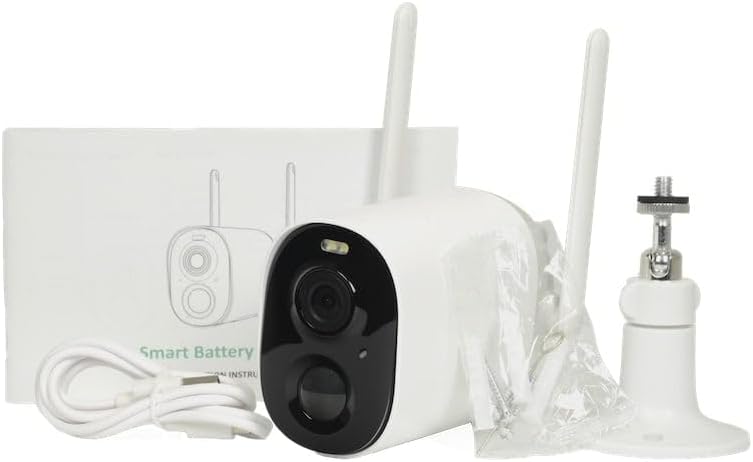
Figure 2.1: Package contents of the VICOHOME CG7 camera, showing the camera unit, mounting hardware, USB charging cable, and user manual.
3. Product Overview
Familiarize yourself with the components of your VICOHOME CG7 camera:
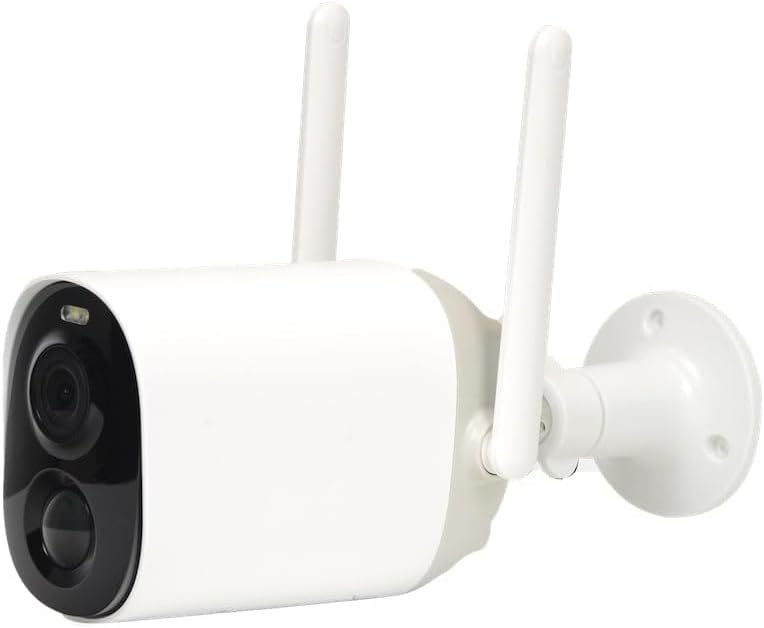
Figure 3.1: Front view of the VICOHOME CG7 camera. Key components include the camera lens, infrared (IR) LEDs for night vision, a white light LED for color night vision or illumination, and a Passive Infrared (PIR) motion sensor.
- Camera Lens: Captures 2-megapixel video.
- IR LEDs: Provides infrared illumination for black and white night vision.
- White Light LED: Offers supplemental illumination for color night vision or as a deterrent.
- PIR Sensor: Detects motion based on heat signatures, reducing false alarms.
- Microphone: Captures audio for two-way communication.
- Speaker: Enables two-way audio communication.
- Antennas: For stable WiFi connection.
- MicroSD Card Slot: For local video storage (card not included).
- Reset Button: Used to reset the camera to factory settings.
- USB Charging Port: For charging the camera's internal battery.
4. Setup
4.1 Charging the Camera
Before initial use, fully charge the camera using the provided USB cable and a standard 5V/1A USB power adapter (not included). The charging indicator light will show the charging status.
4.2 Downloading the App
Search for "VICOHOME" in your mobile app store (App Store for iOS or Google Play Store for Android) and download the official application. Alternatively, scan the QR code provided in the quick start guide (if available) to download the app.
4.3 Adding the Camera to the App
- Open the VICOHOME app and create an account or log in.
- Tap the "+" icon to add a new device.
- Select "Add Device" or "Smart Camera" and follow the on-screen instructions.
- Power on the camera. The camera will enter pairing mode (indicated by a flashing LED).
- Select your 2.4GHz WiFi network and enter the password. (5GHz WiFi is not supported).
- The app will generate a QR code. Hold your phone with the QR code in front of the camera lens at a distance of 15-20 cm (6-8 inches) until you hear a confirmation sound from the camera.
- Once connected, you can name your camera and begin using it.
4.4 Installing a MicroSD Card (Optional)
To enable local video storage, insert a Class 10 or higher MicroSD card (up to 128GB, not included) into the designated slot on the camera. Ensure the camera is powered off before inserting or removing the card. Format the card via the app settings after insertion.
4.5 Mounting the Camera
Choose a suitable outdoor location with good WiFi signal coverage. Avoid direct sunlight or areas with strong interference.
- Mark the drilling spots using the mounting bracket as a template.
- Drill holes and insert the wall plugs.
- Secure the mounting bracket to the wall using the provided screws.
- Attach the camera to the mounting bracket and adjust the angle for optimal viewing.
5. Operating the Camera
5.1 Live View
Open the VICOHOME app and tap on your camera's name to access the live video feed. From here, you can:
- View real-time video.
- Take snapshots.
- Record video manually.
- Initiate two-way audio communication.
5.2 Motion Detection and Recording
The camera uses a PIR sensor to detect motion. When motion is detected, the camera can:
- Send push notifications to your phone.
- Automatically record video clips to the MicroSD card or cloud storage (subscription may be required).
- Activate the white light and/or siren (if enabled in settings).
Adjust motion detection sensitivity and recording schedules in the app settings.
5.3 Night Vision Modes
The VICOHOME CG7 supports multiple night vision modes:
- IR Night Vision: Default mode, provides clear black and white video in low light conditions using infrared LEDs.
- Color Night Vision: Activates the white light LED to provide full-color video in low light. This mode can be triggered by motion or set to always on.
- Smart Night Vision: The camera uses IR night vision by default and switches to color night vision when motion is detected.
You can select your preferred night vision mode in the camera settings within the app.
5.4 Two-Way Audio
Tap the microphone icon in the live view interface to speak through the camera's speaker. Tap the speaker icon to listen to audio from the camera's microphone.
6. Maintenance
- Cleaning: Use a soft, dry cloth to clean the camera lens and body. Do not use harsh chemicals or abrasive cleaners.
- Battery Charging: Regularly check the battery level in the app and recharge the camera as needed to ensure continuous operation.
- Firmware Updates: Keep your camera's firmware updated through the VICOHOME app to ensure optimal performance, security, and access to new features.
- MicroSD Card: Periodically check the status of your MicroSD card. If it becomes full, older recordings may be overwritten, or you may need to manually format it.
7. Troubleshooting
| Problem | Possible Cause / Solution |
|---|---|
| Camera offline in app |
|
| No motion detection alerts |
|
| Poor night vision quality |
|
| MicroSD card not recording |
|
8. Specifications
| Feature | Detail |
|---|---|
| Model | CG7 |
| Brand | VICOHOME |
| Resolution | 2 Megapixel |
| Connectivity | WiFi (2.4GHz only) |
| Night Vision | IR Night Vision, White Light, Smart Night Vision |
| Motion Detection | PIR Sensor |
| Audio | Two-Way Audio |
| Storage | MicroSD Card (up to 128GB, Class 10+), Cloud Storage (optional) |
| Power | Rechargeable Battery, USB Charging |
| Weight | 500 g |
| ASIN | B0CT62Z43P |
| First Available Date | June 25, 2024 |
9. Warranty and Support
VICOHOME products typically come with a limited warranty. Please refer to the warranty card included in your package or visit the official VICOHOME website for detailed warranty terms and conditions. For technical support, troubleshooting assistance, or any inquiries regarding your VICOHOME CG7 camera, please contact VICOHOME customer service through their official website or the contact information provided in the app.
Please retain your purchase receipt as proof of purchase for warranty claims.


