
Introduction
Thank you for choosing the KTC 34'' Curved Ultrawide Gaming Monitor. This manual provides essential information for setting up, operating, maintaining, and troubleshooting your new monitor. Designed for an immersive gaming experience and efficient productivity, this monitor features a 21:9 aspect ratio, WQHD+ resolution (3440x1440p), a rapid 165Hz refresh rate, and a 1ms MPRT response time. Its 1500R curvature enhances immersion, while Freesync and G-sync compatibility ensure smooth, tear-free visuals. With HDR10 support and comprehensive ergonomic adjustments, the H34S18S is perfect for gamers, students, and office workers seeking high performance and stunning picture quality.
What's in the Box
- 34 inch ultrawide monitor (x1)
- Base (x1)
- Screwdriver (x1)
- Power Cord (x1)
- Adapter (x1)
- Warranty card (x1)
- QSG (Quick Start Guide) (x1)
- DP Cable (x1)
- HDMI Cable (x1)

Figure 1: Included accessories and components in the product packaging.
Setup
Monitor Assembly
To assemble the monitor, attach the base to the monitor stand using the provided screwdriver and screws. Ensure the base is securely fastened to provide stable support for the monitor.

Figure 2: Step-by-step guide for attaching the monitor base to the stand.
Connecting Your Devices
The KTC H34S18S monitor offers versatile connectivity options:
- DisplayPort (DP1.4 x2): Supports 3440x1440 resolution at 165Hz for high-refresh-rate gaming.
- HDMI (HDMI2.0 x2): Supports 2560x1440 resolution at 100Hz.
- USB2.0 (x1): For firmware upgrades only.
- Earphone Jack (x1): For audio output to headphones or external speakers.
Connect the appropriate cable (DP or HDMI) from your computer or gaming console to the corresponding port on the monitor. Plug the power adapter into the monitor's DC input and then into a power outlet.

Figure 3: Monitor connectivity ports.
Operating the Monitor
On-Screen Display (OSD) Navigation
The monitor features a convenient 5-way OSD Navigation Joystick located on the back for easy access to settings. Push the joystick in to confirm selections, and move it up, down, left, or right to navigate through the menus.

Figure 4: OSD Navigation Joystick.
Key Features
- Immersive Gaming Experience: The 34-inch VA 1500R curved panel with a 21:9 aspect ratio provides a wider field of view and deeper immersion.

Figure 5: Immersive 21:9 Ultrawide Display.
- Fast & Precise Picture: Enjoy smooth and responsive gameplay with a 1ms MPRT (Moving Picture Response Time) and 165Hz refresh rate, minimizing ghosting and stuttering.
Figure 6: High Refresh Rate and Fast Response Time.
- Stunning Picture Quality: Experience superior and realistic visuals with WQHD+ resolution (3440x1440p), 10.7 billion colors, 123% sRGB, 98% DCI-P3, and a high 4000:1 contrast ratio.

Figure 7: True-to-Life Color Reproduction.
- Freesync & G-sync Compatible: Eliminate screen tearing and syncing issues for a smoother gaming experience when paired with compatible graphics cards.

Figure 8: Freesync & G-sync Compatibility.
- HDR10: Experience deeper color vibrancy and enhanced detail with HDR10 support.
- Picture by Picture (PBP) & Picture in Picture (PIP): Display content from multiple sources simultaneously for enhanced multitasking.

Figure 9: Picture by Picture and Picture in Picture Modes.
- Comprehensive Adjustability: Customize your viewing pleasure with 90mm (3.5") height adjustment, -5° to 20° tilt, ±20° swivel, and ±5° pivot.
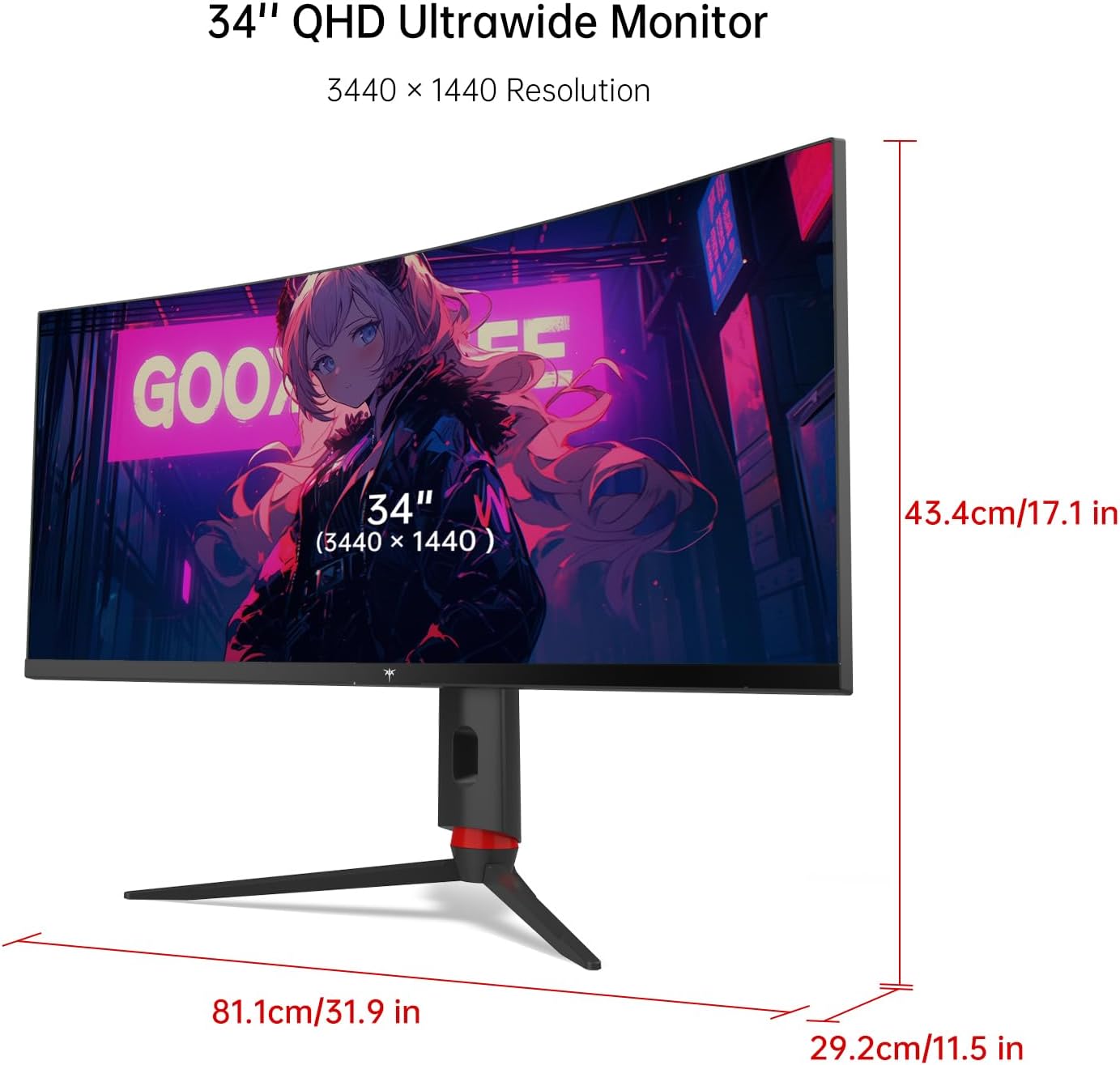
Figure 10: Ergonomic Adjustments.
- Anti-Glare: The anti-glare surface treatment and low reflection reduce eye strain for comfortable extended use.
Video 1: Official KTC H34S18S Ultrawide Curved Gaming Monitor overview, showcasing its features and design.
Maintenance
To ensure the longevity and optimal performance of your KTC monitor, follow these maintenance guidelines:
- Cleaning the Screen: Gently wipe the screen with a soft, lint-free cloth. For stubborn marks, lightly dampen the cloth with water or a screen-cleaning solution specifically designed for monitors. Avoid using harsh chemicals or abrasive materials.
- Cleaning the Casing: Use a soft, dry cloth to wipe the monitor casing. Do not use liquid cleaners directly on the casing.
- Ventilation: Ensure the monitor's ventilation openings are not blocked to prevent overheating.
- Power Off: Always turn off the monitor and unplug it from the power outlet before cleaning or if it will not be used for an extended period.
Troubleshooting
If you encounter issues with your monitor, refer to the following common problems and solutions:
- No Image/Signal:
- Ensure the power cable is securely connected to the monitor and the power outlet.
- Verify that the video cable (DP or HDMI) is correctly connected to both the monitor and your computer/console.
- Check if the correct input source is selected on the monitor's OSD menu.
- Restart your computer/console.
- Flickering Screen:
- Ensure your video cable is not loose or damaged. Try a different cable if possible.
- Adjust the refresh rate settings on your computer/console.
- Disable Freesync/G-sync temporarily in your graphics card settings to see if the issue persists.
- OSD Menu Not Responding:
- Ensure the monitor is powered on.
- Try resetting the monitor to factory settings via the OSD menu if accessible.
- Unplug the monitor from power for 30 seconds, then plug it back in.
- Poor Picture Quality/Colors:
- Adjust brightness, contrast, and color settings in the OSD menu.
- Ensure your graphics card drivers are up to date.
- Check if HDR is properly enabled in both monitor and system settings if desired.
Specifications
| Feature | Detail |
|---|---|
| Brand | KTC |
| Model Number | H34S18S |
| Screen Size | 34 Inches |
| Panel Type | VA |
| Curvature | 1500R |
| Aspect Ratio | 21:9 |
| Resolution | 3440 x 1440 (WQHD+) |
| Refresh Rate | 165Hz |
| Response Time | 1ms MPRT |
| Contrast Ratio | 4000:1 |
| Color Gamut | 123% sRGB, 98% DCI-P3 |
| HDR Support | HDR10 |
| Adaptive Sync | Freesync & G-sync Compatible |
| Connectivity | 2x DP1.4, 2x HDMI2.0, 1x USB2.0 (Upgrade Only), Earphone Jack |
| Adjustability | Height (90mm), Tilt (-5°~20°), Swivel (±20°), Pivot (±5°) |
| VESA Mount | 100mm x 100mm |
| Surface Treatment | Anti-Glare |
| Product Dimensions | 11.5 x 31.9 x 17.1 inches |
| Item Weight | 22.3 pounds |
Warranty and Support
KTC offers a 3-year warranty on its monitors (excluding MegPad's 1-Yr). For technical support, warranty claims, or any product-related inquiries, please contact KTC customer support. You can find more information and contact details on the official KTC website or through your purchase platform.


