
EPOMAKER MS68
EPOMAKER MS68 Wireless Mechanical Gaming Keyboard User Manual
Model: MS68
Introduction
Thank you for choosing the EPOMAKER MS68 Wireless Mechanical Gaming Keyboard. This manual provides essential information for setting up, operating, and maintaining your keyboard. The MS68 features a durable CNC aluminum alloy case, versatile tri-mode connectivity (Bluetooth 5.0, 2.4GHz wireless, and wired USB-C), a customizable 0.85-inch TFT screen, and VIA programmability for personalized key mapping and macros. Its gasket-mount design and five layers of sound-dampening materials ensure a comfortable and satisfying typing experience.
What's in the Box
- EPOMAKER MS68 Wireless Mechanical Gaming Keyboard
- USB-C Cable
- Keycap Puller
- Switch Puller
- Extra Switches (quantity may vary)
- 2.4GHz USB Dongle
- User Manual (this document)

Image: Contents of the EPOMAKER MS68 package, showing the keyboard, USB-C cable, keycap puller, switch puller, extra switches, and the user manual.
Setup
1. Physical Overview
The EPOMAKER MS68 features a robust CNC anodized aluminum alloy case, providing both durability and a premium aesthetic. The keyboard is designed with a fixed elevation for ergonomic typing.

Image: Side view of the EPOMAKER MS68 keyboard, highlighting the USB-C port, the connectivity mode switch (2.4G, BT, USB), and the OS layout switch (Mac, Win).
2. Connectivity Modes
The MS68 supports three connection types: Wired (USB-C), 2.4GHz Wireless, and Bluetooth 5.0.
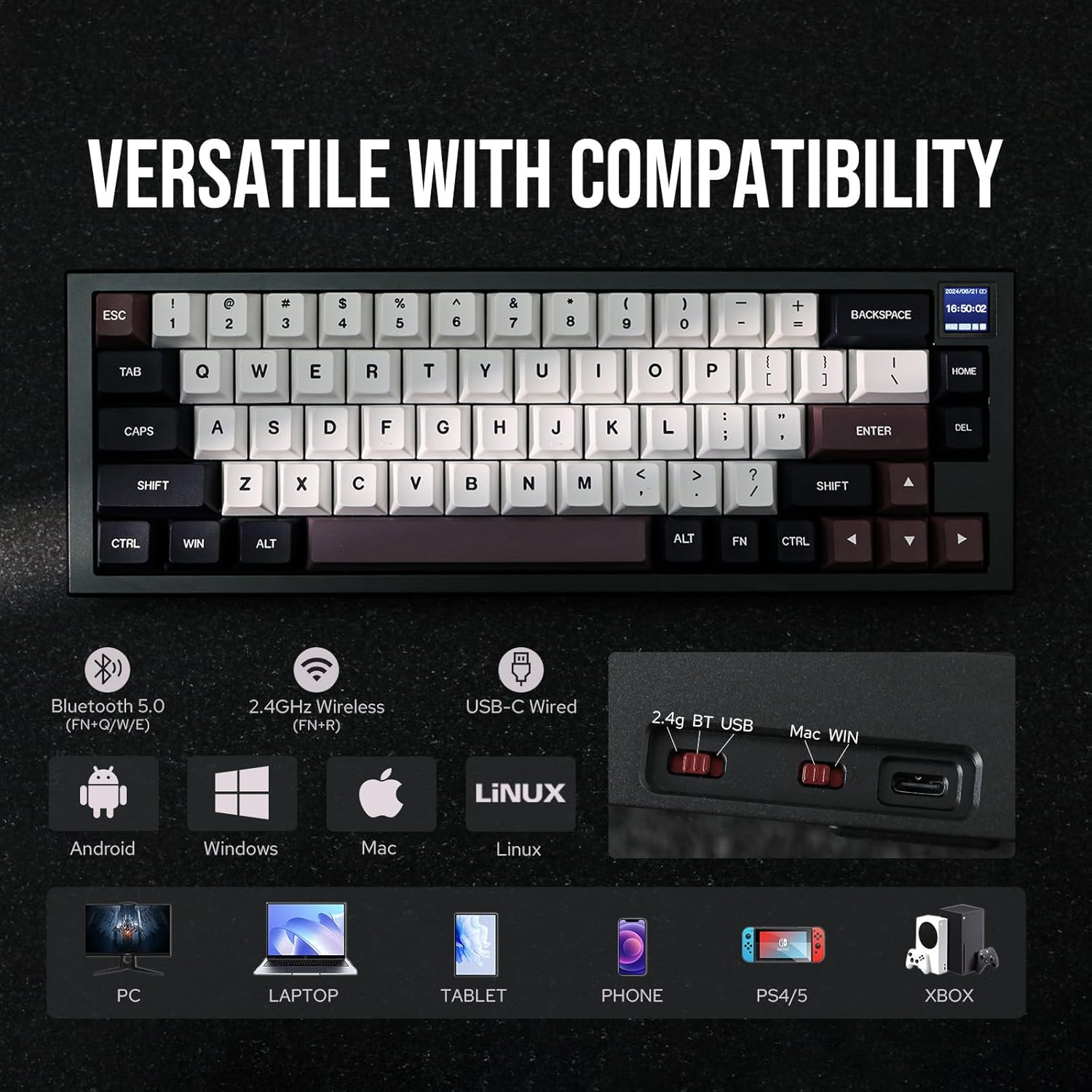
Image: The EPOMAKER MS68 keyboard illustrating its tri-mode connectivity (Bluetooth 5.0, 2.4GHz Wireless, USB-C Wired) and compatibility with various devices including PC, Laptop, Tablet, Phone, PS4/5, and Xbox.
Wired Mode:
- Connect the provided USB-C cable to the keyboard's USB-C port and to your computer.
- Ensure the connectivity switch on the top edge of the keyboard is set to "USB".
2.4GHz Wireless Mode:
- Insert the 2.4GHz USB dongle into an available USB port on your computer.
- Set the connectivity switch on the keyboard to "2.4G".
- The keyboard should automatically connect. If not, press FN + R to initiate pairing.
Bluetooth 5.0 Mode:
- Set the connectivity switch on the keyboard to "BT".
- Press and hold FN + Q, FN + W, or FN + E for 3-5 seconds to enter pairing mode for one of the three Bluetooth channels. The screen will indicate pairing status.
- On your device (computer, tablet, smartphone), search for Bluetooth devices and select "EPOMAKER MS68" to connect.
- You can switch between paired Bluetooth devices by pressing FN + Q, FN + W, or FN + E.
3. Operating System Layout Switch
Use the OS layout switch on the top edge of the keyboard to select between Windows ("Win") and macOS ("Mac") layouts. This ensures correct key functionality for your operating system.
Operating Instructions
1. 0.85-inch TFT Screen
The integrated 0.85-inch TFT screen displays useful information such as date, time, battery status, connectivity mode, and operating system. It also supports custom GIFs and images.

Image: Close-up of the EPOMAKER MS68's 0.85-inch TFT screen, showing its ability to display date, time, battery, connectivity, OS, and custom GIFs/photos. This screen enhances both functionality and aesthetics.
To customize the screen with GIFs or images, download the "Image Custom Tool" from the official EPOMAKER website.
2. VIA Programmability
The MS68 is fully programmable with VIA software, allowing you to remap keys, create macros, and customize lighting effects across multiple layers.
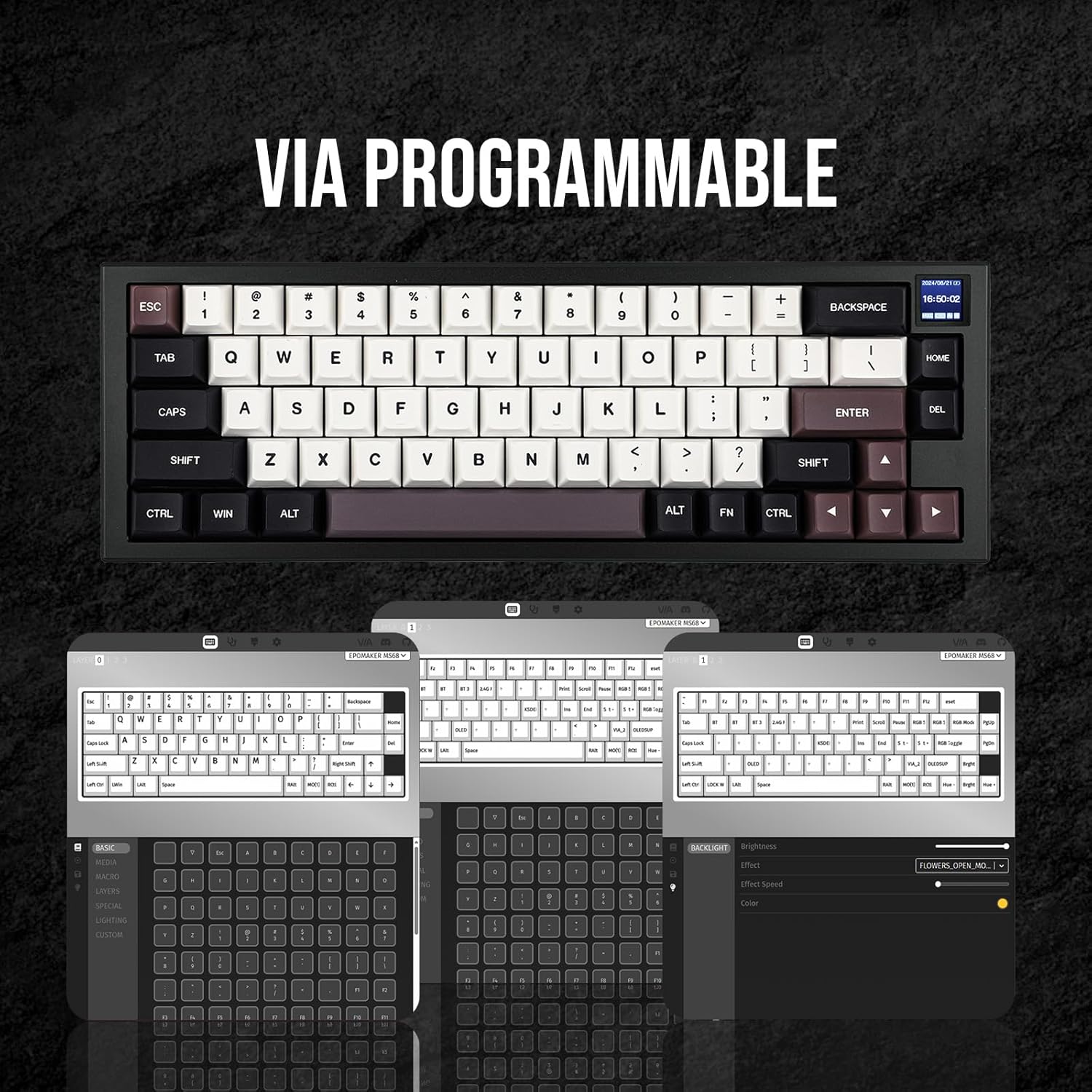
Image: Screenshot of the VIA software interface, showing options for key remapping, macro creation, and lighting customization for the EPOMAKER MS68 keyboard.
Download the VIA software and the corresponding JSON file for the MS68 from the official EPOMAKER website (www.epomaker.com).
3. RGB Lighting Controls
The keyboard features south-facing RGB lighting with various effects. Use the following key combinations to control the lighting:
- FN + Enter: Toggle RGB lighting ON/OFF
- FN + \|: Cycle through RGB lighting effects
- FN + ↑: Increase brightness
- FN + ↓: Decrease brightness
- FN + ]}: Increase effect speed
- FN + [{: Decrease effect speed
- FN + →: Change hue (forward)
- FN + ←: Change hue (backward)
- FN + ;:: Decrease saturation
- FN + '": Increase saturation
Maintenance
1. Hot-Swappable Switches
The MS68 features a hot-swappable PCB, allowing you to change mechanical switches without soldering. This enables customization of typing feel and sound.
- Use the provided switch puller to carefully remove the existing switch by gripping it firmly and pulling upwards.
- Align the pins of the new switch with the holes on the PCB. Ensure the pins are straight to avoid bending.
- Gently press the new switch into place until it clicks securely.

Image: A hand using a switch puller to remove a mechanical switch from the EPOMAKER MS68 keyboard, demonstrating its hot-swappable feature.
The keyboard comes with EPOMAKER Wisteria Linear switches, known for their smooth operation. Other switch options like Flamingo and Sea Salt Silent are also compatible.
Video: A demonstration of the typing sound difference between EPOMAKER Wisteria Linear switches and Sea Salt Silent switches on the MS68 keyboard.
Video: A demonstration comparing the typing sound of EPOMAKER Wisteria Linear switches versus Flamingo switches on the MS68 keyboard.
2. Keycap Removal and Replacement
The MS68 comes with durable Cherry profile dye-sub PBT keycaps. You can replace them with other compatible keycaps using the provided keycap puller.
- Use the keycap puller to gently grip the keycap and pull straight upwards.
- To replace, align the new keycap with the switch stem and press down firmly until it is seated.
3. Cleaning
To maintain your keyboard's appearance and functionality, regularly clean it.
- Use a soft brush or compressed air to remove dust and debris from between the keycaps.
- For stubborn dirt, remove the keycaps and wipe the keyboard surface with a slightly damp, lint-free cloth. Avoid excessive moisture.
- Ensure the keyboard is completely dry before reattaching keycaps or using it.
Troubleshooting
1. Connectivity Issues
- Bluetooth Pairing Failure: Ensure the keyboard is in Bluetooth pairing mode (FN + Q/W/E held for 3-5 seconds) and your device's Bluetooth is enabled and searching. Try pairing to a different channel.
- 2.4GHz Wireless Not Connecting: Verify the 2.4GHz dongle is securely plugged into a USB port and the keyboard switch is set to "2.4G". Try pressing FN + R to re-pair.
- Wired Mode Disconnecting: If the keyboard disconnects in wired mode, ensure the USB-C cable is fully inserted and undamaged. Try a different USB port or cable.
2. Software Issues (VIA / Image Custom Tool)
- VIA Software Not Detecting Keyboard:
- Ensure you have downloaded the correct VIA software and the specific JSON file for the MS68 from the official EPOMAKER website.
- In VIA settings, navigate to the "Design" tab (if hidden, enable it in VIA settings) and ensure "Use V2 definitions (deprecated)" is disabled. You may need to toggle this setting and reload the JSON file.
- Ensure the keyboard is connected via USB-C when using VIA.
- Image Custom Tool Not Launching: If you encounter missing DLL errors, install the latest Microsoft Visual C++ Redistributable packages. Ensure the keyboard is connected via USB-C for device detection.
3. Key Functionality
- Windows/Mac Switch Malfunction: If the keyboard defaults to Mac mode even when the switch is set to Win, try toggling the physical switch to Mac and then back to Win. A firmware update might be available to address this.
- Rattling Stabilizers or Double Key Presses: These can sometimes occur. If persistent, consider contacting EPOMAKER support for assistance or exploring switch/stabilizer lubrication.
4. Battery Life
The MS68 is equipped with a 3000mAh battery. Actual battery life may vary based on usage, RGB lighting intensity, and connectivity mode. If battery life seems shorter than expected, ensure the keyboard is fully charged and consider reducing RGB brightness or disabling it when not needed.
Specifications
| Feature | Detail |
|---|---|
| Brand | EPOMAKER |
| Model Number | MS68 |
| Connectivity Technology | 2.4G Wireless, Bluetooth 5.0, USB-C Wired |
| Keyboard Description | Gaming Mechanical Keyboard |
| Special Features | Backlit (RGB), CNC Aluminum Alloy Shell, Ergonomic, Hot-Swappable, VIA Programmable, 0.85" TFT Screen |
| Keycap Material | Dye-sub PBT |
| Keycap Profile | Cherry Profile |
| Product Dimensions | 12.8 x 4.37 x 1.61 inches |
| Item Weight | 3.87 pounds |
| Battery Capacity | 3000mAh |
| Compatible Devices | Gaming Console, Laptop, PC, Smartphone, Tablet |
Warranty and Support
EPOMAKER products typically come with a standard manufacturer's warranty. For specific warranty details, please refer to the warranty card included with your product or visit the official EPOMAKER website.
If you encounter any issues or require technical assistance, please contact EPOMAKER customer support through their official website or the contact information provided in your product packaging.
Official EPOMAKER Website: www.epomaker.com
Related documentsMS68


Ask a question about this manual
Ask about setup, troubleshooting, compatibility, parts, safety, or missing instructions. Manuals+ will review the question and use this page’s manual context to help answer it.