1. Product Overview
The Magcubic HY320 is a mini portable projector designed for home entertainment, offering native 1080P resolution with 4K decoding support. It features Wi-Fi 6 and Bluetooth 5.0 connectivity, a 180-degree swivel projection, and runs on Android 11.0, providing a versatile viewing experience up to 150 inches.
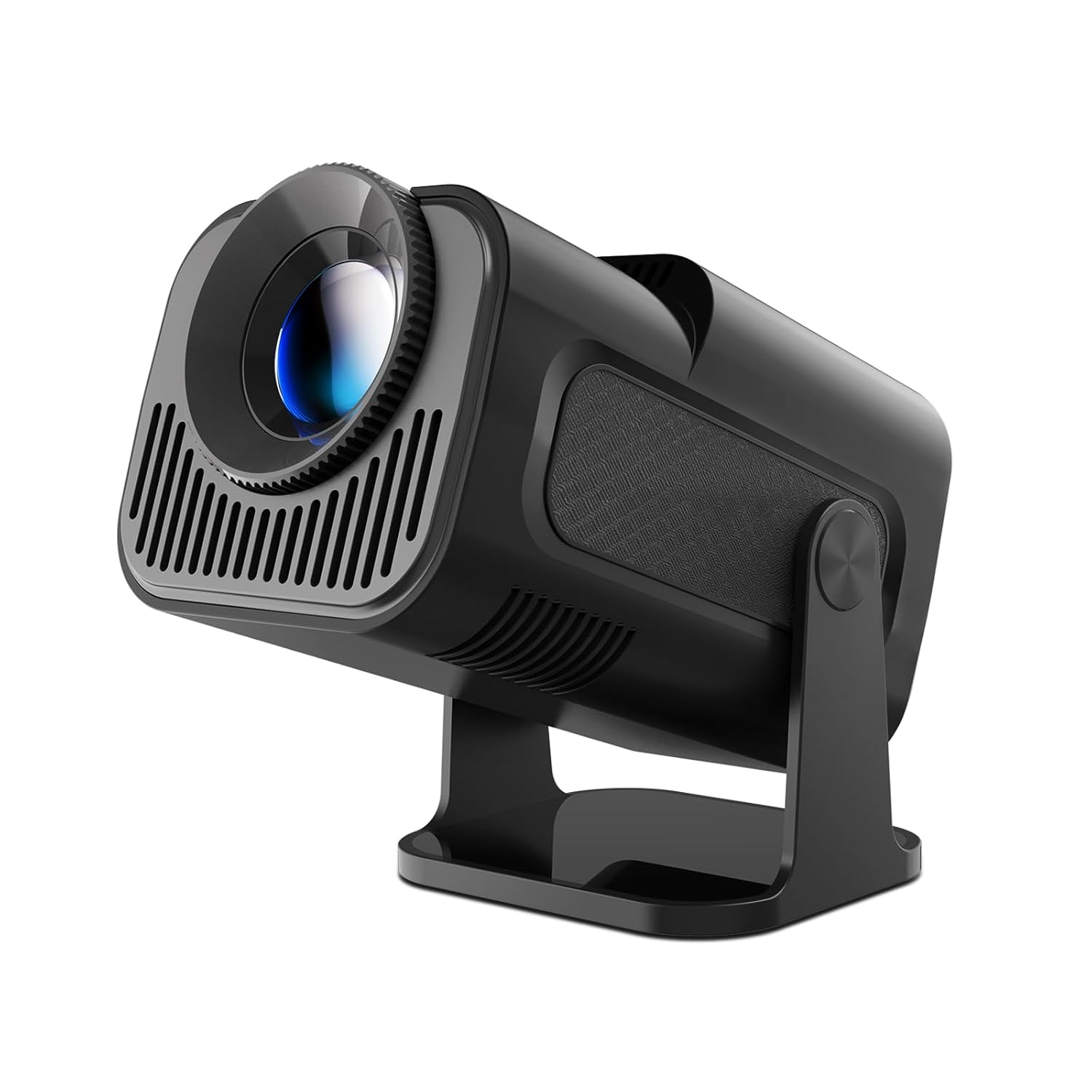
Image: The Magcubic HY320 projector, showcasing its compact design and adjustable stand.
2. Important Safety Information
Please read all safety instructions carefully before using the projector. Failure to follow these instructions may result in electric shock, fire, or damage to the device.
- Electrical Safety: Use only the provided power adapter. Do not expose the projector to rain or moisture. Disconnect power during lightning storms or when unused for long periods.
- Ventilation: Ensure adequate ventilation around the projector. Do not block ventilation openings. Overheating can cause malfunction or fire.
- Heat: The projector may become warm during operation. This is normal. Avoid touching the ventilation areas directly.
- Light Source: Do not look directly into the projector lens when the lamp is on. The intense light can cause eye damage. Keep out of reach of children.
- Placement: Place the projector on a stable, flat surface. Avoid placing it in direct sunlight, near heat sources, or in environments with excessive dust or humidity.
- Cleaning: Unplug the projector before cleaning. Use a soft, dry cloth. Do not use liquid or aerosol cleaners.
3. Package Contents
Verify that all items are present in the package:
- Magcubic HY320 Projector
- Power Adaptor
- Remote Control
- User Manual
4. Key Features
- Native 1080P / 4K Decoding: Supports 1080P resolution for clear images and can decode 4K content. Advanced LED technology ensures vibrant colors and dynamic effects.
- 180° Rotating Projection: The projector can rotate 180 degrees, allowing projection onto walls, ceilings, or floors from various angles.
- Auto Keystone Correction: Features automatic keystone correction for quick image alignment and manual focus for fine-tuning.
- BT 5.0 & Hi-Fi Speaker: Equipped with a built-in 3W Hi-Fi speaker for immersive audio. Bluetooth 5.0 allows connection to external headphones or speakers. Note: Does not support connecting to smartphones or Bluetooth laptops directly via Bluetooth for audio input.
- Android 11.0 OS: Built-in Android 11.0 operating system for direct access to streaming apps and content.
- Wi-Fi 6 Connectivity: Supports Wi-Fi 6 for ultra-fast and stable wireless connections.
- Large Projection Size: Capable of projecting an image up to 150 inches.

Image: Visual representation of the projector's 4K and 1080P video playback capabilities, highlighting image clarity.

Image: Diagram illustrating various projection sizes (50", 80", 200") at different distances, demonstrating the large screen capability.
5. Setup Guide
5.1 Initial Placement
Place the projector on a stable, flat surface. The 180-degree swivel allows flexible positioning to project onto a wall, ceiling, or floor. For optimal viewing, ensure the projection surface is smooth and light-colored.
5.2 Power Connection
- Connect the power adapter to the projector's power input port.
- Plug the power adapter into a suitable electrical outlet.
- The projector will typically power on or enter standby mode.
5.3 Focusing and Keystone Correction
The HY320 features automatic keystone correction to adjust the image shape. For focus, use the manual focus ring on the lens or the remote control to achieve a sharp image.

Image: Depiction of automatic keystone correction and zoom functionality, showing how the projector adjusts image shape and size.
6. Operating Instructions
6.1 Power On/Off
- Press the power button on the projector or the remote control to turn the device on or off.
6.2 Navigating the Android Interface
Upon startup, the projector will display the Android 11.0 home screen. Use the remote control's directional buttons and OK button to navigate menus, select applications, and adjust settings.
6.3 System Settings
Access the settings menu to configure Wi-Fi, Bluetooth, display options, sound, and other system preferences. Ensure your Wi-Fi is connected for online streaming and app downloads.
7. Connectivity
7.1 Wi-Fi Connection
To connect to a Wi-Fi network:
- Go to "Settings" on the home screen.
- Select "Network & Internet".
- Turn on Wi-Fi and select your desired network from the list.
- Enter the password if prompted and connect.

Image: Graphic illustrating the projector's WIFI6 capabilities, showing 5G and 2.4G network support for fast connectivity.
7.2 Bluetooth Connection
The projector supports Bluetooth 5.0 for connecting external audio devices like headphones or speakers.
- Go to "Settings" on the home screen.
- Select "Connected devices" or "Bluetooth".
- Turn on Bluetooth and pair with your desired audio device.
Note: The projector's Bluetooth is primarily for audio output to external speakers/headphones and does not support connecting to smartphones or Bluetooth laptops for audio input.
7.3 Wired Connections (HDMI, USB)
The projector includes HDMI and USB interfaces for connecting various devices:
- HDMI Interface: Connect laptops, PCs, TV boxes, gaming consoles (e.g., PS5), or DVD players for video and audio input.
- USB Interface: Connect USB drives for media playback or other USB peripherals.
- Audio Interface: Connect headphones or external audio systems via the audio output port.

Image: Diagram showing various input ports (HDMI, Audio, USB) and compatible devices such as laptops, PCs, TV sticks, game consoles, DVD players, headphones, and USB drives.
7.4 Screen Mirroring
The projector supports screen mirroring from smartphones, tablets, and laptops via Wi-Fi. Refer to the projector's on-screen instructions for specific mirroring protocols (e.g., Miracast, AirPlay).
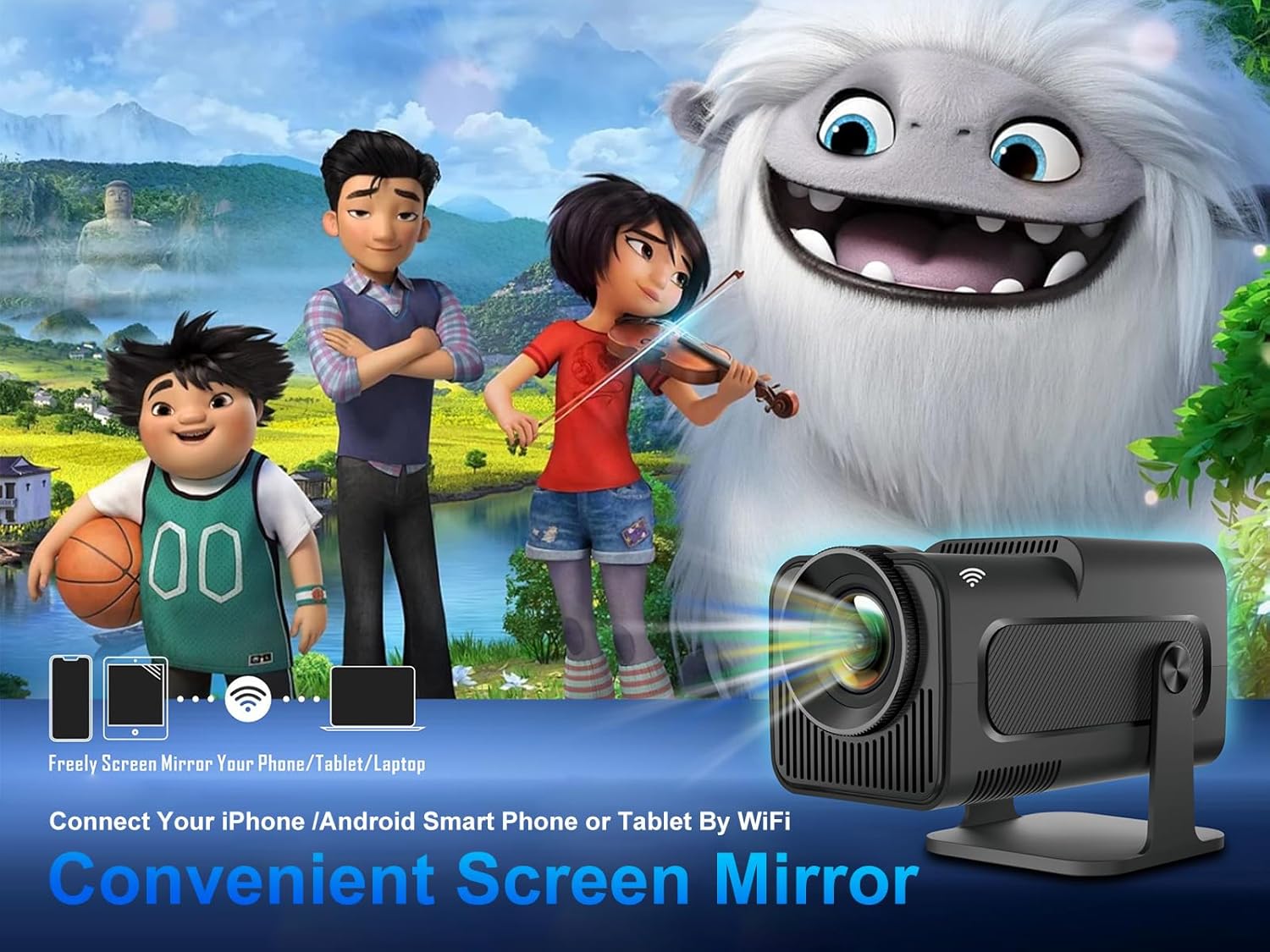
Image: Illustration of screen mirroring functionality, showing how phones, tablets, and laptops can wirelessly connect to the projector.
8. Maintenance
8.1 Cleaning the Lens
Use a soft, lint-free cloth specifically designed for optical lenses to gently wipe the projector lens. Avoid using abrasive materials or liquid cleaners that could damage the lens coating.
8.2 Cleaning the Projector Body
Wipe the exterior of the projector with a soft, dry cloth. Do not use chemical solvents or abrasive cleaners.
8.3 Storage
When not in use, store the projector in a cool, dry place, away from direct sunlight and excessive dust. If storing for an extended period, consider using the original packaging or a protective case.
9. Troubleshooting
| Problem | Possible Cause | Solution |
|---|---|---|
| No image projected | Power not connected; Projector off; Input source not selected. | Ensure power adapter is securely connected and plugged in. Press power button. Select correct input source (HDMI, USB, etc.). |
| Image blurry/out of focus | Focus not adjusted; Projector too close/far from screen. | Adjust the manual focus ring on the lens. Reposition the projector for optimal distance. |
| Image distorted (trapezoid shape) | Projector not perpendicular to screen; Auto keystone issue. | Ensure the projector is placed as straight as possible. Check keystone correction settings in the menu; some users report auto keystone may require manual adjustment. |
| No sound | Volume too low; Muted; External audio device not connected/paired. | Increase volume. Check if muted. Ensure Bluetooth audio device is properly paired or wired audio is connected. |
| Wi-Fi connection unstable/slow | Distance from router; Interference; Router issues. | Move projector closer to Wi-Fi router. Reduce interference from other devices. Restart router. |
| Remote control not working | Batteries low/dead; Obstruction; Out of range. | Replace batteries. Ensure no obstructions between remote and projector. Use within effective range. |
10. Technical Specifications
| Feature | Detail |
|---|---|
| Brand | Magcubic |
| Model | HY320 |
| Native Resolution | 1920 x 1080 Pixels (Full HD) |
| Supported Resolution | Up to 3840 x 2160 Pixels (4K Decoding) |
| Display Technology | LCD |
| Light Source | LED |
| Image Brightness | 10000 (Units not specified, typically Lumens or ANSI Lumens) |
| Aspect Ratio | 16:9 |
| Projection Size | Up to 150 Inches (Visible screen diagonal) |
| Operating System | Android 11.0 |
| Connectivity | Wi-Fi 6, Bluetooth 5.0 |
| Hardware Interface | HDMI, USB, Audio Out |
| Special Features | Auto Focus, Auto Screen Alignment, Portable, 180° Swivel |
| Product Dimensions | 20.32 x 30.48 x 25.4 cm |
| Item Weight | 1.15 kg |
| Wattage | 3 Watts (Likely speaker wattage, not total power consumption) |
| Refresh Rate | 60 Hz |
11. Warranty and Customer Support
Magcubic provides product warranty and technical support for the HY320 projector. If you encounter any questions or problems with your projector, please do not hesitate to contact our customer service team.
We offer 24-hour customer service to assist you with any issues or inquiries.
For support, please refer to the contact information provided on the product packaging or the official Magcubic website.


