1. Introduction
This manual provides essential information for the proper setup, operation, and maintenance of your INNOCN 32M2V 32-inch 4K Mini LED Monitor. Please read this manual thoroughly before using the product to ensure optimal performance and safety.
The INNOCN 32M2V is a high-performance 32-inch 4K UHD (3840x2160) Mini LED monitor designed for demanding visual tasks, including gaming and professional content creation. It features a 144Hz refresh rate, 1ms response time, HDR1000 support, and AMD FreeSync Premium technology for a smooth and immersive viewing experience.
2. Package Contents
Please verify that all components are present in the package:
- INNOCN 32M2V Monitor
- Monitor Stand (Base and Neck)
- Power Adapter and Cable
- HDMI Cable
- USB-C Cable
- User Manual (this document)
- Other accessories (may vary by region)
3. Setup
3.1 Assembling the Stand
- Carefully remove the monitor and stand components from the packaging.
- Attach the stand neck to the monitor panel. Ensure it clicks securely into place or is fastened with screws if provided.
- Attach the stand base to the stand neck. Tighten any screws to secure the assembly.
- Place the assembled monitor on a stable, flat surface.
Note: The monitor also supports VESA mounting (100x100mm) for wall or arm installation. Refer to your VESA mount's instructions for installation.
3.2 Connecting the Monitor
The INNOCN 32M2V offers multiple connectivity options. Ensure your computer or device is powered off before making any connections.

Image: Rear view of the INNOCN 32M2V monitor displaying its various input and output ports, including USB-B 3.0, USB-A 2.0, Type-C 90W, HDMI 2.1, DP1.4, Audio out, and DC Power In.
- HDMI Connection: Connect one end of the HDMI cable to the HDMI 2.1 port on the monitor and the other end to the HDMI port on your computer or device. This supports up to 4K @ 144Hz.
- DisplayPort (DP) Connection: Connect one end of the DisplayPort cable to the DP1.4 port on the monitor and the other end to the DisplayPort on your computer or device. This supports up to 4K @ 120Hz.
- USB-C Connection: Connect one end of the USB-C cable to the Type-C 90W port on the monitor and the other end to a compatible USB-C port on your computer or device. This connection supports video, data transfer, and power delivery (up to 90W) to the connected device.
- USB-A Ports: Use the USB-A 2.0 ports for connecting peripherals such as a keyboard, mouse, or USB drive. These ports require the USB-B 3.0 upstream cable to be connected from the monitor to your computer.
- Audio Out: Connect headphones or external speakers to the 3.5mm audio out jack.
- Power Connection: Connect the power adapter to the DC Power In port on the monitor, then plug the power cable into a power outlet.
3.3 Powering On
- Ensure all cables are securely connected.
- Press the power button located on the monitor (usually on the bottom right or rear).
- Power on your connected computer or device.
- The monitor should automatically detect the input signal. If not, you may need to manually select the input source using the On-Screen Display (OSD) menu.
4. Operating the Monitor
4.1 On-Screen Display (OSD) Menu
The OSD menu allows you to adjust various monitor settings. The control buttons are typically located on the bottom right side of the monitor. Refer to the icons next to the buttons for their functions (e.g., Menu, Up, Down, Enter, Exit).
- Press the Menu button to open the OSD.
- Use the Up/Down buttons to navigate through menu options.
- Press the Enter button to select an option or confirm a setting.
- Press the Exit button to go back or close the OSD.
4.2 Key Features and Adjustments
Display Settings
- Brightness/Contrast: Adjust these settings to suit your viewing environment.
- Color Temperature: Select from preset modes (e.g., Warm, Cool, User) or adjust RGB values manually. The monitor supports 99% sRGB, 99% DCI-P3, and 99% Adobe RGB color spaces for accurate color reproduction.
- HDR (High Dynamic Range): The monitor supports HDR1000, providing enhanced contrast and color depth. Ensure HDR is enabled in both the monitor OSD and your operating system settings for compatible content.
- Local Dimming: The 1152-zone Mini LED backlight provides precise local dimming for superior contrast and black levels. This feature is automatically managed for optimal brightness.
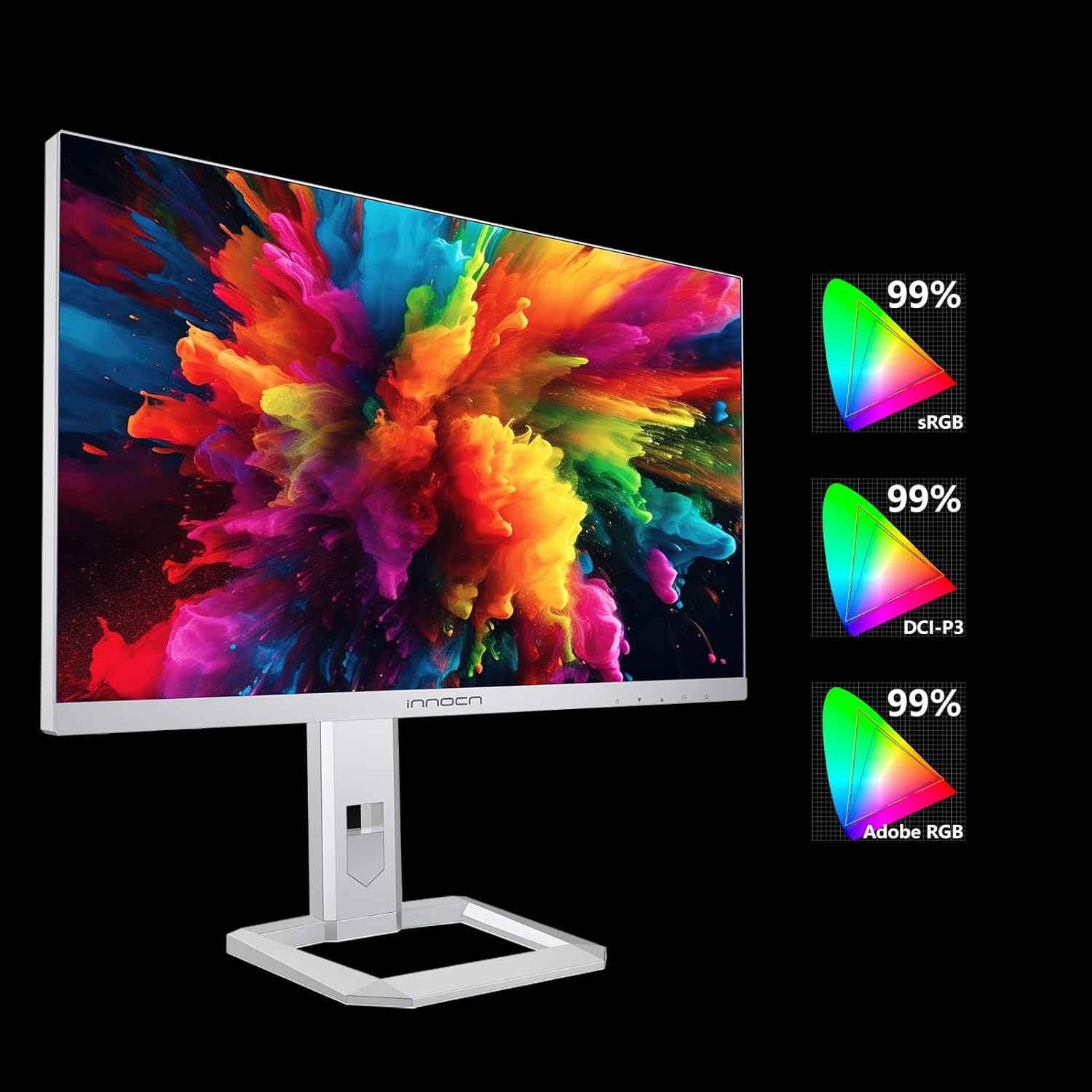
Image: The INNOCN 32M2V monitor showcasing its wide color gamut support, indicating 99% coverage for sRGB, DCI-P3, and Adobe RGB color spaces.

Image: A side-by-side comparison demonstrating the enhanced contrasts and visual depth achieved with HDR1000 support on the INNOCN Mini-LED monitor compared to an ordinary display.

Image: An exploded view diagram illustrating the 1152-zone Mini LED backlight technology, highlighting its smart brightness management for precise local dimming and improved contrast.
Gaming Features
- Refresh Rate: The monitor supports up to 144Hz refresh rate for smooth motion. Ensure your graphics card and connection cable support this refresh rate at 4K resolution.
- Response Time: With a 1ms (MPRT) response time, the monitor minimizes motion blur and ghosting.
- AMD FreeSync Premium: This technology synchronizes the monitor's refresh rate with your AMD graphics card's frame rate, eliminating screen tearing and stuttering. Enable FreeSync Premium in the OSD menu and your graphics card settings.

Image: A side-by-side comparison demonstrating the smoother motion and reduced blur achieved with a 144Hz refresh rate on the INNOCN Mini-LED monitor compared to an ordinary display.

Image: A side-by-side comparison illustrating the reduced motion blur and sharper image quality provided by the 1ms response time of the INNOCN Mini-LED monitor versus an ordinary display.

Image: A side-by-side comparison demonstrating the tear-free and stutter-free gaming experience provided by AMD FreeSync Premium on the INNOCN Mini-LED monitor compared to an ordinary display.
USB-C Power Delivery
The USB-C port supports up to 90W Power Delivery, allowing you to charge compatible laptops or devices directly through the monitor while simultaneously receiving video and data signals.

Image: A laptop connected to the INNOCN 32M2V monitor using a single USB Type-C cable, illustrating the 90W Power Delivery feature that charges the laptop while transmitting video and data.
Integrated Speakers
The monitor includes integrated speakers. You can adjust the volume through the OSD menu or your connected device's audio settings.
5. Maintenance
5.1 Cleaning the Monitor
- Always unplug the monitor from the power outlet before cleaning.
- Use a soft, lint-free cloth slightly dampened with water or a mild, non-abrasive screen cleaner.
- Do not spray cleaner directly onto the screen. Apply it to the cloth first.
- Avoid using benzene, thinner, ammonia-based cleaners, or abrasive materials, as these can damage the screen or casing.
5.2 Storage
If storing the monitor for an extended period, disconnect all cables, pack it in its original packaging (if available), and store it in a cool, dry place away from direct sunlight and extreme temperatures.
6. Troubleshooting
If you encounter issues with your monitor, please refer to the following common problems and solutions before contacting support.
| Problem | Possible Cause | Solution |
|---|---|---|
| No image on screen |
|
|
| Image is blurry or distorted |
|
|
| Screen tearing or stuttering |
|
|
| No sound from speakers |
|
|
7. Specifications
The following table lists the technical specifications for the INNOCN 32M2V monitor:
| Feature | Detail |
|---|---|
| Brand | INNOCN |
| Model Number | 32M2V |
| Screen Size | 32 Inches |
| Resolution | 4K UHD (3840 x 2160) |
| Refresh Rate | 144 Hz |
| Response Time | 1 millisecond (MPRT) |
| Panel Type | Mini LED |
| HDR Support | HDR1000 (VESA Certified DisplayHDR 1000) |
| Adaptive Sync | AMD FreeSync Premium |
| Aspect Ratio | 16:9 |
| Contrast Ratio | 3000:1 |
| Screen Surface | Matte |
| Connectivity | 2x HDMI 2.1, 1x DisplayPort 1.4, 1x USB-C (90W PD), 1x USB-B 3.0 (upstream), 2x USB-A 2.0 (downstream), 1x Audio Out |
| Special Features | Adaptive Sync, Integrated Speakers, USB-C Power Delivery (90W) |
| Color | Silver |
| Energy Efficiency Class | F |
| Energy Consumption (SDR) | 30 kWh/1000h |
| Energy Consumption (HDR) | 62 kWh/1000h |
For detailed energy information, scan the QR code on the energy label or visit the official EU EPREL database: https://eprel.ec.europa.eu/qr/1566356

Image: The EU Energy Label for the INNOCN monitor, indicating an energy efficiency class of F, with SDR consumption of 30 kWh/1000h and HDR consumption of 62 kWh/1000h. The label also shows the screen size and resolution.
8. Warranty and Support
For warranty information, technical support, or service inquiries, please refer to the warranty card included with your product or visit the official INNOCN website. Keep your purchase receipt as proof of purchase for warranty claims.


