
Tobenone XYY-PD100CL
TobenONE USB-C Docking Station User Manual
Model: XYY-PD100CL
Brand: Tobenone
1. Product Overview
The TobenONE USB-C Docking Station is a versatile 16-in-1 solution designed to expand the connectivity of your laptop. It allows for effortless connection of multiple devices through a single USB-C cable, streamlining your workspace.

Front and rear view of the TobenONE USB-C Docking Station, showcasing its compact design and various ports.
This docking station features a comprehensive array of ports, including two HDMI ports, one USB-C display port, an Ethernet port, USB-C 3.2 and USB 3.2 (10 Gbps) ports, a USB-C 3.1 (PD 20W) port, two USB 3.0 ports, two USB 2.0 ports, a USB-C PD 3.0 port for host connection, SD/microSD card slots, and a 3.5mm Mic/Audio jack. It also includes a convenient power button.
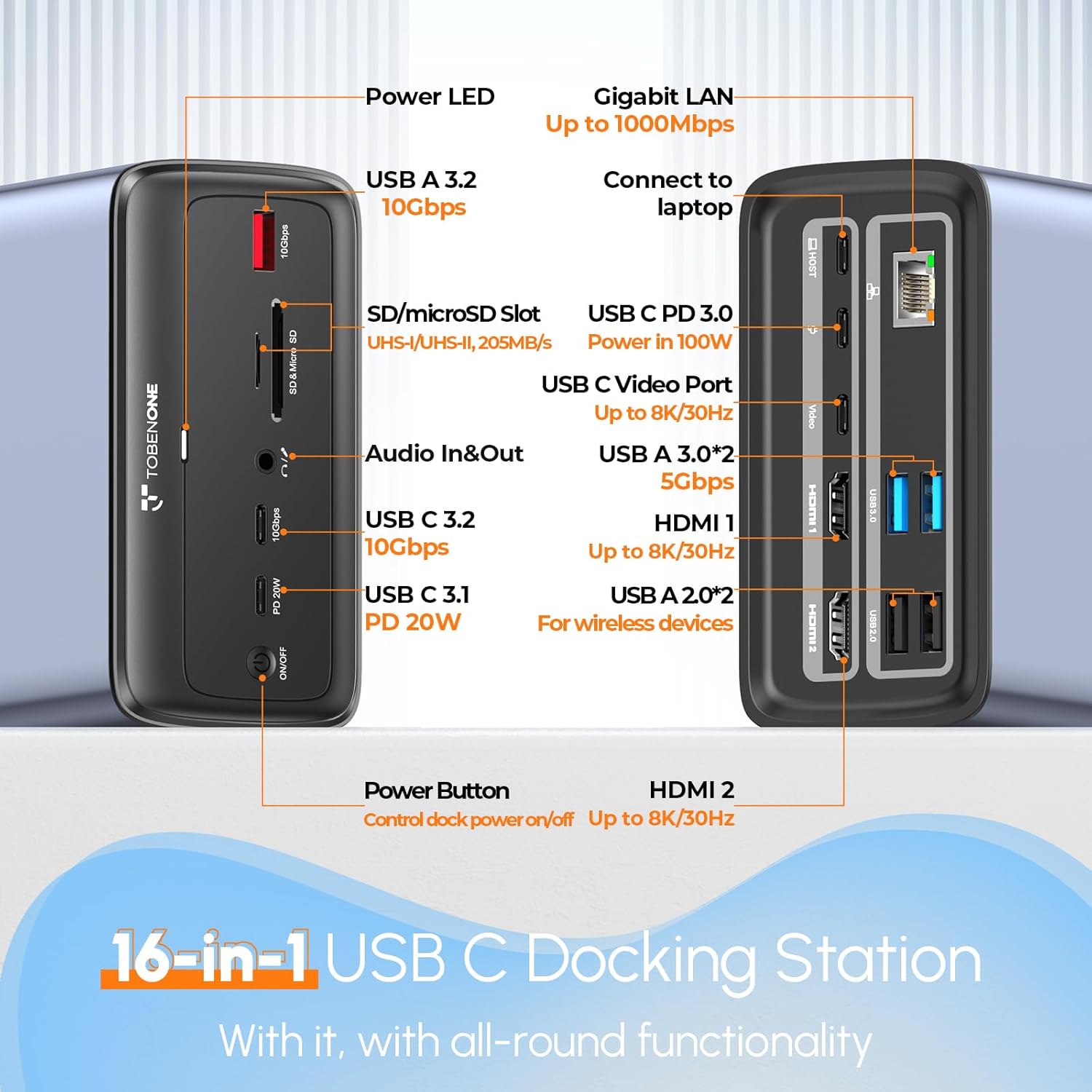
Detailed diagram of the TobenONE docking station's ports, including USB, HDMI, Ethernet, and power connections.
2. Package Contents
Verify that all items are present in the package:
- 1 x TobenONE 16-in-1 USB-C Docking Station
- 1 x 100W GaN III Power Supply
- 1 x 3ft USB-C to USB-C Cable
- 1 x User Manual (this document)
3. Setup Instructions
Follow these steps to set up your TobenONE USB-C Docking Station:
- Connect the Power Supply: Plug the independent 100W GaN III Charger into a power outlet. Connect the charger's USB-C cable to the 'USB C PD 3.0' port on the docking station. This provides power to the docking station and can charge your laptop up to 87W.
- Connect to Laptop: Use the provided 3ft USB-C to USB-C cable to connect your laptop's full-featured USB-C/Thunderbolt 3/4 port to the 'USB C (Connect Host)' port on the docking station.
- Connect External Monitors:
- For dual or triple display, connect your monitors to the HDMI 1, HDMI 2, and/or USB C Video Port on the docking station using appropriate cables (not included).
- Ensure your laptop's USB-C port supports DisplayPort Alternate Mode (DP Alt Mode) for video output.

Example setup showing a laptop connected to the docking station, extending display to two external monitors and one USB-C monitor.

Visual representation of a laptop connected to the docking station, supporting dual or triple 4K displays.
- Connect Peripherals: Plug your USB devices (keyboard, mouse, external drives, webcam, etc.) into the available USB-A (USB 3.2, USB 3.0, USB 2.0) and USB-C ports on the docking station.
- Connect to Network: For a stable wired internet connection, connect an Ethernet cable from your router/modem to the RJ45 Gigabit Ethernet port on the docking station.
- Audio Connection: Connect your headphones or microphone to the 3.5mm Mic/Audio jack.

Illustration of the 100W GaN III charger connected to the docking station and a laptop, demonstrating power delivery.
4. Operating the Docking Station
Once connected, the docking station operates on a plug-and-play basis for compatible systems. Your laptop should automatically detect the connected displays and peripherals.
Display Configuration:
- Single Monitor: Supports up to 8K@30Hz or 4K@120Hz (requires DP1.4 source from host).
- Dual Monitors: Supports up to 4K@60Hz for both monitors.
- Triple Monitors: Supports dual HDMI up to 4K@60Hz and the USB-C display up to 4K@30Hz (requires DP1.4 source from host).
Adjust display settings (extend, duplicate, resolution) through your operating system's display settings.
USB Data Transfer:
The docking station offers various USB ports for data transfer:
- USB-C & USB-A 3.2 (10 Gbps): For high-speed data transfer of large files.
- USB 3.0 (5 Gbps): Standard high-speed data transfer.
- USB 2.0 (480 Mbps): Ideal for wireless keyboard/mouse receivers to minimize lag.

Diagram illustrating the high-speed data transfer capabilities of the docking station's USB 3.2 and USB-C 3.1 ports.
SD/TF Card Slots:
The integrated SD4.0/TF 3.0 card slots allow for simultaneous access to files from various memory card types (Micro SD, Micro SDHC, Micro SDXC, SDHC, SDXC, RS-MMC, SD Card, MMC Micro) with speeds up to 205MB/s.

Close-up view of the SD and MicroSD card slots, highlighting their simultaneous use for file access.
Gigabit Ethernet and Audio:
Enjoy a high-speed and stable wired network connection via the Gigabit Ethernet port. The 3.5mm audio jack supports both headset and microphone connections.

Image showing the Gigabit Ethernet port and 3.5mm audio jack, emphasizing stable wired connection and audio capabilities.
5. Compatibility
This docking station is designed for optimal performance with specific operating systems and laptop port types:
- Fully compatible with Windows laptops (e.g., Dell Latitude 5570, Dell XPS 15, HP Spectre, Lenovo Yoga 920, Microsoft Surface Laptop 5, Surface Pro 7, ASUS Zephyrus M15) that feature a full-featured Type-C/Thunderbolt 3/4 port supporting USB-C DP Alternate Mode.
- Fully compatible with ChromeOS laptops with a full-featured Type-C/Thunderbolt 3/4 port.
- NOTE: This docking station is NOT COMPATIBLE with MacBook.

Compatibility chart detailing supported operating systems and display configurations.
Before purchase, please confirm that your Windows laptop has a full-featured USB-C port or Thunderbolt 3/4 which supports Power Delivery, DisplayPort, and Data transfer. You can check the specification manual provided by the manufacturer for the USB-C port on your laptop. If you cannot confirm, you may contact customer support.

Diagram explaining how to check laptop USB-C port functionality (Data only, Data+PD, Data+DP Alt, Data+PD+DP Alt, Thunderbolt).
6. Specifications
| Feature | Specification |
|---|---|
| Product Dimensions | 4.7 x 2.9 x 2.3 inches |
| Item Weight | 13.8 ounces |
| Item Model Number | XYY-PD100CL |
| Color | Grey-100W power adapter |
| Hardware Interface | Ethernet, HDMI, MicroSD, USB 3.0, USB 3.1 Type A, USB 3.1 Type C, USB Type C |
| Compatible Devices | Dell, HP, Surface, Asus, Acer, etc. Windows laptop and ChromeOS laptop |
| Total USB Ports | 7 |
| Number of Ports | 16 |
| Total HDMI Ports | 2 |
| Wattage (Power Delivery) | 87W (for laptop), 20W (for front USB-C port) |
7. Troubleshooting
If you encounter issues with your TobenONE docking station, please refer to the following common troubleshooting steps:
- No Display Output:
- Ensure your laptop's USB-C port supports DisplayPort Alternate Mode (DP Alt Mode).
- Verify that all display cables (HDMI, USB-C) are securely connected to both the docking station and the monitors.
- Check your laptop's display settings to ensure the external monitors are detected and configured correctly (Extend, Duplicate).
- Try restarting your laptop and reconnecting the docking station.
- No Power Delivery to Laptop:
- Confirm the 100W GaN III charger is properly connected to a live power outlet and the correct power input port on the docking station.
- Ensure your laptop's USB-C port supports Power Delivery (PD).
- Use the original USB-C cable provided with the docking station, as not all USB-C cables support PD.
- USB Devices Not Recognized:
- Try connecting the USB device to a different USB port on the docking station.
- Ensure the docking station is receiving adequate power.
- If using a high-power device, ensure it has its own power source if required.
- Ethernet Connection Issues:
- Verify the Ethernet cable is securely connected to both the docking station and your router/modem.
- Check your laptop's network settings.
8. Maintenance
To ensure the longevity and optimal performance of your TobenONE USB-C Docking Station, follow these maintenance guidelines:
- Cleaning: Use a soft, dry cloth to wipe the exterior of the docking station. Avoid using liquid cleaners or abrasive materials, which could damage the surface or internal components.
- Storage: When not in use, store the docking station in a cool, dry place away from direct sunlight and extreme temperatures.
- Handling: Handle the device with care. Avoid dropping it or subjecting it to strong impacts, which can cause internal damage.
- Ventilation: Ensure the docking station has adequate ventilation to prevent overheating, especially during prolonged use with multiple connected devices.
9. Warranty and Support
The TobenONE USB-C Docking Station comes with a 24-month maintenance period from the date of purchase, ensuring reliable operation and support.
For technical assistance, troubleshooting, or warranty claims, please contact TobenONE customer service. TobenONE is committed to providing lifetime customer service.
Customer Service Email: support@tobenone.com
Please provide your product model number (XYY-PD100CL) and a detailed description of your issue when contacting support to facilitate a quicker resolution.
Related documentsXYY-PD100CL


Ask a question about this manual
Ask about setup, troubleshooting, compatibility, parts, safety, or missing instructions. Manuals+ will review the question and use this page’s manual context to help answer it.