
1. Introduction
Thank you for choosing the ORDRO Z88 4K Video Camera. This manual provides essential information for setting up, operating, and maintaining your device. Please read it thoroughly before use to ensure proper functionality and to maximize your camera's potential. Keep this manual for future reference.
2. Safety Information
- Do not expose the camera to water or moisture. This device is not waterproof.
- Avoid dropping the camera or subjecting it to strong impacts.
- Keep the camera away from strong magnetic fields.
- Do not attempt to disassemble or modify the camera. Repairs should only be performed by authorized service personnel.
- Use only the specified power adapter and accessories.
- Store the camera in a cool, dry place when not in use.
3. Package Contents
Verify that all items listed below are included in your package:
- ORDRO Z88 4K Video Camera
- USB-C Cable
- Micro HDMI to HDMI Cable
- Power Adapter/Charger
- Lithium-ion Batteries (2 included)
- Remote Control
- 32GB SD Card
- SD Card Adapter
- Camera Bag/Pouch
- Wrist Strap

Image: The ORDRO Z88 4K camera displayed with its full set of accessories, including cables, batteries, remote, and storage card.
4. Product Overview
The ORDRO Z88 is a compact 4K video camera designed for ease of use and high-quality recording. It features a 3.0-inch IPS touchscreen, 10x optical zoom, and various connectivity options.

Image: Front view of the ORDRO Z88 camera, highlighting its 4K resolution, 1/3" CMOS sensor, 28.0MP still image capability, 3.0" IPS touchscreen, and 10x optical zoom.
Camera Components
- Lens: 10x optical zoom lens.
- LCD Screen: 3.0-inch IPS touchscreen, rotatable for various viewing angles.
- Microphone: Built-in microphone for audio recording.
- Speaker: For audio playback.
- Control Buttons: Power, Record, Zoom lever, Menu, Playback, etc.
- Ports: USB-C, Mini HDMI, External Microphone input.
- Tripod Thread: Standard 1/4 inch thread for mounting on tripods.

Image: A detailed side view of the ORDRO Z88 camera, illustrating the external microphone input, Mini HDMI port, and USB-C output.
5. Setup
5.1 Battery Installation
- Open the battery compartment cover on the bottom of the camera.
- Insert the Lithium-ion battery, ensuring the correct polarity.
- Close the battery compartment cover securely.
5.2 Memory Card Installation
The camera supports SDHC flash memory cards up to 256GB. A 32GB SD card is included.
- Locate the SD card slot, usually on the side or bottom of the camera.
- Insert the SD card with the metal contacts facing the correct direction until it clicks into place.
- To remove, gently press the card until it springs out.
5.3 Charging the Battery
Connect the camera to a power source using the provided USB-C cable and power adapter. The camera supports recording while charging.
5.4 Initial Power On
Press and hold the Power button to turn on the camera. The LCD screen will illuminate. You may need to set the date and time upon first use.
6. Operating Instructions
6.1 Basic Video Recording and Photo Capture
- Power On: Turn on the camera.
- Select Mode: Use the mode dial or touchscreen menu to select video recording or photo capture mode.
- Focus: The camera features automatic focus. Ensure your subject is within the focus range.
- Record/Capture: Press the Record button to start/stop video recording. Press the Shutter button to take a photo.
6.2 Zoom Function
The ORDRO Z88 features a 10x optical zoom and a 120x intelligent (digital) zoom.
- Optical Zoom: Use the zoom lever to adjust the optical zoom. This maintains image quality.
- Digital Zoom: Beyond the 10x optical zoom, the camera can engage 120x digital zoom. Note that digital zoom may reduce image quality.

Image: A visual comparison demonstrating the clarity of 10x optical zoom versus the extended reach of 120x digital zoom, showing a distant tower.
6.3 Wi-Fi Connection
Connect your camera to a smartphone via Wi-Fi using the "D Video" application for remote control, preview, sharing, and downloading files. The effective range is up to 10 meters.
- Download and install the "D Video" app on your smartphone.
- Enable Wi-Fi on your camera through the menu settings.
- On your smartphone, connect to the camera's Wi-Fi network.
- Open the "D Video" app to establish the connection and control the camera.
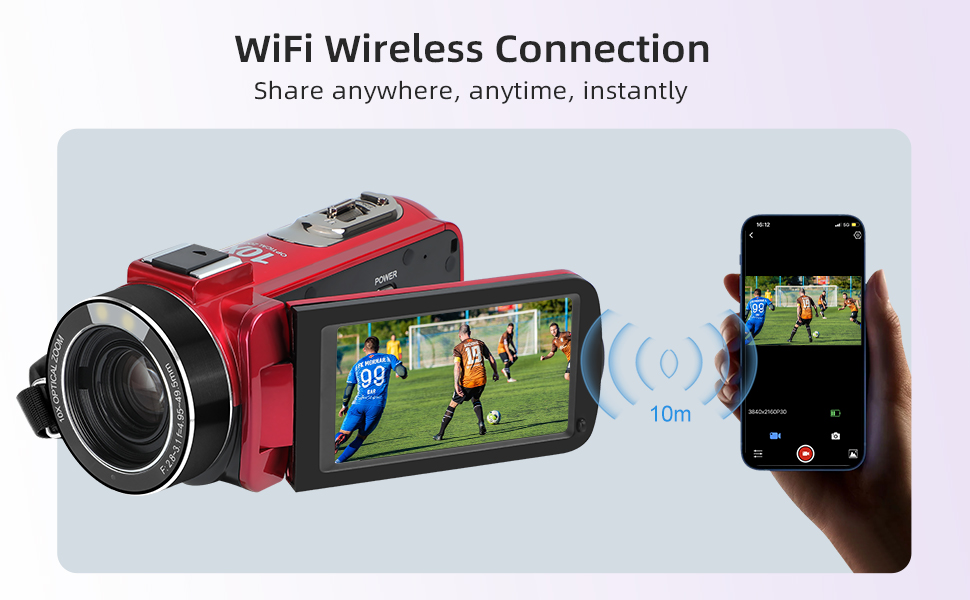
Image: The ORDRO Z88 camera wirelessly connected to a smartphone, demonstrating remote viewing and control capabilities via the "D Video" app.
6.4 Webcam Mode
The camera can function as a high-definition webcam for live streaming.
- Connect the camera to your computer using the USB-C cable.
- On the camera's screen, select "PC Camera" mode when prompted.
- Your computer should recognize the camera as a webcam, allowing you to use it with video conferencing or streaming software.

Image: The ORDRO Z88 camera mounted on a mini tripod, connected to a laptop via USB-C, demonstrating its functionality as a webcam for video calls.
6.5 Playback and Connecting to TV
Review your recorded videos and photos directly on the camera's LCD screen or connect to a larger display.
- On Camera: Press the Playback button to view your media files. Use the touchscreen or navigation buttons to browse.
- To TV: Connect the camera to a 4K compatible television using the Mini HDMI to HDMI cable. This allows for high-resolution playback of your 4K content on a larger screen.
6.6 Special Features
The ORDRO Z88 offers several advanced shooting modes:
- Time-lapse: Capture a series of images over time and combine them into a video.
- Slow Motion: Record videos at a higher frame rate for smooth slow-motion playback.
- Pause Function: Pause and resume recording within the same video file.
- Face Detection: Automatically detects and focuses on faces in the frame.
- Timed Shooting: Set a timer for photo capture.
- Quick 3 Burst Shot: Capture multiple photos in quick succession.

Image: A collage showcasing the camera's diverse shooting capabilities, including time-lapse, slow motion, pause function, and various event recordings like weddings and graduations.
7. Maintenance
7.1 Cleaning
- Use a soft, dry cloth to clean the camera body.
- For the lens, use a specialized lens cleaning cloth and solution.
- Do not use abrasive cleaners or solvents.
7.2 Storage
- When not in use for extended periods, remove the battery.
- Store the camera in its protective bag in a cool, dry, dust-free environment.
8. Troubleshooting
If you encounter issues with your ORDRO Z88 camera, refer to the following common solutions:
- Camera does not power on: Ensure the battery is correctly installed and fully charged.
- Cannot record: Check if the SD card is inserted correctly and has sufficient free space. Ensure the camera is in the correct mode.
- Poor image quality: Ensure the lens is clean. Check lighting conditions.
- Wi-Fi connection issues: Ensure the "D Video" app is installed and updated. Verify Wi-Fi is enabled on the camera and your smartphone.
- Webcam mode not recognized: Ensure the USB-C cable is securely connected and "PC Camera" mode is selected on the camera. Try a different USB port on your computer.
For further assistance, please contact customer support.
9. Specifications
| Feature | Specification |
|---|---|
| Brand | ORDRO |
| Model Number | HDR-Z88 |
| Photo Sensor Technology | CMOS |
| Video Recording Resolution | 1080p, 4K (2880x2160@24fps) |
| Still Image Resolution | 5 MP (Interpolated to 28.0MP) |
| Optical Zoom | 10x |
| Digital Zoom | 120x |
| Screen Size | 3.0 Inches (IPS Touchscreen) |
| Flash Memory Type | SDHC (up to 256GB expansion) |
| Connectivity Technology | HDMI, USB-C, Wi-Fi (802.11ac) |
| Image Stabilization | Optical (Note: Product specs state 'No' for 'Posiada stabilizację obrazu' but 'Optyczny' for 'Stabilizacja obrazu'. Assuming optical stabilization is present as per feature bullets.) |
| Waterproof Level | Not Waterproof |
| Item Weight | 300 Grams |
| Batteries Included | Yes (2 Lithium-ion) |
| Recommended Uses | Vlogging, daily video recording, beginner use |
10. Warranty and Support
The ORDRO Z88 4K Video Camera comes with a standard manufacturer's warranty. Please refer to the warranty card included in your package for specific terms and conditions. For technical support, troubleshooting, or warranty claims, please contact ORDRO customer service through the contact information provided with your purchase or on the official ORDRO website.


