
Introduction
Thank you for choosing the Machenike K500-B61W 60% Wireless Mechanical Gaming Keyboard. This compact and versatile keyboard is designed for optimal gaming and typing performance, offering multiple connectivity options, customizable RGB lighting, and hot-swappable switches. This manual provides detailed instructions for setup, operation, maintenance, and troubleshooting to ensure you get the most out of your device.
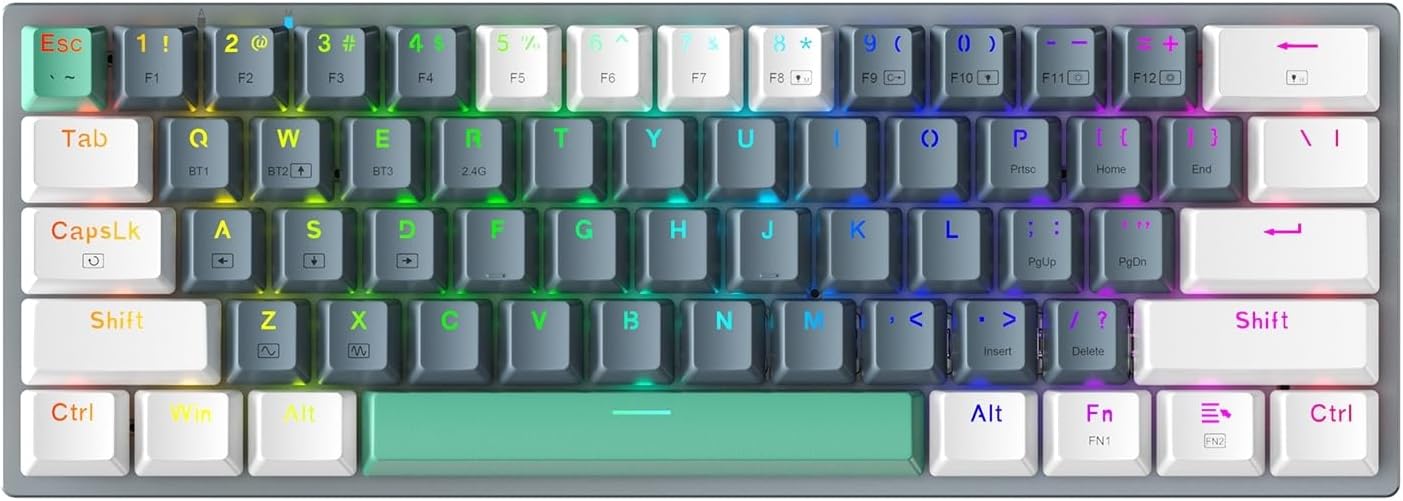
Image: The Machenike K500-B61W 60% Wireless Mechanical Gaming Keyboard, showcasing its compact layout and vibrant RGB backlighting.
Setup
Package Contents
- Machenike K500-B61W Keyboard
- USB-C to USB-A Cable
- Keycap Puller
- Switch Puller
- Spare Switches
- User Manual (this document)
- Warranty Card
Connectivity Options
The K500-B61W keyboard supports three connection modes: Wired (USB-C), 2.4G Wireless, and Bluetooth. A switch on the underside of the keyboard allows you to select the desired mode.

Image: Illustration of the keyboard's triple connectivity modes (2.4 GHz, Bluetooth, USB Wired) and its 1600 mAh battery capacity.
- Wired Mode: Connect the keyboard to your computer using the provided USB-C cable. The keyboard will be recognized automatically. This mode also charges the internal battery.
- 2.4G Wireless Mode:
- Locate the 2.4G USB dongle, usually stored in a slot on the keyboard's underside.
- Plug the dongle into an available USB port on your device.
- Slide the mode switch on the keyboard to '2.4G'. The keyboard should connect automatically.
- Bluetooth Mode:
- Slide the mode switch on the keyboard to 'BT'.
- The keyboard can store up to 3 Bluetooth devices. To pair, press and hold Fn + BT1, Fn + BT2, or Fn + BT3 for 3-5 seconds until the corresponding indicator light flashes rapidly.
- On your device (PC, smartphone, tablet), search for Bluetooth devices and select 'Machenike K500-B61W' to pair.
- Once paired, the indicator light will stop flashing. To switch between paired devices, press Fn + BT1/BT2/BT3 briefly.
Battery Information
The keyboard is equipped with a 1600 mAh lithium polymer battery. It charges automatically when connected via USB-C. The battery level can be monitored via the keyboard's software or system indicators (if supported).
Operating Instructions
Keyboard Layout and Function Keys
The K500-B61W features a compact 60% layout, which means some keys share functions or are accessed via a function layer. The keyboard includes separate arrow keys and multimedia functions (F1-F12) accessible through the Fn key.
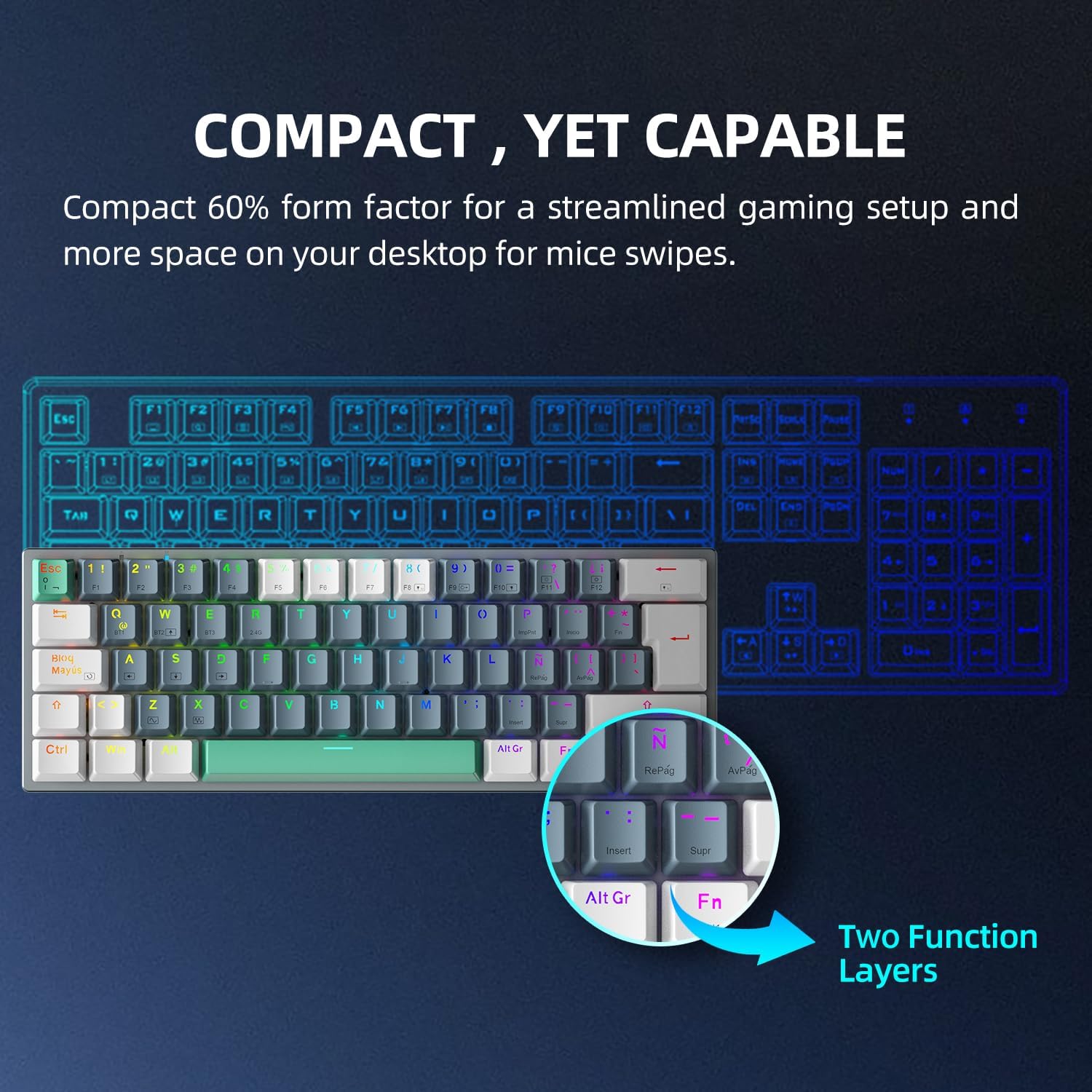
Image: The keyboard's compact 60% layout, illustrating how two function layers provide access to additional commands.
- Fn + [Key]: Accesses the secondary function printed on the keycap. For example, Fn + 1 might activate F1.
- Anti-Ghosting & N-Key Rollover: The keyboard supports 100% anti-ghosting and full N-key rollover, ensuring every keystroke is registered accurately, even during rapid input.
- Windows Lock Key Mode: Press Fn + Win to lock the Windows key, preventing accidental presses during gaming.

Image: The keyboard featuring a detachable USB Type-C cable, highlighting its 100% Anti-Ghosting, ANSI Layout, and N-Key Rollover capabilities.
RGB Backlighting
The K500-B61W features dynamic RGB backlighting with 20 unique modes and a full 16.8 million color spectrum. Lighting effects can be customized directly on the keyboard or through the dedicated software.

Image: The keyboard illuminated with dynamic RGB backlighting, emphasizing its 20 lighting presets, 16.8 million color spectrum, and driver support for customization.
- Changing Modes: Use Fn + \| to cycle through different RGB lighting modes.
- Adjusting Brightness: Use Fn + ↑ (increase) and Fn + ↓ (decrease) to adjust backlight brightness.
- Adjusting Speed: Use Fn + ← (slower) and Fn + → (faster) to adjust the speed of dynamic lighting effects.
- Customization Software: For advanced customization, including per-key RGB and macro settings, download the official Machenike Pro Software from the manufacturer's website.
Hot-Swappable Switches
The keyboard is equipped with hot-swappable switches, allowing you to easily change switches without soldering. It comes with tactile Brown Switches, known for their balanced feel suitable for both gaming and typing.
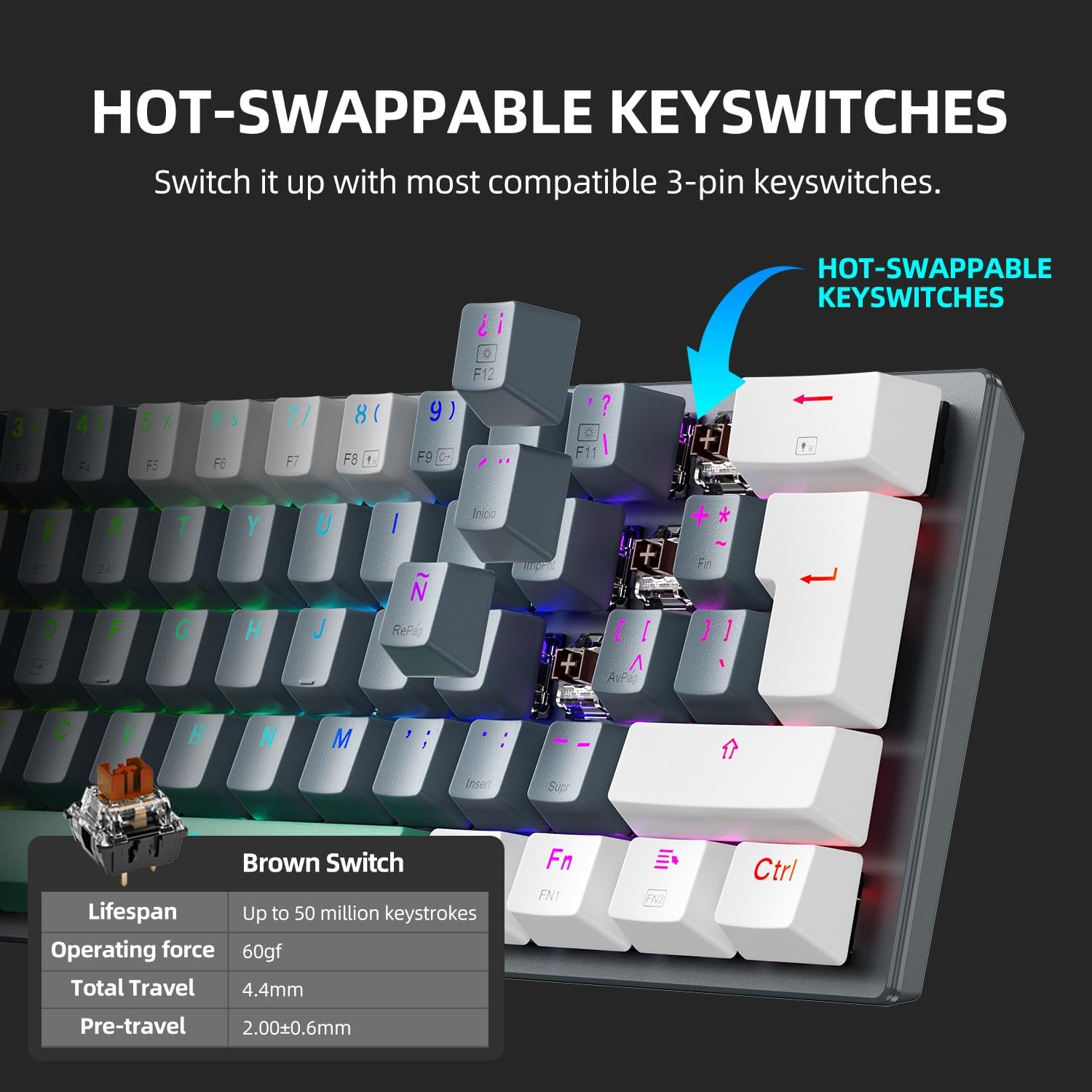
Image: A close-up of the keyboard demonstrating a hot-swappable keyswitch, alongside a table detailing the specifications of the included Brown Switches.
- Switch Type: Brown Switch (Tactile)
- Lifespan: Up to 50 million keystrokes
- Operating Force: 60gf
- Total Travel: 4.4mm
- Pre-travel: 2.00 ± 0.6mm
- Changing Switches: Use the provided switch puller to carefully remove a switch. Align the pins of the new 3-pin compatible switch with the sockets on the PCB and press firmly until it clicks into place.
Maintenance
To ensure the longevity and optimal performance of your Machenike K500-B61W keyboard, follow these maintenance guidelines:
- Cleaning Keycaps: The keyboard features durable PBT keycaps. Use a keycap puller to remove keycaps for thorough cleaning. Clean them with a mild soap solution and a soft cloth, then ensure they are completely dry before reattaching.
- Cleaning the Keyboard Body: Use a soft, dry cloth to wipe down the keyboard's surface. For stubborn dirt, a slightly damp cloth can be used, but avoid excessive moisture.
- Dust Removal: Use compressed air to remove dust and debris from between the keycaps and switches.
- Storage: When not in use for extended periods, store the keyboard in a cool, dry place away from direct sunlight and extreme temperatures.
Troubleshooting
If you encounter issues with your keyboard, refer to the following common problems and solutions:
- Keyboard Not Responding (Wired Mode):
- Ensure the USB-C cable is securely connected to both the keyboard and your computer.
- Try a different USB port on your computer.
- Ensure the mode switch on the keyboard is set to 'Off' (for wired connection and charging).
- 2.4G Wireless Connection Issues:
- Ensure the 2.4G USB dongle is properly inserted into a USB port.
- Verify the mode switch on the keyboard is set to '2.4G'.
- Move the keyboard closer to the dongle to reduce interference.
- Check the keyboard's battery level.
- Bluetooth Pairing/Connection Failure:
- Ensure the mode switch on the keyboard is set to 'BT'.
- Make sure the keyboard is in pairing mode (indicator light flashing rapidly after holding Fn + BT1/BT2/BT3).
- Remove previous pairings for the keyboard on your device and attempt to re-pair.
- Check the keyboard's battery level.
- RGB Lighting Not Working or Incorrect:
- Ensure the keyboard is powered on.
- Adjust brightness using Fn + ↑/↓.
- Cycle through modes using Fn + \|.
- If using customization software, ensure it is running and the keyboard's firmware is up to date.
- Keys Not Registering or Double-Typing:
- This could indicate a faulty or improperly seated switch. Use the switch puller to remove the affected switch and re-insert it firmly.
- If the issue persists, try replacing the switch with one of the provided spare switches.
- Software Not Recognizing Keyboard:
- Ensure the keyboard is connected via USB-C.
- Download and install the latest version of the Machenike Pro Software and any available firmware updates from the official website.
Specifications
| Feature | Detail |
|---|---|
| Brand | Machenike |
| Model Number | K500-B61W |
| Connectivity Technology | Bluetooth, 2.4G Wireless, USB-C Wired |
| Keyboard Description | 60% Mechanical Gaming Keyboard |
| Key Switches | Hot-swappable Brown Switches |
| Backlight Color Support | RGB (20 modes, 16.8M colors) |
| Material | PBT Keycaps |
| Anti-Ghosting | 100% Anti-Ghosting, Full N-key Rollover |
| Compatible Devices | PC, Smartphone, Gaming Console (Selective Compatibility) |
| Battery | 1600 mAh Lithium Polymer (integrated) |
| Dimensions | 30.66 x 12.7 x 4.95 cm |
| Weight | 612 g |
Warranty and Support
Your Machenike K500-B61W keyboard comes with a warranty. Please refer to the included warranty card for specific terms and conditions, including warranty duration and coverage details. For technical support, product inquiries, or warranty claims, please contact Machenike customer service through their official website or the contact information provided on your warranty card.
Keep your proof of purchase for warranty validation.


