
Phezer P15
Phezer P15 Handheld Inkjet Printer User Manual
Model: P15
1. Introduction
This manual provides detailed instructions for the safe and efficient operation of your Phezer P15 Handheld Inkjet Printer. The P15 is a versatile, portable inkjet printer designed for marking various surfaces with text, numbers, QR codes, barcodes, production dates, times, and logos. It features a 4.3-inch LCD touch screen and an independent operating system, eliminating the need for external apps or computers.

The Phezer P15 Handheld Inkjet Printer with its intuitive 4.3-inch touch screen interface.
2. Package Contents
Before starting, please verify that all items are present in your package.
- Phezer P15 Handheld Inkjet Printer (main unit)
- User Manual
- Charger
- USB Driver Touch Pen
- Lithium Battery
- Support Plate
- (Note: Ink cartridge is NOT included and must be purchased separately.)

Included components in the Phezer P15 package.
3. Setup
- Charge the Battery: Insert the provided lithium battery into the printer. Connect the charger to the printer and a power outlet to ensure the battery is fully charged before first use.
- Install Ink Cartridge: Open the ink cartridge compartment. Carefully insert a compatible ink cartridge (not included) into the designated slot until it clicks into place. Ensure the nozzle is clean and free from protective covers.
- Power On: Press and hold the power button until the screen illuminates and the system starts.
- Screen Calibration (if needed): If the touch screen is unresponsive or inaccurate, perform a calibration. Turn off the printer, then press and hold the screen with the touch pen while turning the printer back on. Follow the on-screen prompts to tap the calibration points (Top Left -> Top Right -> Bottom Right -> Bottom Left -> Middle).
Video demonstrating how to recalibrate the screen of the Phezer Inkjet Printer.
4. Operation
4.1. Creating and Editing Print Content
The P15 printer allows direct input and editing of content via its 4.3-inch LCD touch screen.
- Text Input: Use the on-screen keyboard to enter text.
- Content Types: The printer supports various content types including text, numbers, QR codes, barcodes, production dates, times, and custom logos.
- Adjustments: Modify font, size, spacing, rotation, and style directly on the device.
- Saving Files: Save your created print jobs for future use.

The Phezer P15 supports printing various content types, including dates, fonts, logos, serial numbers, QR codes, and barcodes.
4.2. Printing on Various Surfaces
The P15 is designed for printing on a wide range of materials.
- Supported Surfaces: Print on paper, boards, carton, stone, pipe, cable, metal, glass, plastic, and cloth.
- Printing Angle: Supports 360-degree all-round printing.
- Print Height & Length: Adjustable print height from 2mm to 12.7mm, with unlimited print length.
- Using the Support Plate: For stable and precise printing on smaller or irregularly shaped objects, utilize the included support plate. Place the object within the plate's guides and move the printer along the surface.

The Phezer P15 printer offers wide application across various materials.

The printer supports 360-degree all-round coding for versatile application.

Utilizing the fixed positioning plate for consistent printing results.
5. Maintenance
- Ink Cartridge Protection: When the ink cartridge is not in use, always cover it with its protective cap to prevent drying and clogging.
- Nozzle Cleaning: If you experience blurry printing, missing lines, or whitelines, gently wipe the ink cartridge nozzle with a soft tissue or soft cloth. Do not use harsh chemicals or abrasive materials.
- Screen Care: Keep the touch screen clean. Use the provided touch pen for interaction to avoid scratches or damage.

Important maintenance tips for your Phezer P15 printer.
6. Troubleshooting
- Unresponsive Touch Screen: If the touch screen becomes insensitive or unresponsive, turn off the printer. Press and hold the screen with the touch pen, then turn the printer back on. Start the touchscreen calibration process as described in Section 3.
- Poor Print Quality (Blurry, Missing Lines, Whitelines): This often indicates a clogged or dirty nozzle. Gently wipe the ink cartridge nozzle with a soft, lint-free cloth. Ensure the ink cartridge is properly seated.
- Printer Not Powering On: Check if the battery is properly inserted and fully charged. Connect the printer to the charger to confirm it's receiving power.
7. Specifications
| Feature | Specification |
|---|---|
| Product Dimensions | 2.36"D x 3.54"W x 8.86"H |
| Controller Type | Android |
| Maximum Media Size | A9 |
| Print Media | Fabric, Labels |
| Max Input Sheet Capacity | 10 |
| Max Copy Speed (Black & White) | 70 ppm |
| Maximum Color Print Resolution | 600 dpi |
| Maximum Black and White Print Resolution | 600 dpi |
| Dual-sided printing | No |
| Max copy resolution color | 600 dpi |
| Max copy resolution black-white | 600 dpi |
| Duplex | Simplex |
| Hardware Interface | USB |
| Ink Color | Black, White, Red, Yellow, Blue, Green, Invisible, UV |
| Additional Printer functions | Print Only |
| Control Method | App (Note: Printer operates independently, but some features might be managed via an app if available) |
| Processor Count | 4 |
| Total USB Ports | 1 |
| Model Series | P15 |
| Printer Ink Type | Water-based, Solvent-based |
| Item Weight | 1.19 pounds (0.54 Kilograms) |
| Item model number | P15-Plus-NOINK |
| Batteries | 1 9V batteries required. (included) |
| Manufacturer | Phezer |
| Brand | Phezer |
| Connectivity Technology | USB |
| Printing Technology | Inkjet |
| Special Feature | Internal Memory, Lightweight, Portable, Touch Screen |
| Color | Black |
| Model Name | P15-Plus-NOINK |
| Printer Output | Monochrome |
| Maximum Print Speed (Color) | 70 ppm |
| Max Printspeed Monochrome | 70 ppm |
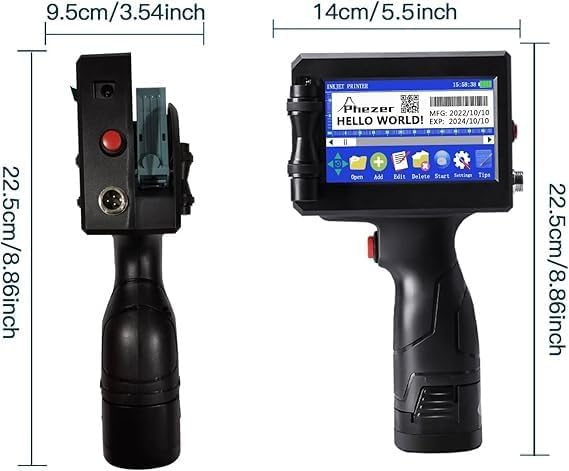
Physical dimensions of the Phezer P15 printer.
8. Warranty and Support
For warranty information, please refer to the documentation included with your purchase or contact Phezer customer support.
Contacting Support:
If you require assistance or have questions regarding your Phezer P15 printer, you can contact the seller directly through the Amazon platform.
- Visit the product page on Amazon.
- Locate the "Sold by" section, usually near the "Add to Cart" button.
- Click on the seller's name, "Phezer Coding and Marking Solution".
- On the seller's page, you will find an option to "Ask a question" or contact them directly.

Guide on how to contact Phezer support through Amazon.
You can also visit the official Phezer website for more information: www.phezer.com
Related documentsP15


Ask a question about this manual
Ask about setup, troubleshooting, compatibility, parts, safety, or missing instructions. Manuals+ will review the question and use this page’s manual context to help answer it.