
1. Introduction
Thank you for choosing the eLinkSmart Fingerprint Padlock. This keyless biometric padlock offers advanced security and convenience, allowing you to unlock it using your fingerprint or via a smartphone application. Designed for versatility, it is suitable for various indoor applications such as gym lockers, toolboxes, cases, chests, and cabinets. Please read this manual thoroughly to ensure proper setup, operation, and maintenance of your new padlock.
Safety Information
- Do not attempt to disassemble or modify the padlock. This may damage the device and void the warranty.
- Keep the padlock away from extreme temperatures, direct sunlight, and water to prevent damage to electronic components. This product is designed for indoor use.
- Ensure the fingerprint sensor is clean and dry for optimal performance.
- Charge the padlock using the provided USB charging cable and a standard 5V USB power source.
- Store the padlock in a cool, dry place when not in use for extended periods.
2. Package Contents
Verify that all items are present in your package:
- eLinkSmart Fingerprint Padlock
- USB Charging Cable
- User Manual (this document)

Image: Contents of the eLinkSmart Fingerprint Padlock package, including the padlock, charging cable, and a visual representation of the companion app on a phone and smartwatch.
3. Product Overview
The eLinkSmart Fingerprint Padlock features a compact design with robust construction. Key components include:
- Shackle: Stainless steel for superior cut resistance.
- Body: Made of durable Zinc alloy.
- Fingerprint Sensor: Located on the front, for quick biometric unlocking.
- Indicator Light: Provides status feedback (e.g., unlocked, low battery).
- USB Charging Port: For recharging the internal battery.

Image: A visual representation of the padlock's dimensions (1.3in width, 2.3in height, 0.6in thickness) compared to a standard soda can, highlighting its compact size.
4. Specifications
| Model Name | YL-P8bf |
| Lock Type | Biometric Fingerprint Padlock |
| Material | Zinc Alloy Body, Stainless Steel Shackle |
| Dimensions (L x W x H) | 1.26 x 2.28 x 0.55 inches (3.2 x 5.8 x 1.4 cm) |
| Shackle Diameter | 0.4 CM |
| Item Weight | 0.06 Kilograms (2.11 ounces) |
| Battery | 110MAH Lithium Battery |
| Standby Time | Up to 1 year |
| Unlocks per Charge | Over 2000 times |
| Fingerprint Capacity | Up to 20 (including 2 admin fingerprints) |
| App User Capacity | 1 Admin, 1000+ General Users |
| Connectivity | Bluetooth |
| Controller Type | iOS (and Android via App) |
5. Setup Guide
5.1 Initial Charging
Before first use, fully charge the padlock. Connect the provided USB charging cable to the padlock's charging port and a 5V USB power source (e.g., computer USB port, wall adapter, power bank). The indicator light will show charging status and turn off when fully charged.
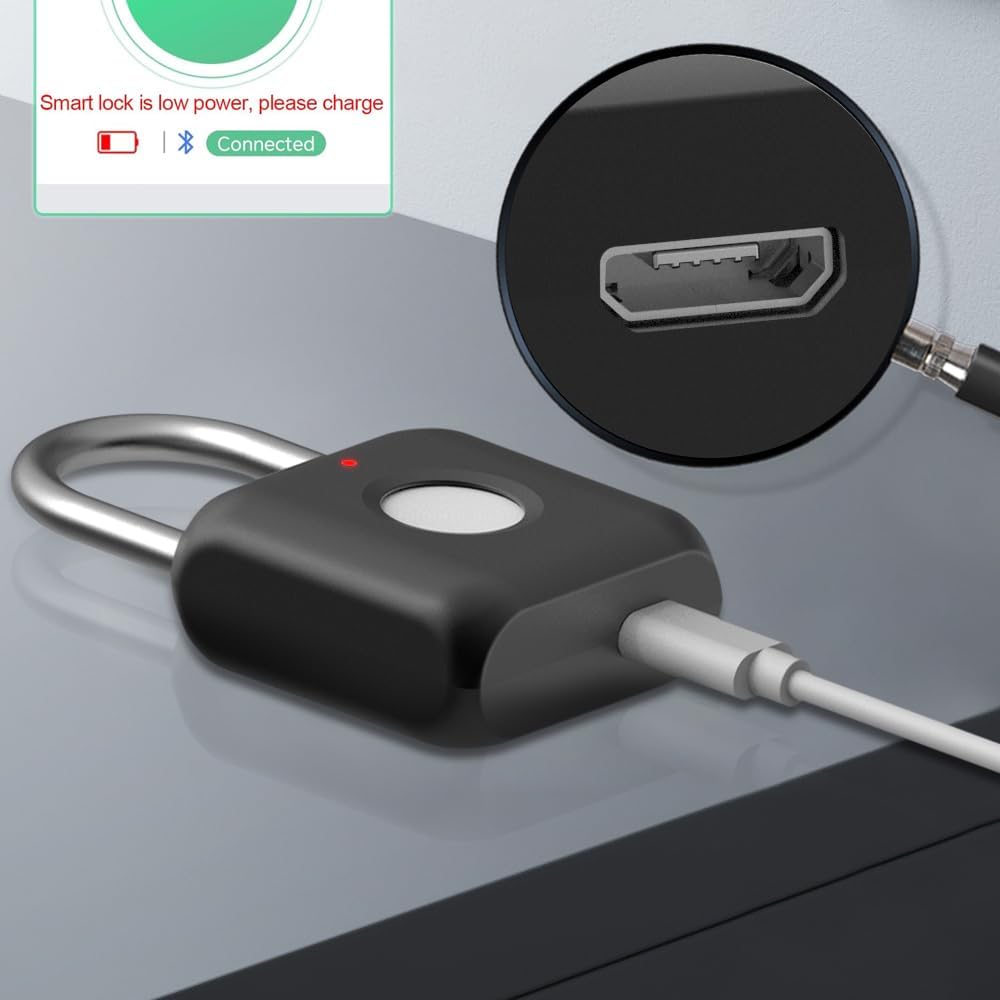
Image: The padlock being charged via its USB port. A red light indicates charging, and the app displays "Smart lock is low power, please charge" and "Connected" status.
5.2 App Installation
Download the eLinkSmart app from your device's app store (iOS or Android). Search for "eLinkSmart" or scan the QR code provided in the quick start guide (if applicable).
5.3 Pairing the Padlock
- Ensure Bluetooth is enabled on your smartphone.
- Open the eLinkSmart app and create an account or log in.
- Follow the in-app instructions to add a new device. The app will search for nearby eLinkSmart padlocks.
- Select your padlock from the list to pair it.
5.4 Registering Fingerprints (Admin)
The first two fingerprints registered will automatically be designated as admin fingerprints. Only admin fingerprints can manage other fingerprints and reset the padlock.
- In the eLinkSmart app, navigate to the "Fingerprint Management" section.
- Select "Add Fingerprint".
- Place your finger on the padlock's sensor, lift, and repeat as prompted by the app. You will need to scan your finger multiple times from different angles to ensure accurate registration.
- Once registration is complete, the app will confirm.
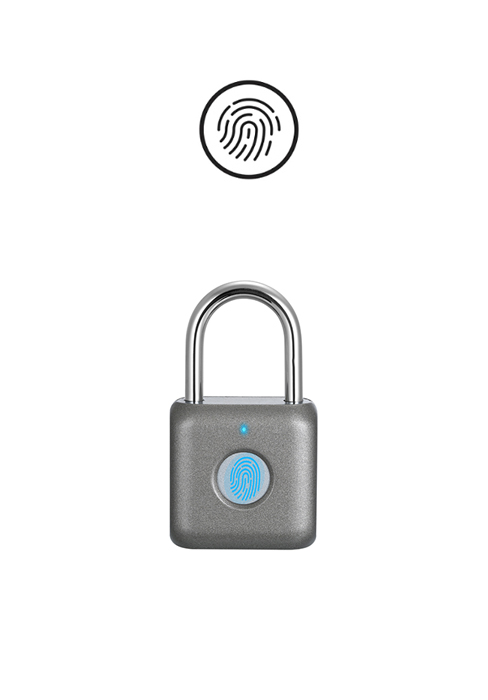
Image: The eLinkSmart app interface guiding the user through the fingerprint registration process, showing the "Add fingerprint" screen and instructions to repeatedly place the finger on the sensor.
5.5 Adding Users (App Authorization)
As an admin, you can authorize other users to unlock the padlock via the app, and set specific unlock periods or schedules.
- In the eLinkSmart app, go to "Authorization Management".
- Select "Add User" or "Authorize".
- Enter the user's details and set their unlock permissions (e.g., permanent, timed, recurring schedule).
- The authorized user will receive an invitation to access the padlock through their own eLinkSmart app account.
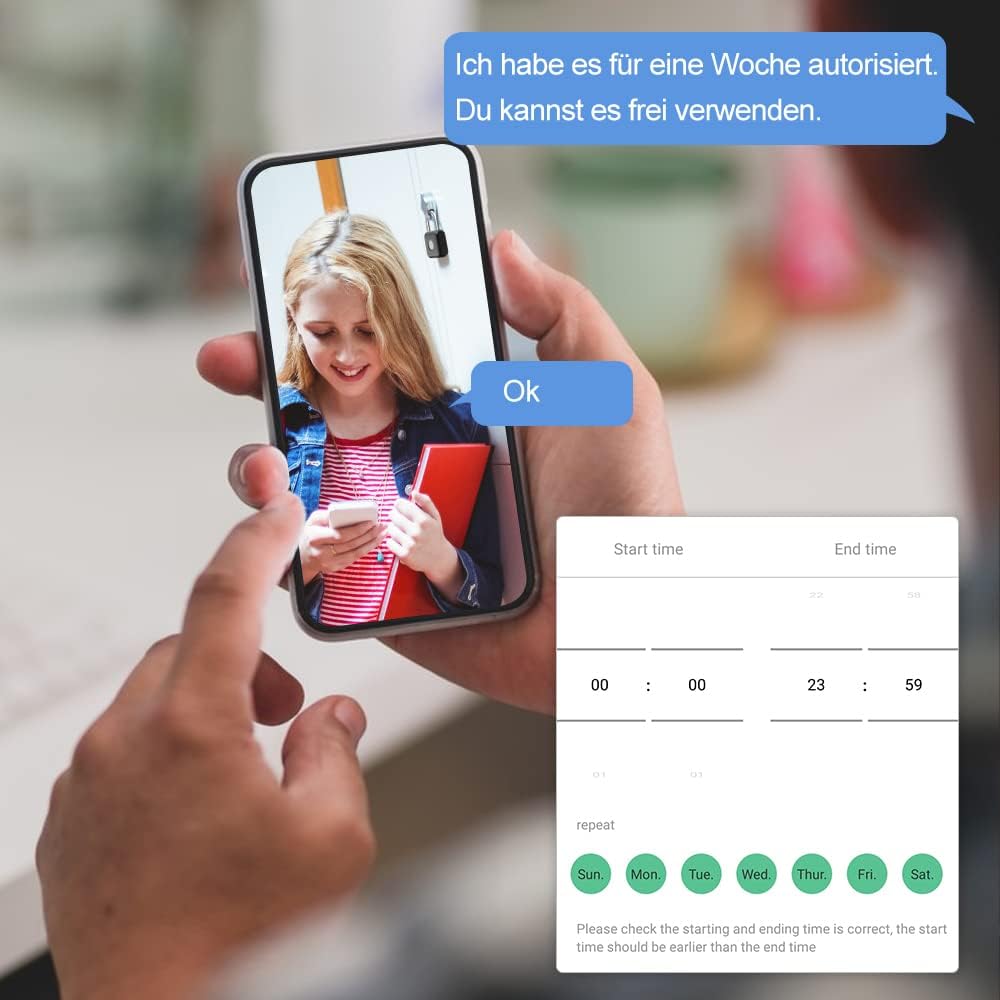
Image: The eLinkSmart app's main screen for the padlock, showing options for "Authorization management", "Fingerprint management", and "Unlock record", along with a time-based authorization setup.
6. Operating Instructions
6.1 Unlocking with Fingerprint
To unlock the padlock using a registered fingerprint:
- Place a registered finger firmly on the fingerprint sensor.
- The indicator light will flash green, and the shackle will pop open if the fingerprint is recognized.
- If the fingerprint is not recognized, the indicator light will flash red. Try again or use another registered finger.

Image: A finger being placed on the padlock's sensor, demonstrating the fingerprint unlock method. A green checkmark signifies successful recognition.
6.2 Unlocking with App
To unlock the padlock using the eLinkSmart app:
- Ensure your smartphone's Bluetooth is on and within range of the padlock.
- Open the eLinkSmart app.
- On the main screen for your padlock, tap the "Unlock" button.
- The padlock will unlock, and the app will confirm the action.

Image: The eLinkSmart padlock secured on a gym locker, being unlocked remotely via a smartwatch app, illustrating the convenience of app-based unlocking.
6.3 Locking the Padlock
To lock the padlock, simply push the shackle down firmly until it clicks into place. The padlock will automatically lock.
7. Maintenance
7.1 Charging the Battery
The padlock features a 110MAH lithium battery that provides extended use. When the battery is low, the indicator light will show red, or the app will provide voice prompts. Connect the padlock to a 5V USB power source using the provided cable to recharge. A full charge can last up to 1 year on standby or over 2000 unlocks.
7.2 Cleaning
Wipe the padlock's body and fingerprint sensor with a soft, dry cloth. Do not use abrasive cleaners or immerse the padlock in water.
7.3 Storage
When storing the padlock for extended periods, ensure it is fully charged and kept in a cool, dry environment.
8. Troubleshooting
| Problem | Solution |
|---|---|
| Padlock does not unlock with fingerprint. |
|
| Cannot connect to the app. |
|
| Padlock is unresponsive. |
|
| Low battery warning. | Charge the padlock immediately using the USB charging cable. |
9. Official Product Video
Video: An official product video demonstrating the features and usage of the eLinkSmart Fingerprint Padlock, including its design, fingerprint unlocking, and app connectivity.
10. Warranty and Support
eLinkSmart products come with a standard manufacturer's warranty. For specific warranty details, please refer to the warranty card included in your product packaging or visit the official eLinkSmart website. If you encounter any issues or have questions regarding your padlock, please contact eLinkSmart customer support through the contact information provided on their official website or through your purchase platform.
For the latest information, FAQs, and support resources, please visit the eLinkSmart Store on Amazon.

