
1. Introduction
Welcome to the user manual for your Blackview Active 6 Rugged Tablet. This device is engineered for durability and high performance, designed to withstand challenging environments while providing a seamless user experience. Featuring a robust build, a powerful battery, and advanced Android capabilities, the Active 6 is ideal for outdoor enthusiasts, professionals, and anyone requiring a reliable and resilient tablet for work, study, or entertainment.
This manual provides essential information on setting up, operating, maintaining, and troubleshooting your tablet to ensure optimal performance and longevity.
2. Product Overview
2.1 Key Features
- Extreme Durability: IP68/IP69K waterproof, shockproof, and dustproof, certified to MIL-STD-810H military standard.
- Long-lasting Battery: 13000 mAh battery with 33W fast charging and OTG reverse charging support.
- Vibrant Display: 10.1-inch HD+ display (1280x800 resolution) protected by Corning Gorilla Glass 5.
- Powerful Performance: Octa-core Unisoc T606 processor with up to 16GB RAM (8GB physical + 8GB virtual).
- Ample Storage: 128GB internal storage, expandable up to 1TB via microSD card.
- Advanced Connectivity: Dual 4G LTE, 2.4/5G WiFi, Bluetooth, USB Type-C.
- Enhanced Audio: Dual Box Smart-K Speakers for immersive sound.
- Versatile Functions: Face Unlock, PC Mode, Game Mode, 4 Positioning System (GPS, GLONASS, Beidou, Galileo), Widevine L1 support for high-quality streaming.
2.2 Product Components and Visuals

Figure 2.2.1: The Blackview Active 6 Rugged Tablet, highlighting its 13000mAh battery capacity and 16GB RAM + 128GB storage configuration. The image displays both the front screen and the ruggedized back panel of the device.
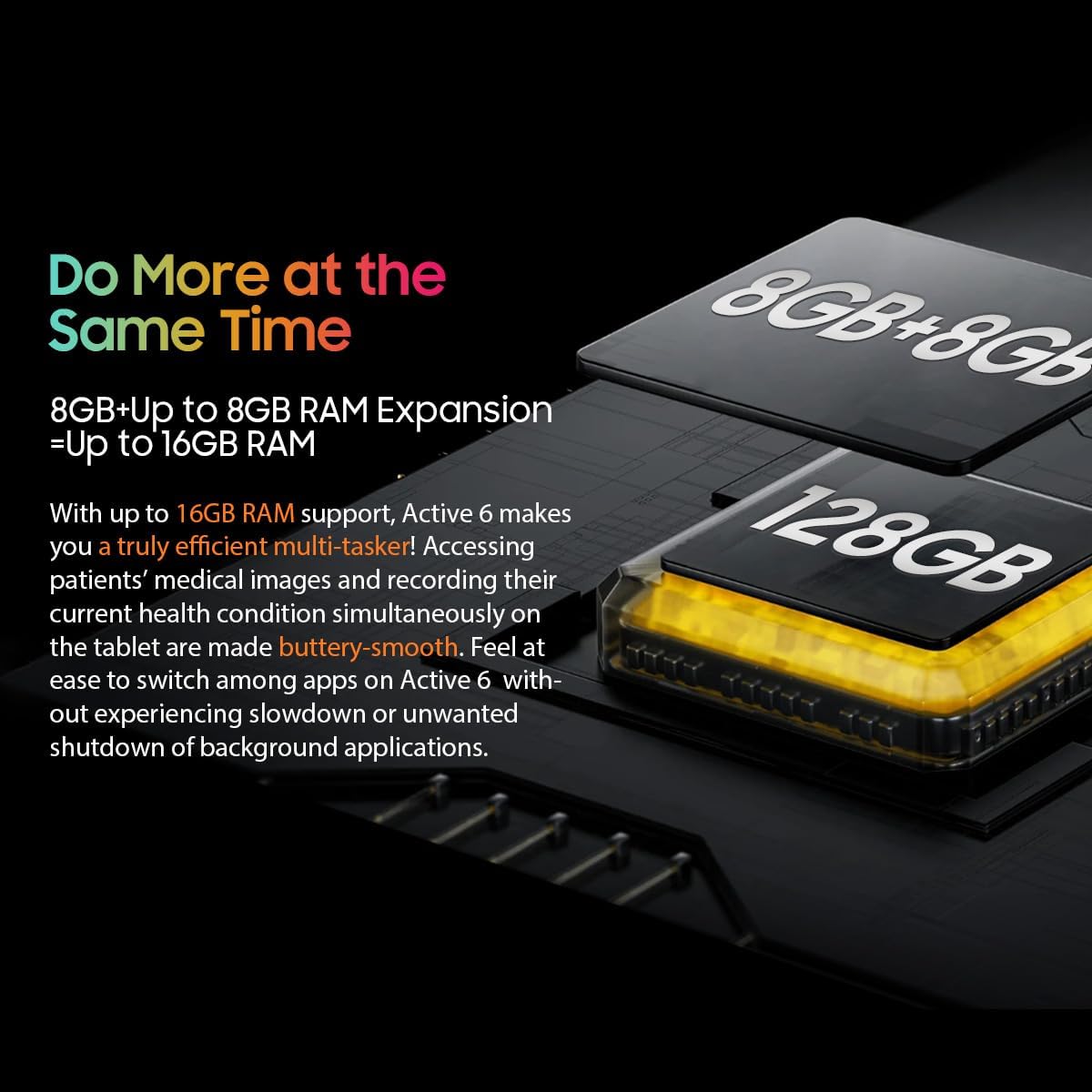
Figure 2.2.2: Illustration of the tablet's RAM expansion technology, allowing for up to 16GB of RAM (8GB physical + 8GB virtual) for efficient multitasking and smooth operation.
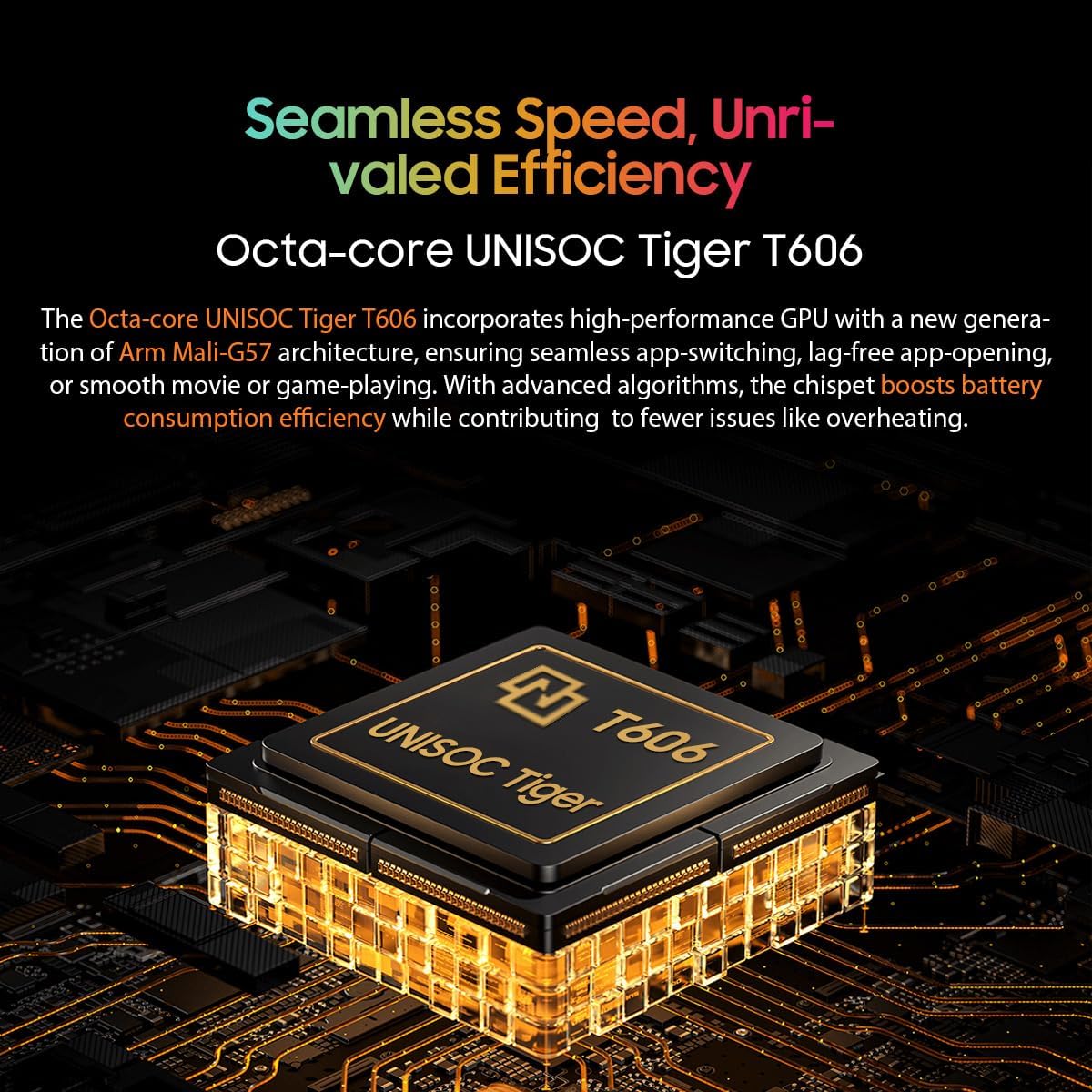
Figure 2.2.3: A detailed view of the Unisoc Tiger T606 Octa-core processor, which powers the Blackview Active 6, ensuring fast and efficient performance for various tasks.
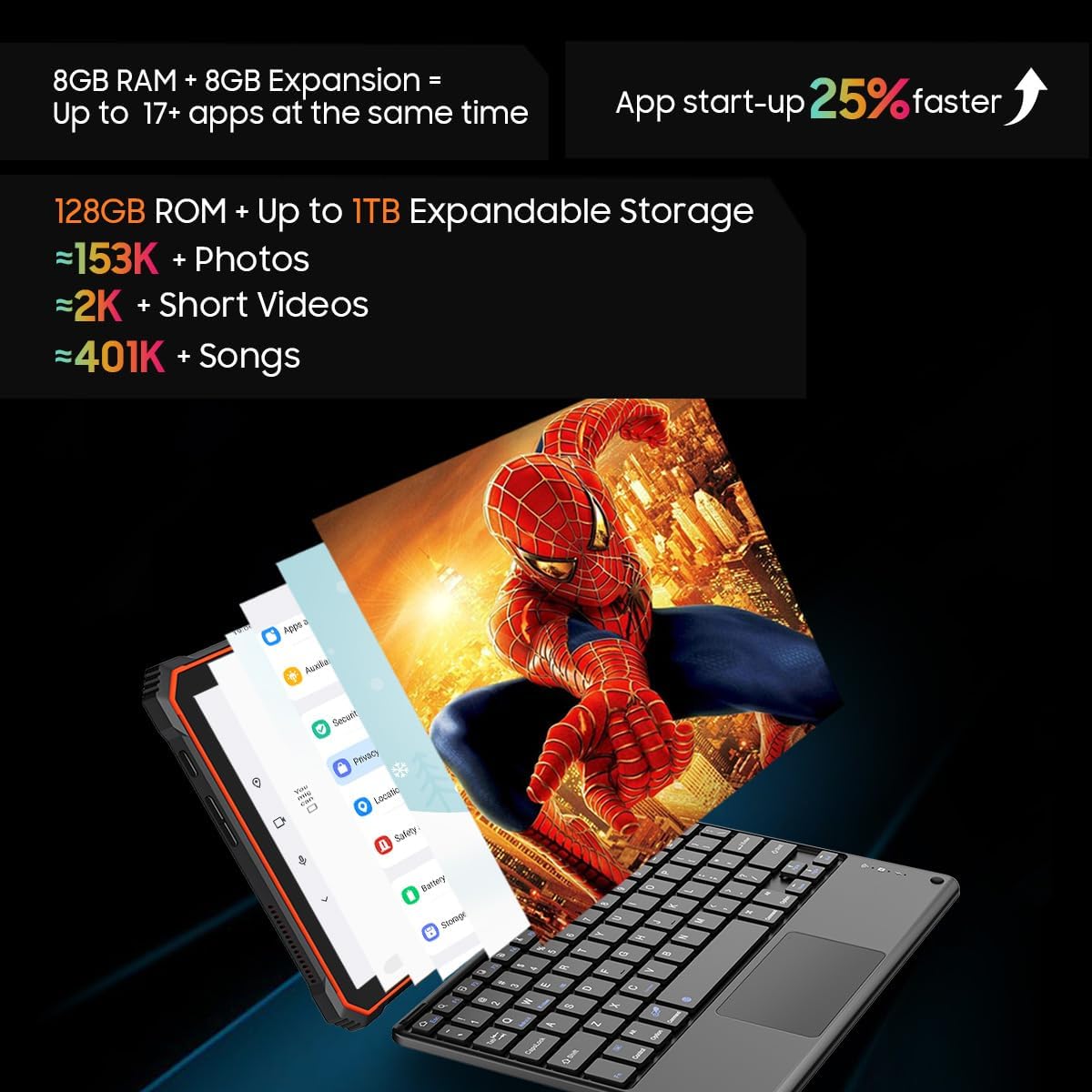
Figure 2.2.4: Visual representation of the tablet's 128GB ROM and expandable storage up to 1TB, capable of holding numerous photos, videos, and songs. It also highlights a 25% faster app startup time.

Figure 2.2.5: An artistic depiction emphasizing the robust protection of the 10.1-inch display by Corning Gorilla Glass 5, designed to resist scratches, dirt, and spills.
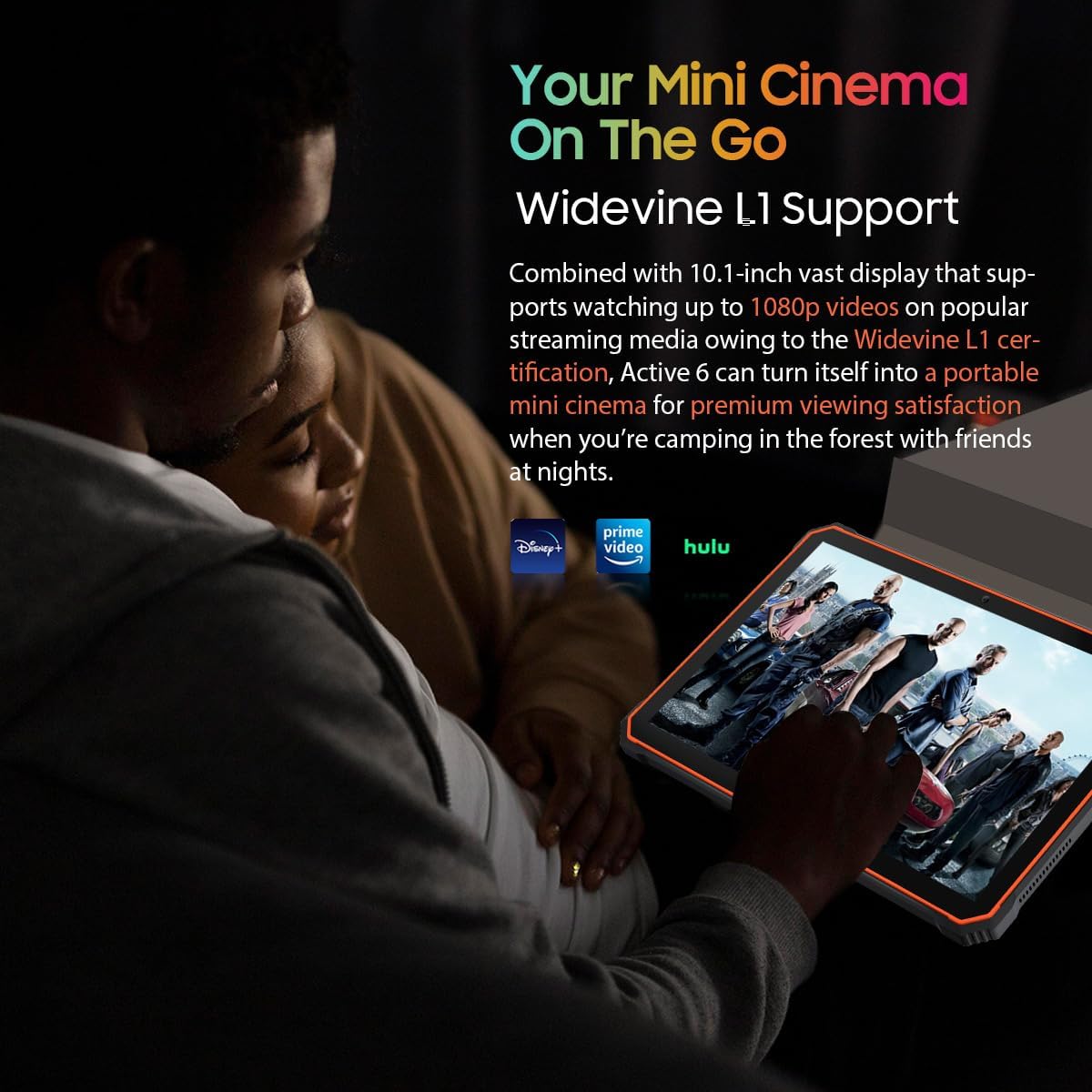
Figure 2.2.6: This image demonstrates the tablet's Widevine L1 support, enabling high-quality streaming of 1080p videos from popular platforms, turning the tablet into a portable cinema.

Figure 2.2.7: An X-ray style view of the tablet's interior, focusing on the massive 13000mAh battery, which provides extended usage and standby time, even in extreme temperatures.

Figure 2.2.8: This graphic illustrates the tablet's leading IP68 and IP69K certifications for water and dust resistance, along with features like the hand strap for portability, Corning Gorilla Glass 5, and tightly-fit caps for enhanced protection.

Figure 2.2.9: A visual breakdown of the tablet's power features, including the 13000mAh battery, 33W fast charging (50% in 73 minutes), and 5W OTG reverse charging capability to power other devices.

Figure 2.2.10: This image highlights additional functionalities of the Blackview Active 6, such as Face Unlock for security, support for a stylus pen, PC Mode for desktop-like experience, Game Mode for optimized gaming, Dual 4G LTE and WiFi connectivity, and a 4-system positioning for accurate navigation.
3. Setup
3.1 Initial Charging
Before first use, fully charge your Blackview Active 6 tablet using the provided 33W fast charger and USB Type-C cable. Connect the charger to a power outlet and the USB Type-C cable to the tablet's charging port. The charging indicator will show the charging status. A full charge ensures optimal battery calibration.
3.2 SIM Card and MicroSD Card Installation
The Blackview Active 6 supports dual 4G LTE SIM cards and a microSD card for expandable storage.
- Locate the SIM/microSD card tray on the side of the tablet.
- Use the provided SIM ejector tool to gently push into the small hole on the tray until it pops out.
- Carefully pull out the tray.
- Place your Nano-SIM cards and/or microSD card into the designated slots on the tray, ensuring correct orientation as indicated on the tray.
- Gently push the tray back into the tablet until it clicks into place. Ensure the tray is fully sealed to maintain water and dust resistance.
3.3 First Boot and Basic Setup
To power on your tablet for the first time:
- Press and hold the Power button (usually on the side) until the Blackview logo appears.
- Follow the on-screen prompts to complete the initial setup:
- Select your language.
- Connect to a Wi-Fi network.
- Accept the terms and conditions.
- Sign in with your Google account or create a new one. This is essential for downloading apps from the Google Play Store.
- Set up screen lock (PIN, pattern, password, or Face Unlock).
- Review and adjust other settings as prompted.
- Once setup is complete, your tablet is ready for use.
4. Operating Instructions
4.1 Basic Navigation (Android 13)
- Home Screen: Swipe left/right to navigate between home screens. Tap and hold an empty space to customize widgets, wallpapers, and settings.
- App Drawer: Swipe up from the bottom of the screen to access all installed applications.
- Notifications & Quick Settings: Swipe down from the top of the screen once for notifications, and again for quick settings toggles (Wi-Fi, Bluetooth, Brightness, etc.).
- Recent Apps: Swipe up from the bottom and hold, then release to see recently used applications. Swipe left/right to dismiss, or swipe up on an app to close it.
- Back: Swipe from the left or right edge of the screen towards the center to go back.
4.2 Connectivity
- Wi-Fi: Go to Settings > Network & internet > Wi-Fi. Turn Wi-Fi on and select your desired network. Enter the password if required.
- Bluetooth: Go to Settings > Connected devices > Connection preferences > Bluetooth. Turn Bluetooth on and pair with nearby devices.
- Mobile Data (4G LTE): Ensure your SIM card is installed. Go to Settings > Network & internet > Mobile network to enable mobile data and configure settings.
- OTG (On-The-Go): Connect compatible USB devices (e.g., flash drives, keyboards, mice) using a USB-C OTG adapter. The tablet also supports 5W reverse charging via OTG to charge other devices.
4.3 Camera Usage
Open the Camera app from your home screen or app drawer. You can switch between the 13MP rear camera and the 16MP front camera. Tap to focus, pinch to zoom, and use the on-screen buttons to switch modes (photo, video, portrait, etc.) and adjust settings.
4.4 PC Mode
The Blackview Active 6 features a PC Mode for a desktop-like experience. This mode optimizes the interface for productivity, allowing for multi-window operation and better integration with external keyboards and mice. To activate, swipe down from the top for Quick Settings and look for the "PC Mode" toggle, or find it in Settings.
4.5 Face Unlock
To set up Face Unlock, go to Settings > Security & privacy > Device unlock > Face unlock. Follow the on-screen instructions to register your face. Ensure good lighting conditions during setup for optimal performance.
5. Maintenance
5.1 Cleaning Your Tablet
Despite its rugged design, regular cleaning helps maintain your tablet's appearance and functionality.
- Use a soft, lint-free cloth (e.g., microfiber) to wipe the screen and body.
- For stubborn smudges, slightly dampen the cloth with water or a screen-safe cleaner. Avoid harsh chemicals or abrasive materials.
- Ensure all port covers are securely closed before cleaning with any moisture to maintain water resistance.
5.2 Battery Care
- Avoid extreme temperatures (below -20°C or above 60°C) as they can degrade battery life.
- For long-term storage, charge the battery to around 50-60% and power off the device.
- Use only the original or certified chargers and cables.
5.3 Software Updates
Regularly check for and install software updates to ensure your tablet has the latest features, security patches, and performance improvements. Go to Settings > System > System update to check for available updates.
5.4 Storage Management
To optimize performance, periodically manage your tablet's storage. Delete unnecessary files, uninstall unused apps, and move large media files to your microSD card or cloud storage. You can check storage usage in Settings > Storage.
6. Troubleshooting
| Problem | Possible Cause | Solution |
|---|---|---|
| Tablet does not power on. | Low battery; software crash. | Charge the tablet for at least 30 minutes. Press and hold the Power button for 10-15 seconds to force restart. |
| Wi-Fi connection issues. | Incorrect password; router issue; tablet Wi-Fi disabled. | Ensure Wi-Fi is enabled. Re-enter Wi-Fi password. Restart your Wi-Fi router. Forget the network and reconnect. |
| Slow performance or apps crashing. | Too many apps running; low storage; outdated software. | Close background apps. Free up storage space. Check for and install system updates. Restart the tablet. |
| Tablet not charging. | Faulty cable/charger; dirty charging port. | Try a different charger and cable. Clean the charging port gently with a dry, soft brush. Ensure the cable is fully inserted. |
| SIM card not detected. | Incorrectly inserted SIM; faulty SIM. | Re-insert the SIM card, ensuring correct orientation. Try the SIM card in another device to check if it's faulty. |
If the problem persists after trying these solutions, please contact Blackview customer support for further assistance.
7. Specifications
| Feature | Detail |
|---|---|
| Model Name | Blackview Active 6 |
| Operating System | Android 13 (Doke OS_P 3.0) |
| Processor | Unisoc T606 Octa-core (2 x A75@1.6GHz + 6 x A55@1.6GHz) |
| RAM | 16 GB (8 GB physical + 8 GB virtual expansion) |
| Internal Storage | 128 GB ROM |
| Expandable Storage | Up to 1 TB via microSD card |
| Display Size | 10.1 inches |
| Display Resolution | 1280 x 800 pixels (HD+) |
| Display Protection | Corning Gorilla Glass 5 |
| Battery Capacity | 13000 mAh |
| Charging | 33W Fast Charge, 5W OTG Reverse Charging |
| Rear Camera | 16 MP |
| Front Camera | 13 MP |
| Connectivity | Dual 4G LTE, 2.4/5G Wi-Fi, Bluetooth, USB Type-C |
| Durability Ratings | IP68, IP69K, MIL-STD-810H |
| Dimensions (L x W x H) | 25.4 x 15.24 x 12.7 cm (10 x 6 x 5 inches) |
| Weight | 1.4 kg (3.08 lbs) |
8. Warranty and Support
Blackview products are designed and manufactured to the highest quality standards. For information regarding warranty coverage, please refer to the warranty card included with your product or visit the official Blackview website. Keep your proof of purchase for warranty claims.
For technical support, troubleshooting beyond this manual, or service inquiries, please contact Blackview customer support through their official channels. You can usually find contact information on the Blackview website or in the product packaging.
Please note that unauthorized repairs or modifications may void your warranty.


