
VIOFO A229PLUS 3CH
VIOFO A229 Plus 3-Channel Dash Cam User Manual
Model: A229PLUS 3CH
Introduction
The VIOFO A229 Plus is a sophisticated 3-channel dash camera system designed to provide comprehensive video surveillance for your vehicle. Featuring dual Sony STARVIS 2 sensors, it captures high-quality footage from the front, interior, and rear of your vehicle, ensuring detailed recording in various lighting conditions. This manual provides essential information for setting up, operating, maintaining, and troubleshooting your A229 Plus dash cam.
What's in the Box
Verify that all components are present before proceeding with installation.
- 1x Front Camera (Main Unit)
- 1x Rear Camera
- 1x Interior Camera
- 1x Rear Camera Cable (6 meters)
- 1x Interior Camera Cable (1 meter)
- 1x Car Charger (3.5 meters)
- 1x Type-C Data Cable
- 1x Rear Mount
- 1x Trim Removal Tool
- 1x GPS Module with sticker
- 2x Static (Windshield) Stickers
- 1x User Manual (this document)
- Spare Mount Sticky Pads

Image: All components included in the VIOFO A229 Plus package.
Setup and Installation
1. Prepare the MicroSD Card
A MicroSD card (not included) is required for recording. VIOFO recommends using an industrial-grade MicroSD card (UHS-I U3 or higher) for optimal performance and reliability. Ensure the card is formatted before first use.
- Insert the MicroSD card into the main dash cam unit.
- Power on the dash cam.
- Navigate to the system settings and select "Format" to format the card.

Image: Recommended VIOFO Industrial Grade MicroSD cards (128GB, 256GB, 512GB).
2. Mounting the Dash Cam
Choose a location on your windshield that does not obstruct your view. The main unit typically mounts behind the rearview mirror.
- Clean the windshield surface thoroughly.
- Apply a static sticker to the windshield first, then attach the GPS module with its adhesive to the static sticker. This allows for easier removal without residue.
- Attach the main dash cam unit to the GPS module.
- Mount the interior camera and rear camera in suitable positions, ensuring clear views. The interior camera is typically mounted on the front windshield facing the cabin, and the rear camera on the rear windshield.

Image: The VIOFO A229 Plus main unit, interior camera, and rear camera.
3. Connecting the Cables
- Connect the rear camera cable (6m) from the main unit to the rear camera.
- Connect the interior camera cable (1m) from the main unit to the interior camera.
- Connect the car charger cable to the main unit and plug it into your vehicle's 12V power outlet.
- Route cables neatly using the trim removal tool to tuck them under vehicle trim.

Image: Cable routing diagram for the A229 Plus system.
Operating Instructions
Powering On/Off
The dash cam will automatically power on and begin recording when connected to vehicle power and the ignition is turned on. It will power off automatically when the ignition is turned off.
Basic Controls
- Power Button: Press to manually turn on/off.
- Menu Button: Access settings and playback modes.
- REC Button: Start/stop recording manually.
- MIC Button: Toggle audio recording on/off.
- Wi-Fi Button: Enable/disable Wi-Fi for app connection.
- Emergency Lock Button (Exclamation Mark): Manually lock the current video file to prevent it from being overwritten.

Image: Front view of the A229 Plus showing the display and control buttons.
Voice Control
The A229 Plus supports hands-free voice commands for common functions. Speak clearly and directly to the dash cam.
- "Take Photo"
- "Lock the video"
- "Turn on Wi-Fi"
- "Turn off Wi-Fi"
- "Show front camera"
- "Show interior camera"
- "Show rear camera"
- "Show all cameras"
- "Turn on audio"
- "Turn off audio"
- "Format card"
- "Start recording"
- "Stop recording"

Image: Illustration of voice control functionality.
VIOFO App Connection (5GHz Wi-Fi)
Download the VIOFO app from your smartphone's app store. The 5GHz Wi-Fi module provides faster data transfer for video previewing and downloading.
- Enable Wi-Fi on the dash cam by pressing the Wi-Fi button.
- On your smartphone, connect to the dash cam's Wi-Fi network (SSID: VIOFO_A229Plus_XXXX). The default password is "12345678".
- Open the VIOFO app to access live view, playback recordings, download files, and adjust settings.

Image: VIOFO App interface demonstrating 5GHz Wi-Fi connectivity and file transfer.
Parking Mode
The A229 Plus offers three parking mode options for 24/7 surveillance. A VIOFO HK4 Hardwire Kit (sold separately) is required for these features.
- Auto Event Detection: Records 15 seconds before and 30 seconds after a detected event (e.g., impact or motion).
- Time Lapse: Continuously records at a low frame rate (1/2/3/5/10/15fps) to save storage space.
- Low Bitrate Recording: Records continuously in a smaller file size, preserving details while optimizing storage.

Image: Visual representation of the three parking mode options.
Key Features
3-Channel Recording
The A229 Plus captures video from three perspectives simultaneously: front (2K), interior (1080P), and rear (2K). This provides comprehensive coverage for various driving scenarios, including rideshare and taxi services.

Image: Example footage from the front, interior, and rear cameras.
Dual Sony STARVIS 2 Sensors
Equipped with two Sony STARVIS 2 IMX675 image sensors for the front and rear cameras, offering 2.5 times dynamic range and light sensitivity compared to previous STARVIS sensors. This significantly reduces noise and motion blur, especially in low-light conditions.

Image: Illustration of the Sony STARVIS 2 sensor technology.
3-Channel HDR (High Dynamic Range)
Advanced HDR technology is supported across all three channels, improving exposure balance and capturing clear details even in challenging lighting, such as bright sunlight or dark tunnels. This enhances the ability to capture license plate details.

Image: HDR comparison demonstrating improved detail in varied lighting.
Upgraded Infrared Cabin Recording
The interior camera features a STARVIS sensor and HDR technology. It includes a built-in IR light sensor that automatically activates 4 infrared LED lights in low-light conditions, enabling clear black and white recording even in complete darkness.

Image: Interior camera with infrared LEDs for night vision.
Ultra-Precise GPS
The integrated Quad-Mode GPS module supports four satellite positioning systems (GPS, BEIDOU, GALILEO, GLONASS) for enhanced accuracy and stability. This data is recorded and can be viewed during video playback on the VIOFO App or computer.
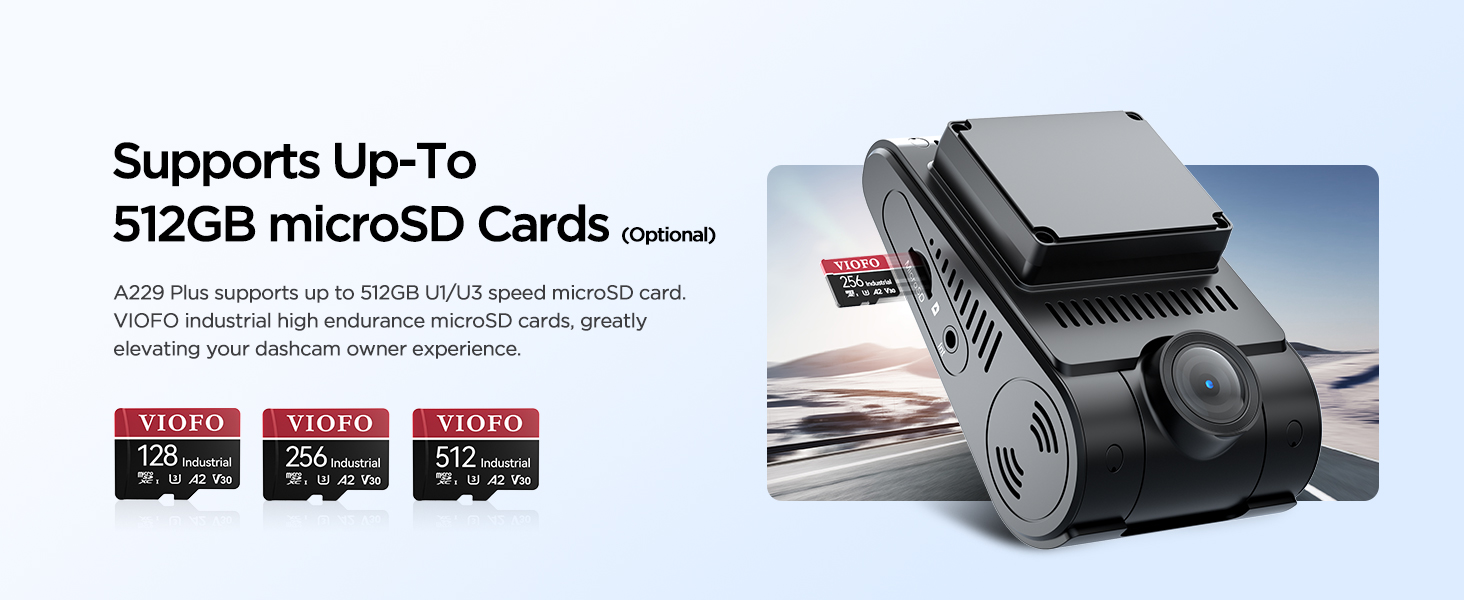
Image: GPS tracking and data display.
Optional Accessories
Bluetooth Remote Control
An optional Bluetooth remote control can be used to instantly protect the current video clip and image by pressing a button. The control distance is up to 5 meters.

Image: Bluetooth remote control for quick photo capture and video locking.
Circular Polarizing Lens (CPL)
An optional CPL filter can be attached to the lens to reduce reflections and glare from glass and road surfaces, significantly improving image clarity and contrast.

Image: Visual comparison of footage with and without a CPL filter.
Maintenance
- MicroSD Card Maintenance: Regularly format your MicroSD card (at least once a month) to ensure optimal performance and prevent data corruption. Back up important files before formatting.
- Lens Cleaning: Use a soft, lint-free cloth to gently clean the camera lenses. Avoid abrasive materials or harsh chemicals that could scratch the lens.
- Firmware Updates: Check the official VIOFO website periodically for firmware updates. Keeping your dash cam's firmware up-to-date ensures the best performance and access to new features. Follow the instructions provided with the firmware update carefully.
- Temperature Considerations: Avoid exposing the dash cam to extreme temperatures for prolonged periods. While designed for automotive environments, extreme heat or cold can affect performance and longevity.
Troubleshooting
| Problem | Possible Cause | Solution |
|---|---|---|
| Dash cam does not power on. | No power supply; faulty cable/charger; loose connection. | Check car charger connection and vehicle's 12V outlet. Try a different USB cable or charger. Ensure ignition is on. |
| Recording stops or files are corrupted. | Slow or incompatible MicroSD card; card full; card error. | Use a high-speed (UHS-I U3 or higher) industrial-grade MicroSD card. Format the card regularly. Replace the card if errors persist. |
| Wi-Fi connection issues. | Wi-Fi not enabled on dash cam; incorrect password; interference. | Ensure Wi-Fi is enabled on the dash cam. Verify password "12345678". Try restarting both dash cam and phone. |
| Poor video quality (blurry, dark). | Dirty lens; protective film on lens; incorrect settings; extreme lighting. | Clean lenses. Remove any protective film. Check resolution and HDR settings. Consider using a CPL filter for glare. |
| Voice control not responding. | Background noise; unclear commands; feature disabled. | Speak clearly and directly. Reduce cabin noise. Ensure voice control is enabled in settings. |
For further assistance, please contact VIOFO customer support.
Specifications
| Feature | Detail |
|---|---|
| Model Name | A229 Plus |
| Video Capture Resolution | Front: 1440P, Interior: 1080P, Rear: 1440P |
| Image Sensors | Dual Sony STARVIS 2 IMX675 (Front & Rear), Sony STARVIS IMX307 (Interior) |
| Connectivity Technology | Type-C, 5GHz Wi-Fi |
| GPS | Built-in Quad-Mode GPS (GPS, BEIDOU, GALILEO, GLONASS) |
| Special Features | App Control, Built-In Supercapacitor, Voice Control, 3-Channel HDR, Infrared Cabin Recording, 24/7 Parking Mode (requires HK4 Hardwire Kit) |
| Display | 2.4-inch HD Screen |
| Storage | Supports up to 512GB MicroSD card (not included) |
| Product Dimensions | 1.7 x 2.3 x 3.9 inches (Main Unit) |
| Item Weight | 1.96 pounds |
| Mounting Type | Windshield Mount |
Warranty and Support
VIOFO offers a 24-month warranty coverage for the A229 Plus dash cam. For any product-related inquiries, technical support, or warranty claims, please contact VIOFO customer support directly.
- Email Support: support@viofo.com
- Phone Support (US): +1 323 505 9898
- Money-Back Guarantee: 30-Day Money-Back Guarantee
- Customer Support: 24/7 Dedicated Customer Support

Image: VIOFO customer support details.
Related documentsA229PLUS 3CH


Ask a question about this manual
Ask about setup, troubleshooting, compatibility, parts, safety, or missing instructions. Manuals+ will review the question and use this page’s manual context to help answer it.