
symcode D
Symcode Bluetooth Barcode Scanner User Manual
Model: D
Introduction
This manual provides comprehensive instructions for the operation, setup, and maintenance of your Symcode Bluetooth Barcode Scanner. Designed for versatility, this 3-in-1 scanner supports Bluetooth, 2.4G wireless, and USB wired connections, making it ideal for various applications including library book management, warehouse inventory, and retail store operations.
Package Contents
- Symcode Bluetooth Barcode Scanner (Model D)
- USB Charging Cable
- 2.4G USB Dongle
- User Guide (this manual)

Image: The Symcode barcode scanner, USB charging cable, and 2.4G USB dongle, illustrating the complete package contents.
Setup and Connection Modes
The Symcode barcode scanner offers three primary connection methods: Bluetooth, 2.4G Wireless, and USB Wired. Choose the mode that best suits your operational needs.
1. USB Wired Connection
Connect the scanner directly to your computer using the provided USB cable. This mode allows for stable data transmission and simultaneous charging.

Image: A diagram illustrating the wired connection of the scanner to a desktop computer via USB cable, and wireless connections to various devices.

Image: The scanner connected to a laptop via USB cable, demonstrating the wired connection mode.
2. 2.4G Wireless Connection
For wireless operation with a computer, insert the 2.4G USB dongle into an available USB port on your PC. The scanner will automatically pair. If pairing fails, follow the forced pairing steps below.

Image: The scanner wirelessly connected to a laptop using the 2.4GHz USB dongle.
2.4G Wireless Pairing Method:
- Scan the setting code of the Dongle:
%%SpecCode99 - Scan the setting code for Forced Pairing with Dongle. The scanner will enter pairing state, and the blue light on the left flashes quickly:
%%SpecCodeA8

Image: Barcodes for configuring 2.4G wireless pairing, including standard and forced pairing options.
3. Bluetooth Connection
The scanner can connect to Bluetooth-enabled devices such as smartphones, tablets, and PCs. Ensure Bluetooth is enabled on your device.
- Turn on the scanner.
- Go to your device's Bluetooth settings.
- Search for "Barcode Scanner HID" or similar and pair.

Image: The scanner connected to a smartphone via Bluetooth, showing the device's Bluetooth settings screen.
The scanner supports Bluetooth HID, SPP, and BLE protocols, including HID virtual keyboard mode for direct input.
Operating Modes
Data Upload Modes
The scanner supports two data upload modes:
- Instant Upload Mode: Barcodes are transmitted to your device immediately after scanning.
- Storage Mode: Barcodes are stored in the scanner's internal memory (16MB) and can be uploaded in batches later. This is useful for scanning away from your host device.

Image: A visual representation of the two data transfer schemes: direct delivery (instant upload) and indirect delivery (storage mode).
Scanning Modes
The scanner offers flexible scanning options:
- Manual Trigger Mode: Press the scan button to activate the laser and scan a barcode.
- Auto-sense Mode: The scanner automatically detects a barcode in its field of view and scans it without requiring a button press.
- Continuous Scanning Mode: The scanner continuously emits the laser for rapid, successive scans.

Image: Two panels illustrating the manual trigger mode, where the user presses a button to scan, and the auto-sense mode, where the scanner automatically detects and scans barcodes.
Barcode Configuration
The scanner allows for advanced configuration of barcode data, including adding prefixes and suffixes.
- Add Prefix: Insert characters before the scanned barcode data. Example:
RL123456789 - Add Suffix: Insert characters after the scanned barcode data.
- Turn Sound On/Off: Configure audible feedback for scans.
- Multi-language Support: English, German, French, Spanish, Italian, Japanese.
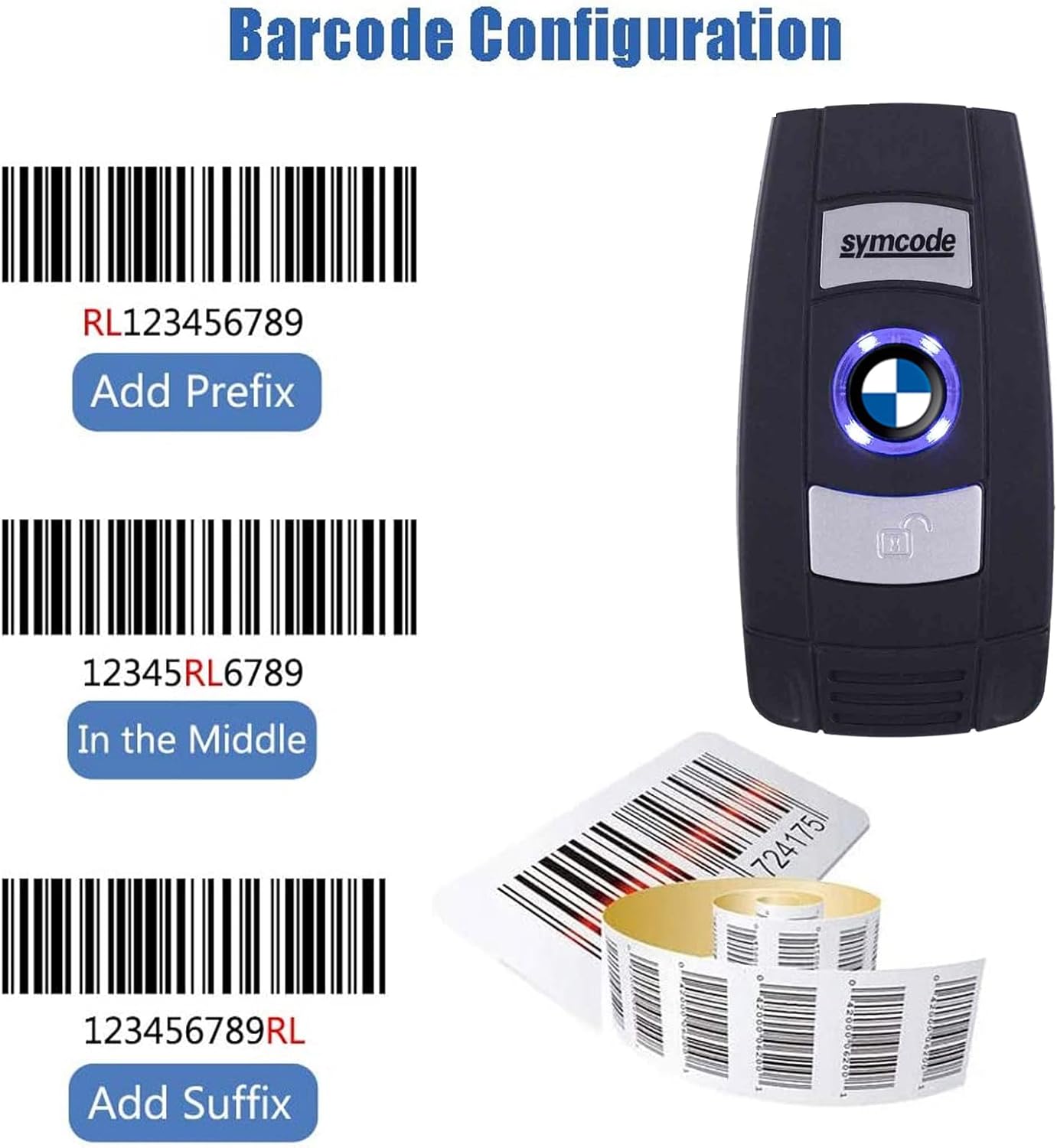
Image: A visual guide demonstrating how to add prefixes and suffixes to scanned barcode data.
Compatibility
The Symcode barcode scanner is highly compatible with a wide range of operating systems and devices:
- Operating Systems: Windows XP/7/8/10, Windows Mobile, Android OS, iOS (iPhone/iPad), Mac OS, Linux.
- Devices: Smartphones, Tablets, Laptops, Desktop PCs.

Image: Icons representing compatibility with Mac OS, Linux, Windows, iOS, and Android, along with images of a computer, smartphone, and tablet.
It supports both digital and printed 1D barcodes, including Codabar, Code 11, Code 93, MSI, Code 128, UCC/EAN-128, Code 39, EAN-8, EAN-13, UPC-A, ISBN, Industrial 25, Interleaved 25, Standard 25, and Matrix.
Charging and Battery
The scanner is powered by a Lithium Polymer battery (included). Charge the device using the provided USB cable connected to a computer or a compatible USB power adapter.
- The USB cable can be used for both charging and data transmission.
- The device has a standby timer to conserve battery life.
Troubleshooting
| Problem | Possible Cause | Solution |
|---|---|---|
| Scanner not connecting via Bluetooth/2.4G. | Not in pairing mode, out of range, or interference. | Ensure scanner is in pairing mode. Re-scan pairing barcodes for 2.4G. Move closer to the host device. Check for other wireless devices causing interference. |
| Scanner not reading barcodes. | Barcode damaged, incorrect symbology enabled, or scanner mode. | Ensure barcode is clear and undamaged. Verify that the required barcode symbology is enabled. Check if the scanner is in the correct scanning mode (manual, auto-sense, continuous). |
| Battery not charging or draining quickly. | Faulty cable/charger, or battery degradation. | Try a different USB cable or charging port. Ensure the scanner is turned off when not in use to conserve battery. If issues persist, contact customer support. |
| Scanned data incorrect or incomplete. | Prefix/suffix settings, or data transfer mode. | Review barcode configuration settings for prefixes and suffixes. Ensure the correct data upload mode (instant or storage) is selected. |
Specifications
- Product Dimensions: 3.8 x 2.5 x 1 inches
- Item Weight: 3.52 ounces
- Connectivity Technology: Bluetooth 6.0, 2.4G Wireless, USB Wired
- Power Source: Battery Powered (1 Lithium Polymer battery included)
- Supported Symbologies (1D): Codabar, Code 11, Code 93, MSI, Code 128, UCC/EAN-128, Code 39, EAN-8, EAN-13, UPC-A, ISBN, Industrial 25, Interleaved 25, Standard 25, Matrix
- Memory: 16MB (for Storage Mode)
- Manufacturer: Great.
- First Available Date: October 10, 2023

Image: The compact size of the Symcode barcode scanner, shown resting in the palm of a hand, highlighting its portability.
Warranty and Support
For warranty information and technical support, please refer to the contact details provided with your purchase or visit the official Symcode website. Keep your purchase receipt for warranty claims.
Manufacturer: Great.
Brand Store: Symcode Official Store on Amazon
Related documentsD


Ask a question about this manual
Ask about setup, troubleshooting, compatibility, parts, safety, or missing instructions. Manuals+ will review the question and use this page’s manual context to help answer it.