
TCL 65S4
TCL 65-Inch Class 4-Series 4K UHD HDR Smart Roku TV User Manual
Model: 65S4 | Brand: TCL
Introduction
The TCL 4-Series Roku TV offers stunning 4K picture quality with four times the resolution of Full HD for enhanced clarity and detail, as well as endless entertainment with thousands of streaming channels. High dynamic range (HDR) technology delivers bright and accurate colors for a lifelike viewing experience. In addition, your favorite HD shows, movies, and sporting events are enhanced to near Ultra HD resolution with 4K Upscaling. Your favorite broadcast TV, streaming channels, gaming console and other devices are front-and-center within a simple, customizable home screen.
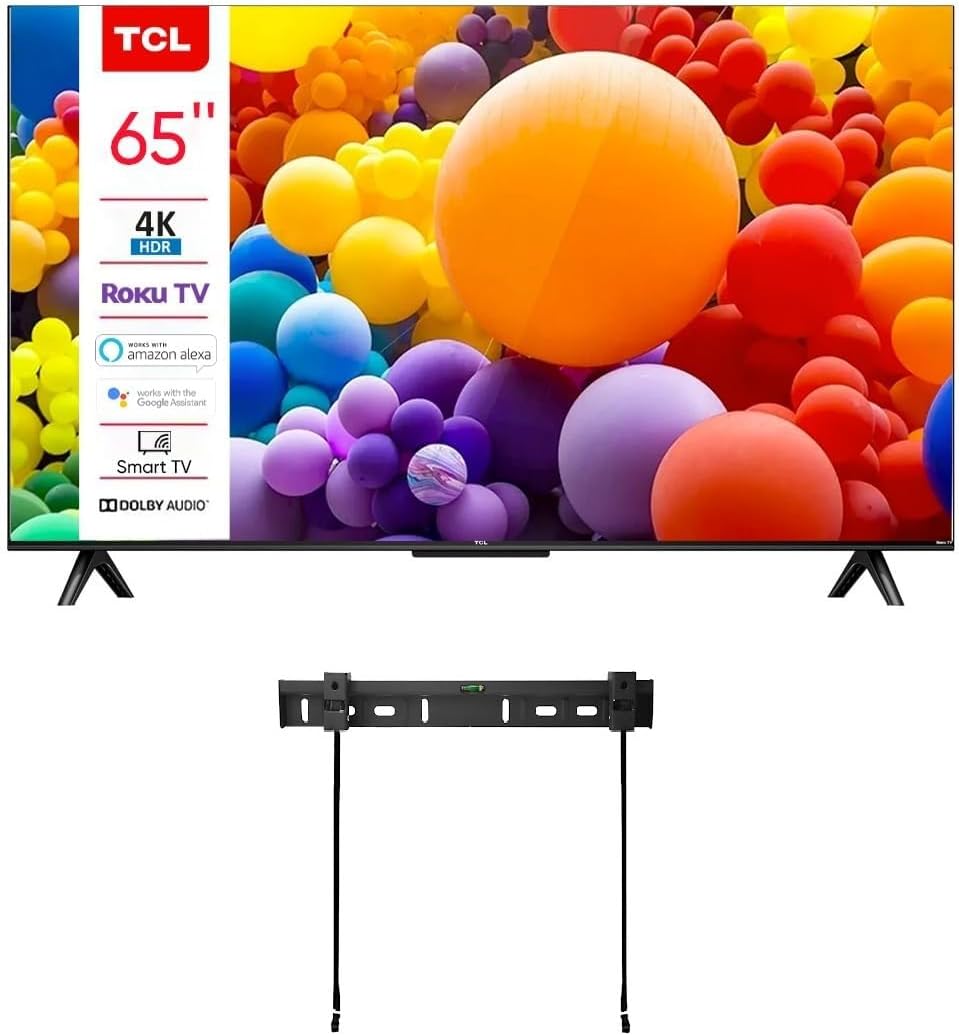
Image: Front view of the TCL 65-inch 4K UHD HDR Smart Roku TV, showcasing its slim bezels and the included wall mount kit.
What's in the Box
Upon unboxing your TCL 65-Inch Class 4-Series Roku TV, you should find the following components:
- TCL 65-Inch 4K UHD HDR Smart Roku TV
- Remote Control
- TV Stand (legs)
- Wall Mount Kit (as indicated by product specifications)

Image: A detailed view of the wall mount kit components, including the bracket, various screws, anchors, and a small spirit level for installation.
Setup Guide
1. Physical Installation
You have two primary options for setting up your TV: using the included stand or mounting it on a wall.
Using the TV Stand:
Attach the two stand legs to the bottom of the TV using the provided screws. Ensure they are securely fastened to prevent the TV from tipping. Place the TV on a stable, flat surface.
Wall Mounting:
The TV comes with a wall mount kit. Follow the instructions provided with the wall mount for safe and secure installation. It is recommended to seek professional assistance for wall mounting to ensure proper installation and prevent damage or injury.

Image: An illustrative diagram demonstrating the installation process for an ultra-slim TV wall mount, highlighting the mechanism to release the TV from the bracket.
2. Initial Power On and Network Connection
- Connect the power cord to the TV and then to a power outlet.
- Press the power button on the TV or remote control to turn it on.
- Follow the on-screen instructions to complete the initial setup, which includes selecting your language, country, and connecting to your home network.
- For network connection, you can use the built-in dual-band WiFi 5 or connect an Ethernet cable to the TV's Ethernet port for a wired connection.
- The TV will guide you through the Roku TV activation process, which may require creating or logging into a Roku account.
Operating Your TCL Roku TV
Roku TV Interface
The Roku TV interface provides a simple, customizable home screen where you can access broadcast TV, streaming channels, gaming consoles, and other connected devices. Navigate using the directional pad on your remote control.
Streaming Entertainment
Access thousands of streaming channels and apps such as Netflix, Prime Video, MAX, Apple TV+, Disney+, ESPN+, Hulu, Fox Sports, YouTube TV, Pluto TV, Peacock, and NFL. The Roku platform also offers over 350 free live TV channels.

Image: Screenshots illustrating the Roku mobile application, showcasing its capabilities for searching content, voice control, and functioning as a remote control.
Voice Control Integration
Your TCL Roku TV works seamlessly with popular voice assistants including Siri, Alexa, and Google Assistant. Use voice commands through compatible devices to control your TV, search for content, and more.

Image: A visual representation of the TV's compatibility with voice assistants, featuring the "Works with Alexa" and "Works with Google Assistant" logos alongside a smartphone remote interface.
Connecting External Devices (HDMI Inputs)
The TV is equipped with 4 HDMI inputs, including 1 HDMI ARC (Audio Return Channel). Use these ports to connect devices such as gaming consoles, Blu-ray players, soundbars, or cable/satellite boxes. The HDMI ARC port allows for simplified audio connectivity with compatible sound systems.
Picture Quality Features
- 4K Ultra HD Resolution: Experience stunning clarity and detail with four times the resolution of Full HD.
- HDR PRO+ (Dolby Vision, HDR10+, HDR10, & HLG): Enjoy bright and accurate colors with enhanced contrast for a lifelike viewing experience.
- 4K Upscaling: Your favorite HD content is enhanced to near Ultra HD resolution.
- Motion Rate 240 with MEMC Frame Insertion: Provides smooth motion for fast-paced action scenes.

Image: A television screen showcasing a high-resolution image, emphasizing the 4K Ultra HD capability of the display.

Image: A television screen displaying a high dynamic range (HDR) image of a natural landscape, illustrating the HDR PRO+ feature.

Image: A dynamic shot of a motocross rider, used to demonstrate the Motion Rate 240 with MEMC Frame Insertion technology for smooth action.
Maintenance
Cleaning Your TV
To clean the screen, gently wipe it with a soft, lint-free cloth. For stubborn marks, slightly dampen the cloth with water or a specialized screen cleaner. Avoid using harsh chemicals, abrasive cleaners, or spraying liquid directly onto the screen. Clean the TV's frame and stand with a soft, dry cloth.
Software Updates
Your Roku TV will periodically check for and install software updates automatically when connected to the internet. These updates provide new features, performance improvements, and bug fixes. Ensure your TV remains connected to the internet for optimal performance.
Troubleshooting
| Problem | Possible Solution |
|---|---|
| No Power | Ensure the power cord is securely plugged into both the TV and a working electrical outlet. Try a different outlet. Check if the power indicator light on the TV is on. |
| No Picture, but Sound is Present | Check the input source. Press the "Input" or "Source" button on your remote to cycle through inputs. Ensure all cables (HDMI, etc.) are securely connected. |
| No Sound, but Picture is Present | Check the volume level and ensure the TV is not muted. If using external audio devices (soundbar, receiver), ensure they are powered on and correctly connected, especially via HDMI ARC. Check audio output settings in the TV menu. |
| Cannot Connect to Wi-Fi | Ensure your Wi-Fi router is on and working. Restart your router and TV. Double-check the Wi-Fi password. If the issue persists, try connecting via Ethernet cable. |
| Remote Control Not Working | Replace the batteries in the remote. Ensure there are no obstructions between the remote and the TV's IR sensor. For Roku remotes, ensure it's paired correctly if it's a Wi-Fi direct remote. |
Technical Specifications
| Feature | Detail |
|---|---|
| Brand | TCL |
| Model Number | 65S4 |
| Screen Size | 65 Inches |
| Display Technology | LED |
| Resolution | 4K UHD (3840 x 2160) |
| Refresh Rate | 60 Hz (Motion Rate 240 with MEMC Frame Insertion) |
| HDR Support | HDR PRO+ (Dolby Vision, HDR10+, HDR10, HLG) |
| Smart TV Platform | Roku TV |
| Voice Assistant Compatibility | Siri, Alexa, Google Assistant |
| Connectivity | Dual-band Wi-Fi (802.11ac), Ethernet |
| HDMI Inputs | 4 (1 x HDMI ARC) |
| Aspect Ratio | 16:9 |
| Product Dimensions (D x W x H) | 11.8" x 56.9" x 34.8" (with stand) |
| Item Weight | 44.9 pounds |
| Included Components | Remote, Stand, TV, Wall Mount Kit |
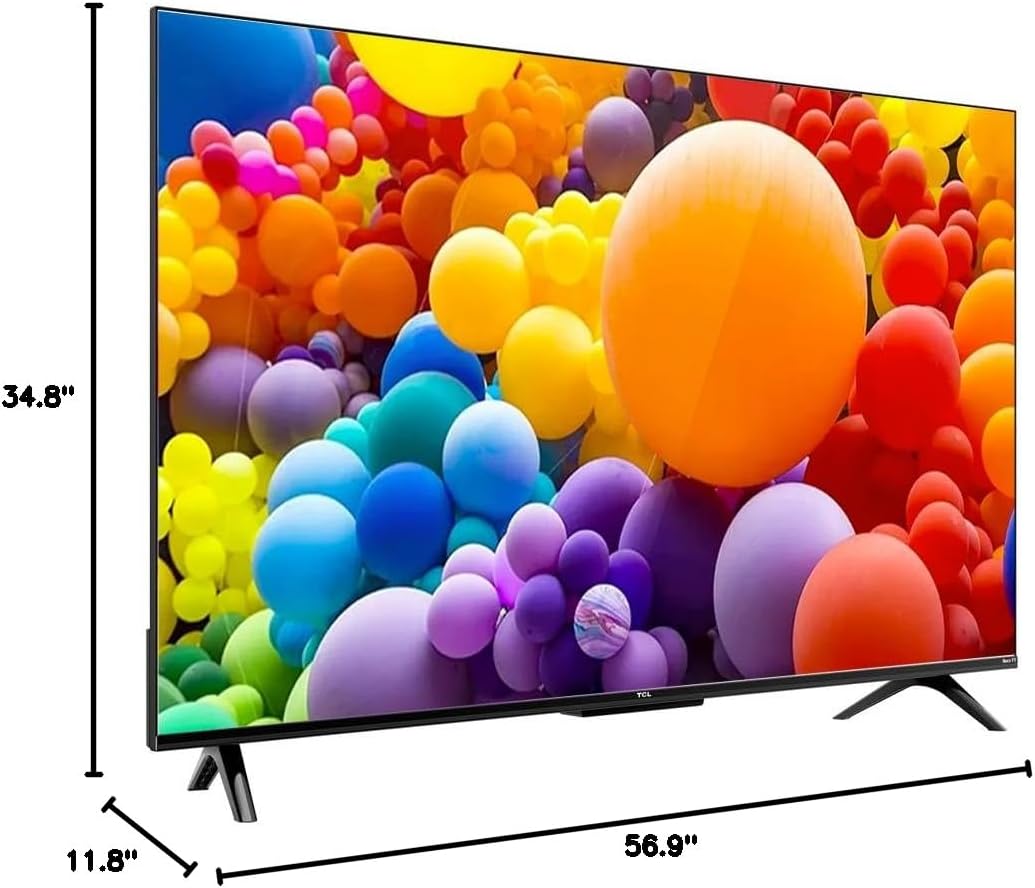
Image: A visual representation of the television's dimensions, indicating its height, width, and depth for placement planning.
Warranty and Support
As a renewed product, this TCL 65-Inch Class 4-Series TV typically comes with a limited warranty provided by the seller or Amazon Renewed. Please refer to your purchase documentation or the Amazon Renewed product page for specific warranty details and duration.
For technical support, troubleshooting assistance, or service inquiries, please contact TCL Customer Support or refer to the official TCL support website. You may also find helpful resources and FAQs on the Roku support website for issues related to the smart TV platform.
- TCL Support: www.tcl.com/us/en/support
- Roku Support: support.roku.com
Ask a question about this manual
Ask about setup, troubleshooting, compatibility, parts, safety, or missing instructions. Manuals+ will review the question and use this page’s manual context to help answer it.