
1. Introduction
This manual provides comprehensive instructions for the setup, operation, maintenance, and troubleshooting of your KTC 27-inch Mini LED Monitor. Please read this manual thoroughly before using the product to ensure proper functionality and to prevent damage.
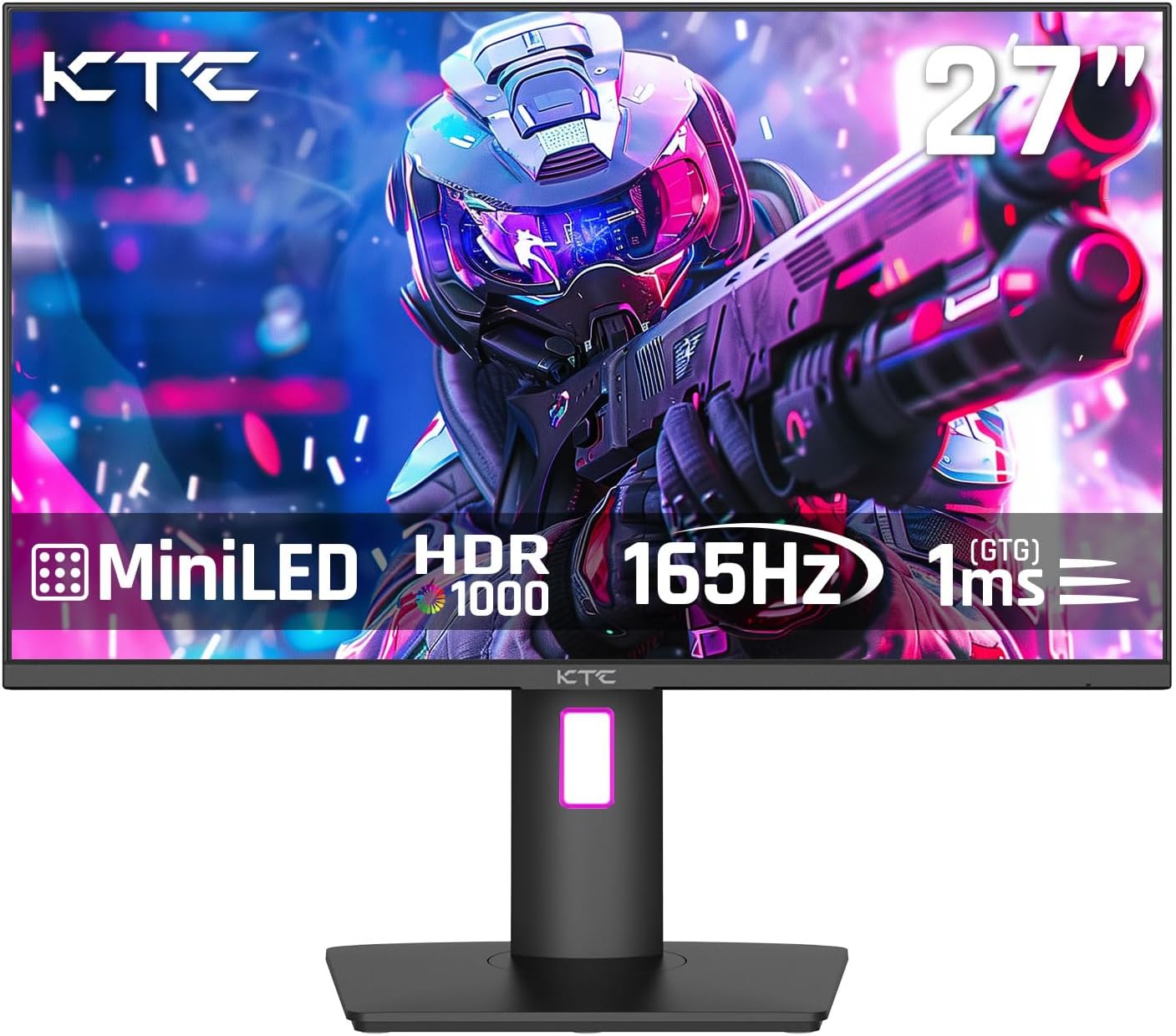
Figure 1: Front view of the KTC 27-inch Mini LED Monitor.
2. Key Features
- Mini LED Backlight Technology: Features 576 full-array local dimming zones with 2304 LEDs for precise brightness control, delivering deeper blacks and brighter whites.
- High Dynamic Range (HDR1000): Supports HDR1000 with a peak brightness of 1000 nits and a 1,000,000:1 HDR contrast ratio, ensuring vibrant and realistic visuals. SDR typical brightness is 500 nits.
- High Resolution & Refresh Rate: Offers 2K QHD (2560x1440) resolution with a fast 165Hz refresh rate (supports 144Hz) and 1ms MPRT response time for smooth, fluid motion.
- Quantum Dot Technology: Provides accurate color reproduction with 99% sRGB and 93% DCI-P3 coverage, ensuring rich and true-to-life colors. Color calibration results in a Delta E of less than 2.
- Flexible Connectivity: Includes USB Type-C (90W reverse charging), DisplayPort 1.4, 2x HDMI 2.0 ports, and 3x USB 3.0 interfaces for broad compatibility with various devices.
- Built-in KVM Switch: Allows control of two separate PCs with one monitor-keyboard-mouse setup, automatically switching between input sources.
- Ergonomic Stand: Offers height, tilt, swivel, and pivot adjustments for optimal viewing comfort. Supports VESA 100x100mm mounting.
- Integrated Audio: Equipped with two 2W built-in speakers and a 3.5mm headphone port.
- Eye Care Features: Includes Low Blue Light and Flicker-Free technology to reduce eye strain during prolonged use.

Figure 2: Illustration of the Mini-LED HVA Panel structure.

Figure 3: DisplayHDR 1000 certification and brightness details.

Figure 4: Quantum Dot Technology color coverage specifications.

Figure 5: Overview of flexible connectivity options and KVM switch setup.

Figure 6: Ergonomic adjustments available with the monitor stand.
3. Setup
3.1. Assembly
The monitor comes with a quick-release stand for easy assembly. Align the stand with the monitor's mounting points and secure it. For VESA mounting, remove the stand and attach a compatible VESA 100x100mm mount.
3.2. Connecting Your Monitor
Connect the monitor to your computer or other devices using the appropriate cables provided or purchased separately. Ensure all connections are secure.
- DisplayPort (DP 1.4): For optimal performance, connect your PC's graphics card to the monitor's DisplayPort for 2560x1440 resolution at 165Hz.
- HDMI (2x HDMI 2.0): Connect gaming consoles (PS5, Xbox) or other devices. Supports 2560x1440 resolution at 144Hz.
- USB Type-C: Connect compatible laptops or mobile devices. Supports 2560x1440 resolution at 165Hz and provides 90W reverse charging.
- USB 3.0 Upstream: Connect to your PC to enable the monitor's USB 3.0 downstream ports and KVM functionality.
- USB 3.0 Downstream (2x): For connecting peripherals like keyboards, mice, or USB drives.
- Earphone (3.5mm): Connect headphones or external speakers.
- DC 24V: Connect the provided power adapter.

Figure 7: Rear view of the monitor with port labels.
4. Operating Your Monitor
4.1. On-Screen Display (OSD) Navigation
The monitor features a 5-way OSD navigation joystick located on the rear. Use this joystick to navigate through the monitor's settings menu.

Figure 8: Example of the On-Screen Display (OSD) menu.
4.2. Display Modes and Settings
Adjust various display settings including brightness, contrast, color temperature, and picture modes (SDR/HDR) via the OSD. The monitor supports both FreeSync and G-Sync for tear-free gaming.
4.3. KVM Switch Functionality
To utilize the KVM switch, connect your primary PC via DisplayPort/HDMI and USB Upstream, and your secondary device (e.g., laptop) via USB Type-C. The monitor will automatically switch keyboard and mouse control between the active input sources.
4.4. Gaming Features
Access specific gaming features through the OSD's 'Gaming Setup' menu:
- Black Equalizer: Adjusts the dark areas of the image for better visibility in shadowy scenes.
- FPS Counter: Displays the current frames per second on-screen.
- Crosshair: Provides an on-screen crosshair for improved aiming in games.

Figure 9: Visual representation of gaming assist features.
5. Maintenance
To ensure the longevity and optimal performance of your KTC monitor, follow these maintenance guidelines:
- Cleaning the Screen: Gently wipe the screen with a soft, lint-free cloth. For stubborn marks, use a screen-specific cleaning solution applied to the cloth, not directly to the screen.
- Cleaning the Casing: Use a soft, dry cloth to clean the monitor's casing. Avoid abrasive cleaners or solvents.
- Ventilation: Ensure the monitor's ventilation openings are clear and unobstructed to prevent overheating.
- Power Off: Always turn off the monitor and unplug it from the power outlet before cleaning or if it will be unused for an extended period.
6. Troubleshooting
If you encounter issues with your monitor, refer to the following common problems and solutions:
- No Power: Ensure the power cable is securely connected to both the monitor and the power outlet. Verify the power adapter is functioning.
- No Signal: Check that the video cable (DisplayPort, HDMI, Type-C) is correctly connected to both the monitor and the source device. Ensure the correct input source is selected on the monitor's OSD.
- Flickering/Distorted Image: Verify the video cable is not damaged. Try a different cable or port. Ensure your graphics card drivers are up to date. Disable or enable FreeSync/G-Sync in the OSD to see if it resolves the issue.
- Poor Color/Brightness: Adjust brightness, contrast, and color settings in the OSD. Ensure HDR is properly enabled in both the monitor settings and your device's display settings if desired. Consider performing a firmware update if available from the manufacturer's website, as some users have reported improvements after updates.
- KVM Switch Not Working: Ensure the USB Upstream cable is connected from the monitor to the primary PC. Verify all peripherals are connected to the correct USB downstream ports on the monitor.
- No Sound from Speakers/Headphone Jack: Check the volume settings on both the monitor and the source device. Ensure the correct audio output is selected on your source device. Verify the headphone jack connection.
If the problem persists after trying these steps, please contact KTC customer support for further assistance.
7. Specifications
| Feature | Specification |
|---|---|
| Brand | KTC |
| Model Number | H32T17S |
| Screen Size | 27 Inches |
| Resolution | QHD Ultra Wide 1440p (2560 x 1440) |
| Refresh Rate | 165Hz (Supports 144Hz) |
| Response Time | 1ms MPRT |
| HDR Brightness (Peak) | 1000 Candela (nits) |
| SDR Brightness (Typical) | 500 nits |
| HDR Contrast Ratio | 1,000,000:1 |
| Color Gamut | 99% sRGB, 93% DCI-P3 |
| Connectivity | DisplayPort 1.4, 2x HDMI 2.0, USB Type-C (90W), 3x USB 3.0 (1 Upstream, 2 Downstream), Earphone Jack |
| Speakers | 2x2W Built-in |
| Ergonomics | Height, Tilt, Swivel, Pivot Adjustable |
| VESA Compatibility | 100x100mm |
| Product Dimensions | 26.77 x 9.84 x 22.05 inches |
| Item Weight | 15.2 pounds |
8. What's in the Box
- 27 inch mini led gaming monitor
- Stand Set
- DP Cable (1.5M/59'')
- HDMI Cable (1.5M/59'')
- Power Cord (1.5M/59'')
9. Warranty and Support
For warranty information and technical support, please refer to the official KTC website or contact their customer service directly. Keep your purchase receipt for warranty claims.
Additional resources:
- User Manual (PDF): Download PDF
- Installation Manual (PDF): Download PDF
- User Guide (PDF): Download PDF


