
1. Introduction
This manual provides detailed instructions for the installation, operation, and maintenance of your UCOCARE 2.5K Baby Monitor, Model OB-2K01. This device is designed to provide reliable indoor surveillance for monitoring babies, pets, or elderly family members, offering advanced features such as high-resolution video, motion tracking, and environmental sensing.
2. Safety Information
Please read and understand all safety instructions before using this product. Failure to follow these instructions may result in electric shock, fire, or other hazards.
- Electrical Safety: Use only the provided power adapter. Do not expose the device to water or moisture. Ensure the power cable is not damaged or pinched.
- Placement: Keep the camera and its power cord out of reach of children and pets to prevent strangulation hazards. Do not place the camera near heat sources or in direct sunlight.
- Ventilation: Ensure adequate ventilation around the camera to prevent overheating. Do not cover the device.
- Cleaning: Disconnect power before cleaning. Use a dry, soft cloth. Do not use liquid or aerosol cleaners.
3. Package Contents
Verify that all items are present in your package:
- 1 x UCOCARE Baby Camera
- 1 x Power Adapter
- 1 x Set of Screws and Installation Tools
- 1 x User Manual
- 1 x 32GB Micro SD Card (pre-installed or included separately)
4. Product Overview
The UCOCARE 2.5K Baby Monitor is equipped with advanced features for comprehensive monitoring. Key components include the camera lens, microphone, speaker, temperature/humidity sensor, and a Micro SD card slot.

Image: UCOCARE 2.5K Baby Monitor, highlighting 5G connectivity, 2.5K resolution, and included 32GB SD card.
Key Features:
- 2.5K Super HD Resolution: Provides clear and detailed video.
- Dual-Band WiFi: Supports both 2.4GHz and 5GHz networks for flexible connectivity.
- Pan/Tilt/Zoom: 355° horizontal rotation, 120° vertical tilt, and 4x digital zoom for full room coverage.
- Night Vision: Delivers clear images in low-light conditions.
- Two-Way Audio: Allows real-time communication through the camera.
- Cry and Sound Detection: Sends instant alerts upon detecting specific sounds.
- Human Detection & Auto-Tracking: Identifies human presence and follows movement.
- Temperature and Humidity Sensor: Monitors the environment for optimal comfort.
- Lullabies: 14 pre-programmed lullabies to soothe.
- Local Storage: Includes a 32GB Micro SD card for video recording without subscription.
- Cloud Storage: Optional cloud service for backup.
- Smart Home Integration: Compatible with Google Assistant and Amazon Alexa.
5. Setup
5.1 Powering On the Device
- Connect the power adapter to the camera's power input port.
- Plug the adapter into a standard electrical outlet. The camera will power on and initiate its startup sequence.
5.2 App Installation and Account Creation
- Download the UCOCARE mobile application from your device's app store (iOS or Android).
- Open the app and follow the on-screen instructions to create a new account or log in if you already have one.
5.3 Connecting to Wi-Fi
The camera supports dual-band Wi-Fi (2.4GHz and 5GHz) for flexible network integration.
- In the UCOCARE app, tap 'Add Device' or the '+' icon.
- Select your camera model from the list.
- Follow the app's instructions to connect the camera to your Wi-Fi network. This typically involves scanning a QR code displayed on your phone with the camera, or entering your Wi-Fi credentials.
- Ensure your smartphone is connected to the same Wi-Fi network you intend to connect the camera to during the setup process.

Image: Illustration of the camera's dual-band WiFi capability, supporting both 5GHz and 2.4GHz networks.
5.4 Mounting the Camera
The camera can be mounted in various ways to suit your monitoring needs:
- Surface Mount: Place the camera on a flat surface like a table or shelf.
- Wall Mount: Use the included screws and tools to secure the camera to a wall.
- Ceiling Mount: Use the included screws and tools to secure the camera to the ceiling.
Ensure the mounting location provides a clear view of the area you wish to monitor and is within range of your Wi-Fi signal.

Image: Demonstrates different installation methods for the camera, including table, wall, and ceiling mounts.
6. Operating Instructions
6.1 Live View and Camera Control
Once connected, open the UCOCARE app to access the live video feed. You can:
- Pan/Tilt: Swipe on the live view screen to remotely adjust the camera's horizontal (355°) and vertical (120°) angles.
- Zoom: Pinch to zoom in on the live feed (4x digital zoom).
- Two-Way Audio: Tap the microphone icon to speak through the camera's speaker. Tap the speaker icon to listen to audio from the camera's microphone.
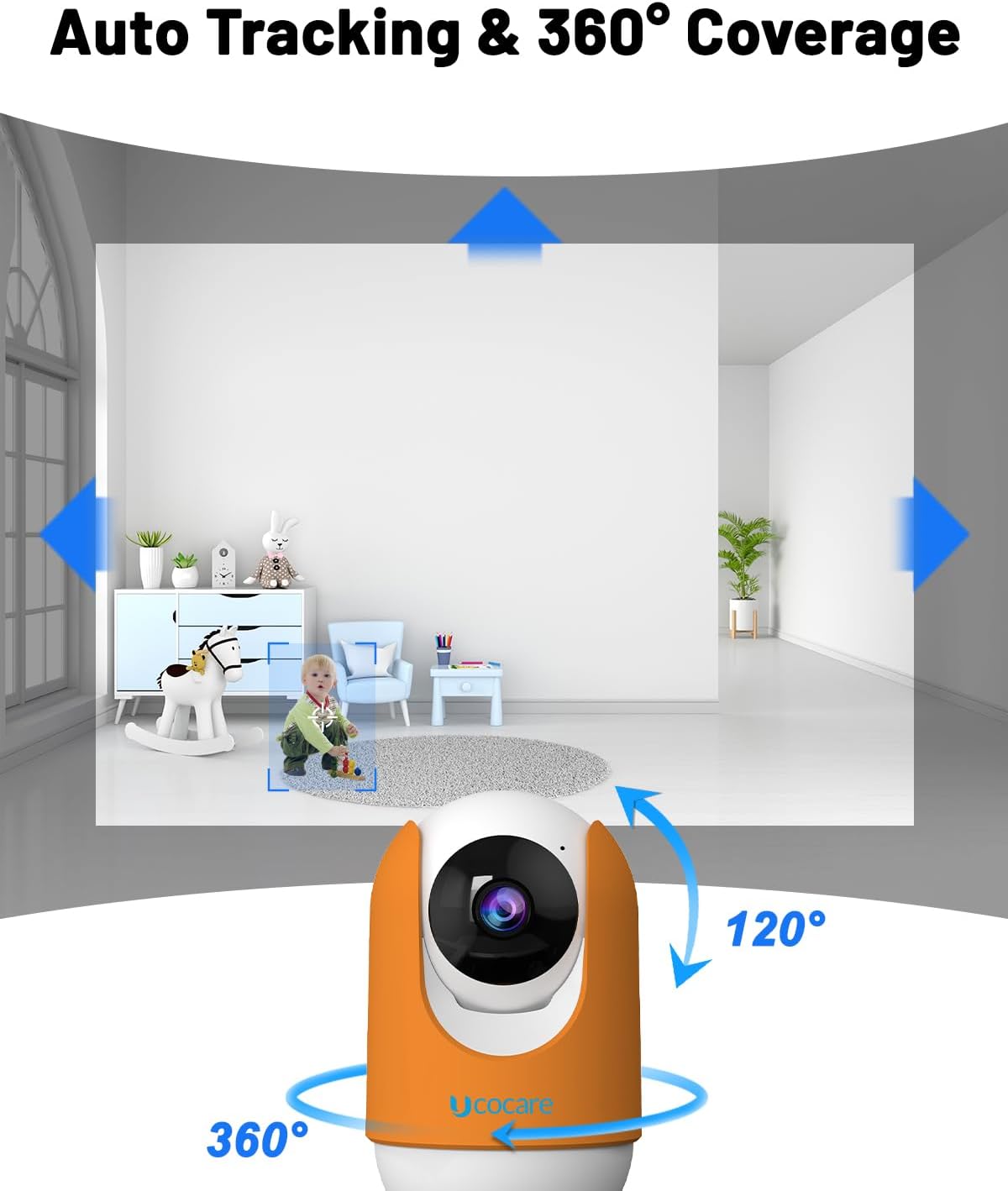
Image: Illustrates the camera's 360° pan and 120° tilt capabilities, along with its auto-tracking function.

Image: Depicts the two-way audio feature, allowing interaction with individuals near the camera.
6.2 Recording and Storage
The camera supports multiple recording options:
- Micro SD Card: The included 32GB Micro SD card allows for local storage of video recordings. The camera supports both event-triggered and continuous recording modes.
- Cloud Storage: An optional cloud storage service is available for secure off-site backup of your recordings. Refer to the app for subscription details.
- NVR (Network Video Recorder): The camera can integrate with compatible NVR systems for 24/7 video recording.

Image: Overview of available storage options: 32GB SD card (included), NVR for 24/7 recording, and cloud storage.
6.3 Detection and Alerts
Configure detection settings in the app to receive timely notifications:
- Cry and Sound Detection: The camera detects baby crying or other significant noises and sends instant alerts to your smartphone.
- Human Detection: Advanced algorithms identify human presence, reducing false alarms.
- Motion Tracking: When motion is detected, the camera automatically tracks the moving object within its field of view.

Image: Demonstrates the cry detection feature, showing an alert notification on a smartphone when a baby cries.

Image: Illustrates human and pet detection with instant alerts sent to a smartphone.
6.4 Environmental Monitoring and Lullabies
- Temperature and Humidity: Monitor the room's temperature and humidity levels directly from the app to ensure a comfortable environment.
- Lullabies: Access 14 pre-recorded lullabies through the app to play for your baby.

Image: Shows the camera playing lullabies to a sleeping child, indicating the soothing feature.
6.5 Smart Home Integration
The UCOCARE 2.5K Baby Monitor is compatible with:
- Google Assistant: Use voice commands to view the camera feed on compatible smart displays.
- Amazon Alexa: Use voice commands to view the camera feed on compatible Echo Show devices.

Image: Demonstrates compatibility with Google Assistant and Amazon Alexa for viewing the camera feed on smart displays.
6.6 Privacy Protection
Manage your privacy settings within the app:
- Lens On/Off: Manually turn the camera lens on or off for real-time monitoring and recording.
- Privacy Schedule: Set specific times for the camera to automatically turn off or on.

Image: Illustrates the privacy protection features available in the app, including lens control and scheduling.
6.7 Family Sharing
The UCOCARE app supports family-sharing functionality, allowing multiple authorized users within your household to access and monitor the camera feed simultaneously. This feature can be configured within the app's settings.

Image: Depicts the family sharing feature, enabling multiple users to view the camera feed simultaneously.
7. Maintenance
7.1 Cleaning the Camera
To maintain optimal performance, regularly clean the camera lens and exterior:
- Ensure the camera is powered off and unplugged before cleaning.
- Use a soft, dry, lint-free cloth to gently wipe the lens and camera body.
- Do not use harsh chemicals, abrasive cleaners, or solvents, as these can damage the device.
7.2 Firmware Updates
Periodically check the UCOCARE app for available firmware updates. Updates often include performance improvements, new features, and security enhancements. Follow the in-app instructions to perform any necessary updates.
8. Troubleshooting
If you encounter issues with your UCOCARE 2.5K Baby Monitor, refer to the following common problems and solutions:
- Camera not connecting to Wi-Fi:
- Ensure your Wi-Fi network is active and the password is correct.
- Verify the camera is within range of your Wi-Fi router.
- Try restarting your router and the camera.
- Confirm you are selecting the correct Wi-Fi band (2.4GHz or 5GHz) if your router supports both.
- Poor video quality:
- Check your internet connection speed. A stable and fast connection is required for 2.5K streaming.
- Ensure the camera lens is clean and free from obstructions.
- Adjust the camera's position to optimize lighting conditions.
- No alerts received:
- Verify that detection settings (cry, sound, human detection) are enabled in the app.
- Check your phone's notification settings to ensure the UCOCARE app is permitted to send notifications.
- Ensure the camera has a stable internet connection.
- Two-way audio not working:
- Check the volume settings on your smartphone and within the app.
- Ensure the microphone and speaker icons are enabled in the live view.
- Test the feature in a quiet environment to rule out background noise interference.
- Camera not responding:
- Unplug the camera from the power source, wait 10 seconds, and plug it back in.
- If the issue persists, perform a factory reset (refer to the app or product support for specific instructions).
9. Specifications
| Feature | Specification |
|---|---|
| Model Number | OB-2K01 |
| Video Capture Resolution | 2.5K |
| Wireless Communication Technology | Wi-Fi (2.4GHz & 5GHz) |
| Pan/Tilt Range | 355° Horizontal, 120° Vertical |
| Digital Zoom | 4x |
| Frame Rate | 30 fps |
| Storage | 32GB Micro SD Card (Included), Cloud Storage, NVR |
| Special Features | Night Vision, Cry/Sound Detection, Human Detection, Auto-Tracking, Temperature/Humidity Sensor, Lullabies, Two-Way Audio |
| Compatibility | Google Assistant, Amazon Alexa, Smartphone, Tablet |
| Power Source | Corded Electric (5 Volts) |
| Mounting Type | Surface Mount, Wall Mount, Ceiling Mount |
| Dimensions (L x W x H) | 14 x 13 x 8 cm |
| Item Weight | 390 g |
| Indoor/Outdoor Usage | Indoor |
10. Warranty and Support
10.1 Warranty Information
Your UCOCARE 2.5K Baby Monitor is covered by a 3-year manufacturer's warranty. This warranty covers defects in materials and workmanship under normal use. Please retain your proof of purchase for warranty claims.
10.2 Customer Support
For technical assistance, troubleshooting, or any questions regarding your product, please contact UCOCARE customer support:
- Email: support@ucocare.net
Our dedicated support team is available to assist you.


