
HOCO W41_pink
HOCO W41 Bluetooth Headphones User Manual
Model: W41_pink
1. Introduction
Thank you for choosing the HOCO W41 Bluetooth Headphones. This manual provides detailed instructions for setting up, operating, and maintaining your headphones to ensure optimal performance and longevity. Please read this manual carefully before use and retain it for future reference.
2. Safety Information
- Do not expose the headphones to extreme temperatures, humidity, or corrosive substances.
- Avoid dropping or subjecting the headphones to strong impacts.
- Do not disassemble or modify the headphones. This will void the warranty.
- Clean the headphones with a soft, dry cloth. Do not use harsh chemicals or abrasive materials.
- Listen at moderate volume levels to prevent hearing damage.
3. Package Contents
Please check the package contents upon unboxing:
- HOCO W41 Bluetooth Headphones (Pink)
- Charging Cable
- Audio Cable (3.5mm)
- User Manual
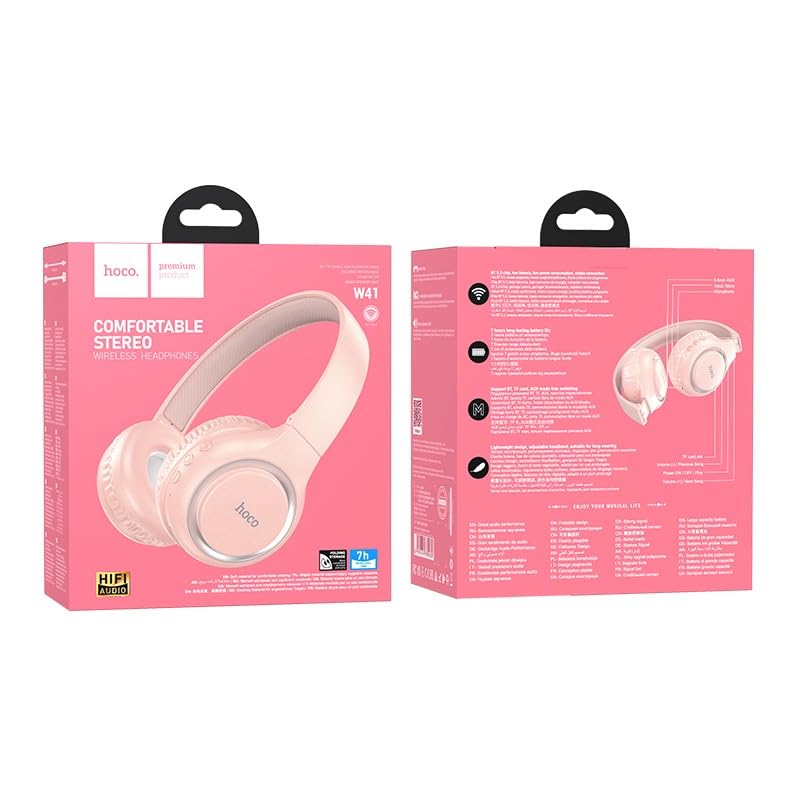
Image: The HOCO W41 Bluetooth Headphones in their retail packaging, showcasing the pink color variant.
4. Product Overview
Familiarize yourself with the various parts and controls of your HOCO W41 headphones.
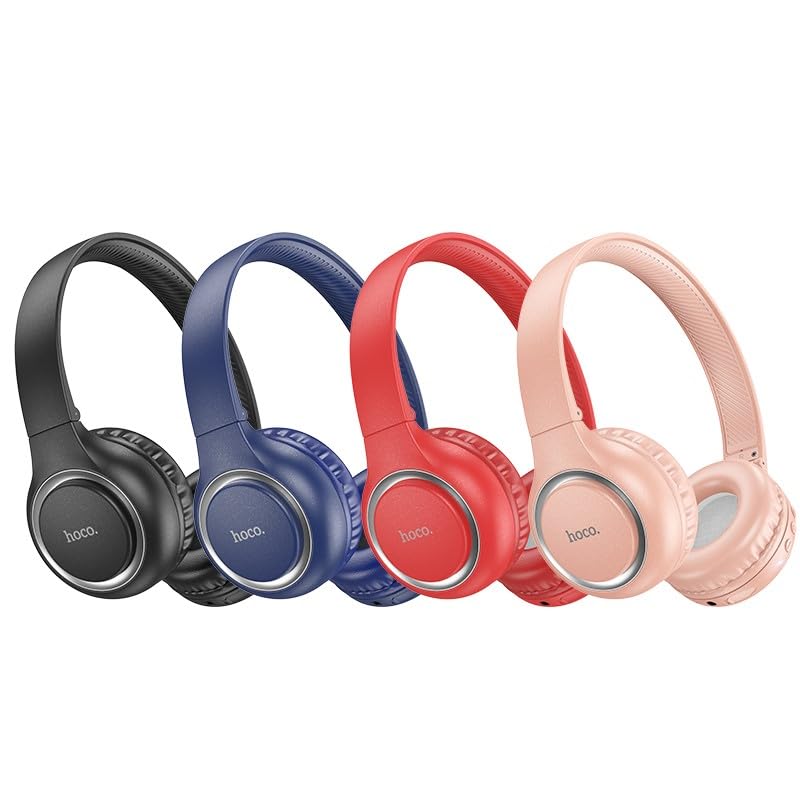
Image: A lineup of HOCO W41 headphones in various colors (black, blue, red, pink), illustrating the overall design.
Controls and Ports:
- Power Button: On/Off, Play/Pause, Answer/End Call.
- Volume Up (+): Increase volume, Next track (long press).
- Volume Down (-): Decrease volume, Previous track (long press).
- Microphone: For hands-free calls.
- Charging Port: USB (Type-C, if applicable, otherwise micro USB).
- 3.5mm Audio Jack: For wired connection.
- LED Indicator: Shows power, charging, and pairing status.
5. Setup
5.1 Charging the Headphones
- Connect the charging cable to the charging port on the headphones.
- Connect the other end of the cable to a USB power source (e.g., computer USB port, wall adapter).
- The LED indicator will illuminate (e.g., red) during charging and turn off or change color (e.g., blue) when fully charged.
- A full charge takes approximately 1 hour.
5.2 Bluetooth Pairing
- Ensure the headphones are fully charged.
- Press and hold the Power button for approximately 3-5 seconds until the LED indicator flashes rapidly (e.g., blue and red alternately), indicating pairing mode.
- On your device (smartphone, tablet, laptop), enable Bluetooth and search for available devices.
- Select "HOCO W41" from the list of found devices.
- Once paired, the LED indicator will stop flashing and may show a solid blue light. A voice prompt may confirm the connection.
- The headphones will automatically reconnect to the last paired device when powered on, if the device's Bluetooth is active and within range.
5.3 Wired Connection (3.5mm Audio Cable)
- Insert one end of the 3.5mm audio cable into the audio jack on the headphones.
- Insert the other end into the 3.5mm audio output jack of your device.
- The headphones will automatically switch to wired mode. Bluetooth functionality will be disabled.
6. Operating Instructions
6.1 Power On/Off
- Power On: Press and hold the Power button for 3 seconds. The LED indicator will flash blue.
- Power Off: Press and hold the Power button for 3 seconds. The LED indicator will turn off.
6.2 Music Playback
- Play/Pause: Short press the Power button.
- Volume Up: Short press the "+" button.
- Volume Down: Short press the "-" button.
- Next Track: Long press the "+" button.
- Previous Track: Long press the "-" button.
6.3 Call Management
- Answer/End Call: Short press the Power button.
- Reject Call: Long press the Power button for 2 seconds.
- Redial Last Number: Double-press the Power button.
6.4 Voice Assistant
- Activate Voice Assistant (Siri/Google Assistant): Triple-press the Power button.
7. Maintenance
- Cleaning: Use a soft, slightly damp cloth to wipe the earcups and headband. Do not use alcohol, benzene, or other chemical cleaners.
- Storage: When not in use, store the headphones in a cool, dry place, away from direct sunlight and extreme temperatures.
- Battery Care: To prolong battery life, charge the headphones regularly, even if not used frequently. Avoid fully discharging the battery for extended periods.
8. Troubleshooting
| Problem | Possible Cause | Solution |
|---|---|---|
| Headphones do not power on. | Low battery. | Charge the headphones fully. |
| Cannot pair with device. | Headphones not in pairing mode; Device Bluetooth off; Too far from device. | Ensure headphones are in pairing mode (flashing LED). Turn on device Bluetooth. Move headphones closer to device. |
| No sound. | Volume too low; Not connected; Wrong audio output selected. | Increase volume on headphones and device. Re-pair headphones. Check device's audio output settings. |
| Sound distortion. | Interference; Device too far; Low battery. | Move away from sources of interference. Move closer to device. Charge headphones. |
9. Specifications
| Model Name: | W41_pink |
| Bluetooth Version: | 5.3 |
| Connectivity Technology: | Wireless (Bluetooth), Wired (3.5mm Jack) |
| Battery Life: | Up to 12 Hours Playtime |
| Charging Time: | Approximately 1 Hour |
| Earpiece Shape: | Over Ear |
| Microphone: | Built-in Microphone |
| Noise Control: | Sound Isolation |
| Water Resistance Level: | Water Resistant (Sweatproof) |
| Item Weight: | 180 g |
| Manufacturer: | HOCO |
| Country of Origin: | China |
10. Warranty and Support
The HOCO W41 Bluetooth Headphones come with a 1-Year Warranty from the date of purchase. This warranty covers manufacturing defects and workmanship under normal use.
The warranty does not cover:
- Damage caused by misuse, abuse, accident, or neglect.
- Unauthorized repair or modification.
- Normal wear and tear.
For warranty claims or technical support, please contact your retailer or the HOCO customer service department with your proof of purchase.
Contact Information: Please refer to the contact details provided on the product packaging or the official HOCO website for the most up-to-date support information.
Related documentsW41_pink


Ask a question about this manual
Ask about setup, troubleshooting, compatibility, parts, safety, or missing instructions. Manuals+ will review the question and use this page’s manual context to help answer it.