
1. Introduction
This manual provides essential information for the safe and efficient use of your Blackview Active 8 Pro Rugged Tablet. Please read this manual thoroughly before using the device to ensure optimal performance and longevity.
The Blackview Active 8 Pro is designed for durability and performance, featuring a ruggedized construction, a large-capacity battery, and advanced processing capabilities to support various demanding environments and tasks.

Figure 1: Blackview Active 8 Pro Rugged Tablet (Orange variant shown)
2. What's in the Box
Verify that all items are present in your product package:
- 1x Blackview Active 8 Pro Rugged Tablet
- 1x Stylus Pen
- 1x Tempered Glass Screen Film
- 1x 33W Charger Cable
- 1x Date Cable (Type C)
- 1x OTG USB Cable
- 1x SIM/TF Card Pin
- 1x TÜV Instruction
- 1x Screwdriver

Figure 2: Package contents of the Blackview Active 8 Pro.
3. Setup
3.1. SIM/TF Card Installation
The tablet supports dual Nano SIM cards or one Nano SIM card and one TF (MicroSD) card for expanded storage up to 1TB.
- Locate the SIM/TF card slot on the side of the tablet.
- Use the provided SIM/TF Card Pin to gently eject the tray.
- Place your Nano SIM card(s) and/or TF card into the designated slots on the tray. Ensure correct orientation.
- Carefully reinsert the tray into the tablet until it clicks into place.
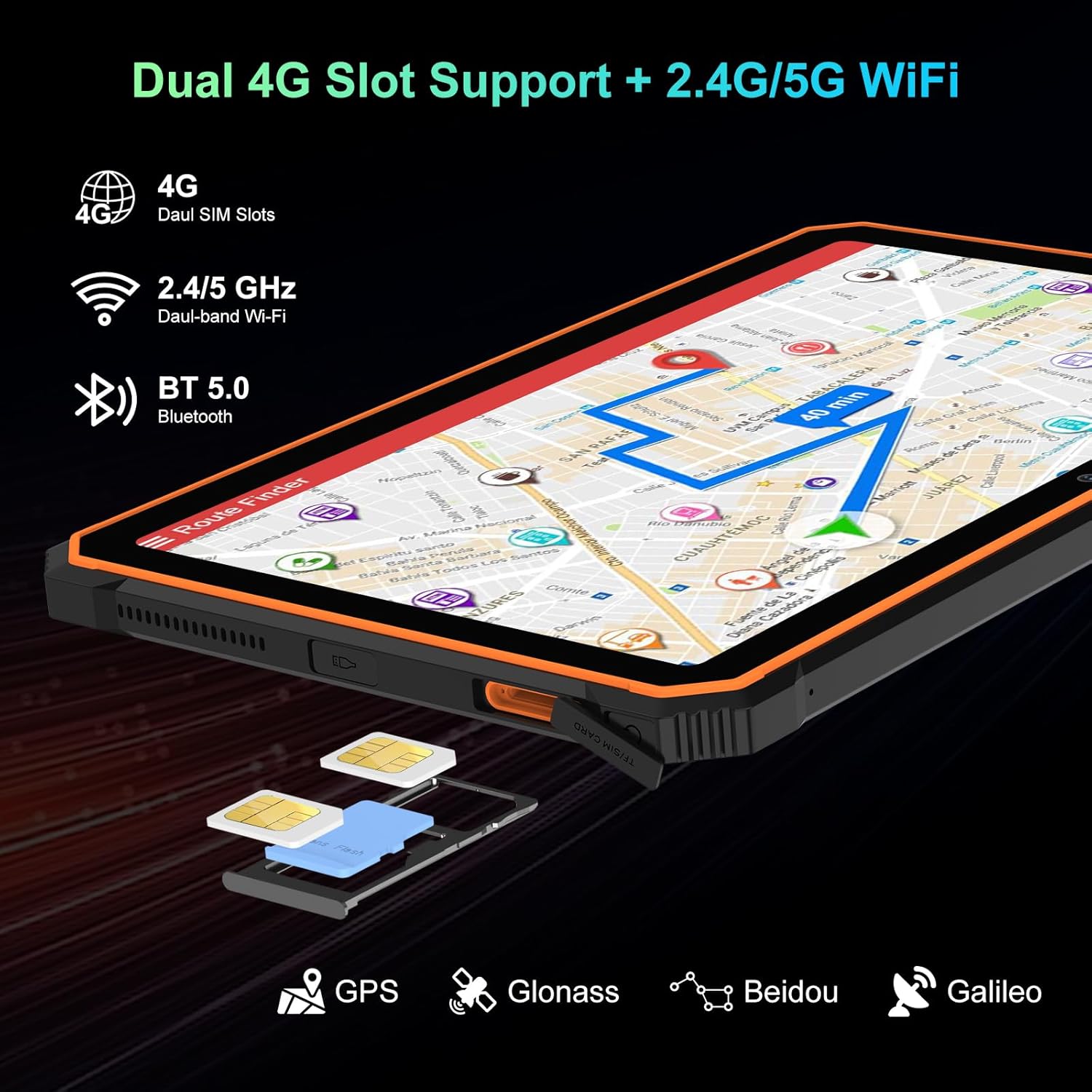
Figure 3: SIM/TF card slot location.
3.2. Initial Power On and Charging
- Press and hold the Power Button (located on the side) until the Blackview logo appears.
- For first-time use, or if the battery is low, connect the tablet to the 33W Charger Cable and power adapter.
- Allow the tablet to charge fully before extensive use. The 22000mAh battery provides extended usage times.

Figure 4: Battery and charging overview.
Video 1: Unboxing the Blackview Active8Pro Rugged Tablet. This video demonstrates the unboxing process and initial handling of the tablet.
4. Operating Instructions
4.1. Basic Navigation
- Power Button: Press and hold to power on/off or restart. Press briefly to lock/unlock the screen.
- Volume Buttons: Adjust media volume, ringtone volume, and notification volume.
- Touchscreen: Navigate the Android 14 interface using taps, swipes, and pinch-to-zoom gestures.
4.2. Display Features
The 10.36-inch 2.4K FHD+ IPS display offers vibrant visuals. It includes three eye-care modes and TÜV Rheinland Low Blue Light certification for comfortable viewing.
- Access display settings to adjust brightness, activate eye-care modes (Reading Mode, Night Light, Dark Mode), and customize color temperature.
- The display is protected by Tough Corning Gorilla Glass 5.

Figure 5: Display and audio features.
4.3. Camera Usage
The tablet is equipped with a 48MP Samsung rear camera and a 16MP Hynix front camera. It supports Google Lens and Arcsoft technology for enhanced imaging.
- Open the Camera app from the home screen or app drawer.
- Switch between front and rear cameras, select photo or video mode, and explore features like Beauty Mode, Improved HDR, and Portrait Mode.
- The tablet also features an Underwater Camera mode for capturing photos and videos while submerged.
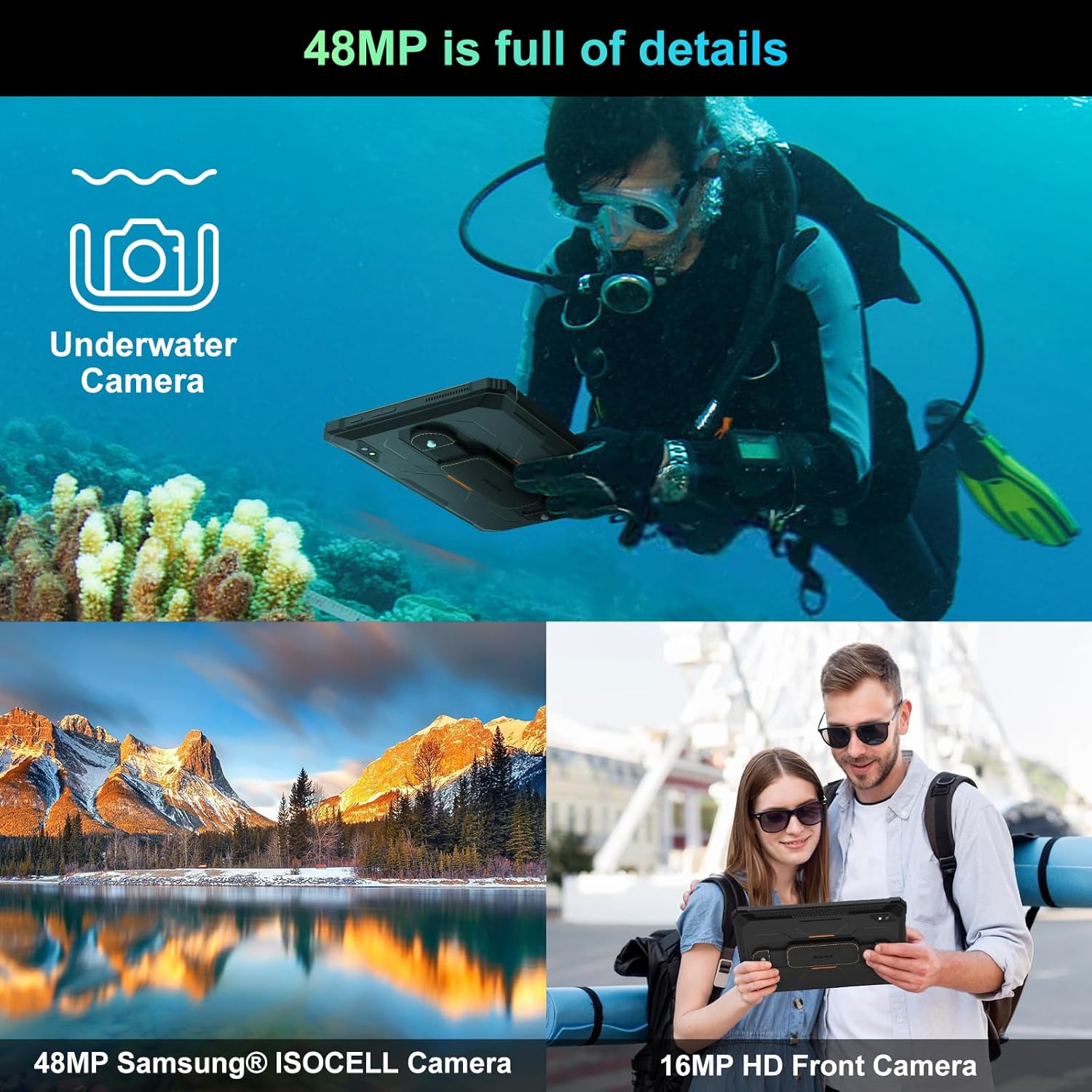
Figure 6: Camera capabilities.
4.4. Connectivity
The tablet supports 4G LTE, 5G WiFi, Bluetooth 5.0, and multiple navigation systems (GPS, Glonass, Beidou, Galileo).
- Access Settings > Network & Internet to manage Wi-Fi, mobile data, and hotspot settings.
- Access Settings > Connected Devices to manage Bluetooth connections.
4.5. OTG Reverse Charging
The tablet's OTG (On-The-Go) function allows it to act as a power bank to charge other compatible devices using the provided OTG USB Cable.
- Connect the OTG USB Cable to the tablet's Type C port.
- Connect your external device (e.g., smartphone, smartwatch) to the other end of the OTG USB Cable.
- The tablet will begin charging the connected device.

Figure 7: OTG Reverse Charging capability.
Video 2: Blackview Rugged Tablet Active 8Pro 22000mAh Android Tablet. This video highlights the tablet's features, including its large battery and OTG function.
5. Maintenance
5.1. Rugged Features
The Blackview Active 8 Pro is built to withstand harsh conditions, certified with IP68 (waterproof), IP69K (dustproof), and MIL-STD-810H (dropproof).
- Waterproof: Can be submerged in up to 1.5 meters of water for 30 minutes. Ensure all port covers are securely closed before exposure to water.
- Dustproof: Fully protected against dust ingress.
- Dropproof: Designed to withstand drops from up to 1.5 meters.

Figure 8: Ruggedness certifications.
Video 3: Active8Pro Waterproof and Drop-resistant Tablet. This video showcases the tablet's durability against water and drops.
5.2. Cleaning and Care
- Clean the screen with a soft, lint-free cloth. For stubborn smudges, use a screen cleaner designed for electronics.
- Avoid using harsh chemicals or abrasive materials.
- Ensure all ports are dry before charging or connecting accessories after water exposure.
6. Troubleshooting
If you encounter issues with your Blackview Active 8 Pro, try the following basic troubleshooting steps:
- Device not responding: Press and hold the Power Button for 10-15 seconds to force a restart.
- Charging issues: Ensure the charger cable and adapter are securely connected and undamaged. Try a different outlet.
- Connectivity problems: Toggle Wi-Fi or Bluetooth off and on. Restart the tablet.
- App crashes: Close the problematic app and reopen it. If the issue persists, clear the app's cache or reinstall it.
- Slow performance: Close unused apps, clear cache, or restart the tablet. Consider freeing up storage space.
7. Specifications
| Feature | Detail |
|---|---|
| Model | Active 8 Pro |
| Operating System | Android 14 |
| Processor | MediaTek Helio G99 (Octa-core, 3 GHz) |
| RAM | 24GB (8GB physical + 16GB extended) |
| Internal Storage | 256GB |
| Expandable Storage | Up to 1TB via TF card |
| Display Size | 10.36 inches |
| Screen Resolution | 2.4K FHD+ IPS (1200*2000 Pixels) |
| Battery Capacity | 22000mAh |
| Charging | 33W Fast Charging, OTG Reverse Charging |
| Rear Camera | 48MP (Samsung) |
| Front Camera | 16MP (Hynix) |
| Connectivity | 4G LTE, 5G WiFi (802.11ac), Bluetooth 5.0 |
| Navigation | GPS, Glonass, Beidou, Galileo |
| Ruggedness | IP68, IP69K, MIL-STD-810H |
| Dimensions | 10.09 x 6.53 x 0.66 inches |
| Weight | 2.15 pounds |
Video 4: Benchmark Score of Active8Pro Android 14 Rugged Tablet. This video demonstrates the tablet's performance capabilities.
Video 5: Battery Life of Active8Pro (22000mAh). This video illustrates the extended battery life of the tablet.
8. Warranty and Support
Blackview offers a 2-year warranty for this tablet. This includes free repair warranty and lifetime technician support.
For any questions or assistance, please contact Blackview customer service. They are committed to providing satisfactory solutions and ensuring a great user experience.

Figure 9: Blackview Two Year Warranty Support.


