
1. Introduction
This manual provides detailed instructions for the installation, operation, and maintenance of your CATCHFACE B17 Smart Fingerprint Door Lock. Please read this manual thoroughly before installation and use to ensure proper function and safety.

Figure 1: CATCHFACE B17 Smart Fingerprint Door Lock components and app interface.
2. Package List
Verify that all components are present in the package before beginning installation.

Figure 2: Included components in the CATCHFACE B17 Smart Fingerprint Door Lock package.
3. Setup
3.1 Door Compatibility and Preparation
Ensure your door meets the following specifications:
- Door Thickness: 1.37" - 1.88" (33mm - 50mm)
- Bore Hole Diameter: 2.125" (54mm)
- Door Hole Backset: 2.375" - 2.75" (60mm or 70mm)
The door handle is reversible for both left and right-handed doors. Locks may interfere with existing screen doors or storm doors. No drilling is required to install this lock if your door meets the standard US deadbolt bore specifications.
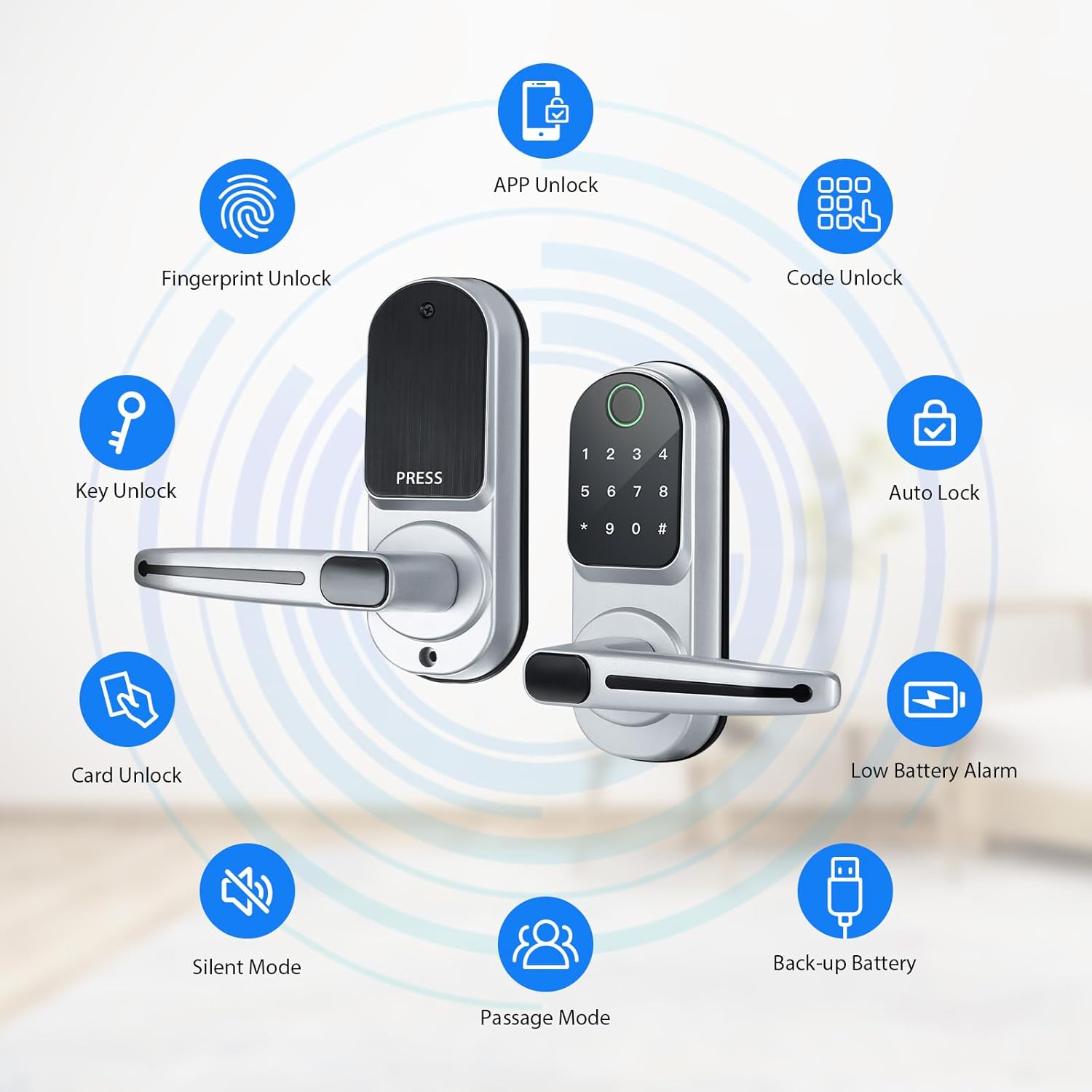
Figure 3: Door specifications for CATCHFACE B17 Smart Fingerprint Door Lock.
3.2 Physical Installation
Installation typically takes about 20 minutes with a screwdriver and a drill (if new holes are needed). Follow the detailed instructions in the included user manual for precise steps.
- Adjust the bolt to fit your door's backset (60mm or 70mm).
- Install the lock body into the door edge.
- Install the front panel, ensuring the data line passes through the door.
- Install the back panel, connecting the data line.
- Install 4 AAA alkaline batteries into the battery compartment.
- Install the handles, ensuring they are correctly oriented for your door's opening direction.

Figure 4: Physical installation steps.
Installation Video:
Video 1: This video demonstrates the physical installation process of the CATCHFACE Smart Lock, including preparing the door, installing the latch, mounting the panels, connecting wires, and securing the handles.
3.3 App Setup (TTLock App)
The CATCHFACE B17 Smart Fingerprint Door Lock uses the TTLock app for smart functionalities. Download the TTLock app from your smartphone's app store.
- Register an account using your email or phone number.
- Log in to your registered account.
- Ensure your phone is within 2 meters of the lock.
- Touch any key on the lock panel to activate the keypad.
- In the app, click '+' to add a lock. The app will scan for nearby locks.
- Select your lock from the list and name it.
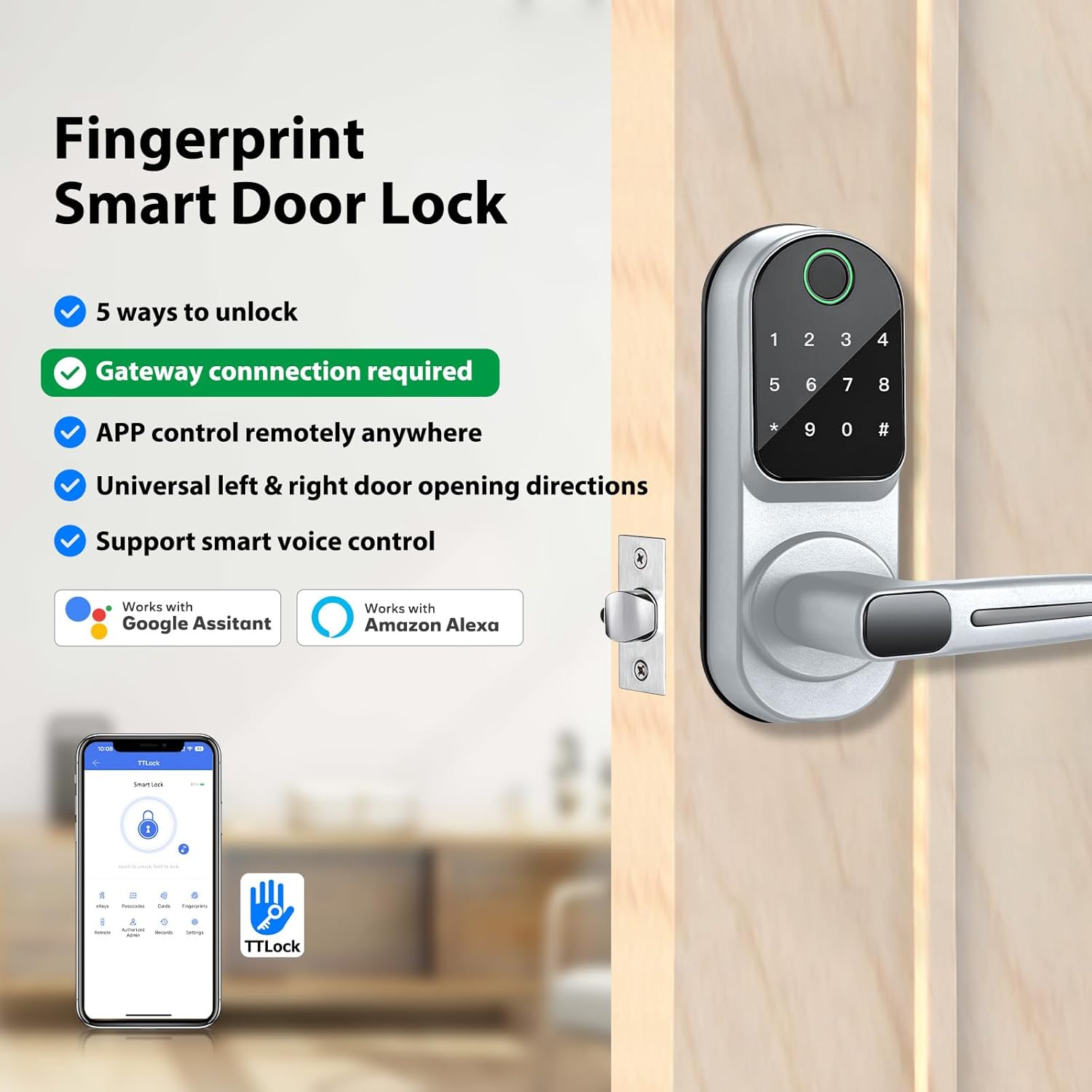
Figure 5: TTLock App main interface.
App Setup Video:
Video 2: This video provides a comprehensive guide to setting up the CATCHFACE Smart Lock using the TTLock app, including account registration, adding the lock, and configuring various access methods.
3.4 Optional WiFi Gateway Setup
For remote control functionalities (unlock/lock from anywhere, remote code setup, real-time access logs), an optional WiFi Gateway (sold separately, ASIN: B085HFFF9T) is required.
- Power on the gateway; the light will flash alternately in red and blue.
- In the TTLock app, navigate to 'Gateway' from the home page list.
- Click your gateway model (e.g., G2).
- Choose the WiFi network your phone is connected to and input the WiFi password.
- The gateway will be successfully added.
Gateway Setup Video:
Video 3: This video guides you through the installation and setup of the G2 WiFi Gateway, enabling remote access and control for your CATCHFACE Smart Lock.
4. Operating the Lock
4.1 Unlock Methods
The CATCHFACE B17 Smart Fingerprint Door Lock offers multiple ways to unlock:
- Fingerprint: Place your registered fingerprint on the sensor.
- Anti-peep Virtual Password: Enter your password with random digits before or after to prevent onlookers from guessing your code.
- Smart Key Cards (IC Cards): Tap a registered key card against the lock.
- Smartphone (TTLock App): Use the app to unlock/lock the door via Bluetooth (or remotely with Gateway).
- Physical Key: Use the included mechanical keys for emergency access.

Figure 6: Overview of unlock methods and features.
IC Card Usage Video:
Video 4: This video demonstrates how to use the CATCHFACE Smart IC Card Key Fob to unlock the smart lock.
4.2 Adding Users (Fingerprints, Passcodes, Cards)
Manage access for various users through the TTLock app. You can create permanent, timed, one-time, or recurring access credentials.
- Fingerprints: In the app, go to 'Fingerprints' and follow the prompts to register new fingerprints.
- Passcodes: In the app, go to 'Passcodes' to generate various types of passcodes (permanent, timed, one-time, custom, recurring).
- Cards: In the app, go to 'Cards' to add new smart key cards.
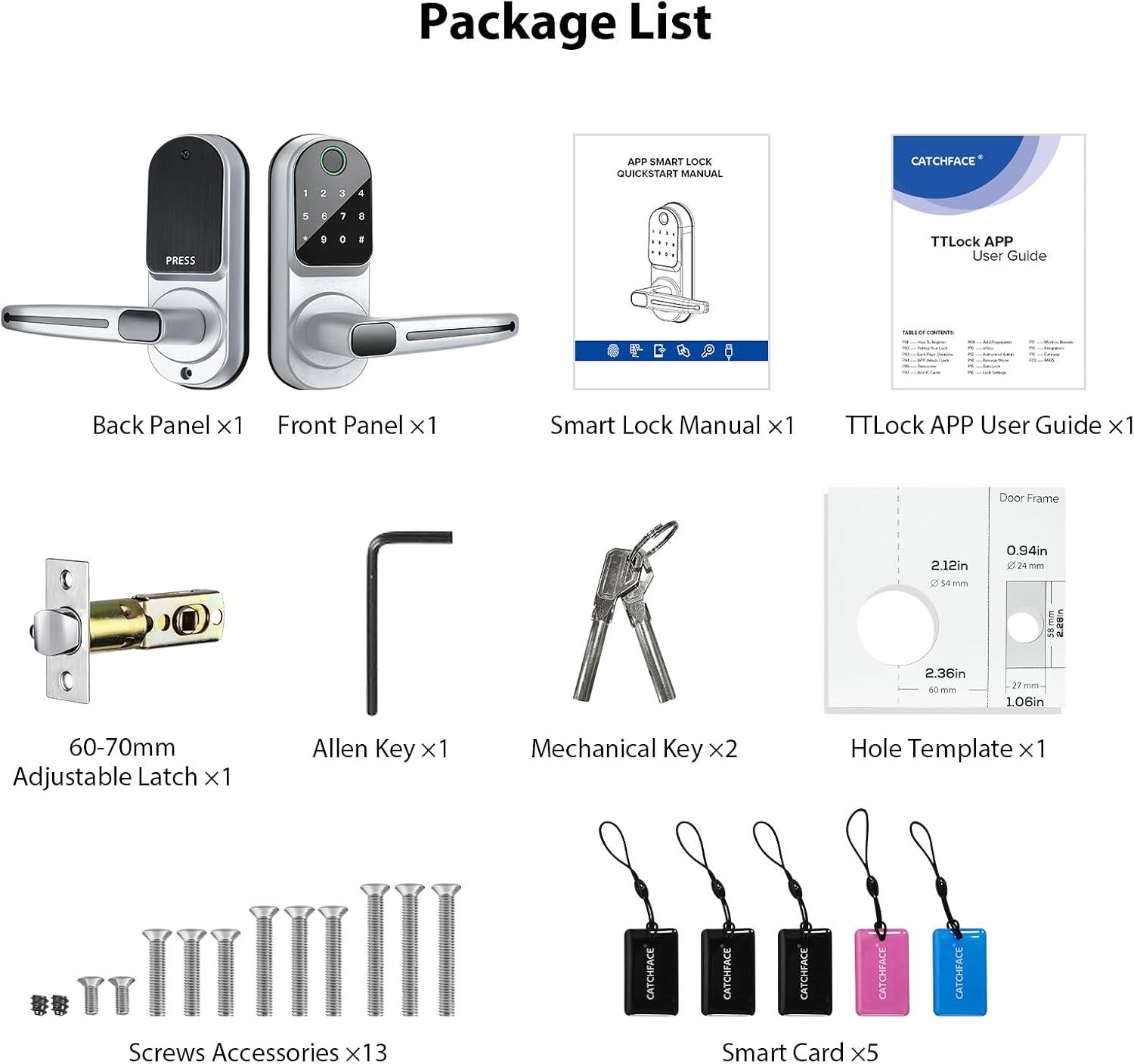
Figure 7: Multiple passcode types available in the TTLock App.
4.3 Passage Mode
Passage Mode allows the lock to remain unlocked during a specific time period until it is manually locked. This is useful for high-traffic times or events.
- In the TTLock app, go to 'Settings' and select 'Passage Mode'.
- Toggle 'Passage Mode' on.
- Set the days and time period for which Passage Mode should be active.
- Click 'Save' to apply the settings.

Figure 8: Passage Mode settings in the TTLock App.
4.4 Auto-Lock
The Auto-Lock feature automatically locks the door after a set delay once it has been unlocked. This enhances security by ensuring the door is never left unlocked unintentionally.
- In the TTLock app, go to 'Settings' and select 'Auto Lock'.
- Toggle 'Auto Lock' on.
- Set the desired delay time (e.g., 5s, 10s, 15s, 30s, or custom).
- Click 'Save' to apply the settings.
4.5 Activity Records and Time Attendance
The TTLock app provides a comprehensive record of all lock activity, including who accessed the door, when, and by what method (fingerprint, card, passcode, app). This feature can also be used for time attendance tracking.
- Access 'Records' in the app to view unlock and alarm logs.
- The 'Time Attendance' function can be enabled or disabled in the settings.

Figure 9: One-stop management and activity tracking.
5. Maintenance
5.1 Battery Replacement
The lock is powered by 4 AAA alkaline batteries. The TTLock app will provide a low battery alarm when replacement is needed.
- Remove the cover of the battery compartment on the interior side of the lock.
- Replace the old batteries with 4 new AAA alkaline batteries.
- Securely close the battery compartment cover.

Figure 10: Battery compartment.
5.2 General Care
To ensure the longevity and optimal performance of your smart lock:
- Avoid exposing the lock to extreme temperatures or direct water spray.
- Clean the lock's surface with a soft, dry cloth. Do not use abrasive cleaners or solvents.
- Regularly check for any loose screws or components and tighten them if necessary.
6. Troubleshooting
If you encounter issues with your CATCHFACE B17 Smart Fingerprint Door Lock, refer to the following common solutions:
| Issue | Possible Cause | Solution |
|---|---|---|
| Lock not responding | Dead batteries | Replace with new AAA alkaline batteries. Use the mechanical key for emergency access. |
| Fingerprint not recognized | Finger dirty/wet, sensor dirty, unregistered fingerprint | Ensure finger and sensor are clean and dry. Re-register fingerprint if needed. Try another registered fingerprint or alternative unlock method. |
| App not connecting to lock | Bluetooth off, phone too far, app glitch | Ensure Bluetooth is on and phone is within 2 meters. Restart the app or phone. Check app permissions. |
| Passcode not working | Incorrect code, timed code expired, virtual password error | Verify the passcode. Check if it's a timed or one-time code that has expired. Ensure correct entry with anti-peep digits. |
For further assistance, please contact customer support.
7. Specifications
| Feature | Detail |
|---|---|
| Brand | CATCHFACE |
| Model Name | B17-Silver TTlock Door Lock |
| Lock Type | Biometric Door Lock with App, Keyless entry, Smart Keypad Door Lock with Handle |
| Material | Zinc |
| Color | B17 Silver |
| Item Dimensions (L x W x H) | 2.44 x 3.34 x 7 inches |
| Item Weight | 3.98 pounds |
| Power Supply | 4 pcs AAA alkaline batteries (not included) |
| Connectivity Protocol | Bluetooth |
| Controller Type | Amazon Alexa, Android, Google Assistant, iOS (with optional WiFi Gateway) |
| Special Features | Biometric fingerprint, Bluetooth keypad, Weather Resistant, Anti-Peeping Password, Back-Lit Keypad, Break-in Detection, One-Touch Lock, Passage Mode, Time Attendance, Remote Control (with optional Gateway) |
8. Warranty
Specific warranty details are not provided in the product information. Please refer to the product packaging or contact the manufacturer directly for warranty information.
9. Support
For any technical questions or support, please email us at VGFKStore@Tom.com for technical services.


