1. Product Overview
The SONOFF Smart Light Switch (Model T5-4C-120) is a sophisticated 4-gang, 1-way touch LED switch designed to enhance your home's aesthetic and smart capabilities. It features a full-touch interface and built-in LED lighting effects. This smart switch offers remote control via the eWeLink app, allowing you to manage your home appliances from anywhere. It supports scheduling and timer functions for automated lighting control and is compatible with voice assistants like Alexa and Google Home for hands-free operation. The device also features changeable faceplates, enabling customization to match your interior design.

Image 1.1: SONOFF Smart Light Switch T5-4C-120 and its retail packaging.
2. Installation and Setup
2.1 Wiring Requirements
This smart light switch requires a neutral wire for proper installation. Ensure that your electrical box has a neutral wire available before proceeding with installation. If you are unsure, consult a qualified electrician.
2.2 Physical Installation
- Power Off: Before beginning, turn off the power to the light switch circuit at your circuit breaker to prevent electrical shock.
- Remove Old Switch: Carefully remove your existing wall switch from the electrical box.
- Identify Wires: Identify the Live (Line), Load, and Neutral wires. The SONOFF T5-4C-120 requires a neutral wire.
- Connect Wires: Connect the corresponding wires from your electrical box to the terminals on the SONOFF smart switch according to the wiring diagram provided in the product packaging. Ensure all connections are secure.
- Mount Switch: Gently push the switch into the electrical box and secure it with screws. Attach the faceplate.
- Power On: Restore power at the circuit breaker.

Image 2.1: Installation dimensions and compatibility with standard electrical boxes (120 Type for US).
2.3 App Pairing (eWeLink)
- Download App: Download the eWeLink app from your smartphone's app store (iOS or Android).
- Register/Login: Create an eWeLink account or log in if you already have one.
- Add Device: Follow the in-app instructions to add your SONOFF Smart Light Switch. This typically involves putting the device into pairing mode (refer to the quick start guide for specific button presses) and connecting to your 2.4GHz Wi-Fi network.
2.4 Voice Assistant Integration
The SONOFF Smart Light Switch is compatible with Amazon Alexa and Google Home. Once paired with the eWeLink app, you can link your eWeLink account to your Alexa or Google Home app to enable voice control.

Image 2.2: The smart switch supports voice control commands through compatible smart home platforms.
3. Operating Instructions
3.1 Touch Control Gestures
The SONOFF Smart Light Switch features a full-touch panel with multiple gesture controls:
- Short Press: A brief touch on any of the four sections will toggle the on/off state of the corresponding light channel.
- Swipe: Swiping up or down on the touch panel can trigger pre-configured smart scenes within the eWeLink app.
- Multi-finger Touch: Using multiple fingers to touch the panel simultaneously can activate or deactivate ambient lighting effects or other programmed functions.

Image 3.1: Visual guide to the various touch gestures supported by the smart switch.
3.2 Multisensory Feedback (LED & Sound)
The switch provides multisensory feedback for user interaction:
- Lighting Effects: The integrated LED frame lights activate with light transition effects to dynamically indicate the channel states (on/off) and other functions.
- Sound Effects: A built-in speaker emits sound effects to confirm your on/off actions or other interactions.
- Vibration Effects: The built-in motor provides haptic feedback, causing the touched area to vibrate, simulating a physical button press.

Image 3.2: Explanation of the visual, auditory, and tactile feedback mechanisms.
Video 3.1: Demonstration of various light and sound effects configurable on the SONOFF T5 smart switch.
3.3 Scheduling and Timer Functions
Utilize the eWeLink app to set up schedules and timers for your lights. This allows for automated control, such as turning lights on at dusk or off at a specific time, enhancing convenience and energy efficiency.

Image 3.3: The switch supports timer functions and smart scenes for automated control.
3.4 Ambient Light Modes
The TX Ultimate features 8 different ambient light modes, which can be used to set the mood in a room, act as a night light, or simply decorate your space. These modes can be configured via the eWeLink app.
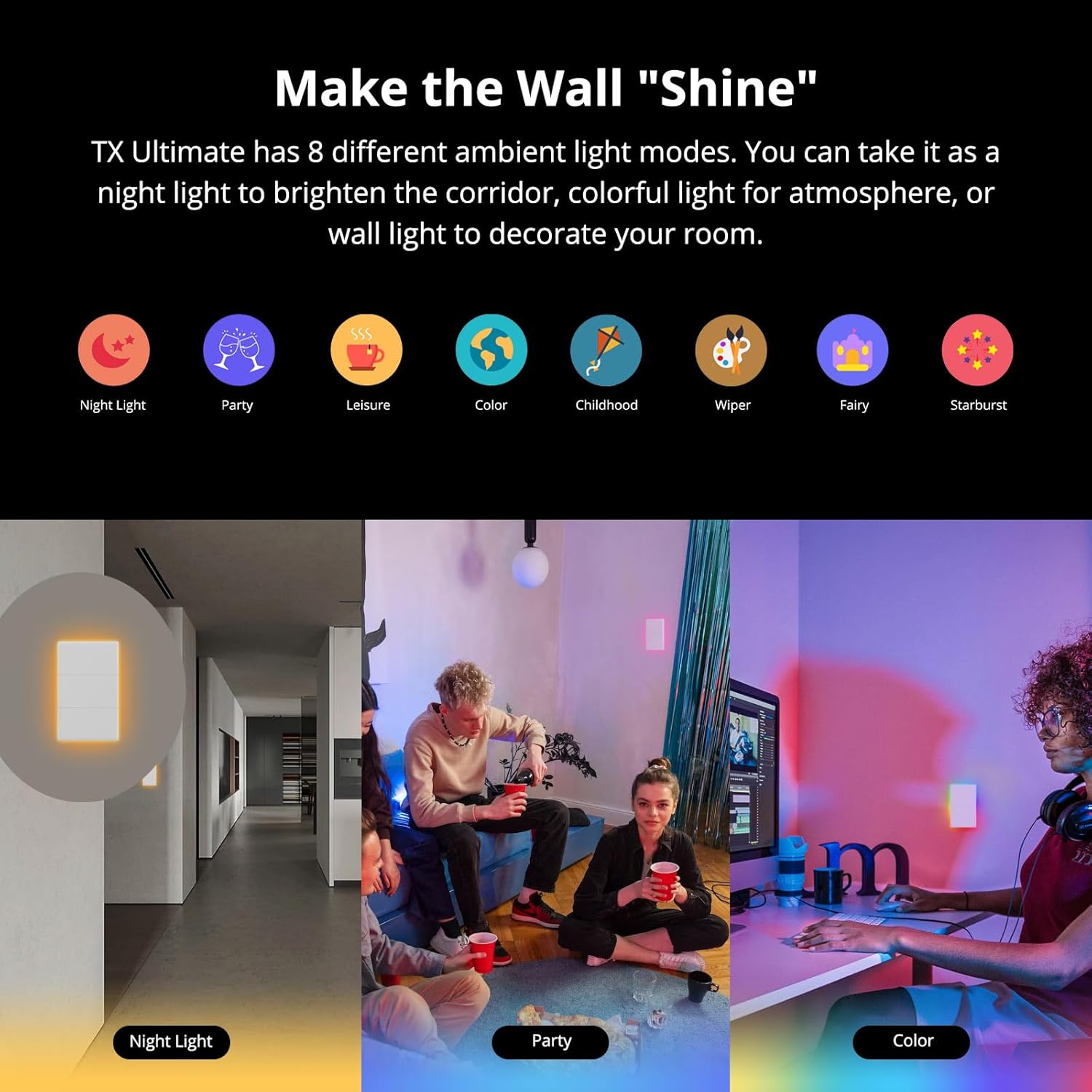
Image 3.4: Examples of various ambient light modes, including Night Light, Party, and Color.
3.5 Changeable Faceplates
The faceplate of the SONOFF Smart Light Switch is replaceable, allowing you to customize its appearance to match your home decor. Additional themed faceplates (e.g., cartoon designs, star styles) are sold separately.

Image 3.5: The switch offers replaceable faceplates for personalized styling.
4. Care and Maintenance
- Cleaning: To clean the switch, gently wipe the surface with a soft, dry cloth. Do not use abrasive cleaners, solvents, or excessive moisture, as this may damage the device or cause electrical hazards.
- Environment: Avoid exposing the switch to extreme temperatures, high humidity, or direct sunlight.
- Safety: Do not attempt to disassemble or repair the switch yourself. Refer to qualified personnel for any repairs.
5. Troubleshooting
| Issue | Possible Cause | Solution |
|---|---|---|
| Switch not powering on after installation. | Incorrect wiring, missing neutral wire, or circuit breaker tripped. | Verify all wiring connections, especially the neutral wire. Check your circuit breaker and reset if necessary. If issues persist, consult a qualified electrician. |
| Cannot pair with eWeLink app. | Incorrect Wi-Fi password, 5GHz Wi-Fi network, or device not in pairing mode. | Ensure you are connecting to a 2.4GHz Wi-Fi network. Double-check your Wi-Fi password. Put the device into pairing mode as per the quick start guide. Move the switch closer to your Wi-Fi router. |
| Voice control not working. | eWeLink account not linked to voice assistant, or incorrect device name. | Ensure your eWeLink account is correctly linked in the Alexa or Google Home app. Verify the device name used in voice commands matches the name in the app. |
| Touch response is inconsistent. | Dirty surface or temporary software glitch. | Clean the touch surface with a soft, dry cloth. Try restarting the switch by turning off and on the power at the circuit breaker. |
| Switch disconnects frequently. | Weak Wi-Fi signal or network interference. | Ensure the switch is within good range of your Wi-Fi router. Reduce interference from other 2.4GHz devices. Consider a Wi-Fi extender if necessary. |
Note: This device is designed to work with the eWeLink app for full functionality and smart features. While it can be integrated with other smart home platforms via eWeLink, direct compatibility with other apps may vary.
6. Technical Specifications
| Specification | Value |
|---|---|
| Model | T5-4C-120 |
| Product Dimensions | 1.77 x 0.51 x 0.39 inches; 9.91 ounces |
| Operation Mode | ON-OFF |
| Current Rating | 16 Amps |
| Operating Voltage | 240 Volts |
| Contact Type | Normally Closed |
| Connector Type | Clamp |
| Terminal | Screw |
| Circuit Type | 1-way |
| Mounting Type | Wall Mount |
| Manufacturer | SONOFF |

Image 6.1: Detailed specifications including dimensions, input, output, and certifications.
7. Warranty and Support
For warranty information, please refer to the official SONOFF website or the warranty card included with your product. SONOFF typically provides a standard manufacturer's warranty against defects in materials and workmanship.
Extended protection plans may be available for purchase separately to provide additional coverage beyond the standard warranty period. For technical support, troubleshooting assistance, or product inquiries, please visit the official SONOFF support page or contact their customer service directly.
Online Resources:
- SONOFF Official Website: www.sonoff.com
- eWeLink App Support: Refer to the support section within the eWeLink application.


