
Introduction
This manual provides detailed instructions for the Razer BlackWidow V4 X mechanical gaming keyboard. It covers setup, operation, maintenance, and troubleshooting to ensure optimal performance and longevity of your device. Please read this manual thoroughly before using the keyboard.
Package Contents
- Razer BlackWidow V4 X Mechanical Gaming Keyboard
- USB Cable
- Important Product Information Guide (not included in this digital manual)
Setup
Connecting the Keyboard
- Locate an available USB-A port on your computer.
- Connect the USB cable from the Razer BlackWidow V4 X keyboard to the USB-A port on your computer.
- The keyboard will automatically install necessary drivers. Allow a few moments for the installation to complete.
- For full functionality and customization, download and install the Razer Synapse software from the official Razer website.

Image: The Razer BlackWidow V4 X keyboard, showcasing its full layout and RGB lighting, connected via USB cable.
Operating Instructions
Razer Yellow Mechanical Switches
The Razer BlackWidow V4 X is equipped with Razer Yellow Mechanical Switches. These switches are designed for rapid and silent keystrokes, featuring a low actuation distance of 1.2 mm and a light actuation force of 45g. Integrated sound dampeners contribute to a quiet typing experience.

Image: A close-up view of Razer mechanical switches, highlighting the yellow linear switches for quick and precise execution.
Dedicated Macro Buttons
The keyboard features 6 dedicated macro buttons (M1-M6) located on the left side. These buttons can be programmed using Razer Synapse software to execute complex commands or sequences of actions with a single press, enhancing gameplay or productivity.

Image: A view of the left side of the keyboard, showing the 6 dedicated macro buttons (M1-M6) with customizable RGB lighting.
Multi-Function Roller and Media Keys
A multi-function roller and secondary media keys are positioned on the top right of the keyboard. These controls allow for convenient adjustment of settings such as volume and brightness, as well as media playback functions (play, pause, skip).

Image: Close-up of the multi-function roller and media keys located on the upper right side of the keyboard, used for practical control.
Razer Chroma RGB Lighting
The keyboard features Razer Chroma RGB technology, allowing for per-key backlighting customization. With over 16.8 million colors and various effects, you can personalize the keyboard's appearance. Dynamic lighting effects are also integrated with hundreds of supported games. Customization is managed through Razer Synapse software.
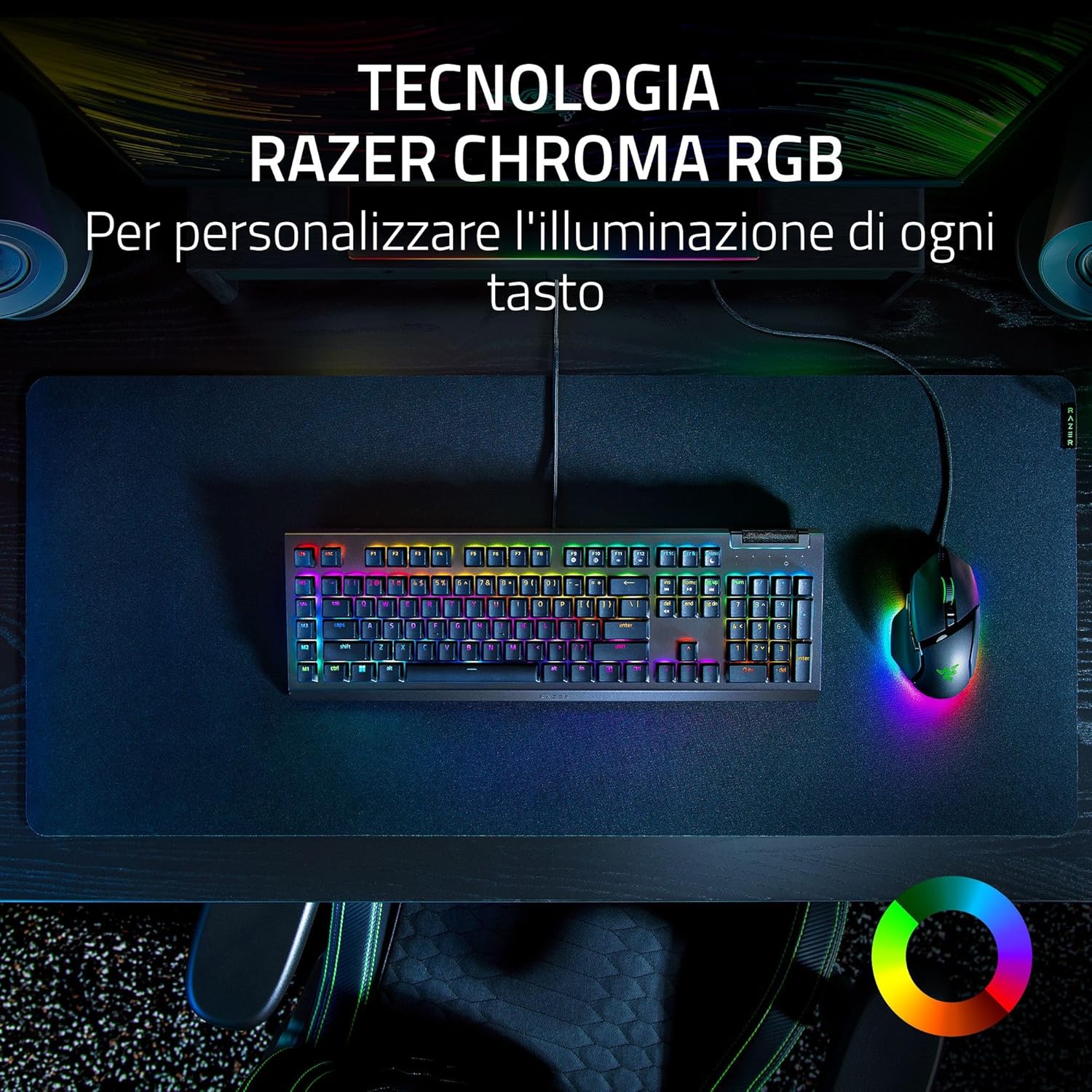
Image: The Razer BlackWidow V4 X keyboard on a desk, showcasing its vibrant Razer Chroma RGB lighting across all keys, alongside a matching mouse.
ABS Double-Shot Keycaps
The keycaps are constructed from ABS material using a double-shot injection process. This manufacturing method ensures durability and prevents legends from fading or wearing out even with intensive use.

Image: A close-up of the keyboard's ABS double-shot keycaps, illustrating their robust construction designed for intense use.
Acoustic Enhancements
The keyboard incorporates sound-dampening foam beneath the PCB and lubricated stabilizers. These features are designed to minimize noise and provide a more satisfying typing sound and feel.

Image: The Razer BlackWidow V4 X keyboard, highlighting its internal acoustic enhancements like sound-dampening foam and lubricated stabilizers for improved sound.
Razer Snap Tap
Razer Snap Tap prioritizes the latest input between two selected keys without requiring the release of the previous key. This feature provides more responsive inputs, particularly useful for near-instantaneous directional changes in FPS games. This functionality requires the latest firmware update.
Maintenance
Cleaning the Keyboard
- Disconnect the keyboard from your computer before cleaning.
- Use a soft, lint-free cloth slightly dampened with water or a mild cleaning solution to wipe the surface of the keyboard.
- For cleaning between keycaps, use compressed air to remove dust and debris.
- Avoid using harsh chemicals, abrasive cleaners, or solvents, as these can damage the keyboard's finish or keycap legends.
General Care
- Avoid exposing the keyboard to extreme temperatures, humidity, or direct sunlight.
- Do not spill liquids on the keyboard. In case of accidental spills, immediately disconnect the keyboard and allow it to dry completely before reconnecting.
- Handle the USB cable carefully to prevent damage to the connector or cable insulation.
Troubleshooting
Keyboard Not Responding
- Ensure the USB cable is securely connected to both the keyboard and the computer.
- Try connecting the keyboard to a different USB port on your computer.
- Test the keyboard on another computer to determine if the issue is with the keyboard or the original computer.
- Restart your computer.
RGB Lighting Not Working or Incorrect
- Ensure Razer Synapse software is installed and running.
- Check the lighting settings within Razer Synapse to confirm desired effects are selected.
- Update Razer Synapse to the latest version.
- Perform a firmware update for the keyboard if available.
Macro Keys Not Functioning
- Verify that Razer Synapse software is installed and active.
- Check the macro assignments within Razer Synapse to ensure they are correctly configured.
- Ensure no other software is conflicting with macro execution.
Specifications
| Feature | Detail |
|---|---|
| Model Name | Razer BlackWidow V4 X |
| Model Number | RZ03-04702400-R3H1 |
| Switch Type | Razer Yellow Mechanical Switches |
| Actuation Distance | 1.2 mm |
| Actuation Force | 45 g |
| Keycaps | ABS Double-Shot |
| Lighting | Razer Chroma RGB (Per-key backlighting) |
| Macro Keys | 6 Dedicated Macro Buttons |
| Multimedia Controls | Multi-function Roller, Secondary Media Keys |
| Connectivity | Wired (USB-A) |
| Dimensions (L x W x H) | 46.4 x 15.2 x 2.5 cm |
| Weight | 1.2 kg |
| Compatible Devices | PC, Laptop |
Warranty and Support
Warranty Information
Razer products are covered by a limited manufacturer's warranty. For detailed information regarding warranty periods, terms, and conditions, please refer to the Important Product Information Guide included with your keyboard or visit the official Razer website.
Technical Support
For technical assistance, driver downloads, firmware updates, or further product information, please visit the official Razer Support website:
You can also find FAQs and community forums on the support portal.


